
Are you looking to customize your WordPress site without risking the loss of your main theme’s updates? Installing a child theme might be the perfect solution for you.
It allows you to make tweaks and changes while keeping your original theme intact and secure. Imagine the freedom of styling your website exactly how you want, knowing that any updates won’t wipe away your hard work. In this guide, you’ll discover the simple steps to install a child theme in WordPress, ensuring your site remains unique and up-to-date.
Don’t miss out on enhancing your website’s functionality and appearance—read on to learn how to take control of your WordPress theme with ease and confidence!
Credit: www.wpbeginner.com
What Is A Child Theme?
A child theme is like a small costume for your website. It lets you change the website’s look without touching the original design. This helps keep the main theme safe. If you make mistakes, the main theme stays okay. You can update the main theme without losing changes. Child themes are great for trying new styles. They are easy and safe to use.
Using a child theme is smart. It keeps your site fresh. Websites change often. So, child themes help them stay current. You can add new features too. All while keeping the original safe.
Benefits Of Using A Child Theme
Using a child theme is smart. It keeps your site safe. Your changes stay safe during updates. No more lost work during updates. Keep your site looking fresh. You can test new ideas easily. A child theme lets you try new things. Try new styles and looks. Your site can grow with your ideas.
Child themes are great for learning. They help you learn coding safely. You can make mistakes without worry. Mistakes don’t ruin your site. Learn at your own pace. Gain skills while keeping your site stable. Your theme is like a safety net. Test, learn, and grow your skills.
Pre-installation Checklist
Always backup your website before making changes. Use a reliable plugin. Save the backup file securely. This ensures no data loss. Backups are quick and simple. Do not skip this step. It’s important for safety.
Ensure the parent theme is compatible with child themes. Not all themes support this. Read the theme’s documentation. Look for child theme support. If unsure, contact the theme developer. Compatibility is crucial for success.
Creating A Child Theme Folder
Start by creating a new folder on your computer. This folder will hold your child theme. It should have the same name as your child theme. Make sure to add “-child” at the end. For example, if your theme is called “OceanWP,” name your folder “OceanWP-child.” This helps you know it’s a child theme.
Inside the child theme folder, you need two files. First, create a file named “style.css”. This file will have the styles for your child theme. Second, create a file named “functions.php”. This file will help connect your child theme with the main theme.
Naming Your Child Theme
Choosing a good name for your child theme is important. The name should be clear and easy to remember. It should show that it belongs to the main theme. This makes it easy to manage later.
Directory Structure
| Item | Description |
|---|---|
| Child Theme Folder | Contains all files for the child theme |
| style.css | Holds styles for the child theme |
| functions.php | Links child theme with the main theme |
Creating The Style.css File
The style.css file is vital for a child theme. At the top, add essential information. Include Theme Name, Template, and Author. These help WordPress recognize the child theme. Write each line clearly. Use simple words for easy understanding. Don’t forget to close each line with a semicolon.
After adding the header, you must import parent styles. This ensures the child theme looks like the parent theme. Use the @import rule. Write @import url then open a bracket. Add the path of the parent theme’s style.css. Close the bracket with a semicolon. This step is crucial. It connects both themes together.
Creating The Functions.php File
Load the parent theme’s style with a simple code. Open the functions.php file. Add a line to enqueue the styles. Use wp_enqueue_style function. This tells WordPress to use the parent’s styles. Important for matching design with the main theme.
Add your own custom functions here. These functions change how your site works. Make sure to test them. Small changes can have big effects. Always save a backup before editing. This keeps your website safe.
Activating The Child Theme
Installing a child theme in WordPress involves a few simple steps. Start by uploading the child theme folder via your WordPress dashboard. Then, activate it under the “Themes” section. This method keeps your website’s customizations safe during updates.
Using WordPress Dashboard
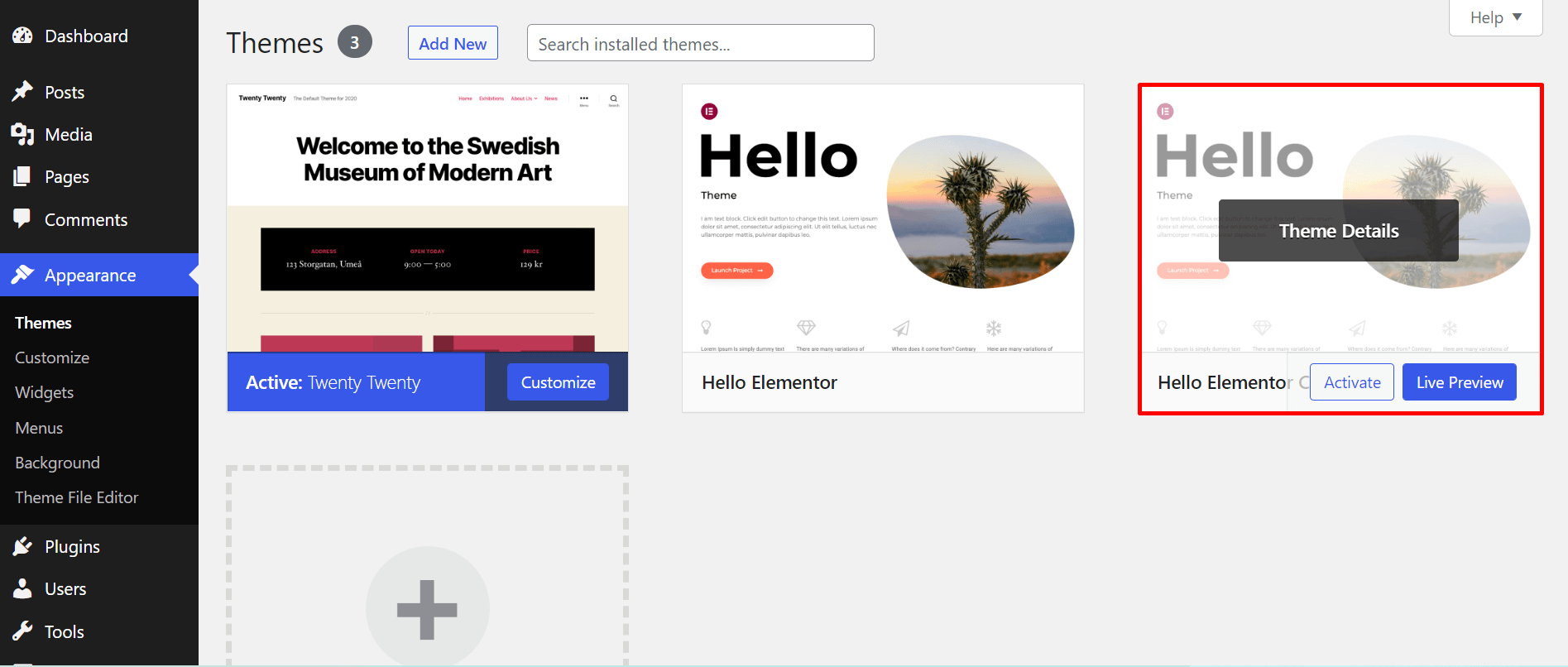
First, open your WordPress Dashboard. Look for the Appearance menu on the left. Click on it, then select Themes. You will see a list of available themes. Find your child theme and click the Activate button. This will make your child theme the active theme on your site. Ensure all changes are saved before exiting.
Troubleshooting Activation Issues
Sometimes, the child theme might not activate. Check if the parent theme is installed. The child theme needs the parent theme to work. If the theme still won’t activate, there might be a coding error. Double-check the style.css and functions.php files. Look for any mistakes in the code. Fix them and try activating the child theme again.
Customizing Your Child Theme
Custom CSS changes the look of your site. Make your site unique. Add colors, fonts, and layouts. Use the child theme’s style.css file. Open the file in a text editor. Write your CSS code. Save changes. See the result on your website. Always test your CSS changes. Check on different devices. Ensure your site looks good everywhere.
Theme templates are files that shape your site’s design. You can edit these files. Copy the template file from the main theme. Paste it into the child theme folder. Edit the file with a text editor. Change HTML or PHP code. Save your changes. Preview your site. See the changes you made. Only change files you understand. Mistakes can break your site. Backup your files before editing.
Testing The Child Theme
Cross-browser testing is very important. Your website should work on all browsers. Check on Chrome, Firefox, and Safari. Some designs look different on each one. Fix any issues you find. This ensures a good experience for everyone.
Mobile responsiveness is crucial. Many people use phones to browse. Your site must look good on small screens. Test on different devices. Try a phone and a tablet. Make sure buttons are easy to click. Text should be readable without zooming. A good mobile site makes users happy.

Credit: qodeinteractive.com
Maintaining Your Child Theme
Installing a child theme in WordPress helps preserve customizations when updating the parent theme. First, create a new folder in your theme directory. Then, add a style. css and functions. php file. Finally, activate your new child theme from the WordPress dashboard to maintain your design changes effortlessly.
Updating The Parent Theme
The parent theme gets updates often. Always update it. This keeps your child theme safe. Updating your parent theme is important. It fixes bugs. It improves security. It adds new features. Before updating, check compatibility. Make sure your child theme works with the new version. Sometimes updates can break things. Be careful.
Regular Backup Practices
Backing up is crucial. Create backups regularly. This protects your data. Use plugins to automate backups. Store backups in safe places. Cloud storage is a good option. Backups save you if something goes wrong. Restoring from a backup is easy. This keeps your website running smoothly. Backups give peace of mind.
Credit: happyaddons.com
Frequently Asked Questions
What Is A Child Theme In WordPress?
A child theme in WordPress is a theme that inherits functionalities from another theme called the parent theme. It allows you to modify or add custom features while preserving the original theme’s code. This approach ensures updates to the parent theme won’t override your customizations, maintaining your site’s unique design.
Why Should I Use A Child Theme?
Using a child theme ensures your customizations are safe when updating the parent theme. Without a child theme, updates could erase your modifications. It also allows you to experiment with new features or styles without affecting the original theme, providing a flexible development environment.
How Do I Create A Child Theme?
To create a child theme, first, create a new folder in the themes directory. Then, add a style. css file with the template and theme name. Optionally, include a functions. php file for additional functionality. Activate the child theme in the WordPress dashboard to start using it.
Can Child Themes Affect Site Performance?
Child themes generally don’t affect site performance negatively. They rely on the parent theme for core functionalities, ensuring efficient loading. However, poorly coded customizations in a child theme can impact performance. It’s crucial to optimize any additional scripts or styles to maintain optimal site speed.
Conclusion
Installing a child theme in WordPress is a simple task. It protects your customizations. You can update the parent theme without losing changes. Follow these steps for a smooth process. First, create a new folder for your child theme. Next, make a style.
css file. Add necessary code to link it to the parent theme. Don’t forget to activate your child theme. Test your website to ensure everything works. Enjoy the new look and feel. Keep learning and exploring WordPress features. With practice, you’ll become more confident.
Happy customizing!


