
Are you looking to customize your WordPress website without risking the integrity of your main theme? Installing a child theme is the perfect solution.
It allows you to tweak and modify your site’s appearance without altering the core files. This way, you can safely experiment with design changes and updates. In this guide, you’ll discover a simple, step-by-step process to install a child theme on WordPress.
By the end, you’ll gain the confidence to enhance your website’s look while keeping your main theme’s updates intact. Curious about how this can transform your site? Keep reading to unlock the potential of a child theme and make your WordPress site truly your own.
What Is A Child Theme?
A child theme is a special theme in WordPress. It lets you make changes without affecting the main theme. This means you can customize your site easily. Your changes stay safe during updates. Parent themes provide the basic look. Child themes let you tweak it. You can add new styles or functions. Using a child theme is smart. It helps keep your website running smoothly.
Creating a child theme is simple. First, make a new folder in your themes directory. Then, create a style.css file. This file should have details about your child theme. Use it to add your custom styles. You also need a functions.php file. This file is for extra functions. You can add new features here. Remember to activate your child theme in WordPress.
Why Use A Child Theme?
A child theme lets you make changes without losing them after an update. It keeps your website safe from unexpected design changes. Original theme updates are easier. You can try new designs without fear. It’s like having a copy of your main theme. Changes are reversible. You can fix errors quickly. A child theme is simple to install.
It helps keep your website unique and personalized. Customization is more flexible. You learn more about coding. A child theme helps beginners. Errors are less damaging. You can focus on creativity. Your website stays fresh. Important for keeping your site secure.
Preparing For Installation
Always back up your site before changes. Use a reliable plugin or service. This ensures no data is lost. Mistakes can happen. A backup is your safety net. Many options are available. Most are easy to use. Choose one that suits you best.
Pick a parent theme that you love. Ensure it is stable and updated. Popular themes have more support. Read reviews before deciding. Check if it fits your needs. A good parent theme is key. It affects your site’s look and feel.

Credit: qodeinteractive.com
Creating A Child Theme Folder
Choose a name for your child theme folder. Use the name of the main theme. Add “-child” at the end. For example, if your theme is “OceanWP,” the folder name is “OceanWP-child.” Make sure the name has no spaces. Use lowercase letters for the name. This helps in avoiding errors.
Open your file manager. Locate the wp-content/themes directory. Create a new folder here. Use the name you chose earlier. This folder will hold your child theme files. Check if the folder is in the right place. The directory path should look like this: wp-content/themes/yourtheme-child.
Adding Style And Functionality
Boost your website’s appeal by installing a child theme on WordPress. This method enhances both style and functionality. Customize designs safely without altering the main theme’s code.
Creating Style.css
Begin by creating a style.css file in your child theme folder. This file is important for adding styles. Copy and paste the below code to start:
/ Theme Name: Child Theme
   Template: ParentTheme /
Add your CSS rules after this code. This file controls the appearance. It overrides the parent theme styles. Keep your styles simple for easy updates.
Setting Up Functions.php
The functions.php file adds new functionality. Create this file in your child theme folder. Copy the below code to start:
This code loads the parent theme styles. You can add your custom functions here. This helps extend features without editing the parent theme. Use simple functions for better performance.
Enqueuing Parent Theme Styles
Start by creating a new file in your child theme folder. Name it functions.php. This file helps your child theme get the style of the parent theme. Use the function wp_enqueue_style in this file. This function adds the parent theme’s style to the child theme.
Add this code to your functions.php file:
php
            function my_theme_enqueue_styles() {
                wp_enqueue_style('parent-style', get_template_directory_uri() . '/style.css');
            }
            add_action('wp_enqueue_scripts', 'my_theme_enqueue_styles');
            ?
This code links your child theme to the parent theme’s styles. Now, your child theme will look like the parent theme. Always check for typos in the code. Correct code is very important.
Activating The Child Theme
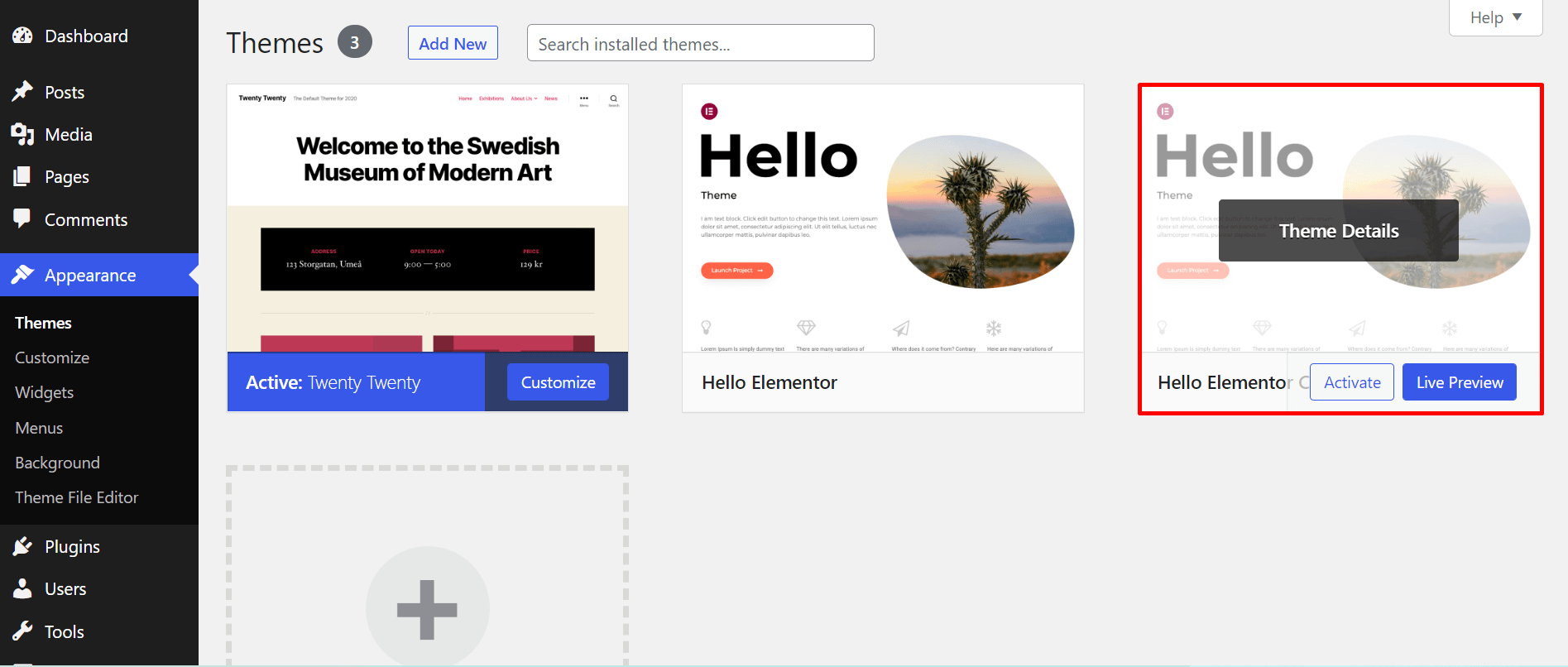
Activate a child theme in WordPress by navigating to the Appearance menu. Select Themes, then choose and activate your installed child theme. This ensures your customizations remain safe during updates.
Accessing WordPress Dashboard
First, log in to your WordPress Dashboard. Use your username and password. Look for the Appearance option on the left. Click it to see themes. This is where you find your installed themes.
Switching To Child Theme
In the themes section, locate your Child Theme. Click on it to activate. A preview will appear. Ensure it looks correct. Finally, click the Activate button. Your site now uses the child theme. This helps keep custom changes safe.
Testing Your Child Theme
Checking Site Appearance: Start by viewing your website. Ensure your site looks good. Check colors and fonts. Look for any layout changes. Ensure images display correctly. Test on different devices. Use a computer and a phone. See if everything fits well. Check for broken links. Make sure text is easy to read. Verify that menus function properly.
Verifying Functionality: Test your site’s features. Click buttons and links. Ensure they work as expected. Check forms and widgets. Make sure they function correctly. Test your site’s speed. Make sure it loads quickly. Check for error messages. Ensure there are none. Verify any custom code. Ensure it works without problems. Test plugins for compatibility. Make sure they do not cause issues. Look for bugs and glitches. Fix any problems you find.
Troubleshooting Common Issues
Installing a child theme on WordPress can sometimes be confusing. Ensure your parent theme is installed first. Then, upload the child theme folder via FTP or the WordPress dashboard. Activate it to start customizing your website safely.
Resolving Errors
Errors might pop up during installation. Double-check the child theme’s folder name. It must match the parent theme’s style. Ensure the functions.php file is not missing. This file helps your child theme work. Sometimes, the style.css file might have issues. Check for any spelling mistakes. Correct them to fix the error.
Permissions can also block installation. Make sure your files have the right permissions. Check your hosting settings too. They might cause some errors. Always keep a backup before making changes. It saves you from losing data.
Fixing Style Conflicts
Style conflicts can change your site’s look. Compare the parent and child themes. Ensure they have no duplicate styles. Remove any extra CSS that is not needed. This helps in reducing conflicts. Test your site after changes.
Use a browser tool to inspect styles. Identify and fix any overlapping styles. Keep your code clean for better results. Always preview changes before saving. This helps in spotting errors early.
Credit: www.wpbeginner.com
Maintaining Your Child Theme
Updating Parent Theme is crucial. It keeps your site secure. First, back up your site. This prevents data loss. Then, update your parent theme. Use the latest version. It often has fixes. After updating, check your child theme. See if everything works. Sometimes updates break features. You may need to fix them.
Customizing Further adds a personal touch. You can change colors. Or adjust fonts. Add more features if needed. Use CSS for visual changes. PHP can tweak functionality. Always test changes on a local server. This prevents site issues. If a mistake happens, fix it before uploading. Keep your site’s uniqueness. It attracts visitors. Always be careful with custom changes.
Credit: happyaddons.com
Frequently Asked Questions
What Is A Child Theme In WordPress?
A child theme in WordPress is a theme that inherits the functionality and styling of another theme, called the parent theme. It allows you to modify and customize your site’s appearance without altering the parent theme’s core files. This ensures updates to the parent theme won’t overwrite your changes.
Why Use A Child Theme In WordPress?
Using a child theme in WordPress allows you to customize your site’s appearance and functionality safely. It preserves your changes when the parent theme updates. This means you can update the parent theme without losing your customizations, ensuring your site remains up-to-date and secure.
How Do I Create A Child Theme In WordPress?
To create a child theme in WordPress, first create a new folder in the themes directory. Then, add a style. css file with a specific header comment to link it to the parent theme. Finally, create a functions. php file to enqueue the parent theme’s styles.
Activate the child theme via the WordPress dashboard.
Can I Use A Child Theme With Any WordPress Theme?
Yes, you can use a child theme with any WordPress theme. Child themes are designed to work with all parent themes, allowing customization without altering the original theme files. However, compatibility might vary depending on the parent theme’s structure and features, so always check the theme’s documentation.
Conclusion
Installing a child theme on WordPress is simple and essential. It helps keep your site safe during updates. Just follow the steps outlined above. First, create your child theme folder. Next, add the necessary stylesheet. Finally, activate your new child theme.
This process gives you a custom site while protecting your work. Make sure to test the theme after installation. This ensures everything works as expected. By using a child theme, you get flexibility and security. Your site stays unique and functional.
Keep exploring and enhance your WordPress skills. Happy creating!


