
Are you looking to customize your WordPress site without losing those crucial updates? Installing a child theme is your perfect solution.
You might wonder why this step is essential or how it can benefit your website’s design and functionality. Imagine having the freedom to tweak your site’s appearance without the fear of losing your changes with the next update. This is where a child theme shines.
It not only safeguards your customizations but also keeps your main theme intact. By the end of this guide, you’ll feel empowered to make your WordPress site uniquely yours, while ensuring it remains up-to-date. Ready to discover how easy it is to install a child theme? Let’s dive in and transform your website into the masterpiece you’ve envisioned.
What Is A Child Theme
A child theme is a special type of theme in WordPress. It inherits its look from another theme, called the parent theme. This means you can make changes without affecting the main theme. This keeps your website safe during updates. You can change styles, add new features, and keep your site unique.
Making a child theme is simple. You need a few files. These files include a style.css and a functions.php. These files help to link with the parent theme. Many people use child themes to try new designs. It is safe and easy.
Benefits Of Using A Child Theme
Child themes are like a safety net for your website. They allow changes without breaking the main theme. This keeps the original design safe. Updates to the main theme will not affect your changes. Easy customization is another plus. You can tweak designs and features without fear. This helps keep your site fresh and unique.
Learning becomes fun with child themes. You explore coding without risks. Mistakes will not ruin your site. Enjoy the freedom to test new ideas. Save time on fixes and updates. Child themes ensure your changes remain intact. A great tool for beginners and experts alike.
Prerequisites For Installation
To install a child theme in WordPress, ensure the parent theme is installed first. A basic understanding of FTP and WordPress dashboard is needed. Confirm compatibility between parent and child themes to avoid issues during installation.
Required Tools
To install a child theme, you need a few tools. First, a good text editor is essential. It helps you edit theme files easily. Examples include Notepad++ or Sublime Text. Next, make sure you have a FTP client. This lets you access your site files. FileZilla is a popular choice. Lastly, ensure you have a basic understanding of WordPress themes. This knowledge will help you in setting up the child theme.
Preparing Your WordPress Site
Start by backing up your site. This keeps your data safe. Use a plugin like UpdraftPlus. Then, ensure your WordPress version is up-to-date. This prevents issues during installation. Also, deactivate any unnecessary plugins. This can improve the process. Finally, identify the parent theme you want to modify. This is crucial for child theme setup.

Credit: qodeinteractive.com
Creating A Child Theme Manually
Installing a child theme in WordPress involves creating a new folder in the themes directory. This folder should contain a style. css file with specific header information. Additionally, ensure you have a functions. php file to enqueue the parent theme’s styles.
Setting Up The Folder Structure
Create a new folder inside the wp-content/themes directory. Name it after your child theme. The folder name should be simple and easy to remember. This folder will hold all your child theme files.
Creating The Style.css File
Open a text editor and create a new file. Name it style.css. Add this code at the top:
/
 Theme Name:   Your Child Theme Name
 Template:     Parent Theme Folder Name
/
Save the file in the child theme folder. This file is important for styling.
Enqueuing Styles With Functions.php
Create another file in the child theme folder. Name it functions.php. Add this code:
php
function my_theme_enqueue_styles() {
    wp_enqueue_style('parent-style', get_template_directory_uri() . '/style.css');
}
add_action('wp_enqueue_scripts', 'my_theme_enqueue_styles');
?
This code loads the parent theme’s styles. Save the file when done.
Using A Plugin For Child Theme
Installing a child theme in WordPress becomes simple with a plugin. This tool helps you create and manage your child theme effortlessly. Enhance your website’s design without altering the main theme’s core files.
Popular Plugins For Child Themes
Some plugins can help create child themes easily. Child Theme Configurator is one popular choice. One-Click Child Theme is another favorite. These plugins make setup quick. They are user-friendly. They save time for beginners.
Step-by-step Plugin Installation
First, go to the plugins area. Search for your chosen plugin. Click install next to the plugin name. Wait for installation to finish. After that, press activate. The plugin will now be ready to use. Follow instructions in the plugin. You can now make your child theme.
Activating Your Child Theme
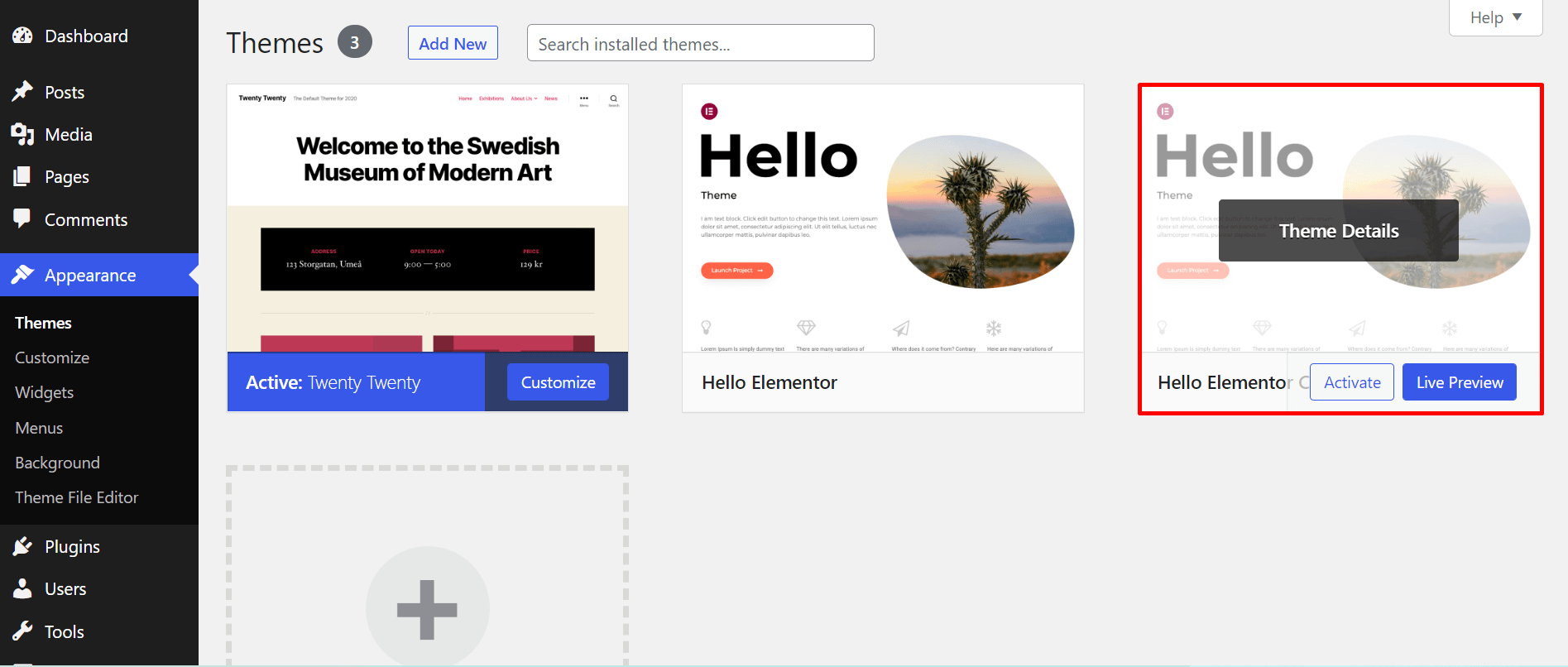
Switching to a child theme is easy. Go to your WordPress dashboard. Click on Appearance and then Themes. You will see a list of themes. Find your child theme. Click on Activate. Your site now uses the child theme.
Switching From Parent To Child Theme
Switching themes does not affect your content. Your posts and pages stay the same. Some settings might change. Check your website after switching. Make sure it looks right. Adjust settings if needed.
Verifying The Installation
Visit your website in a browser. Look for changes in design. The child theme should show now. Check the header and footer for differences. Look for errors or missing parts. Fix them if you find any. Your child theme is ready to use.
Customizing Your Child Theme
Installing a child theme in WordPress enhances customization without altering the original theme files. Begin by creating a new folder in the themes directory. Add a style. css file with essential details. Then, activate the child theme through the WordPress dashboard for a personalized touch.
Editing Styles And Templates
To change your child theme, start by editing the style.css file. This file controls the look of your site. Use a text editor to open it. Adjust the colors, fonts, and layouts to fit your needs. Save changes to see them on your site.
Templates are in .php files. Edit these to change the structure. Use caution, as changes can affect site functions. Always back up your files first.
Using Custom Functions
Add custom functions to your functions.php file. This file lets you add new features. Write your code carefully. Test on a local server first. Make sure there are no errors. Errors can break your site.
Use code snippets from trusted sources. This ensures your site stays safe. Keep functions simple and clear. This makes it easier to fix problems later.
Credit: happyaddons.com
Common Issues And Troubleshooting
Installing a child theme in WordPress often leads to confusion. Problems may arise with broken styles or missing functionality. Troubleshooting involves ensuring proper file structure and accurate stylesheet links to the parent theme.
Style Conflicts
Style conflicts occur when the child theme’s styles clash with the parent theme’s. Colors might not match. Fonts can look strange. Fix this by checking the CSS files. Ensure the child theme’s stylesheets load correctly. Use browser tools to inspect elements. Identify where styles come from. You might need to override certain styles. Use !important in CSS if necessary. Keep styles consistent across the site.
Function Errors
Function errors can break your site. Missing functions cause issues. Check the functions.php file in the child theme. Ensure functions match those in the parent theme. Update or copy necessary functions from the parent theme. Errors may show in the error log. Inspect error messages carefully. They guide you to the problem. Ensure all functions are correctly coded. Avoid using deprecated functions. Keep both themes updated for best compatibility.
Best Practices For Child Themes
Keep your child theme updated. This helps with security and performance. Update the parent theme regularly. Check for updates often. Backup your website before updating.
Backups protect your work. Save your files in a safe place. Use plugins for easy backups. Restore your site quickly if needed. Regular updates and backups make your site safe and stable.
Credit: www.wpbeginner.com
Frequently Asked Questions
What Is A Child Theme In WordPress?
A child theme in WordPress is a sub-theme that inherits the functionality and styling of another theme, called the parent theme. It allows you to modify or add to the existing design without altering the original theme files. This ensures your customizations remain intact even after the parent theme is updated.
Why Use A Child Theme In WordPress?
Using a child theme in WordPress lets you safely customize your website. It protects your changes during parent theme updates, ensuring your customizations remain intact. Child themes also make it easier to revert to the original design if needed, providing flexibility and security in your design process.
How Do I Create A Child Theme In WordPress?
To create a child theme, create a new folder in your themes directory. Add a style. css and functions. php file. In style. css, include details like Theme Name and Template. Then, enqueue the parent theme’s stylesheet in functions. php.
Activate your child theme via the WordPress dashboard.
Can I Customize A Child Theme?
Yes, you can customize a child theme extensively. By modifying the style. css and functions. php files, you can change styles and add new features. You can also override specific template files from the parent theme. This allows for significant design and functionality changes without altering the original theme.
Conclusion
Installing a child theme in WordPress is easy and helpful. It protects your custom changes from updates. Follow the steps to ensure a smooth setup. First, create a new folder for your child theme. Next, add a style. css and functions.
php file. Copy necessary code from the parent theme. Activate your child theme through the WordPress dashboard. Enjoy customizing without worries. Your WordPress site stays updated and unique. Practice makes perfect. Keep exploring and learning more about WordPress features. Your site will grow with your skills.
Happy blogging!


