
Are you ready to take your WordPress site to the next level? Installing a child theme is a powerful yet straightforward way to customize your website without risking the loss of your hard work during updates.
You might be wondering, “Why should I bother with a child theme? ” Imagine having the freedom to tweak design elements and functionalities while keeping your main theme safe and sound. This guide will walk you through the simple steps to install a child theme in WordPress 4.
Whether you’re a seasoned developer or a WordPress newbie, you’ll find the process easier than you think. By the end of this article, you’ll have the confidence to personalize your site just the way you want. Let’s get started!
Why Use A Child Theme
Creating a child theme helps keep your website safe. It protects your changes from being erased. Parent theme updates won’t affect your work. Your site stays updated and customized.
A child theme lets you try new designs easily. Mistakes are not harmful. Your main theme remains intact. Experiment without fear.
Child themes are easy to make. They require simple steps. You need basic coding skills. Anyone can learn quickly. Many online tutorials offer help.
Child themes enhance your site’s look. Add special features smoothly. Make your site unique. Stand out from others.
Using a child theme is smart. It saves time and effort. You can focus on creativity. Ensure your site is both functional and beautiful.
Preparing For Installation
Backing up is crucial. It saves your work. Use a plugin for backup. Plugins like UpdraftPlus help. Save files to your computer. Store them safely. Check backups regularly. Ensure files are complete. This protects your site.
Select a theme. It should match your needs. Look for popular themes. They get regular updates. Check reviews online. Users share feedback. Choose a theme with good support. Make sure it’s compatible with WordPress 4. A good theme makes your site fast.
Creating A Child Theme Folder
First, open your website’s files with an FTP client or File Manager. These tools help you see your website’s structure. Look for the wp-content folder. Inside, you will find another folder named themes.
Create a new folder inside themes. The folder name should match the parent theme’s name. Add -child at the end of the name. For example, if the theme is twentytwenty, name the folder twentytwenty-child. This naming helps WordPress identify your child theme easily.
Adding The Style.css File
To install a child theme in WordPress 4, add a style. css file. This file customizes the look of your website. Make sure the style. css file includes essential information like the theme name and template.
Writing The Header Comment
The style.css file starts with a special comment. This is called the header comment. It tells WordPress important info. Like the theme’s name and the parent theme. You can write this comment at the top of the file. Use this format:
| / |
| Theme Name: Your Child Theme |
| Template: Parent Theme Name |
| / |
Importing Parent Theme Styles
The child theme needs the parent theme’s styles. We do this with @import. Write this under the header comment. Use this line: @import url("../parent-theme/style.css");. Replace parent-theme with your theme’s name. This makes your child theme look like the parent. You can add your own styles too.
Setting Up Functions.php File
To set up the functions. php file, first install a child theme in WordPress 4. Create a new folder in the themes directory and add a style. css file. Then, create a functions. php file to customize features without altering the parent theme’s core files.
Creating The File
Create a new file named functions.php. Place it in your child theme folder. This file will hold your custom code. It’s like a computer’s brain. You can add code to change how your site works. Be careful when adding code. Mistakes can cause problems.
Enqueuing Parent Styles
Use wp_enqueue_style to load parent styles. This makes your child theme look like the parent theme. First, call the parent theme’s style. Then, add your child theme’s style. Use get_template_directory_uri() for parent styles. Use get_stylesheet_directory_uri() for child styles. Code goes in functions.php.
Credit: www.wpbeginner.com
Activating Your Child Theme
Set up a child theme in WordPress 4 easily. Download your child theme. Upload it to your WordPress site. Activate through the Appearance menu. Ensure all settings are correct. Customize without affecting the main theme. Enjoy safe updates and unique designs.
Using The WordPress Dashboard
Access the WordPress Dashboard first. Find the Appearance section on the left menu. Click on Themes. A new page will open. You can see all your themes here. Look for your child theme. It should be listed.
Hover over the child theme. A button named Activate will appear. Click the button. Your child theme is now active. You can see a success message. This means you did it right.
Verifying The Installation
Check your website after activating. It should look fine. If not, return to the dashboard. Ensure all files are in place. Sometimes a file may be missing. If you see errors, fix them.
Go to Appearance and then Editor. Check the files. Ensure the style.css file is correct. This ensures your child theme is working. Your site should look good now.
Customizing Your Child Theme
To change your child theme, open the style.css file. This file holds all the CSS rules. Edit the rules to change colors, fonts, and layouts. Use easy commands like color or font-size. Save the file after changes. Refresh your site to see changes.
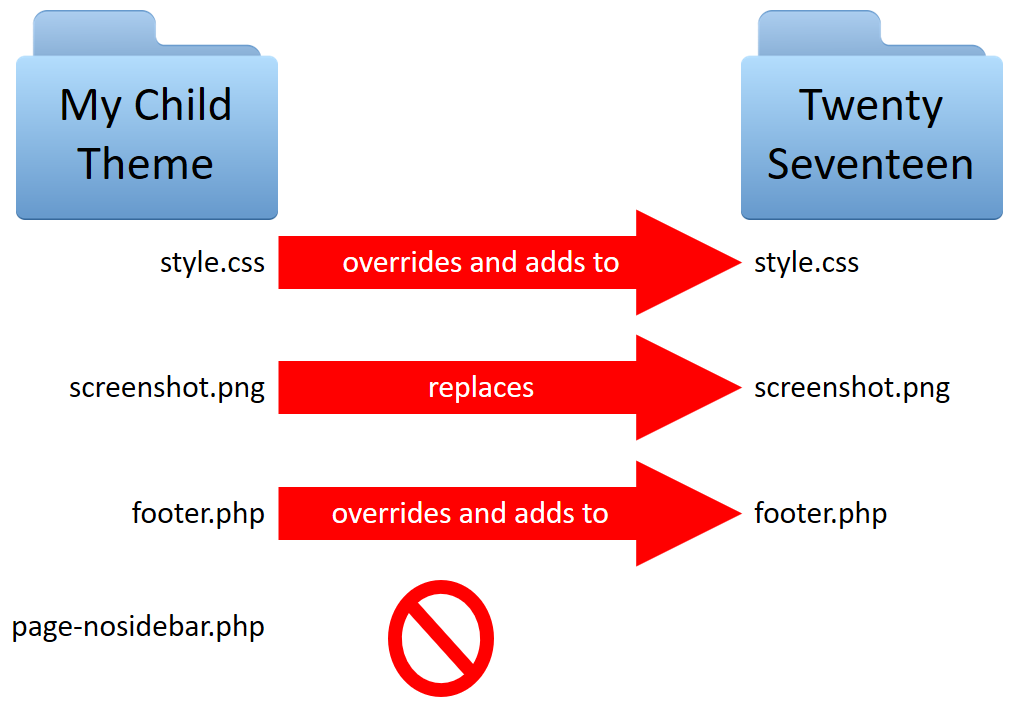
Custom templates let you change the look of pages. First, copy the template files from the parent theme. Paste them into your child theme folder. Edit these files to add new features. Use basic HTML and PHP code. Templates help make each page unique.
Credit: learn.wordpress.org
Troubleshooting Common Issues
Installing a child theme in WordPress 4 can sometimes be tricky. Common issues include incorrect file structure or missing stylesheet. Ensure the child theme folder is properly named and contains a style. css file.
Resolving Style Conflicts
Style problems can happen after installing a child theme. Often, styles from the parent theme and child theme clash. This can make your site look messy or broken. Begin by checking the CSS files. Ensure they load in the correct order. Parent theme styles should come first. Child theme styles should load second. This helps to override any unwanted styling. Use developer tools in your browser to spot errors. Look for styles that don’t apply as expected. Adjust the CSS in your child theme to fix these issues. For tricky problems, you might need to edit the functions.php file. This requires some coding knowledge. Sometimes, simply refreshing the browser can solve minor conflicts.
Dealing With Missing Features
Missing features can be a headache. They occur if the child theme doesn’t inherit all functions. Check if the parent theme has updated recently. Updates can cause features to disappear. Compare the functions.php file of both themes. Make sure all necessary functions are present in the child theme. If a feature is still missing, it might need to be added manually. First, look for plugins that can help restore missing features. Plugins can be a quick fix. If plugins don’t work, consider copying code from the parent theme to the child theme. This is advanced and should be done carefully. Always back up your site before making major changes.

Credit: learn.wordpress.org
Frequently Asked Questions
What Is A Child Theme In WordPress?
A child theme in WordPress is a theme that inherits the functionality and styling of another theme, called the parent theme. It allows you to modify or add to the parent theme’s features without altering the original files. This helps in preserving changes during theme updates.
Why Use A Child Theme In WordPress?
Using a child theme helps you customize your WordPress site without changing the parent theme’s code. This ensures that updates to the parent theme won’t erase your customizations. It also allows for safer experimentation and a more organized development process, making site management easier.
How Do I Create A Child Theme Folder?
To create a child theme folder, access your WordPress installation via FTP or a file manager. Navigate to wp-content/themes and create a new folder. Name it uniquely, often using the parent theme name with “-child” suffix. This folder will contain your child theme’s files.
What Files Are Needed For A Child Theme?
A basic child theme needs two files: style. css and functions. php. The style. css file contains theme information and custom styles. The functions. php file allows you to enqueue styles and scripts. You can add more files as needed for additional customization.
Conclusion
Installing a child theme in WordPress 4 is simple and effective. It protects your customizations during theme updates. Follow the steps carefully for best results. Create a new directory, add the style. css file, and import the parent theme’s stylesheet.
Activate your child theme in the WordPress dashboard. Done! Your website now has a custom look. Enjoy the flexibility it offers. Explore more customization options as you grow. Remember, practice makes perfect. Keep experimenting and learning. Your WordPress skills will improve over time.
Happy customizing!


