
Are you ready to give your WordPress site a fresh new look? Installing a custom theme could be the game-changer you need to captivate your audience and set your site apart from the competition.
Imagine your website not only looking stunning but also functioning smoothly, all while perfectly reflecting your brand’s unique personality. Sounds enticing, right? In this guide, you’ll discover just how simple it is to install a custom theme on WordPress, even if you’re not a tech wizard.
We’ll walk you through each step, making sure you have all the tools you need to transform your website into a visual masterpiece. Ready to dive in and unlock the potential of your WordPress site? Let’s get started!

Credit: www.hostdime.com
Choosing A Custom Theme
Decide what your website needs. Is it a blog or a store? A simple blog needs a clean design. An online store needs shopping features. Think about your site’s purpose. Write down the important features. Think about colors and style. Make a list of what you like.
Visit theme marketplaces like ThemeForest and WordPress.org. Look at different themes. Each theme has unique designs. Some are free, some cost money. Check ratings and reviews. Popular themes are often well-supported. Download themes that you like. Try to choose themes that match your list.
Look at the theme’s features. Does it have customization options? Can you change colors and fonts? Some themes support plugins. Check if it works on phones and tablets. Responsive themes are important. Make sure it fits your needs. Compare features of different themes. Choose the best one for your site.
Preparing For Installation
It’s vital to backup your website before any changes. Use plugins like UpdraftPlus to save your data. Backing up helps if things go wrong. You can quickly restore your site.
Check if the theme works with your current WordPress version. Some themes need the latest version. Look for any theme requirements on the theme page. Check if it needs extra plugins.
Download the theme files from a trusted source. You might get a .zip file. Keep it in an easy-to-find folder. You might need a license key for some themes. Note it down.
Installing Via WordPress Dashboard
Go to your WordPress dashboard. Click on Appearance in the menu. Find the Themes option. This section lets you manage themes.
Click on Add New. Then, choose Upload Theme. Select the theme file from your computer. Make sure it is in .zip format. Click Install Now to upload.
Once uploaded, find your theme under themes. Click Activate to use the theme. This makes the theme live on your site. Check your site to see the changes.

Credit: wordpress.com
Installing Via Ftp
First, get FTP software. FileZilla is a good choice. Install it on your computer. Find your FTP login details. These details come from your web host. Open the software and enter these details. Connect to your website. You will see your website files.
Find the theme folder on your computer. Themes come in zip files. Unzip the file first. Look for the folder with theme files. In the FTP software, find the wp-content/themes folder. Drag the theme folder into this area. Wait for the upload to finish.
Go to your WordPress dashboard. Log in with your username. Click on Appearance in the menu. Choose Themes. Find the new theme you uploaded. Click Activate. Your new theme is now active.
Customizing The Theme
The WordPress Customizer is a simple tool. It helps change your theme’s look. You can change colors, fonts, and layout. Just navigate to “Appearance” and then “Customize”. Here, you can see changes live. This makes it easy to find the best look.
Some themes need extra code. This helps add special features. Use a child theme for this. This keeps your changes safe. You can add code in the functions.php file. Always back up your site before adding code. This prevents loss if something goes wrong.
Page builders make designing easy. They offer drag-and-drop options. Popular ones include Elementor and WPBakery. These tools help create beautiful pages fast. They offer many templates. You can customize them to fit your needs. Page builders are great for beginners.
Troubleshooting Common Issues
Installing a custom theme on WordPress can be tricky. Issues like theme incompatibility or upload errors often arise. Ensure your theme is compatible with your WordPress version and check file permissions to resolve common problems.
Resolving Installation Errors
Installing a theme can sometimes show errors. Check your internet connection first. Make sure the theme file is not corrupted. Download it again if needed. Ensure you have the correct file format. Usually, it’s a .zip file. If problems persist, contact the theme’s support team.
Fixing Display Problems
Themes may not display as expected. Clear your browser’s cache. This helps in loading the new design. Check for updates for your theme. An outdated theme might cause display issues. Adjust your screen resolution if needed. This ensures everything fits well on your screen.
Ensuring Plugin Compatibility
Some plugins may not work with your theme. Check the theme’s documentation for a list of compatible plugins. Disable plugins one by one. This can help identify the problematic plugin. Consider finding an alternative if a plugin is causing issues. Always keep plugins updated for better compatibility.
Maintaining Your Custom Theme
Regular updates keep your theme secure. These updates fix bugs. They add new features too. Check for updates often. Don’t wait too long to update. This helps your site run smoothly. Themes need updates like apps do. Keep everything up to date.
Monitoring performance is vital. Check how fast your site loads. Slow sites lose visitors. Use tools to test speed. Make sure your site works well. Check it on phones too. A good theme works everywhere. Fast sites are best for users.
Seeking professional help might be needed. Experts know how to fix issues. They can tweak your theme. They can make it better. Sometimes help is needed. If things get hard, ask an expert. They know what to do. They can save you time.
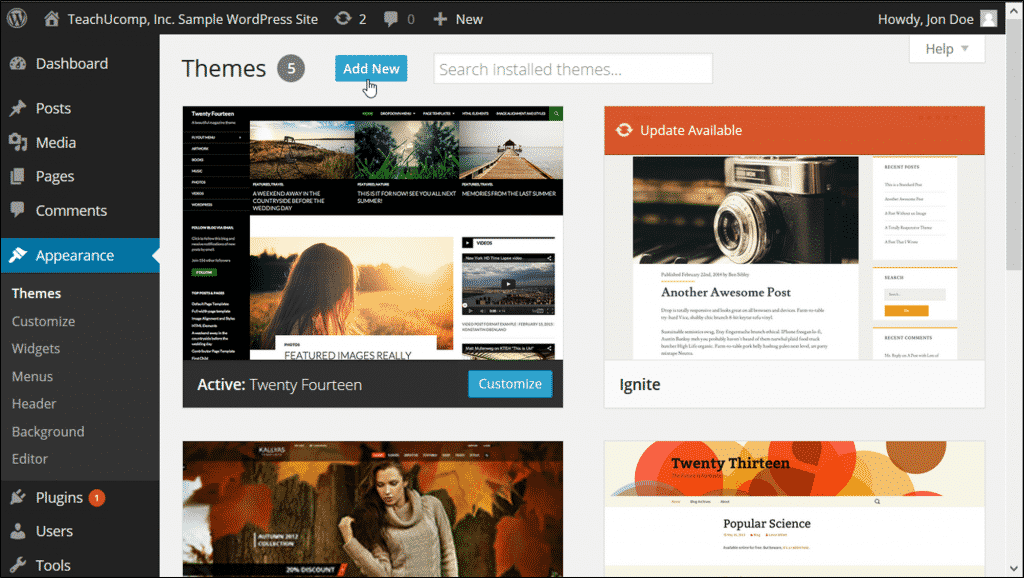
Credit: www.teachucomp.com
Frequently Asked Questions
How Do I Install A Custom Theme In WordPress?
To install a custom theme, go to your WordPress dashboard. Click on “Appearance” then “Themes. ” Choose “Add New” and “Upload Theme. ” Select your theme file and click “Install Now. ” After installation, activate the theme to see it on your site.
Can I Upload Themes From My Computer?
Yes, you can upload themes from your computer. Navigate to “Appearance” > “Themes” > “Add New” > “Upload Theme. ” Choose the theme file from your computer and click “Install Now. ” Activate it to make it live on your WordPress site.
What File Format Should My Theme Be In?
Your theme file should be in a. zip format. WordPress requires the theme files to be compressed into a. zip archive for uploading. Ensure the theme is properly packaged before attempting installation.
Is It Safe To Install Custom Themes?
Installing custom themes is generally safe if sourced from reputable developers. Always check theme reviews and ratings. Ensure themes are updated regularly and compatible with your WordPress version to avoid security risks.
Conclusion
Installing a custom WordPress theme is simple. Follow the steps carefully. Choose a theme that fits your style. Download and upload it to WordPress. Activate the theme in your dashboard. Customize as needed for a personal touch. Troubleshoot any issues promptly.
Enjoy your unique website design. This process enhances your site’s look effortlessly. Regularly update your theme for security. Keep exploring new themes for fresh designs. With practice, it becomes second nature. Your website can always stand out. Happy customizing!


