
Are you looking to enhance your WordPress site with engaging video content? Videos can captivate your audience, convey your message more effectively, and keep visitors on your page longer.
But figuring out how to seamlessly insert a video into your WordPress theme can be tricky. Don’t worry; you’re not alone. Many website owners face this challenge, and the good news is, it’s easier than you might think. In this guide, you’ll discover simple steps to add videos to your WordPress theme, helping you elevate your site’s visual appeal and user engagement effortlessly.
Stay with us, and you’ll soon be transforming your site into a dynamic, multimedia experience that your visitors will love.
Credit: www.inmotionhosting.com
Choosing The Right Video Format
Picking the correct video format is key for your website. MP4 is the most common format. It works on almost all devices. WebM is another option. It is good for web browsers. AVI might be large in size. Check your hosting limits.
Quality matters. Higher quality means bigger files. Smaller files are faster to load. Resolution should fit your design. Try 720p or 1080p for clarity. Compatibility is crucial. Ensure it plays on different browsers.
Simple formats are better. They are easy to upload. They are easy to play. Formats like MP4 or WebM are recommended. They work well online.
Uploading Video To WordPress
First, go to the dashboard. Click on Media and then Add New. Choose the video you want to upload. Make sure the file is not too big. WordPress has size limits. After uploading, copy the URL of the video. You will use this in your post or page. It’s that simple!
Use FTP for larger video files. Connect to your WordPress site using an FTP client. Find the folder named wp-content/uploads. Upload your video file there. After uploading, copy the video link from the FTP client. This link can be added to your post. This method is great for larger files.
Embedding Video With Gutenberg
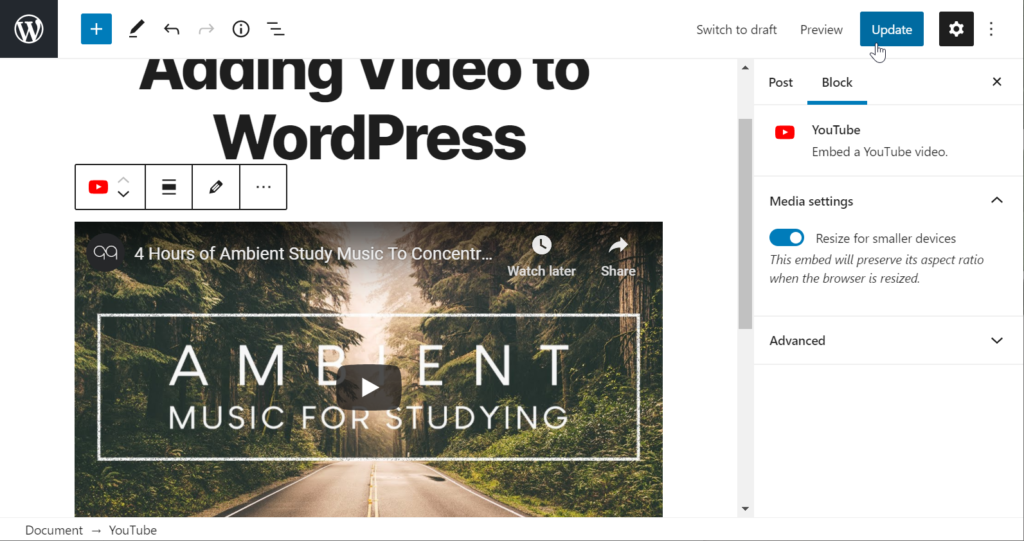
Gutenberg makes adding videos simple. First, open your WordPress editor. Find the Video Block under the block options. Click to add it to your page. Now, you can upload a video from your computer. Or, paste a URL from YouTube or Vimeo. Your video will appear right away. Make sure your video is clear and relevant. This helps keep your audience engaged.
After adding the video, look for settings on the right side. Here, you can adjust the video size and alignment. Choose a size that fits your page well. You can also set the video to autoplay or loop. These options make your video play automatically. But be careful. Some users might find autoplay annoying. Always consider your viewer’s experience.
Adding Video With Classic Editor
Videos make your posts more interesting. They are fun to watch. Follow these steps to add a video.
Using The Add Media Button
Find the Add Media button above the text area. Click it to open the media library. Choose your video from the library. Then click Insert into post. Your video will appear in the post.
Embedding From External Sources
Copy the embed code from sites like YouTube. Paste the code in the text area. Use the Text tab, not the Visual tab. This will show the video in your post.
Utilizing Video Plugins
Video plugins make adding videos easy. They are tools for WordPress. Many plugins are popular for their features. They help videos look good on websites. Some plugins are free, some are paid. Choose the one that fits your need.
Popular Video Plugins
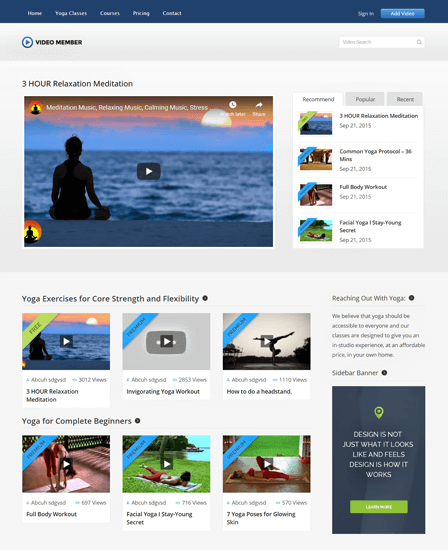
Some plugins are very popular. WP Video Lightbox is good for YouTube and Vimeo. Video Embed & Thumbnail Generator helps with thumbnails. Envira Gallery is great for video galleries. These plugins are easy to use.
Installation And Setup
Installing plugins is simple. First, go to your WordPress dashboard. Click on ‘Plugins’ then ‘Add New’. Search for the plugin name. Click ‘Install Now’. Wait for it to install. After that, click ‘Activate’. Your plugin is ready to use.
Credit: www.inkthemes.com
Optimizing Video For Performance
Videos are often large files. This can slow down your website. To keep your site fast, use video compression tools. These tools make video files smaller. A smaller file loads faster. Your visitors will have a better experience. Many tools for this are free. Try some out and see what works best.
Lazy loading helps load videos only when needed. It waits until the video is near the viewer. This means the page loads faster at first. Use plugins to add lazy load features to your site. They are easy to set up. Your site will run smoother.
Enhancing User Experience
Responsive Video Design makes websites look good on all devices. Videos should fit screens, whether big or small. Use WordPress plugins like Responsive Video Embeds. They help videos adjust size automatically. This means users see videos clearly on phones, tablets, and computers.
Videos need to load fast. Slow videos can annoy visitors. Optimize video size before uploading. Smaller videos load quicker but still look good. Choose formats like MP4. They work well on most devices. Check how videos appear on different screens. Make sure they play smoothly.
Accessibility Considerations
Videos should be easy for everyone to enjoy. Add captions for those who can’t hear. Captions show words spoken in the video. Use plugins that allow captions. Ensure the video player is keyboard-friendly. Some users can’t use a mouse. A keyboard-friendly player helps them control videos.
Provide video transcripts. This is text describing what’s in the video. Transcripts are useful for those who prefer reading. They also help search engines understand video content. Better for SEO.
Troubleshooting Common Issues
Adding videos to a WordPress theme can be tricky. Check your theme’s compatibility with video formats. Use plugins to enhance video support and follow clear steps for embedding.
Video Not Playing
Sometimes videos won’t play on WordPress. This can be frustrating. Check if the video file is supported by your theme. Common formats like MP4 usually work. Ensure the video URL is correct. A wrong URL means the video won’t load.
Compatibility Problems
Different browsers can cause issues. Test your video on multiple browsers. Chrome, Firefox, and Safari may behave differently. Check your theme’s settings. Some themes have specific video settings. Make sure they are set up right. Update your browser and theme regularly. This helps fix compatibility problems.

Credit: www.8theme.com
Frequently Asked Questions
How To Add Video In WordPress Theme?
To add a video, use WordPress’s built-in media uploader. Navigate to the post or page editor, click ‘Add Media,’ then select your video file. You can also embed videos from platforms like YouTube by pasting the video URL directly into the editor.
Can I Use Youtube Videos In WordPress?
Yes, you can easily embed YouTube videos in WordPress. Copy the video URL from YouTube and paste it directly into the WordPress editor. WordPress automatically converts the URL into an embedded video player, making it easy to display YouTube videos on your site.
What Video Formats Does WordPress Support?
WordPress supports several video formats including MP4, MOV, and WMV. MP4 is recommended because it’s widely compatible with most browsers. Ensure your videos are compressed for faster loading times. For best results, use a reliable hosting service to upload your video files.
How To Improve Video Loading Speed?
Improve video loading speed by compressing your video files. Use plugins like WP Rocket or Lazy Load to optimize video delivery. Hosting videos on platforms like YouTube or Vimeo can also enhance loading times, providing a better user experience for visitors.
Conclusion
Embedding videos in your WordPress theme is simple with practice. Videos boost engagement and keep visitors interested. Use plugins for seamless integration. Experiment with different video sizes and placements. Test on mobile and desktop for best results. Avoid clutter for a clean look.
Keep content relevant to your audience. Choose videos that add value to your site. Follow these tips and watch your site grow. Always check for updates to enhance video features. Now, you’re ready to start adding videos effortlessly. Enjoy making your WordPress site dynamic and interactive!


