
Are you looking to make your WordPress site more engaging and visually appealing? Adding a slider to your theme could be the game-changer you need.
A well-designed slider can captivate your visitors from the moment they land on your page, showcasing your best content or products in a dynamic and interactive way. Imagine the increased attention and interest your site could command with just a few simple steps.
In this guide, you’ll discover how to effortlessly insert a slider into your WordPress theme, enhancing user experience and keeping visitors glued to your content. Ready to transform your website? Let’s dive in and unlock the full potential of your WordPress theme.
Credit: slocumthemes.com
Choosing A Slider Plugin
Easily add a slider to your WordPress theme with a plugin. First, install a slider plugin from the WordPress repository. Next, create your slider and use the shortcode to insert it into your theme.
Popular Slider Plugins
Several plugins help create sliders. Slider Revolution offers many features. Users enjoy its flexibility. LayerSlider is known for smooth animations. It works well with many themes. Soliloquy is simple and fast. It is easy for beginners. MetaSlider is great for beginners too. It integrates with themes easily.
Factors To Consider
Choose a plugin that matches your theme. Consider ease of use. Look for plugins with good reviews. Check for responsive design. Ensure compatibility with your WordPress version. Think about customization options. Review the support and updates offered. Some plugins are free. Others require purchase. Decide based on your budget.
Installing A Slider Plugin
Open your WordPress dashboard. Look for the menu on the left. Click on “Plugins”. Then click on “Add New”. A search bar will appear. Type in “Slider”. Choose a plugin you like. Look for the “Install Now” button. Click it. Wait for it to install. Then, click “Activate”. Your slider is ready to use.
First, download the slider plugin file. It should be a .zip file. Go to your WordPress dashboard. Click on “Plugins”, then “Add New”. At the top, click “Upload Plugin”. Choose your downloaded file. Click “Install Now”. Wait for the installation to complete. Finally, click “Activate”. Your plugin is now active.
Creating A New Slider
To create a new slider, first, install a slider plugin. Popular choices are Smart Slider 3 or MetaSlider. Open your WordPress dashboard. Find the plugin section. Click “Add New”. Search and install your chosen plugin.
Adding Slides
Navigate to the plugin. Click on “Add New Slider”. Select “Add Slide”. Upload images from your computer. Choose images that are clear and relevant. You can also add text on each slide. Adjust the text size and color for readability.
Configuring Slider Settings
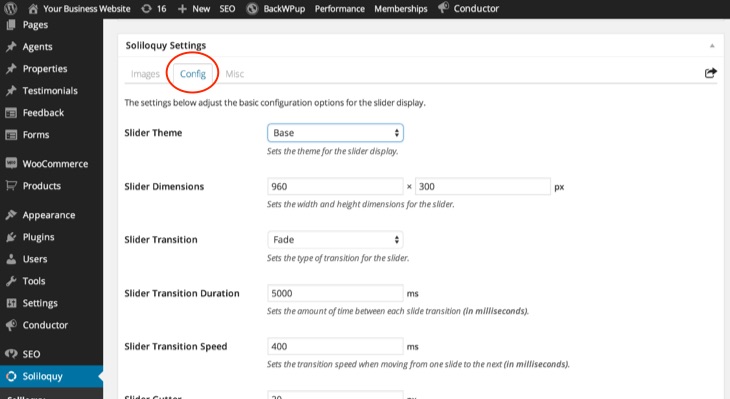
After adding slides, go to the settings tab. Set the slider width and height. Choose transition effects like fade or slide. Set the duration for each slide. Enable autoplay if desired. Save your settings to apply changes.
Credit: www.wonderplugin.com
Customizing Slider Appearance
Selecting the right design options for your slider is important. Colors and fonts affect how your slider looks. Pick colors that match your website style. Fonts should be easy to read.
Consider the size of the slider. It should fit well on your page. Not too big or too small. Also, think about how fast the slides move. Do they change quickly or slowly? This can affect how users see your content.
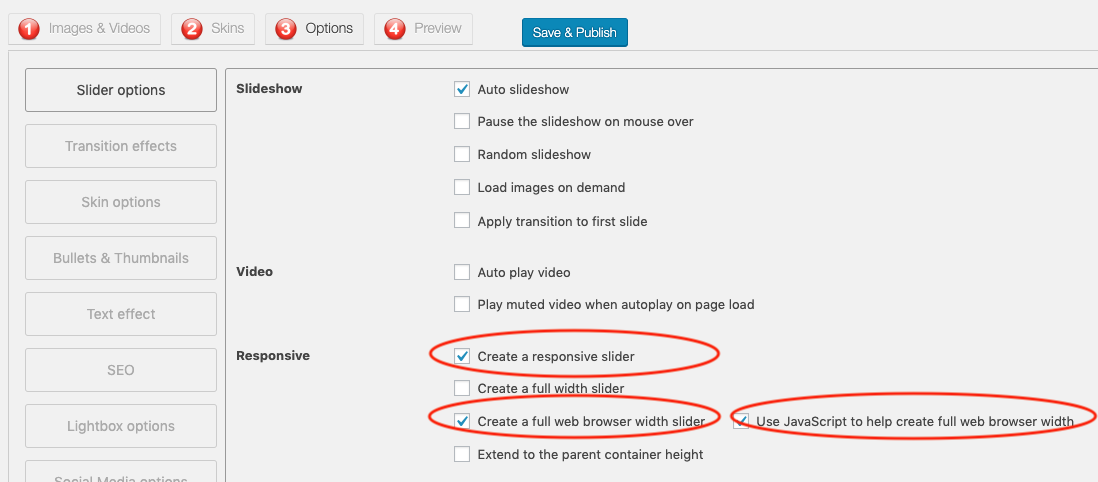
Sliders must work on all devices. Phones, tablets, and computers. Make sure the slider adjusts to different screens. Images should remain clear on small screens. Text should stay readable.
Test your slider on different devices. Check if everything looks good. Ensure buttons are easy to click. Responsive design helps your site look nice everywhere.
Inserting The Slider Into Your Theme
Shortcodes make adding sliders easy. First, copy the shortcode from your slider plugin. Go to your WordPress dashboard. Find the page or post where you want the slider. Paste the shortcode into the content area. Save your changes. The slider will appear on your page. This method is fast and simple. You can place sliders anywhere. Just use the right shortcode.
Directly embedding sliders involves editing theme files. Access your WordPress theme editor. Locate the file where you want the slider. This could be `header.php` or `footer.php`. Insert the slider code in the desired location. Save the file after editing. This method is for advanced users. Backup your files before making changes. Mistakes can break your site.

Credit: www.youtube.com
Testing And Troubleshooting
Inserting a slider into a WordPress theme enhances visual appeal and user engagement. First, install a slider plugin from the WordPress repository. Then, activate it and follow the setup instructions to customize your slider. Troubleshoot any issues by checking plugin compatibility and ensuring all settings are correctly configured.
Ensuring Compatibility
Test the slider on your WordPress site. Check if it appears on the page. Ensure the slider looks good on different devices. Use a mobile phone and a tablet. Confirm the slider works with your theme. Some themes might not support all sliders. Update your theme if needed. Older themes can cause issues. Always keep WordPress up-to-date. New updates can fix problems. Test the slider after every update. This helps catch issues early.
Common Issues And Fixes
Sometimes, sliders do not load properly. Clear your browser cache. This can solve loading problems. Check for JavaScript errors. JavaScript errors can break sliders. Use the browser console to find errors. Conflicts with other plugins can occur. Deactivate plugins one by one. This helps find the conflicting plugin. Activate the plugins again after testing. Ensure your slider plugin is updated. Developers fix bugs in new versions. Keep your plugins updated for best results.
Frequently Asked Questions
How Do I Add A Slider In WordPress?
To add a slider in WordPress, install a slider plugin like MetaSlider or Smart Slider 3. After installation, create a new slider, customize its settings, and add images. Use the shortcode provided by the plugin to insert the slider into your theme’s pages or posts.
Can I Use Sliders In Any WordPress Theme?
Yes, sliders can be used in any WordPress theme. Most slider plugins are compatible with various themes, allowing easy integration. Ensure your theme supports widget areas or shortcodes to place sliders effectively. Always check plugin documentation for compatibility details before installation.
What Are The Best Slider Plugins For WordPress?
Some popular slider plugins for WordPress include MetaSlider, Smart Slider 3, and Slider Revolution. These plugins offer advanced customization options, responsive designs, and easy integration. Each plugin has unique features, so choose one that best fits your theme requirements and user experience goals.
How Can Sliders Improve My WordPress Site?
Sliders enhance your WordPress site by showcasing content visually. They help in highlighting featured posts, promotions, or products. Sliders can improve user engagement, reduce bounce rates, and make your site more interactive. Ensure sliders are responsive to maintain optimal viewing across devices.
Conclusion
Adding a slider to your WordPress theme can enhance your site. It makes your content more engaging and visually appealing. Follow the steps carefully to ensure success. Choose a reliable plugin that suits your needs. Pay attention to the design and layout.
Test your slider on different devices for compatibility. Keep sliders simple for faster loading times. Regular updates help maintain functionality. With practice, you’ll become more comfortable with the process. A slider can transform your website’s look and feel. Start experimenting today and watch your site come alive!


