
Are you trying to make your WordPress site more visually appealing? Adding images to your theme is a fantastic way to catch your visitors’ attention and make your content stand out.
But if you’re new to WordPress, you might be wondering how to seamlessly insert pictures without disrupting the flow of your design. Don’t worry! You’re not alone, and you’ve come to the right place. In this guide, we’ll walk you through the simple steps to insert pictures into your WordPress theme, ensuring your site looks professional and polished.
Ready to transform your website’s look and feel? Let’s dive in and unlock the secrets to making your WordPress site pop with stunning visuals!
Credit: codex.wordpress.org
Choosing The Right Image
Image resolution and size matter a lot. A clear picture looks good. Big files slow down your site. Use small and clear images. It helps your site load fast.
Relevance to content is key. Choose images that fit your topic. Pictures should tell your story. They help people understand better.
Licensing and permissions are important. Some images need permission. Always check before using. Use free images if unsure. This keeps your site safe.
Preparing The Image
Images should be lightweight. Heavy images make pages load slowly. Use a smaller file size. Aim for under 1MB. This helps your website run smoothly. A fast website keeps visitors happy.
Choose the right file format. JPEG is great for photos. It keeps quality while reducing size. PNG is good for graphics with transparent backgrounds. It offers clear and sharp images. Picking the right format is important. It affects how your image looks online.
Tools like Photoshop or GIMP are helpful. They can resize and compress images. This makes them web-ready. Free tools like Canva are also available. They are easy to use. These tools help you prepare images efficiently.
Uploading Image To Media Library
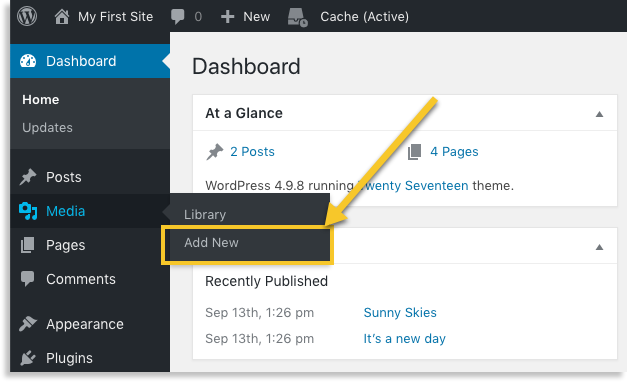
Open your WordPress dashboard. Find the Media section on the left. Click on it to access the Media Library. You will see all your uploaded images. You can add new images here.
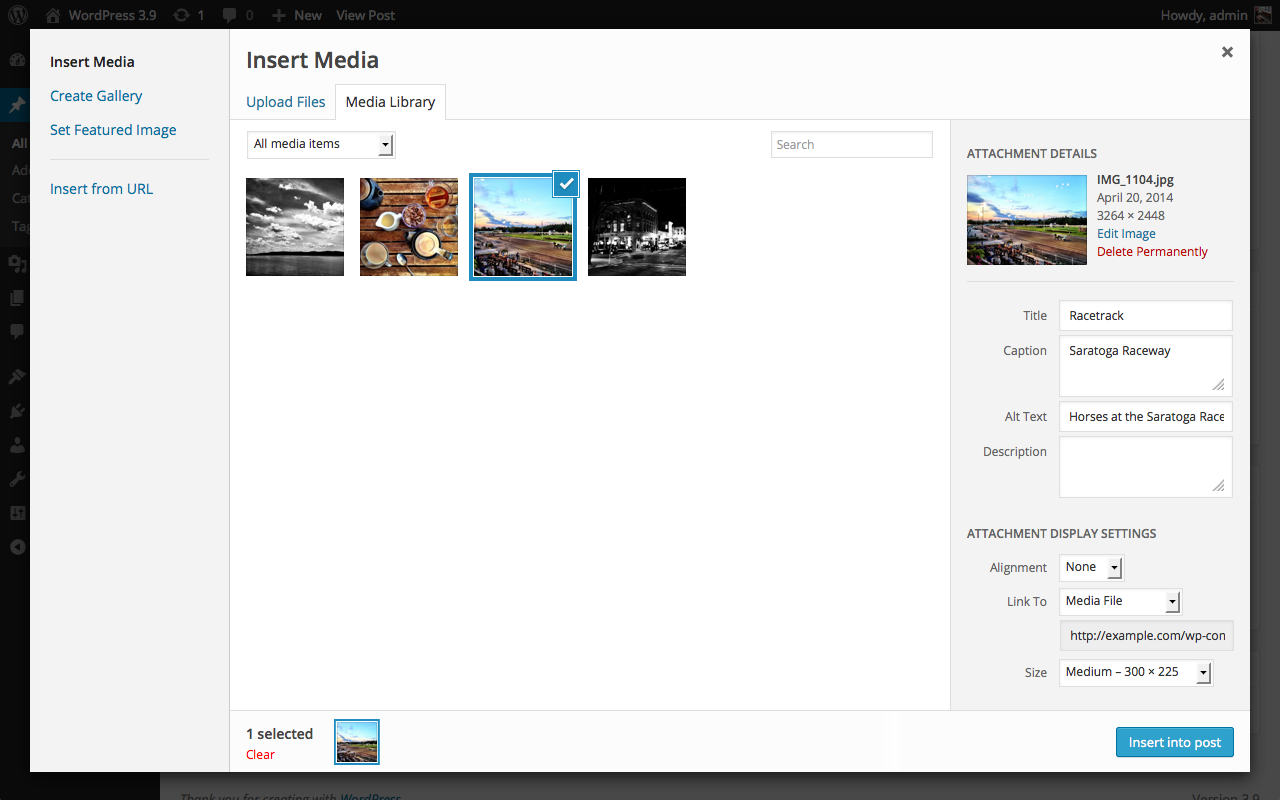
Click the Add New button. Select the image from your computer. Wait for the upload to finish. Once uploaded, your image appears in the library. You can now use it in your theme.
Tag your images for easy search. Use folders to sort them. Create categories if needed. This helps in finding images quickly. Keep your library tidy and organized.
Inserting Image Into Theme
Find the editor for your theme. It’s in the WordPress dashboard. Look for the customize option. Click it. Select the area where you want the picture. Use the add media button. Pick your image. Upload it from your computer. You can also use images in the library. Make sure the image fits the theme style.
Choose where the image will go. Header? Footer? Sidebar? Pick the right spot. Think about the design. Does the image match? Will it look nice? Place it where it makes sense. It should be easy to see. Not hidden. Make sure it adds value to the theme. Images should be clear and relevant. Always.
Align the image. Left, center, or right. Use the alignment tools. Make sure the picture looks good. You want it to fit well. Not too big. Not too small. Just right. It should balance the page. Keep the design neat. Neat design is nice to see. Visitors will like it. They stay longer.
Customizing Image Appearance
CSS makes images look nice. Use it to change size, border, and shadow. Small images load fast. Big images take time. Always check how it looks on phones. Phones have small screens. Use responsive CSS. It helps images fit all screens.
Captions tell what the picture shows. Write clear captions. Make them short and sweet. Alt text helps people who can’t see. It also helps search engines. Write good alt text. Describe the picture well. Use simple words.
Images can be links. Click them to go somewhere. Add a link in the image code. Make sure the link works. Test the link. Don’t forget to check on phones. Links must work everywhere. Clickable images are fun. They make the site interactive.
Credit: tonjoostudio.com
Testing The Image Display
Always check your image on different devices. This includes phones, tablets, and computers. It’s important to see if the picture looks clear. Sometimes, images can look great on one device but blurry on others. This is why testing is essential.
Slow-loading images can frustrate visitors. Use smaller image sizes to keep load times fast. You can compress images using online tools. This helps in speeding up the loading process.
Images not showing? Check the file format. JPG and PNG work best. Another issue could be a broken link. Ensure the file path is correct. Sometimes, clearing the cache solves display problems.
Maintaining Image Quality
Regularly updating images keeps your site fresh. New images grab attention. Old images might look dull. Fresh pictures enhance user experience. They can reflect new trends or updates.
Backing up media files is important. Save copies in another location. This prevents losing data. Backup makes restoring easy. It also keeps images safe.
Monitoring image performance helps you understand user interaction. Check how images load. See if they slow down the site. Adjust sizes if needed. Fast loading improves user experience. It also helps in SEO.
Credit: www.pair.com
Frequently Asked Questions
How Can I Upload Images To My WordPress Theme?
To upload images, navigate to your WordPress dashboard. Select ‘Media’ then ‘Add New’. Upload your desired image file. Once uploaded, access your theme editor and insert the image using its URL or media library. Customize its placement using HTML or CSS for better integration.
What Is The Best Image Format For WordPress?
JPEG is ideal for photographs due to its high quality and small file size. PNG is better for graphics with transparency. Ensure images are optimized to maintain site speed. Use image optimization plugins like Smush for efficient compression without losing quality.
How Do I Optimize Images For WordPress?
Optimize images by compressing them using plugins like Smush or ShortPixel. Ensure dimensions match their display size to avoid unnecessary scaling. Use lazy loading to improve page speed. Properly optimized images enhance your site’s SEO and user experience.
Can I Use External Images In My Theme?
Yes, external images can be used by embedding their URLs. Ensure you have permission to use them. Verify the image’s loading speed and availability to avoid broken links. External images can impact site performance, so test before implementing extensively.
Conclusion
Adding images to your WordPress theme enhances its visual appeal. It’s simple and effective. You can follow the steps outlined above. They guide you through the process easily. Always ensure images are relevant to your content. This keeps your site engaging for visitors.
Optimize image size for faster loading times. This improves user experience and SEO ranking. Regular updates to your site keep it fresh. Experiment with different image placements. Find what works best for your theme. With practice, you’ll get better at it.
Your WordPress site will look more professional and attractive.


