
Are you ready to give your WordPress website a fresh, new look? Knowing how to input a theme in WordPress can open up endless possibilities for customization.
Whether you’re launching a personal blog, a business site, or a portfolio, the right theme can make all the difference in capturing your audience’s attention. Imagine a website that not only looks stunning but also perfectly reflects your brand’s personality.
In this guide, we’ll walk you through the simple steps to input a theme in WordPress, ensuring your site stands out in the crowded digital landscape. Stay with us to discover how you can transform your website’s appearance and enhance user experience, making your online presence more compelling and engaging.
Choosing The Right Theme
Free themes are great for beginners. They are easy to use. Many free themes have basic features. This helps new users learn. But free themes can have limits. They might not have all the features you want.
Premium themes often offer more options. They can be more stylish. Many premium themes include updates. They also offer support. This helps when you have questions. Premium themes can cost money. Some are expensive. But they can be worth the price.
Check if the theme works with your plugins. Some themes might not be compatible. This can cause problems. Make sure the theme is updated. Old themes might not work well. Mobile compatibility is also important. Many people use phones to browse. Your site should look good on all devices.

Credit: themeforest.net
Accessing The WordPress Dashboard
First, go to your WordPress login page. Enter your username and password to log in. After logging in, you will see the dashboard. It is like the control center of your website. You can find many options here. Look for the section called Appearance. Click on it to find Themes. This is where you can add new themes. Adding a theme changes the look of your site. It’s like giving your website a new outfit. Make sure to choose a theme that you like. The theme can be changed anytime. It’s very easy and quick to do. Just follow these steps and you will be fine.
Navigating To Themes Section
Open your WordPress dashboard. Find the Appearance button on the left. Click on it. A menu will appear. Select Themes from the menu. This takes you to the themes section. You can see all installed themes here.
To add a new theme, look for the Add New button. It’s at the top of the page. Click on it to explore more themes. Use the search bar to find themes. Filters help you choose by features. Click on a theme to see more details.
Use the Install button to add a theme. Wait for the process to complete. Activate the theme by clicking Activate. Your new theme is now live. It’s that simple!
Installing A Theme
Find the Appearance button on your dashboard. Click on Themes. You will see the Add New button. Click it. A list of themes will appear. Use the search bar to find themes. Click on a theme you like. Press the Install button. Wait for it to install. After that, click Activate. Your theme is ready.
Go to your dashboard. Click on Appearance. Select Themes. Click Add New. Now, find the Upload Theme button. Click it. Choose the file from your computer. Click Install Now. Wait for the upload to finish. Click Activate. Your theme is installed.
Activating Your Theme
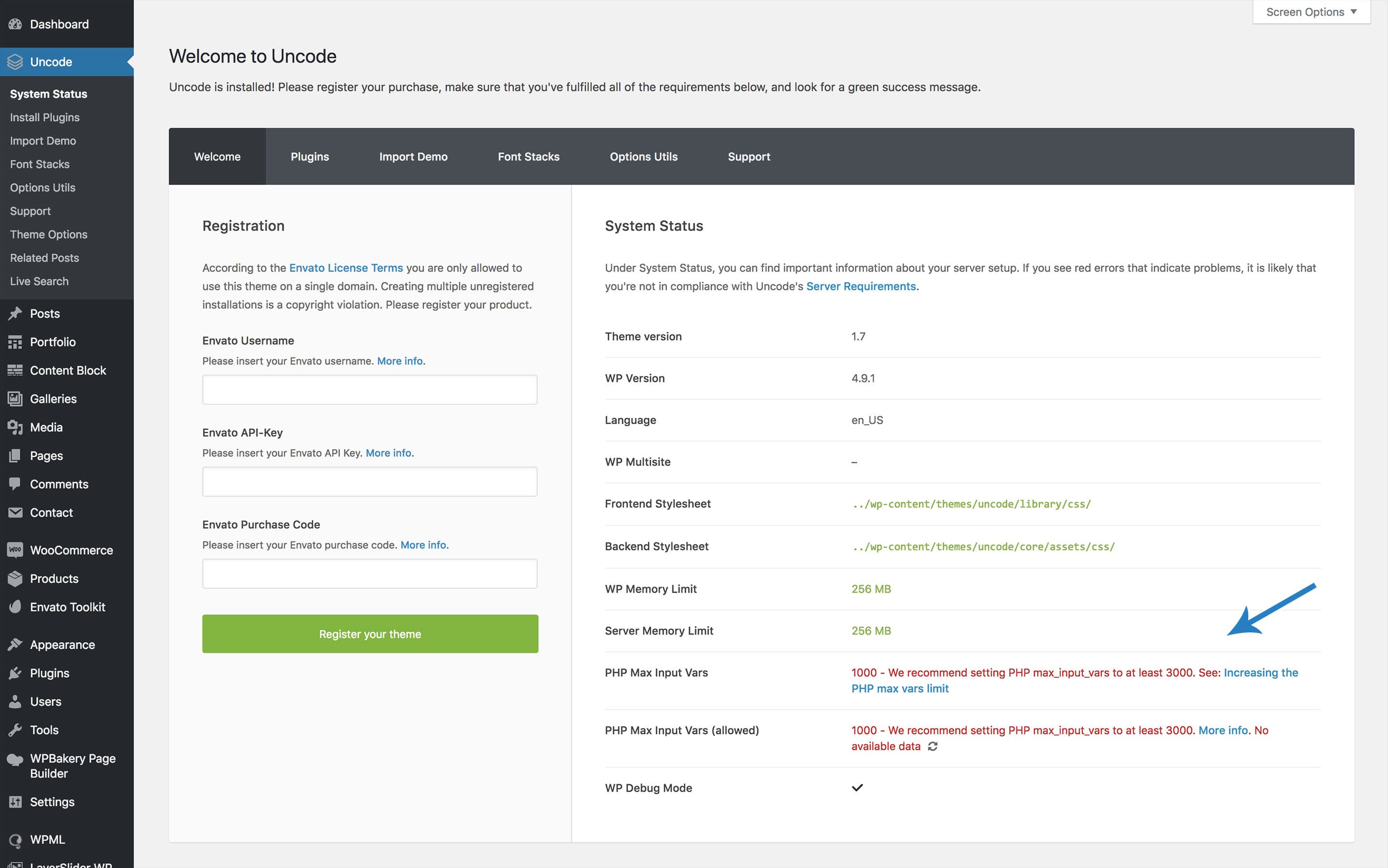
Activating a theme in WordPress is easy. Begin with logging into your WordPress dashboard. Then, find the Appearance option on the left menu. Click on it. A list of themes will appear. Choose the theme you like. Click on the Activate button. Your theme is now live. You can see changes on your site. Don’t worry, you can change themes anytime. Just repeat these steps. Always check if your theme is responsive. This means it looks good on all devices. Also, make sure it’s updated. Updates fix bugs and add features. Enjoy your new look!
Credit: support.undsgn.com
Customizing The Theme
WordPress Customizer is a powerful tool. It helps to change your site’s look easily. You can find it under the “Appearance” menu. Click on “Customize” to open it. Here, you can modify many settings.
Using The WordPress Customizer
Adjust colors, fonts, and layout. Preview changes instantly. This makes it simple to see how your site looks. Select different options. Try changing the header image. Make it unique to your style.
Adjusting Theme Settings
Check out the theme options. Some themes have special settings. Explore these to find hidden features. Change the site title and tagline. These appear at the top of your site. Update them to match your content.
Updating Your Theme
Automatic updates keep your theme fresh. WordPress does this on its own. You don’t need to do anything. New features and security fixes are added. It helps your site stay safe. Always check if automatic updates are on. If not, turn them on. It’s important for your website’s health.
Manual updates need your help. First, find the update button. Click it to begin. Wait for the update to finish. Sometimes updates take time. Make sure you backup your site first. This prevents losing data. Updating manually gives you control. Choose when and how to update. It’s a good option for some users.
Troubleshooting Theme Issues
Themes might not work due to wrong installation. Check if the theme is uploaded in the correct folder. Sometimes, themes conflict with plugins. Deactivate all plugins and see if the theme works. If it does, reactivate plugins one by one. This helps find the problem plugin.
Theme authors often provide documentation. It explains how to set up the theme. Many themes have support forums. Users and developers discuss common problems there. If you still have trouble, contact the theme’s support team. They can help with specific issues.
Credit: www.internetman.com
Frequently Asked Questions
How Do I Install A Theme In WordPress?
To install a theme, log in to your WordPress dashboard. Navigate to Appearance > Themes. Click ‘Add New’ and search for your desired theme. Click ‘Install’ and then ‘Activate’ to apply it. You can also upload a theme by clicking ‘Upload Theme’ and selecting your theme file.
Can I Customize A WordPress Theme?
Yes, you can customize a WordPress theme. Use the WordPress Customizer by navigating to Appearance > Customize. You can modify colors, fonts, and layouts. Many themes offer additional settings for advanced customizations. You can also use plugins for more design flexibility and features.
How Do I Update A WordPress Theme?
To update a theme, go to your WordPress dashboard. Navigate to Appearance > Themes. If an update is available, you’ll see a notification. Click ‘Update’ to install the latest version. Always back up your site before updating to prevent data loss.
What Should I Consider When Choosing A Theme?
When choosing a theme, consider its compatibility, responsiveness, and customization options. Ensure it supports essential plugins and is optimized for SEO. Check user reviews and support availability. A well-coded theme will improve your site’s performance and user experience.
Conclusion
Adding a theme in WordPress can be simple and rewarding. Themes change your site’s look quickly. Start by choosing a theme that fits your style. Install it with just a few clicks. Then, customize settings to match your vision. Remember, the right theme improves user experience.
It also boosts your site’s appeal. Keep exploring different themes. Find the one that truly reflects your brand. With practice, you’ll feel more confident. And your site will stand out beautifully. Enjoy creating your unique online space!


