
Are you struggling to adjust the bullet indent in your WordPress 2017 theme? You’re not alone.
Many WordPress users find themselves puzzled by the default settings that don’t quite match their vision. Whether you’re a seasoned blogger or a small business owner sprucing up your site, the appearance of your content matters. The right bullet indent can make your lists look neat and professional, enhancing readability and engagement.
In this guide, we’ll walk you through simple, actionable steps to increase the bullet indent in your WordPress 2017 theme. Say goodbye to formatting frustrations and hello to a more polished, user-friendly site. Keep reading, and you’ll discover how easy it is to make your content stand out with just a few tweaks.
Understanding WordPress 2017 Theme
Enhancing the indent for bullet points in the WordPress 2017 theme is straightforward. Access the theme’s customizer and adjust CSS settings. Modify padding or margin values to achieve the desired indentation for a polished look.
Features Of 2017 Theme
The WordPress 2017 theme is simple. It has a clean design. Its layout is easy to navigate. Colors and fonts are basic. The theme suits blogs and websites. It includes several widgets. These widgets help organize content.
Customization is a key part. You can change colors and fonts. Adjusting the header image is possible. Adding a logo is easy too. You can set a menu with ease. The theme supports different languages. This feature is useful for users worldwide.
Customization Options
Customizing the theme is simple. The theme has a customizer tool. This tool is easy to use. You can change the site title and tagline. Background colors are adjustable. You can add custom CSS for more changes. The theme allows widget areas. You can place widgets in these areas. The header and footer are customizable. There is an option for sticky posts. Sticky posts stay at the top.
Issues With Bullet Indentation
Many users face trouble with bullet points in WordPress 2017 theme. Bullets often don’t indent correctly. This makes lists look messy and hard to read. Some themes do not support proper indentation. Others might have CSS rules that override bullet settings. These issues can be frustrating for many.
Poor bullet indentation affects the user experience. It makes content less readable. Visitors may leave your site early. Clear bullets help in understanding content better. Good indentation keeps readers engaged. It makes your website look more professional. Always aim for a clean layout.
Using Custom Css For Indentation
Enhancing bullet indentation in WordPress’s 2017 theme requires custom CSS. Adjust CSS code to increase indentation space. This simple tweak improves list readability and organization, making your content more visually appealing.
Accessing Theme Customizer
First, visit your WordPress dashboard. Click on Appearance. Then, select Customize. This opens the theme customizer. Find the Additional CSS option here. This section allows adding new styles. It is safe and easy to use. Make sure to save changes after editing.
Adding Custom Css
To change bullet indent, add CSS code. Use the code:
ul { padding-left: 40px; }
or
ol { padding-left: 40px; }.
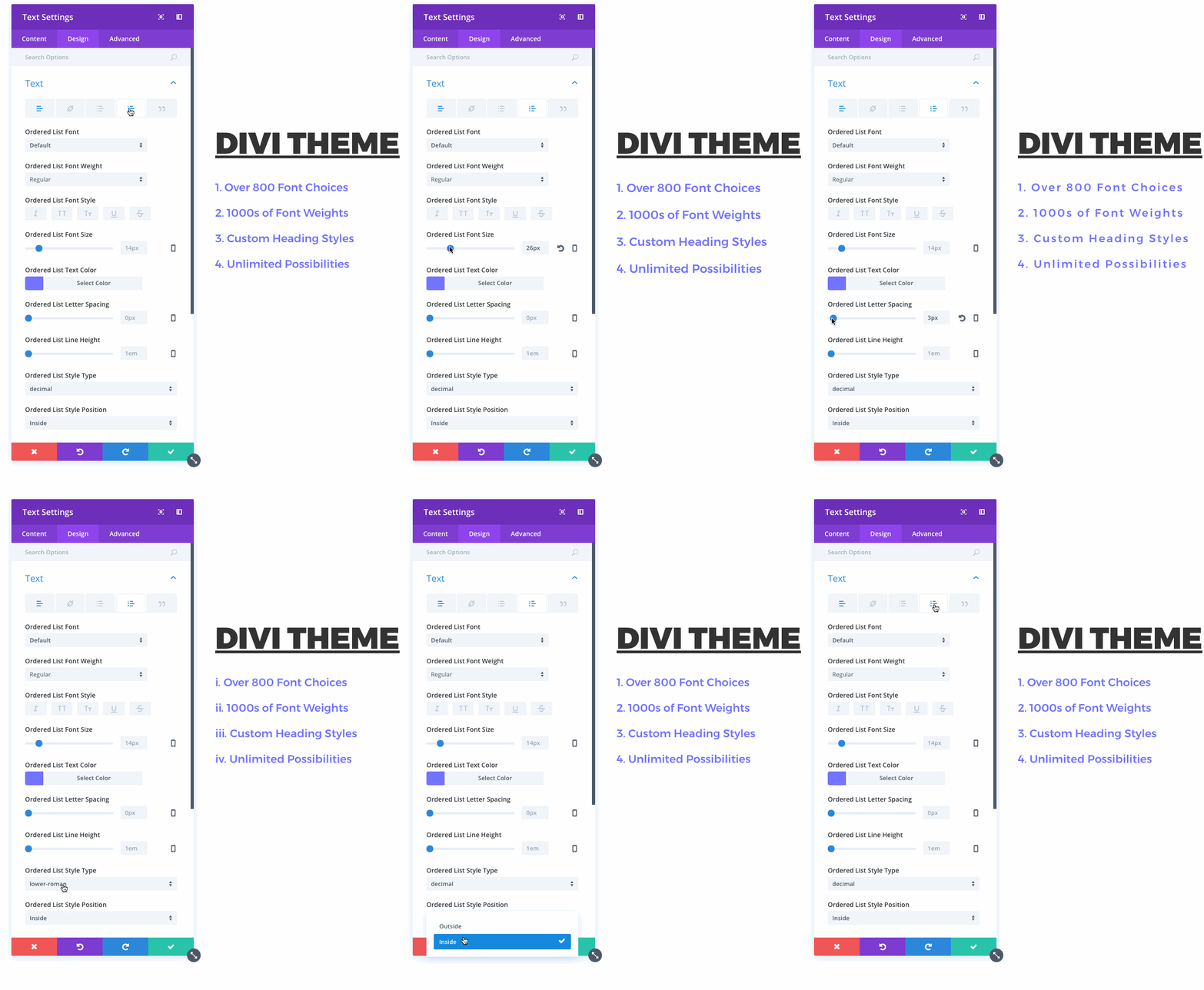
This adjusts the bullet spacing. You can change 40px to any number. This number controls the indent size. Experiment with different values. Always preview before saving. This ensures the look is right. Hit Publish to finalize changes.
Credit: www.elegantthemes.com
Adjusting Bullet Indent With Plugins
Enhancing bullet indent in the 2017 WordPress theme is simple with plugins. These tools help adjust spacing effortlessly. Users can improve text appearance by increasing indent without coding skills.
Recommended Plugins
Simple Custom CSS is a helpful tool. It allows easy changes to bullet indent. Advanced CSS Editor offers more control. It is ideal for WordPress 2017 theme. Both plugins are user-friendly. They help make adjustments quickly. These tools are free to use. They are trusted by many users. Try them for better bullet style.
Step-by-step Plugin Configuration
Install the plugin from the WordPress store. Go to Settings in your dashboard. Locate the plugin name. Click to open the settings page. Find the CSS editor. Add custom code for bullet indent. Save changes. Check your site for updates. Adjust if needed. These steps are simple to follow. They help improve your content layout.
Modifying Theme Files
The style.css file controls how your site looks. To change the bullet indent, you can add some CSS code. This is easy to do. First, find the style.css file in your WordPress dashboard. It is under Appearance > Editor. Click on it to open.
Look for the ul or li tags. These tags control lists. Add this CSS code: padding-left: 20px;. This will move bullets to the right. You can change the number to move more or less.
Always make a backup before changes. This keeps your site safe. Mistakes can happen. Use a child theme for changes. A child theme protects your edits during updates.
Credit: make.wordpress.org
Testing And Verifying Changes
Boost your WordPress site’s visual appeal by adjusting bullet indent in the 2017 theme. Tweak CSS settings to achieve desired spacing. Verify changes by testing across different browsers to ensure consistency.
Checking Across Browsers
Testing changes in different browsers is very important. Each browser may show your site differently. Use browsers like Chrome, Firefox, and Safari. Check if the bullets look the same. Small differences can confuse users. This step helps in finding any issues early. It ensures a better user experience.
Ensuring Mobile Compatibility
Many people use phones to browse websites. Make sure your site looks good on small screens. Check if bullets indent properly on mobiles. Use tools that show your site on different screen sizes. This helps in making the site user-friendly. Mobile compatibility is crucial today. It improves user satisfaction and site usability.
Troubleshooting Common Issues
Reverting changes can help if something goes wrong. First, check the theme settings. Look for the option to reset changes. This will bring back the original settings. If you can’t find this option, use a backup. Restoring a backup can undo any unwanted changes. Make sure to save your work before proceeding. Backups are important for safety. Always keep a recent copy stored.
Seeking help from the community is a good step. Many people have faced similar issues. Online forums can be helpful. Ask questions or search for answers there. WordPress support sites are a great resource. Communities often have tips and solutions. Sharing your problem can lead to fast help. Remember, others are willing to assist. Use their knowledge to fix your issue.
Credit: www.greengeeks.com
Frequently Asked Questions
How Do I Change Bullet Indent In WordPress?
To change bullet indent in a WordPress theme, use custom CSS. Access the WordPress Customizer, select “Additional CSS,” and input desired margin or padding values. Adjusting these values will move the bullet points to your preferred indent.
Can I Adjust Bullet Indent In 2017 Theme?
Yes, you can adjust the bullet indent in the 2017 theme. Use the Customizer, select “Additional CSS,” and add custom CSS code to modify bullet margins or padding. This allows precise control over bullet indentation.
Why Modify Bullet Indent In WordPress Themes?
Modifying bullet indent enhances content readability and visual appeal. Proper indentation can make lists clearer and more organized, improving user experience. Customized bullet points ensure alignment with overall design aesthetics and improve engagement.
Is Custom Css Necessary For Bullet Indent?
Custom CSS is often necessary for precise bullet indent adjustments. WordPress themes may not offer direct options for indent customization. Using CSS allows you to tailor bullet points to match your design preferences without altering core theme files.
Conclusion
Adjusting bullet indent on your WordPress 2017 theme is simple. Follow the steps for a polished look. This customization enhances readability. It also improves overall design. Small tweaks make big differences. Your site becomes more user-friendly. Visitors enjoy a seamless experience.
Consistent formatting keeps them engaged. Try these changes today. Enhance your WordPress site easily.


