
Are you struggling with the frustrating limit on theme upload size in your WordPress site? If you’ve ever been met with a restrictive file size error when trying to upload your dream theme, you’re not alone.
This common hurdle can feel like a roadblock to creativity and functionality, but there’s good news: it’s entirely fixable. Imagine effortlessly uploading any theme you desire, transforming your website’s look and feel without a hitch. In this guide, you’ll discover simple, step-by-step solutions that empower you to increase your theme upload size, opening doors to endless customization possibilities.
Stay with us, and you’ll never let a size limit hold back your WordPress ambitions again.

Credit: www.cloudways.com
Understanding Theme Upload Limits
WordPress has a limit for uploading themes. This limit is often too small. It can be frustrating. Sometimes, themes are bigger than the allowed size. Increasing this limit is important for many users.
To change the upload size, check your server settings. Server configuration often controls this limit. You might need to edit the php.ini file. This file has settings for upload limits. Locate the file in your server’s root directory.
Find the line that says upload_max_filesize. Change the number to a larger size. Save the changes. Now, the theme upload limit should be bigger. Restart your server to apply these changes.
Another way is using a plugin. Some plugins can increase upload size. Plugins are easy to use. Install the plugin and follow the steps. This method is helpful for beginners.
Credit: www.wpbeginner.com
Reasons For Increasing Upload Size
Boosting upload size in WordPress themes helps accommodate larger files. This is essential for high-quality images or videos. Enhancing upload limits ensures smoother theme updates and functionality.
Large Theme Files
Some theme files are very big. They have many features. These features make the file size large. Your site needs these features. You must upload these large files. They help your site look good.
High-resolution Media
Pictures and videos can be very big. High-quality media needs more space. They make your site look better. But they also make files large. You need to increase upload size. This allows you to use these big files.
Checking Current Upload Limits
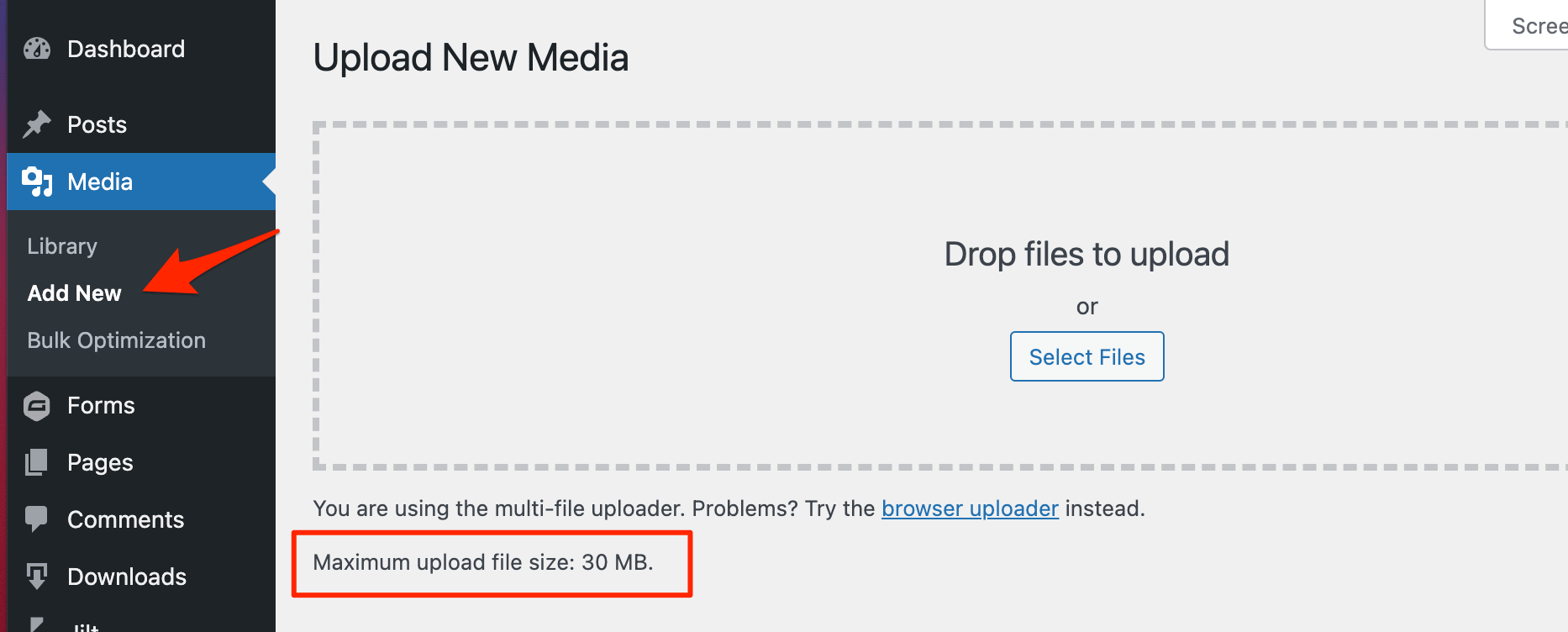
Start by logging into your WordPress dashboard. Look for the Media section. Click on it. Here, you can see the current upload limit. It shows the maximum file size allowed. If it’s too low, you might need to change it.
Create a new file named phpinfo.php. Add this code: php phpinfo(); ?. Upload this file to your server. Use your web browser to access it. Look for the upload_max_filesize value. This shows your current limit. To increase it, you might need to edit your server settings.
Methods To Increase Upload Size
The php.ini file controls upload size limits. Locate this file on your server. Open it and find the line that says upload_max_filesize. Change the value to a higher number. Save the file. Restart your server to apply changes.
The .htaccess file can also adjust upload size. Find this file in your WordPress root directory. Add the line php_value upload_max_filesize followed by the desired size. Save the changes. This helps increase theme upload size.
Another method involves the wp-config.php file. Open this file located in your WordPress root folder. Add the line define(‘WP_MEMORY_LIMIT’, ‘256M’). This increases memory, affecting upload limits. Save the changes.
Plugins offer easy solutions. Search for upload size plugins in your WordPress dashboard. Install one that suits your needs. Activate the plugin. Follow its instructions to increase the upload size. This method is user-friendly.
Troubleshooting Common Issues
Struggling to increase theme upload size in WordPress? Adjust server settings or use plugins to resolve the issue. Ensure your WordPress site runs smoothly by addressing this common limitation efficiently.
Permission Errors
Permission errors can block theme uploads. Check file permissions. Incorrect permissions stop uploads. Set permission levels to 755 or 644. This can solve many problems. Use FTP or file manager for changes. Always backup before changing settings.
Server Configuration Problems
Server settings can limit upload size. Adjust php.ini file. Find upload_max_filesize and post_max_size. Increase values to desired size. Restart server for changes to work. Check wp-config.php too. Add or update memory limit if needed. Server logs help identify issues.
Best Practices For Theme Uploads
Making a backup is important before uploading a new theme. It helps keep your site safe. Always save your files and database. Use a plugin like UpdraftPlus for easy backups. Regular backups protect your content. You can restore it if something goes wrong. Remember to store backups in a safe place.
Testing is crucial after uploading a theme. Check if everything looks right. Visit different pages on your site. Make sure images load properly. Click on links to see if they work. Check your site on a phone and a computer. Testing helps find any issues quickly. Fix them before visitors see them.
Credit: www.wpzoom.com
Frequently Asked Questions
How Can I Increase The Upload Size Limit In WordPress?
To increase the upload size limit in WordPress, edit the `php. ini` file. Adjust the `upload_max_filesize` and `post_max_size` values to your desired size. Alternatively, you can modify these settings through your web hosting control panel or by contacting your hosting provider for assistance.
Why Is My WordPress Upload Size Limited?
WordPress upload size is limited due to server configurations. Hosting providers set default limits to ensure optimal server performance and security. Increasing this limit allows you to upload larger files, such as themes or media, but should be done carefully to avoid potential server issues.
Can Plugins Increase WordPress Upload Size?
Yes, plugins can increase WordPress upload size. Plugins like “Increase Maximum Upload File Size” or “WP Increase Upload Filesize” can help. They provide an easy interface to modify server settings without directly editing server files, making it a user-friendly option for beginners.
Is It Safe To Change WordPress Upload Size?
Yes, it’s generally safe to change WordPress upload size. Ensure your server has enough resources to handle larger uploads. Increasing the limit too much might affect server performance. It’s advisable to consult with your hosting provider if you’re unsure about the appropriate size for your needs.
Conclusion
Increasing your WordPress theme upload size is essential. It ensures smooth website functionality. You now know the steps to change this setting. Remember to back up your site before making changes. This prevents data loss. Always choose the right method for your hosting environment.
Avoid unnecessary plugins that might slow down your site. Following these tips will enhance your WordPress experience. Your website will run more efficiently. Keep learning and stay updated with WordPress changes. A well-managed site attracts more visitors and boosts engagement.
Enjoy your WordPress journey!


