
Are you struggling with a WordPress theme that just doesn’t seem to fit your vision? Do you find the narrow layout limiting your creativity and content display?
You’re not alone. Many WordPress users face this issue, wishing for a wider canvas to showcase their work, products, or ideas. Imagine having the space to breathe new life into your website, making it more engaging and visually appealing. By the end of this article, you’ll discover simple yet effective steps to increase the width of your WordPress theme, unlocking its full potential.
Ready to transform your site and captivate your audience? Let’s dive in and see how you can make this change effortlessly.
Choosing The Right Theme
Assessing Theme Flexibility is vital for customizing a WordPress site. Some themes let you change the width easily. Others may require more work. Always check if the theme has options for layout changes. This ensures a smoother process. Look for themes with clear instructions. These can save time and effort. Choose themes that are responsive. This means they adapt to different screens. A flexible theme helps in adjusting the site’s look. Make sure it supports your desired width.
Compatibility with Customization is another key factor. Not all themes support extensive changes. Some may limit what you can do. Look for themes with built-in customization tools. This allows you to tweak settings easily. Check if the theme is compatible with popular page builders. This can enhance your ability to change layouts. A theme should allow for easy modification. This ensures your site looks exactly how you want.
Customizing Theme Settings
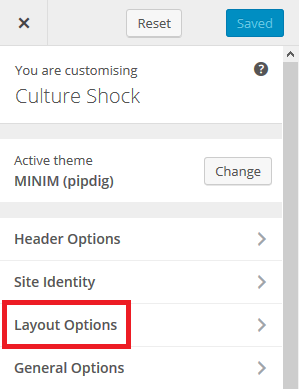
First, open your WordPress dashboard. Click on Appearance. Then select Customize. This will open the theme customizer. Look for Theme Options. Here, you will find settings for your theme.
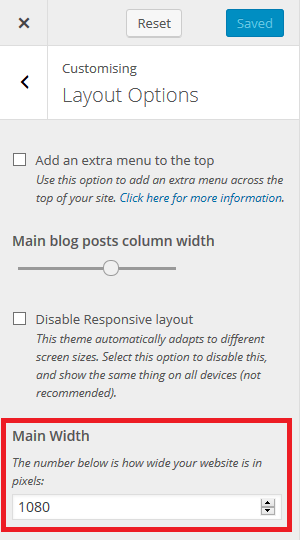
Inside Theme Options, find Layout Width. This might be labeled differently based on the theme. Slide the bar to increase or decrease width. Some themes offer a Full Width option. Choose this for a wider layout. Save changes once done.
Editing Css For Wider Layout
Locating the CSS file is the first step. Open your WordPress dashboard. Then, go to Appearance, and click on Theme Editor. You will see a list of files. Look for the one named style.css. This is usually where the CSS lives. But sometimes, themes have more CSS files. Check carefully to find all of them.
Next is modifying width properties. In the CSS file, search for width values. They often look like this: width: 800px;. Change the numbers to make things wider. For example, change 800px to 1000px. Save your changes. Then check your site. You should see the layout wider now. If not, clear your browser’s cache and refresh.

Credit: www.youtube.com
Using WordPress Page Builders
Boosting the width of a WordPress theme can enhance layout aesthetics. Page builders simplify this task, allowing easy adjustments. Experiment with settings to find the ideal look for your website.
Exploring Page Builder Tools
Page builders help to change your site. They offer many tools. Elementor and Beaver Builder are popular choices. Each has unique features. Drag and drop options make changes easy. No coding needed. Widgets and modules expand your design. You can add text, images, and buttons.
Adjusting Content Width
Changing content width is simple. Choose the right setting. Find the layout option. Set the width you want. Look for padding and margin settings. Adjust them for more space. Make sure text is not too narrow. Wide enough for easy reading. Test your changes. See how it looks on different devices. Adjust if needed for mobile and desktop.
Responsive Design Considerations
Mobile devices have small screens. This means themes must be flexible. The content should adjust without breaking. It should be easy to read. Keep the layout simple. Avoid clutter. Use a responsive theme. This makes it look good on all devices. Check the theme settings. Many themes have a mobile view option.
Testing is important. Try your website on different devices. Check phones, tablets, and computers. This ensures it looks good everywhere. Use tools like Google’s Mobile-Friendly Test. These tools help find problems. Fix any issues you find. Make sure buttons are easy to click. Text should be readable. Images should fit the screen.
Credit: support.pipdig.co
Utilizing Child Themes
Boosting theme width in WordPress is simple with child themes. They allow customization without altering the original theme. Adjusting the width enhances visual appeal and functionality, catering to different screen sizes.
Creating A Child Theme
A child theme is like a copy of your main theme. It lets you make changes without breaking the main theme. First, create a new folder in the themes directory. Name it something like “my-child-theme”. Inside, create a style.css file. Write this at the top:
            /
            Theme Name: My Child Theme
            Template: parent-theme-folder-name
            /
Replace “parent-theme-folder-name” with your theme’s folder name. This tells WordPress which theme to copy. Now, your child theme is ready!
Applying Width Changes Safely
Open the style.css file in your child theme. Add your CSS code to change the width. For example, use:
            .site {
                width: 100%;
            }
This will make your site full-width. Check your site to see if it worked. You can adjust the width as you like. This method keeps your changes safe even when the theme updates.
Leveraging Plugins For Layout Control
Several plugins help change the theme width. Elementor and Beaver Builder are popular choices. They offer easy tools for layout change. Choose plugins with good reviews. Read user feedback. Ensure plugins work with your theme. Compatibility matters. Some plugins might slow your site. Check plugin size before install.
Plugins offer many features. Drag and drop tools are easy. Adjusting width takes minutes. Customize columns. Make them wider. See changes quickly. Some plugins have preset layouts. Choose a layout that fits. Experiment with different styles. Save changes often. Keep your site fast. Test on different devices. Ensure everything looks good.
Troubleshooting Common Issues
Adjusting the width of a WordPress theme can enhance site appearance. Begin by accessing the theme’s customizer settings. Modify the layout options to achieve the desired width.
Resolving Display Problems
Some themes may not display properly. Images might appear cut off. Text could overflow. This happens due to fixed width settings. Adjusting these can solve problems. Inspect the theme using browser tools. Look for elements with set widths. Change them to percentage values. This makes the theme more flexible. Save changes and refresh the page. Your theme should display correctly.
Addressing Css Conflicts
CSS conflicts can cause layout issues. Themes may have custom CSS that overrides defaults. Check your theme’s CSS file. Look for conflicting rules. Use the browser’s developer tools to identify them. Adjust or remove the conflicting styles. Test changes after each edit. This ensures changes fix issues. Refresh the site to see results. The layout should improve.
Credit: support.pipdig.co
Frequently Asked Questions
How Can I Adjust Theme Width In WordPress?
To adjust the theme width, access the WordPress dashboard. Navigate to Appearance > Customize > Additional CSS. Add custom CSS code to modify the width settings. Save changes to update the theme’s appearance. Always back up your site before making changes to ensure no data loss.
Is It Possible To Change Width Without Coding?
Yes, some WordPress themes offer built-in customization options. Check your theme’s settings under Appearance > Customize. Use layout or design options to adjust the width. If your theme lacks these features, consider using a page builder plugin for more flexibility without coding.
Do All Themes Support Width Changes?
Not all themes support easy width changes. Some themes provide built-in options, while others require custom coding. Check your theme documentation or consult the developer for guidance. Choosing a flexible theme or using plugins can make customization easier.
Will Changing Width Affect Site Responsiveness?
Changing width can affect responsiveness, especially on mobile devices. Ensure your customizations maintain a responsive design. Test your site on various devices and screen sizes. Use media queries in CSS to handle specific device requirements and maintain a user-friendly experience.
Conclusion
Changing the width of your WordPress theme is quite simple. Start by accessing the theme’s settings. Look for width options. Adjust them to suit your needs. You can also modify CSS for more control. Always preview changes before saving. A wider theme can enhance your website’s look.
It can improve user experience too. Remember to back up your site first. This prevents any loss of data. Experiment with different settings. Find what works best for your site. Happy customizing!


