
Is your website’s logo too small and barely noticeable? You’re not alone.
Many WordPress users face the same challenge. Your logo is the face of your brand—it needs to be visible and memorable. But when it’s tucked away in a corner or dwarfed by other elements, it can lose its impact. Imagine your visitors landing on your site and instantly recognizing your brand just by your logo.
That’s the power of a well-sized logo. You’ll discover simple steps to increase your logo size in your WordPress theme. No technical jargon or complicated coding required. We’ll guide you through the process, so you can enhance your brand’s visibility effortlessly. Ready to make your logo pop? Let’s get started!
Choosing The Right Theme
Picking the best theme matters. Some themes allow easy logo size changes. Others do not. Read theme details before choosing. Check theme reviews. User comments can help too. They often share useful tips.
Check theme settings. Many themes have a settings area. Here, you can adjust logo size. Look for logo options. Some themes have size sliders. Others use pixel settings. Try different settings to see changes.
Custom CSS is another way. You can add code to change logo size. Not all themes need this. Some themes make it easy. Find tutorials online. Many sites offer step-by-step guides. Use these for help.

Credit: cyberchimps.com
Accessing Theme Customizer
First, open your WordPress dashboard. Locate the Appearance option on the left. Click it, and then select Customize. This opens the Theme Customizer. Here, you can see many settings.
Look for the Header or Site Identity section. This is where logo settings often are. Click on this section to find the logo options. You might see a slider or input box. This lets you change the logo size. Adjust the size until you’re happy.
Remember to click Publish to save changes. Visit your site to see the new logo size. If it’s still not right, repeat the steps. Keep adjusting until it’s perfect.
Using Additional Css
Adjusting your logo size in a WordPress theme can be done using Additional CSS. By accessing the customizer, you can enter specific CSS code to change the dimensions of your logo. This method provides precise control, allowing for a tailored fit without altering the theme’s core files.
Locating The Css Section
Start by opening your WordPress dashboard. Find and click on Appearance. Next, choose Customize from the menu. Look for the Additional CSS option on the left panel. Click it to open the CSS editor. This is where you will add your custom code to change the logo size. Ensure you are in the right place before proceeding.
Writing Custom Css
After finding the CSS section, add your code. Type .site-logo and then curly brackets. Inside, write width and set a value like 150px. This changes the logo size. Next, add height and choose a value like auto. This keeps the logo’s shape. Remember to save your changes. Your logo should now be larger on your site.
Editing Theme Files
Editing theme files in WordPress allows you to adjust logo size effortlessly. Access the theme’s CSS file and modify the logo dimensions. Save the changes to see the effect on your website.
Using Ftp Or File Manager
Access theme files using FTP or your host’s File Manager. Locate the header.php file in the theme folder. This file controls the logo size. Open the file with a text editor. Find the code that defines logo dimensions. Adjust the width and height values. Make changes carefully. Save the file after editing. Upload the modified file back to the server. Refresh your site to see the changes. Always backup before editing theme files. Mistakes can break your site. Seek help if unsure about changes.
Modifying Header File
The header.php file is crucial for logo size. Locate the section with logo code. Change width and height numbers here. Make sure the values fit your design. Keep changes simple and small. Save and check your website. Check the logo on different devices. Adjust if it looks wrong. Don’t forget to backup before changes. Mistakes can cause problems. Consider consulting a developer for complex edits.
Plugins For Logo Resizing
Using plugins can make logo resizing easy. Logo Resizer is a great choice. It helps adjust logo size quickly. Simple Image Sizes also works well. This plugin lets you change image sizes, including logos. WP Customizer offers more options for logo adjustments. It’s user-friendly and simple.
To install a plugin, go to the WordPress dashboard. Click on Plugins, then Add New. Search for the plugin name. Click Install Now and then Activate. After activation, find the plugin settings. Adjust the logo size as needed. Save changes to see the new logo size. Always check if the logo looks good on all devices. This ensures the best display for everyone.
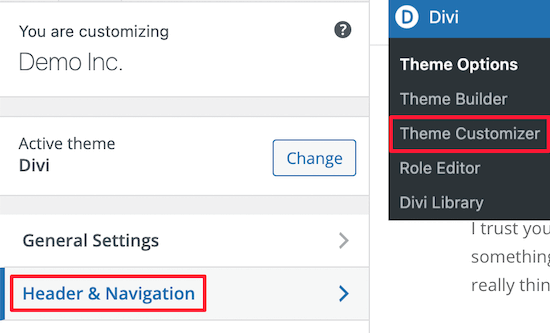
Credit: www.wpbeginner.com
Testing And Adjusting Logo Size
Previewing changes is key. First, go to your WordPress dashboard. Click on “Appearance,” then “Customize.” Here, you can see your site’s look. Next, find the “Site Identity” section. Upload your logo, if you haven’t. Adjust the size using the slider. Watch the preview window. See how your logo changes? Make it bigger or smaller until it fits well.
Now, let’s talk about ensuring responsiveness. Your logo should look good on all screens. Check it on a computer, tablet, and phone. Does it stay clear and not too big? If not, go back and tweak it. A responsive logo is important. It keeps your site looking neat everywhere. Remember, a well-sized logo makes your brand stand out.
Troubleshooting Common Issues
Adjusting logo size in a WordPress theme often involves tweaking theme settings or custom CSS. Navigate to the theme customizer, find the logo settings, and increase dimensions. If not available, add custom CSS in the additional CSS section to specify the desired logo size.
Handling Theme Conflicts
Changing the logo size might cause theme conflicts. Some themes have strict settings. They control logo dimensions. This can make changes tricky. Check the theme’s documentation first. It may have guidance on logo changes. If conflicts occur, consider using a child theme. A child theme lets you modify without affecting the original theme. This keeps your changes safe during updates. If issues persist, consult the theme’s support forum. Many users share solutions there.
Fixing Display Problems
Sometimes, the logo appears blurry or stretched. This happens if the image size is wrong. Ensure the logo file matches the theme’s recommended dimensions. Use high-quality images for clear display. Check the WordPress Customizer. It might allow logo size adjustments. If the issue persists, test different browsers. Some display settings vary across browsers. Fixing problems might need a bit of patience. Keep tweaking until the logo looks right.

Credit: ultimateblocks.com
Frequently Asked Questions
How Do I Change Logo Size In WordPress?
To change the logo size in WordPress, access the theme customizer. Navigate to “Site Identity” and locate the logo size option. Adjust the slider or input a specific size. Save your changes and refresh the page to view the updated logo size.
Can I Adjust Logo Size Without Coding?
Yes, many WordPress themes offer a built-in option to adjust logo size. You can find this option in the theme customizer under “Site Identity. ” Simply use the slider or input fields provided to change the logo dimensions without touching any code.
Why Is My WordPress Logo Not Resizing?
If your WordPress logo isn’t resizing, check the theme settings. Ensure you’ve saved your changes after adjusting the size. Some themes may have fixed dimensions. In such cases, consider using custom CSS or a plugin to override these restrictions.
What Plugin Helps Resize Logos In WordPress?
Plugins like “Simple Image Sizes” allow you to resize logos in WordPress. They provide easy-to-use interfaces for adjusting image dimensions, including logos. Install the plugin, configure the desired logo size, and apply the changes. This method is effective for themes lacking built-in resizing options.
Conclusion
Boosting your logo size in WordPress is simple and effective. A larger logo enhances brand visibility and strengthens your site’s identity. Follow the steps shared to make adjustments easily. Tweak the settings in your WordPress theme with confidence. A bigger logo ensures your brand stands out.
No need for advanced skills. Just a few clicks and you’re set. Check the result on different devices. Ensure it looks perfect everywhere. A well-sized logo speaks volumes about your brand’s professionalism. Remember, a clear logo leaves a lasting impression.
Enjoy your newly enhanced website look!


