
Are you ready to give your WordPress theme a fresh look? Adding unique fonts can transform your website from ordinary to extraordinary, making it stand out and capturing your audience’s attention.
But how do you include fonts in your WordPress theme without breaking a sweat? This guide is tailored just for you. We’ll walk you through the simple steps, ensuring you not only enhance your site’s aesthetic appeal but also maintain its functionality.
By the end, you’ll have the tools to make your website truly yours, with fonts that speak to your brand’s personality. Dive in and discover how easy it is to elevate your WordPress theme with the right fonts.

Credit: www.youtube.com
Choosing The Right Font
Fonts speak. They tell your brand story. A strong brand needs a strong font. Choose fonts that match your brand’s voice. Consistency is key. Use the same font across all platforms. It builds trust and recognition.
Easy-to-read fonts are important. They help everyone understand your content. Pick fonts that are clear and simple. Avoid fancy fonts. They can be hard to read. Always check if your font is readable on all devices.
Pairing fonts can be tricky. Use a simple font for body text. Choose a bolder font for headlines. This creates contrast. Keep it to two or three fonts. Too many fonts can look messy. Balance is important.
Using Google Fonts
Google Fonts offers a wide range of font styles. Visit their website to explore. Choose a font that fits your design. Once selected, copy the embed code provided. This code is essential for adding the font to your site.
Open your WordPress theme folder. Locate the header.php file. Paste the copied Google Fonts code inside the head section. Save your changes. Refresh your site to see the new font applied.
Font customization enhances design. Use CSS to adjust size and style. Example: font-family, font-size. Add these to your theme’s stylesheet. Experiment with different styles for unique results.
Adding Custom Fonts
First, get your font files. They are usually in .ttf or .otf format. Go to the WordPress dashboard. Find the Media section. Click on Add New. Upload your font files here. Remember the file names. You will need them later.
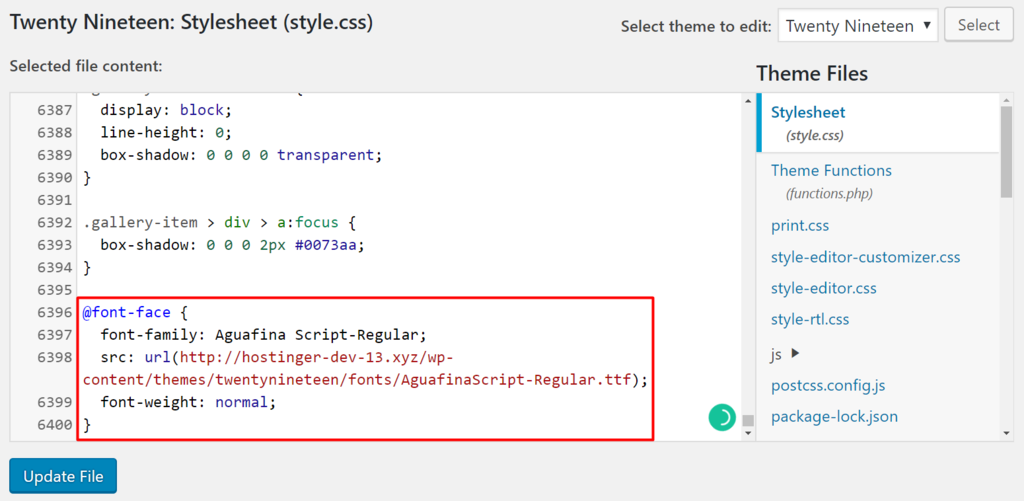
Go to the Appearance section. Click on Theme Editor. Find your style.css file. Open it. You will add your font rules here. This will make the fonts work on your site.
In your style.css, type the @font-face rule. It looks like this:
@font-face {
    font-family: 'YourFontName';
    src: url('path-to-your-font-file');
}
Replace YourFontName with your font’s name. Replace path-to-your-font-file with the path of your uploaded font. Save the changes.
Using Font Plugins
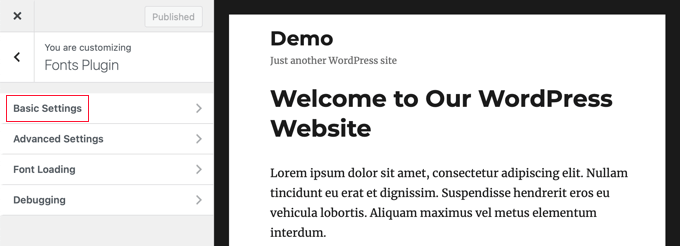
Many plugins are available for fonts. Some are very popular. Google Fonts is one of them. Use Easy Google Fonts for simple tasks. Another choice is WP Google Fonts. These plugins help with adding fonts easily.
Install plugins from the WordPress dashboard. Search for the plugin name. Click ‘Install’ and then ‘Activate’. Go to the settings page. Choose your fonts from the list. Customize sizes and styles. Save changes to apply them.
Plugins make font changes simple. No need for coding skills. Easy interface for users. Quick updates for font styles. More options for customization. Better site appearance with varied fonts.
Optimizing Font Performance
Including fonts efficiently in a WordPress theme boosts site speed. Upload custom fonts directly to your theme’s folder. Use CSS to link them, ensuring quick loading and enhancing user experience.
Minimizing Font Load Times
Reducing font load times is crucial for fast pages. Choose fonts wisely. Limit the number of font styles and weights. Use web-safe fonts. These fonts load faster. Compress fonts with tools. This helps them load quicker. Smaller fonts mean faster websites.
Implementing Font Preloading
Font preloading ensures fonts appear faster. Use the tag with rel="preload". This hints the browser to load fonts early. Place preload links in the section. Preloading improves user experience. It reduces the delay in font appearance.
Testing Font Performance
Testing font performance is essential. Use online tools to check speed. Monitor load times regularly. Ensure fonts do not slow down the site. Adjust settings if needed. Faster fonts enhance site performance. Keep checking for any delays.
Credit: www.wpbeginner.com
Troubleshooting Font Issues
Integrating fonts into a WordPress theme enhances design and readability. Start by choosing a compatible font file, then upload it to your theme’s directory. Finally, update the theme’s stylesheet to include the font, ensuring it displays correctly across your site.
Common Font Errors
Fonts sometimes do not show up correctly. This can be a big problem. One common error is missing fonts. This happens if the font file is not uploaded. Another error is using a wrong font URL. This makes the font not load. Also, check for typos in the font name. Typos cause fonts to not display. Always double-check your font settings.
Fixing Font Display Problems
Font display problems can look bad. Clear your browser cache to see changes. Sometimes, old data blocks new fonts. Check your CSS code. Make sure font-family rules are correct. Check if the font size is set too small. A small size makes it hard to read. Adjust the size if needed.
Ensuring Cross-browser Compatibility
Fonts must work on all browsers. Test your site on different browsers. This helps find font issues. Use web-safe fonts for better support. Web-safe fonts look the same everywhere. Add fallback fonts. These help if the main font does not load. Always test on mobile and desktop devices.
Credit: www.hostinger.com
Frequently Asked Questions
How Do I Add Custom Fonts To WordPress?
To add custom fonts to WordPress, use the @font-face CSS rule. Upload your font files to your theme’s directory. Include a link to these fonts in your theme’s stylesheet. Alternatively, use a plugin like Easy Google Fonts for seamless integration without coding.
Can I Use Google Fonts In WordPress?
Yes, you can use Google Fonts in WordPress. Install a plugin like Google Fonts Typography. This plugin simplifies the process by providing a user-friendly interface to select and apply fonts. Alternatively, manually add the font link in your theme’s header.
php file.
Why Aren’t My Fonts Displaying Correctly?
Fonts may not display correctly due to incorrect file paths or CSS errors. Ensure your font files are uploaded correctly and linked in your stylesheet. Check for syntax errors in your CSS. Browser caching might also be an issue, so clear your cache to see changes.
Are There Plugins For Managing Fonts In WordPress?
Yes, several plugins help manage fonts in WordPress. Popular ones include Easy Google Fonts and Use Any Font. These plugins offer easy integration and customization without coding. They allow you to preview and apply fonts directly from your WordPress dashboard.
Conclusion
Choosing the right fonts enhances your WordPress theme’s appeal. You can elevate your website’s style by integrating custom fonts. Follow the steps mentioned to install and use fonts easily. Experiment with different styles to find what suits your brand best.
Remember, fonts play a crucial role in user experience. A clear, readable font keeps visitors engaged. Always check font compatibility across devices. This ensures a consistent look. Don’t rush the process. Take your time to choose wisely. Happy styling!


