
Are you struggling to include a CSS file in your WordPress child theme? You’re not alone.
Many WordPress users find themselves scratching their heads when it comes to customizing their site without risking the loss of changes during updates. Understanding how to properly add a CSS file to your child theme is crucial for maintaining a seamless and personalized website.
In this guide, we’re diving straight into the steps that will not only simplify the process but also empower you to take full control over your site’s appearance. Imagine the satisfaction of seeing your unique design come to life, knowing you’ve crafted it with precision. Let’s get started on transforming your WordPress experience into something truly exceptional.
Understanding Child Themes
Including a CSS file in a WordPress child theme requires editing the functions. php file. Begin by using the wp_enqueue_style function to properly load your custom styles. Ensure the correct path to the CSS file is specified to avoid errors.
What Is A Child Theme?
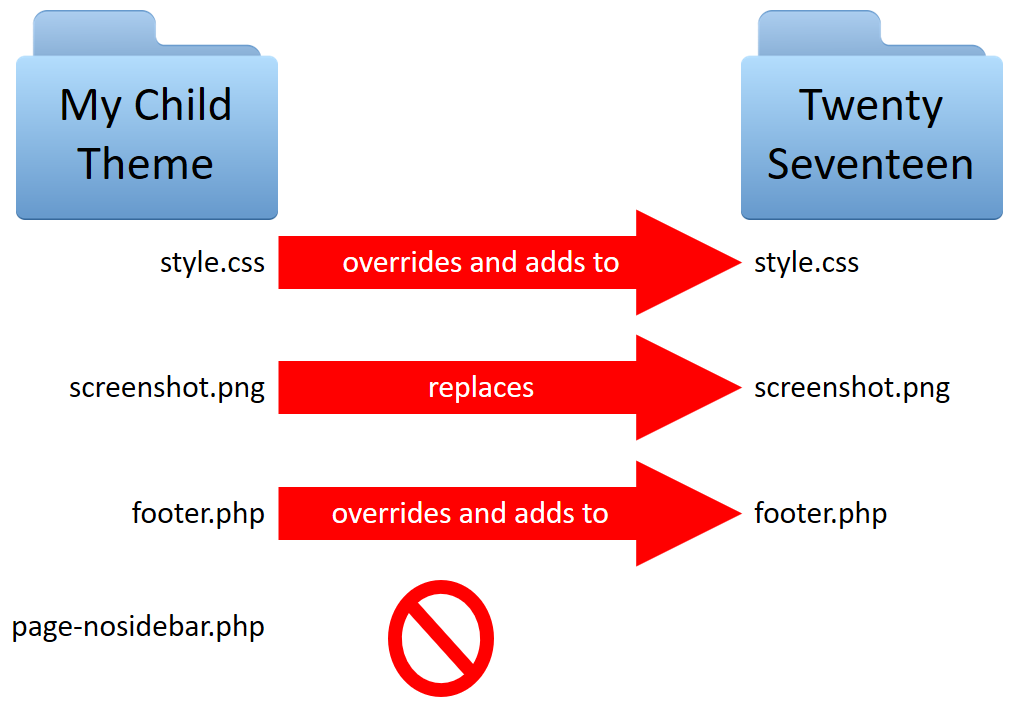
A child theme is a theme that inherits the features of another theme, called the parent theme. It lets you modify your site without changing the main theme. This is helpful for keeping updates safe. You can customize and still get new features.
Benefits Of Using Child Themes
Child themes allow easy customization without touching the original theme. This keeps your site safe from theme updates. You can experiment without risk. Child themes also make development faster. They help you keep your changes organized. Updates won’t affect your custom designs. This means less work and less stress.
Creating A Child Theme
First, create a new folder for your child theme. Name it something you will remember. Place this folder inside the wp-content/themes directory. Make sure the name is simple and unique. This helps to avoid any confusion later. Your child theme folder is now ready.
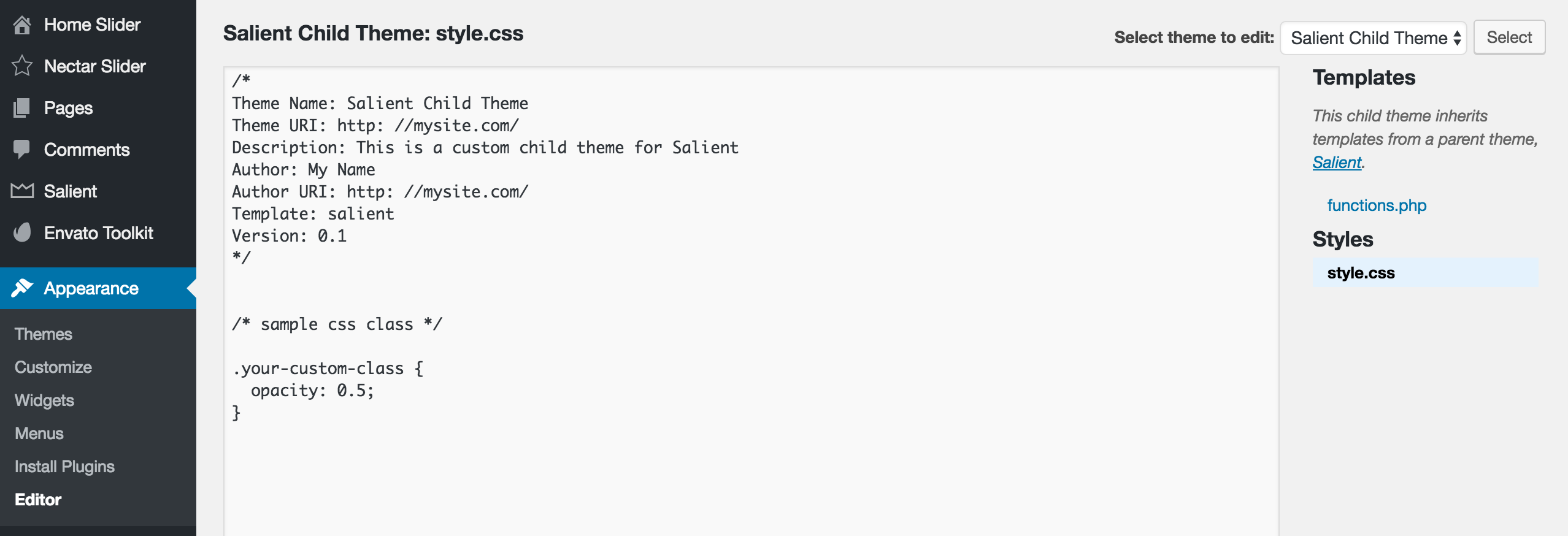
Next, create a file named style.css. This file goes inside your child theme folder. Open the file and write a comment at the top. This comment should include the theme name and template. This tells WordPress about your child theme. Save and close the file. Your style.css file is now set up.
Create a file named functions.php inside your child theme folder. This file is for extra functions. You can use it to enqueue styles from the parent theme. Open the file and write a PHP code to load styles. This step is important. It makes sure your child theme works properly with the parent theme.
Including Css In Child Theme
The @import method is simple. Add it in your child theme’s CSS file. It links the parent theme’s CSS. Start by opening the child theme style.css file. Write @import url(“parent-style.css”); at the top. This loads the parent styles first. Then, child theme styles follow. Be careful, this can slow down the page load. Use it wisely.
Enqueueing stylesheets is better. It keeps the site fast. Open the functions.php file in your child theme. Use the wp_enqueue_style function. This method is efficient. It loads styles without delay. First, register the parent theme’s styles. Then, register the child theme’s styles. Use the correct handle names. This ensures styles load in the right order. Keep your site smooth and speedy.
Credit: themenectar.com
Using WordPress Hooks
Integrate a CSS file into a child theme using WordPress hooks. Customize styles by enqueuing the CSS in the child theme’s functions. php file. Enhance your website’s design while maintaining efficient code management.
Understanding Wp_enqueue_scripts
The wp_enqueue_scripts hook is important. It helps you add CSS files. Use this hook in your child theme. You can add custom styles easily. First, open your child theme’s functions.php file. Then, write your code there. This hook runs before the page loads. It makes sure your styles are ready. WordPress likes this method. It keeps everything neat and organized.
Registering And Enqueuing Styles
You must register styles first. Use the wp_register_style() function. Give your style a name. Then, provide the file path. After registering, enqueue the style. Use the wp_enqueue_style() function. This tells WordPress to load your style. Enqueuing makes sure styles appear. It avoids conflicts with other themes. Always enqueue styles in the correct order.
Common Issues And Solutions
Adding a CSS file to a WordPress child theme often causes issues like missing styles. Solve it by enqueueing the CSS file in the child theme’s functions. php. This ensures proper loading and overriding of parent theme styles.
Troubleshooting Css Not Loading
Sometimes, the CSS file does not load. This can be frustrating. Check the file paths first. Make sure they are correct. Wrong paths are a common mistake. It is easy to fix. Look in your child theme folder. Find the CSS file location. Compare it with your code. Are they the same? If not, correct them.
Another step is to clear the cache. Browsers store old data. This can block new CSS. Clear your browser cache. Then refresh your page. Also, check if the style.css file is missing. Without it, CSS won’t work. Make sure it is in the correct folder. Follow these steps to solve CSS loading issues.
Credit: learn.wordpress.org
Best Practices For Child Themes
Keeping your code neat helps a lot. Use folders and files to separate different code parts. This makes it easy to find things later. Write comments in your code. Comments help you and others understand your code. Use simple names for files. Simple names tell you what the file does.
Always check if changes work with the parent theme. Update your theme regularly. Updates make sure everything works well together. Use WordPress hooks and filters for changes. These tools help you change things safely. Don’t change parent theme files directly. Instead, use the child theme. This keeps your changes safe when updates happen.

Credit: jetpack.com
Frequently Asked Questions
How Do I Add Css To A WordPress Child Theme?
To add CSS to a WordPress child theme, create a style. css file in the child theme’s directory. Use the @import rule to include the parent theme’s styles. Add custom styles below the import statement. Finally, enqueue the child theme’s stylesheet in the functions.
php file using wp_enqueue_style.
Where Is The Style.css File Located In A Child Theme?
The style. css file for a child theme is located in the child theme’s directory. This directory is within the wp-content/themes folder of your WordPress installation. Ensure the style. css file is properly named and placed in the correct directory for WordPress to recognize it.
Can I Modify Parent Theme Css In A Child Theme?
Yes, you can modify parent theme CSS in a child theme. Override parent styles in the child theme’s style. css file. Use more specific selectors to ensure your styles take precedence. This approach allows customization without altering the parent theme’s files.
How To Enqueue Stylesheets In WordPress Child Theme?
To enqueue stylesheets in a child theme, use the wp_enqueue_style function in the child theme’s functions. php file. First, enqueue the parent theme’s stylesheet, then the child theme’s stylesheet. This ensures the correct loading order and preserves styles inheritance.
Conclusion
Including a CSS file in a WordPress child theme is simple. Follow these steps. First, create a new CSS file in your child theme folder. Next, enqueue this file in your child theme’s functions. php. Use the correct code to link it.
This approach keeps your custom styles intact. Your website remains unique and updated. Avoid directly editing parent theme files. This ensures easy updates in the future. Experiment with styles and see immediate results. Enjoy your WordPress journey with a personalized touch.
Keep learning and enhance your site’s design. Happy theming!


