
Are you tired of the same old look of your WordPress site? Thinking about giving it a fresh makeover with a new theme?
You’re not alone. Many site owners like you are eager to revamp their online presence but feel overwhelmed by the process. The good news is that switching to a new theme can be smooth and stress-free with the right guidance.
Imagine your site with a stunning new look that not only attracts visitors but also keeps them engaged. In this guide, we’ll walk you through the steps to import your WordPress site to a new theme. By the end, you’ll feel confident making the change and excited to see your website transform. Ready to get started? Keep reading to learn how to make your site shine with a fresh new theme!
Credit: www.greengeeks.com
Preparation Steps
Keep your site safe. Make a full backup. Use a plugin like UpdraftPlus. Save all files and the database. Store them in a secure place. This step is very important. It helps restore your site if something breaks. Always check the backup before moving on. Make sure everything is copied correctly. This avoids loss of valuable content.
Choose a theme that suits your needs. Think about design and features. Test the theme on a demo site first. Check if it looks good and works well. Make sure it is compatible with the plugins you use. Also, look for themes that are responsive and load fast. This helps in keeping your site user-friendly. Read reviews from other users. This gives you an idea about its performance.
Install New Theme
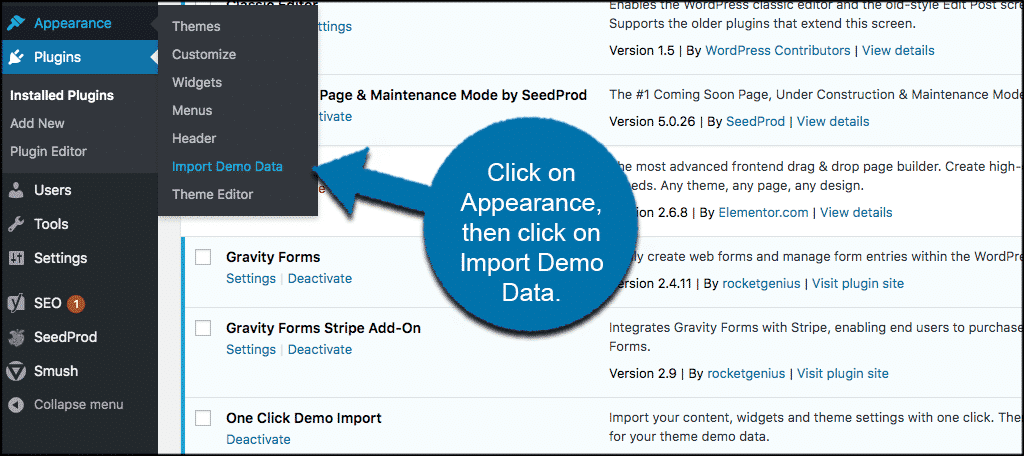
First, go to your WordPress dashboard. You can find it in your site’s admin panel. Log in using your username and password. Look for the Appearance section on the left menu. Click on it to see more options.
Find the Themes option under Appearance. Click on it. You will see a button labeled “Add New” at the top. Click this button to upload a new theme. Choose the theme file from your computer. Make sure it’s a .zip file. After uploading, click Activate to use the new theme. Check your website to see the new look.
Customize Theme Settings
Start with the layout settings. Each theme has different options. Try different settings to see what fits best. The layout affects how your site looks. Some themes let you choose the number of columns. Others let you change the width.
Next, set your site identity. This includes your site title and tagline. Add a logo if you have one. Choose colors that match your brand. Most themes let you pick primary and secondary colors. Make sure the text is easy to read. Avoid colors that clash.

Credit: www.clook.net
Migrate Content
Start by accessing the WordPress admin panel. Navigate to the Tools section. Select Export. Choose what you want to export, like posts or pages. Click on the Download Export File button. This saves the content to your computer. Keep this file safe for the next steps.
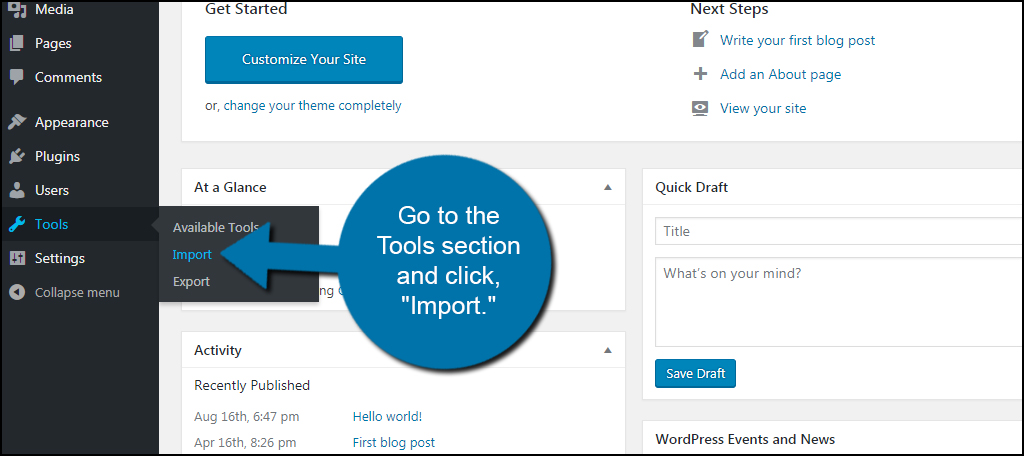
Go to your new WordPress theme’s admin panel. Find the Tools section again. Click on Import. Select the WordPress option. Install the importer plugin if asked. Upload the file you downloaded earlier. Click Upload file and import. Wait for the process to finish. Your content should now appear in the new theme. Check to make sure everything is correct.
Configure Plugins
Start by making a list of your essential plugins. These are the ones you use often. Visit the plugin section in your WordPress dashboard. Delete any plugin that is not needed. Next, find your essential plugins again. Download and install them. This ensures everything works well. Do this one by one to avoid confusion.
Ensure all plugins are compatible with your new theme. Some plugins may not work well. Check the plugin details for theme compatibility. You may need to update some plugins. If a plugin causes issues, find an alternative. Compatibility is key for a smooth transition. Always read plugin reviews and ratings. This helps in choosing the best ones.
Test And Tweak
After changing your theme, check every page on your site. Look at the home page, blog posts, and contact page. Make sure all images and text display correctly. If something looks wrong, take note of it.
Some parts may not look right. Check menus, sidebars, and widgets. They may need adjustments. If text is too big or small, change the font size. Make sure colors match your brand. It is important that all parts of your site look clean and organized.
Launch New Theme
SEO settings help your site get noticed. First, check the theme options. Look for SEO features. These might include meta tags or title settings. Enable these features. They improve your site’s visibility. Search engines will find your site better. Meta tags are small bits of text. They describe your site. Title settings are important too. They tell search engines what your pages are about. Make sure these settings are active. This will help your site rank higher.
Tell your audience about the update. Write a post about your new theme. Share it on social media. Let people know why you changed themes. Explain the benefits. Invite them to visit your site. Encourage feedback. Updates keep your site fresh. They make visitors interested. A new theme can improve user experience. Engage with your audience. Answer questions they have. This builds trust. It helps your site grow.
Credit: www.greengeeks.com
Frequently Asked Questions
How To Switch Themes Without Losing Content?
To switch themes without losing content, first back up your site. Then, activate the new theme via the WordPress dashboard. Ensure all widgets and menus are properly set up. Check for compatibility issues and adjust settings as needed to retain content visibility and functionality.
Will My Plugins Work With A New Theme?
Most plugins work across themes, but compatibility issues may arise. Test each plugin with the new theme. Ensure plugin settings are correct and functionality is intact. Regularly update both themes and plugins to minimize issues and enhance performance.
How Do I Preview A New Theme?
Preview a new theme by using the WordPress Customizer. Navigate to Appearance > Themes and click “Live Preview” on the desired theme. This allows you to see changes without affecting your live site. Adjust settings and review layout before activating.
Can I Customize A New Theme Easily?
Yes, customizing a new theme is often straightforward. Use the WordPress Customizer to make real-time adjustments. You can alter colors, fonts, and layouts. For advanced changes, use custom CSS or child themes. Ensure customizations enhance usability and aesthetics.
Conclusion
Changing your WordPress theme can refresh your site’s look. Follow the steps carefully for a smooth transition. Always back up your site before starting. This ensures your data stays safe. Customize your new theme to fit your brand. Check all features work correctly after importing.
You might need to tweak some settings. Test your site on different devices for best results. A fresh theme can attract more visitors. Keep your content organized and user-friendly. Your new theme should enhance the user experience. Happy blogging!


