
Do you want your podcast website to look professional without the hassle of starting from scratch? Importing demo content for the WordPress Podcaster theme could be your secret weapon.
Imagine having a sleek, ready-to-go website that mirrors your favorite podcasting inspirations. This isn’t just about aesthetics—it’s about captivating your audience from the moment they land on your page. You might be wondering if it’s complicated. Rest assured, this process is straightforward and beginner-friendly.
With a few simple steps, you can transform your site, save time, and focus on what truly matters: your content. Stick with us, and we’ll guide you through importing demo content effortlessly. Your perfect podcast website is just a click away.
Credit: sonaar.io
Prerequisites
To import the Podcaster Theme Demo Content, specific plugins are essential. The One Click Demo Import plugin is vital. It helps load demo content quickly. Another plugin needed is the Customizer Export/Import. This plugin lets you import settings easily. These plugins make the process smooth and fast.
Start by downloading the Podcaster Theme from your account. Go to your WordPress dashboard. Select Appearance and then Themes. Click Add New. Upload the theme file. Activate the theme after installation. Make sure it’s set up correctly. Once done, you can proceed to import demo content.
Accessing Demo Importer
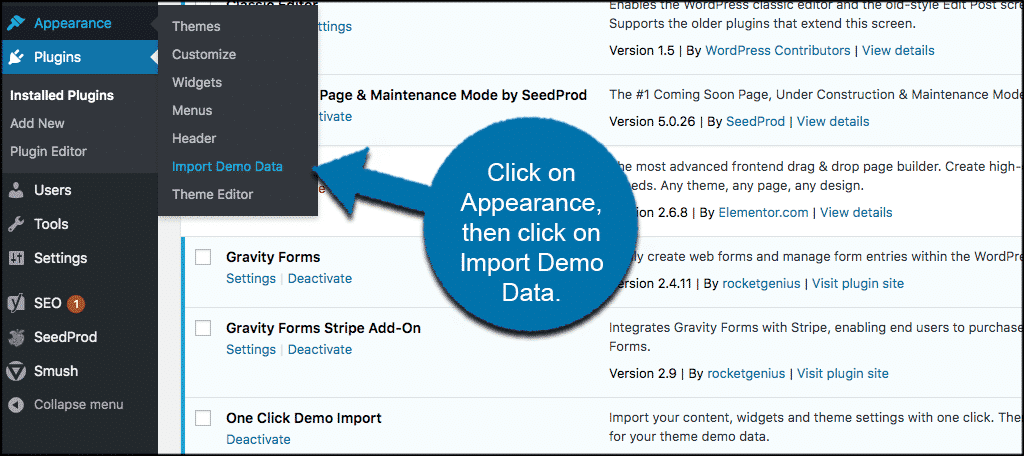
First, go to the WordPress dashboard. Find the Appearance tab on the left. Click on it. Now, look for Import Demo Data. This option helps you import demo content. Click on it to start.
Demo files are important. They include images, posts, and settings. These files make your site look like the demo. Download demo files from the theme provider. Ensure they are in the correct format. Usually, they are XML or JSON files.
Importing Demo Content
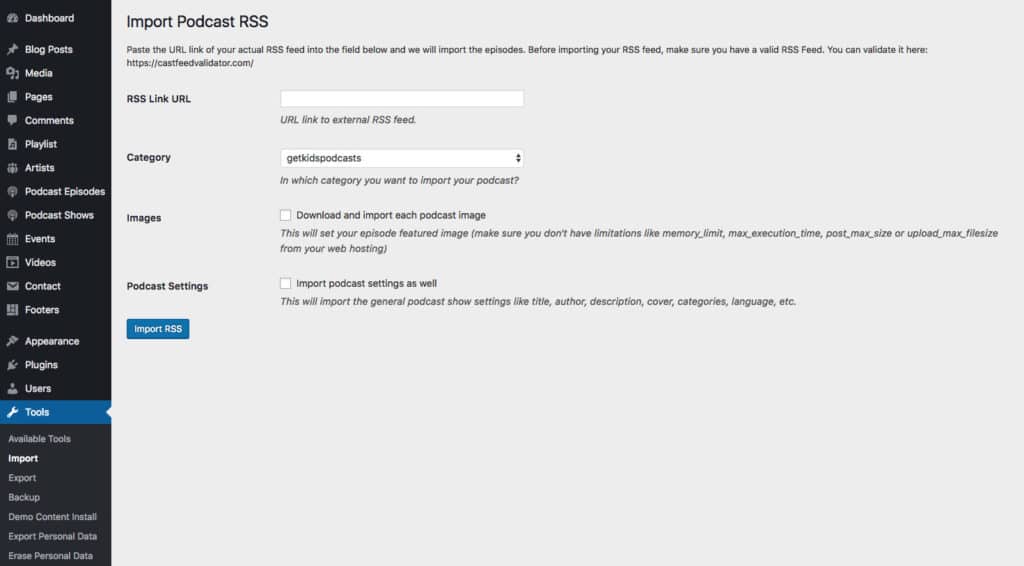
Start by logging into your WordPress dashboard. Find the option for Tools. Click on Import. Choose the WordPress option. Install the importer plugin. Activate it after installation.
Upload the XML file for demo content. Choose the file from your computer. Click on Upload File and import. Wait for the process to finish. Assign authors if prompted. Click on Submit when done.
Errors can occur during import. Check your internet connection first. If the problem persists, clear your browser cache. Try the import process again. Sometimes plugins cause issues. Deactivate unnecessary plugins.
Still facing problems? Contact WordPress support. They can help solve import issues. Ensure your theme is up-to-date. Updates fix many errors.
Post-import Adjustments
Importing the WordPress Podcaster theme demo content involves a few simple steps. Start by accessing your WordPress dashboard, then go to the ‘Appearance’ section to find the ‘Import Demo Data’ option. Follow the on-screen instructions to complete the process and bring your podcast site to life.
Customizing Layout
Change the layout to match your style. Open the theme settings. Choose a layout option that fits your needs. Save changes to update the look. Explore different layouts for a fresh design. Experiment with colors and fonts too. This makes your site unique. A special site attracts more visitors.
Configuring Widgets
Add widgets to your site for extra features. Go to the widgets area in the dashboard. Drag and drop the widget you like. Place it in the desired spot. Save to apply the changes. Widgets can show recent posts or social media links. They make your site useful and fun. Try different widgets to see what works best.
Verifying Import Success
Ensure the pages look right. Visit the homepage first. Look at the design and layout. Are the sections organized? Check the sidebar and footer. Make sure they appear correctly. Next, visit other pages. Each page should match the demo. Compare with the original demo site. Ensure all images and text are visible.
Check if buttons work. Click each one. See if links open new pages. Test the menu items. Ensure they lead to correct pages. Look at the search bar. Try searching for content. Ensure it finds results. Play any audio or video files. Verify they load and play correctly. Make sure forms can be submitted. Test with sample data.
Credit: www.greengeeks.com
Troubleshooting Common Issues
Sometimes, after importing, you may notice some content is missing. This can happen if the demo import was incomplete. Make sure the internet connection is stable. Check if the server settings are correct. Also, ensure the WordPress version is up-to-date. You might need to re-import the demo content. Double-check the import plugin settings. Make sure to follow instructions step by step. This helps in getting all the content.
Sometimes, the theme may not look right. This could be due to missing styles. Start by clearing the browser cache. Then, check the theme settings. Make sure they are set correctly. Also, ensure the CSS files are loading. You can do this by refreshing the page. Another step is to look at the customizer settings. Adjust them if needed. If problems persist, contact support for help.
Tips For Optimal Performance
Images take up space. They can slow your site. Use tools to make them smaller. Resize large images. This helps them load faster. Use correct formats. JPEG is good for photos. PNG is great for graphics. Keep image names simple. Use words like “podcast” or “theme”. This helps search engines.
Caching makes pages load fast. It stores parts of your site. Next visit, it loads quicker. Use plugins for caching. They are easy to set up. Choose one that fits your needs. WP Super Cache is popular. It is easy to use. W3 Total Cache is another option. It helps with speed.
Credit: www.paidmembershipspro.com
Frequently Asked Questions
How Do I Import Podcaster Theme Demo Content?
To import Podcaster theme demo content, use the WordPress importer tool. Download the demo files from your theme provider, then navigate to “Tools” > “Import” in your WordPress dashboard. Select the WordPress option and upload the demo files. Follow the on-screen instructions to complete the import process.
What Is The WordPress Importer Tool?
The WordPress Importer tool helps you import data from external sources. It supports importing posts, pages, comments, custom fields, categories, and tags. To access it, go to “Tools” > “Import” in your WordPress dashboard. You can then upload your XML files to import demo content.
Why Import Demo Content For Podcaster Theme?
Importing demo content helps you set up your site quickly. It provides a structured layout with pre-designed pages and posts, showcasing the theme’s potential. This can save time and inspire design ideas, ensuring your site looks professional from the start.
Can I Customize Imported Podcaster Demo Content?
Yes, you can customize imported demo content freely. After importing, you can edit pages, posts, and settings as needed. Use the WordPress editor to adjust text, images, and layout. Customize colors, fonts, and more to match your brand’s identity and preferences.
Conclusion
Importing WordPress Podcaster Theme demo content is simple and helpful. Follow the steps carefully. Watch your podcast site transform quickly. This process saves time and effort. You gain a professional look without much hassle. It helps in building an engaging platform for your audience.
Remember to customize settings after import. Tailor the theme to suit your style and needs. Practice makes perfect, so don’t hesitate to explore further. With patience, your site will shine. Enjoy your new, polished podcast website!


