
Is your WordPress site in need of a fresh look or enhanced functionality? Upgrading your theme might just be the solution you’re seeking.
Whether you’re aiming to attract more visitors, improve site speed, or simply give your site a modern facelift, upgrading your WordPress theme can make all the difference. But how do you import and upgrade your theme without risking your current setup?
The process might seem daunting, but it doesn’t have to be. Imagine effortlessly transforming your website while keeping all your hard work intact. In this guide, you’ll discover the step-by-step method to import and upgrade your WordPress theme, ensuring a smooth transition and a polished final result. Stay with us, and see how this change can elevate your online presence.
Choosing The Right Theme
Check if the theme has what you need. Look for customization options and design layouts. Good themes offer responsive design. Easy to use features are important. Many themes have built-in SEO tools. These help your site rank better.
Your theme must work with your WordPress version. Check if it supports popular plugins. Plugins like WooCommerce and Yoast are common. Compatibility ensures smooth operation. Avoid themes that cause errors or conflicts. Always check compatibility notes.
Reviews tell you about user experience. Look for themes with high ratings. Ratings show trust and quality. Read what others say about the theme. Users often mention bugs or support issues. Honest reviews help you make a better choice.
Preparing For Theme Upgrade
Always make a backup before changes. Save your website files and database. Use a plugin to help with this task. A backup protects your work from loss. You can restore your site if needed.
A child theme keeps your changes safe. It protects the main theme during updates. First, create a new folder in your themes directory. Add a style.css file. This file holds your custom styles. Use a functions.php file for extra features.
Check all plugins before updating. Some plugins might not work with the new theme. Visit each plugin’s page. Look for any notes about compatibility. This step ensures your site functions well after the upgrade.
Importing The New Theme
Log in to your WordPress dashboard. Click on Appearance. Next, select Themes. Click on Add New. Then click Upload Theme. Choose your theme file. Click Install Now. Wait for the upload. The theme will be ready.
Open your FTP client. Connect to your server. Go to the wp-content/themes folder. Upload your theme file here. Extract the file if needed. Check your WordPress dashboard. The theme should appear there.
Go to your WordPress dashboard. Click on Appearance. Then, click on Themes. Find your new theme. Click Activate. Your new theme is live. Check your site to see changes.
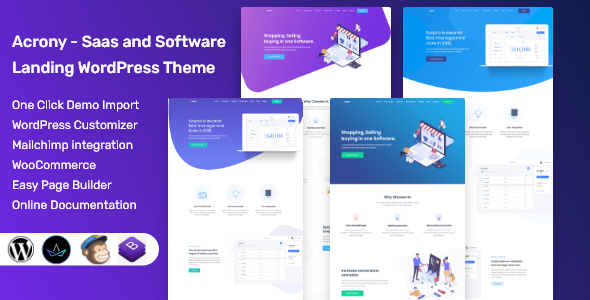
Credit: themeforest.net
Customizing The Imported Theme
Settings help your site look great. Access theme settings from the dashboard. Choose colors, fonts, and backgrounds. Save changes often. Keep your site’s look fresh and clean. Users like a well-designed site.
Demo content shows your theme’s features. Import it easily. Use the theme’s import tool. Follow steps carefully. Demo content helps you understand layout. It shows text and images. You can replace them later.
Layout affects how your site feels. Choose grid or list styles. Adjust sizes and spaces. Design is about colors and shapes. Make sure everything matches. Users love a consistent design. Good layout and design keep visitors happy.
Testing And Troubleshooting
Importing and upgrading a WordPress theme requires careful testing and troubleshooting. Start by backing up your website to prevent data loss. Then, follow the theme’s specific instructions for installation, ensuring compatibility with your site’s plugins and settings.
Checking For Errors
Look for any errors after the upgrade. Check the website pages and functions. Ensure everything works fine. Errors might include broken links or missing images. Always keep a backup for safety. Use debugging tools to find issues. These tools help in fixing the errors quickly.
Testing Website Performance
Ensure the site loads fast. Slow websites lose visitors. Use tools to test speed. Check how the site works on different devices. A good website works on phones and computers. Don’t forget to test the navigation. It should be easy to use. Visitors should find information quickly.
Resolving Common Issues
Themes might cause compatibility problems. Check if plugins still work. Update them if needed. Some functions may not work after an upgrade. Fix conflicts by changing settings. Sometimes, reinstalling the theme helps. If unsure, ask for help. Many forums offer advice.

Credit: quanticalabs.com
Maintaining Your Theme
Keep your theme fresh with regular updates. Updates fix bugs and improve security. They also add new features. Check for updates once a week. Always back up your data before updating. This keeps your site safe.
Protect your site with strong security. Use a trusted theme provider. Always update your theme to fix security issues. Remove old themes you do not use. Old themes can be a risk. Use security plugins for extra protection.
Fast sites keep users happy. Use lightweight themes for better speed. Compress images and files. This makes your site load faster. Keep plugins to a minimum. Too many plugins slow down your site. Test your site’s speed often. Use tools to check performance.

Credit: www.youtube.com
Frequently Asked Questions
How Do I Import A WordPress Theme?
Importing a WordPress theme involves uploading the theme file via the dashboard. Navigate to “Appearance,” then “Themes,” and click “Add New. ” Choose “Upload Theme,” select your theme file, and click “Install Now. ” Once uploaded, activate the theme to apply it to your site.
Can I Upgrade My WordPress Theme Safely?
Yes, you can upgrade safely by backing up your site first. Use a plugin or your hosting service to create a backup. Check for theme updates in “Appearance” and “Themes. ” Follow the prompts to update. This ensures you retain your site’s content and settings.
What Happens After Upgrading A Theme?
After upgrading, your theme gets new features and security improvements. Check your site for any display or functionality changes. Verify compatibility with plugins and customize as needed. Regular upgrades keep your site secure and enhance performance.
Why Is Theme Upgrading Important?
Upgrading themes is crucial for security and performance enhancements. Updates often fix vulnerabilities and optimize your site’s speed. They also introduce new features, improving user experience. Regularly updating ensures your website remains secure and efficient.
Conclusion
Updating your WordPress theme can enhance your website’s performance. It’s a straightforward process with the right steps. Always back up your site before making changes. This ensures safety and peace of mind. Follow the instructions carefully to avoid issues. Keep your plugins and themes updated regularly.
This helps maintain security and functionality. Remember, a refreshed theme can improve user experience. Take your time and enjoy the updated look. Your website visitors will appreciate the fresh design. Regular maintenance keeps your site running smoothly. Stay attentive to updates and enjoy your WordPress journey.


