
Are you tired of the default look of your WordPress site? Do you wish your website could stand out with a stunning design?
If you’re nodding your head, you’re in the right place. Learning how to import themes into WordPress can transform your website with just a few clicks. Imagine having the power to change your site’s entire appearance without hiring a costly developer or spending hours coding.
This guide will walk you through the simple steps to import themes, giving your website a fresh, professional look that captivates visitors. Ready to unlock your site’s potential and make an unforgettable impression? Let’s dive in and get started!

Credit: wordpress.org
Choosing The Right Theme
Free themes are good for beginners. They cost nothing. But they have fewer features. Premium themes offer more customization and support. They can make your site look unique. Free themes might not be updated often. Premium ones are updated regularly. This keeps your site safe.
Think about your site’s purpose. Is it a blog or shop? Choose a theme that fits. Check if the theme is responsive. It should look good on phones and computers. Look at user reviews. Happy users mean a good theme. Consider the loading speed. Fast themes keep visitors happy. Make sure the theme works with your plugins. Compatibility is key.
Preparing For Theme Import
Make sure to back up your website before changes. Use a plugin or manual method. Save your data safely. This protects against data loss. Regular backups are a good habit. They keep your site safe.
Ensure the new theme is compatible with your WordPress version. Check the theme requirements. Look at the theme documentation. Confirm the theme works with your plugins. Avoid issues by testing first. Compatibility checks prevent problems later.
Importing Themes Via WordPress Dashboard
Open your browser. Type your website’s URL and add “/wp-admin”. Enter your username and password. You will see the WordPress Dashboard. This is the main control area.
On the Dashboard, find “Appearance”. Click it, then select “Themes”. Use the Search bar to find themes. Type the theme name or keyword. You will see many themes. Choose the one you like.
Go to the “Themes” page again. Click “Add New”. Then choose “Upload Theme”. Click the “Choose File” button. Find your theme’s zip file on your computer. Select it, then click “Install Now”.
Credit: help.market.envato.com
Installing Themes Via Ftp
Importing themes into WordPress via FTP is straightforward. First, download the theme zip file to your computer. Next, connect to your website’s server using an FTP client like FileZilla. Navigate to the wp-content/themes directory, then upload the unzipped theme folder.
Finally, activate the theme in your WordPress dashboard.
Setting Up Ftp Access
First, you need an FTP client. Many people use FileZilla. It’s free and easy. Download and install it on your computer. Next, get your FTP login details. These are usually found in your hosting account. You need the server address, username, and password. Open FileZilla and enter these details. Click connect. Now you’re connected to your website server. Always check you have the right permissions. Without them, you can’t upload files. Verify with your host if unsure. FTP access allows direct control over files. It’s useful for theme uploads.
Uploading Theme Files
Locate the downloaded theme file on your computer. Usually, themes come in a zip file. Unzip the file first. You need the theme folder inside. In FileZilla, find the ‘wp-content’ directory. Then, locate the ‘themes’ folder inside it. Drag and drop your theme folder here. Wait as the files upload. The process might take a few minutes. Once done, check your WordPress dashboard. Go to ‘Appearance’, then ‘Themes’. Your new theme should be listed there. Activate it to use on your site.
Activating And Customizing Themes
After uploading a theme, you need to activate it. Go to your dashboard. Click on Appearance. Then, click on Themes. Find the theme you want. Click Activate. Your theme will now be live.
The Customizer helps you change how your site looks. Go to Appearance and click on Customize. You can see your changes in real time. Adjust colors, fonts, and layout easily. Save changes by clicking the Publish button. Your site will now show the new style.
Troubleshooting Common Issues
Importing themes into WordPress can sometimes be tricky. Errors like “Stylesheet Missing” or “Broken Theme” often occur. Ensure the theme file is complete and in. zip format for smooth installation.
Resolving Upload Errors
Upload errors can be confusing. Check your file size first. WordPress has limits on file size. Reduce the theme file if needed. Another cause is server settings. Your server might block large uploads. Contact your hosting provider for help. Also, ensure you use a supported file format. WordPress accepts .zip files for themes. Double-check your file format before uploading.
Dealing With Compatibility Problems
Compatibility problems arise with old themes. New WordPress versions may not support them. Update your theme or choose another one. Plugins can cause issues too. Try deactivating plugins one by one. See if the theme works without them. Sometimes, plugins need updates to work with themes. Regularly update both themes and plugins. This ensures better compatibility.
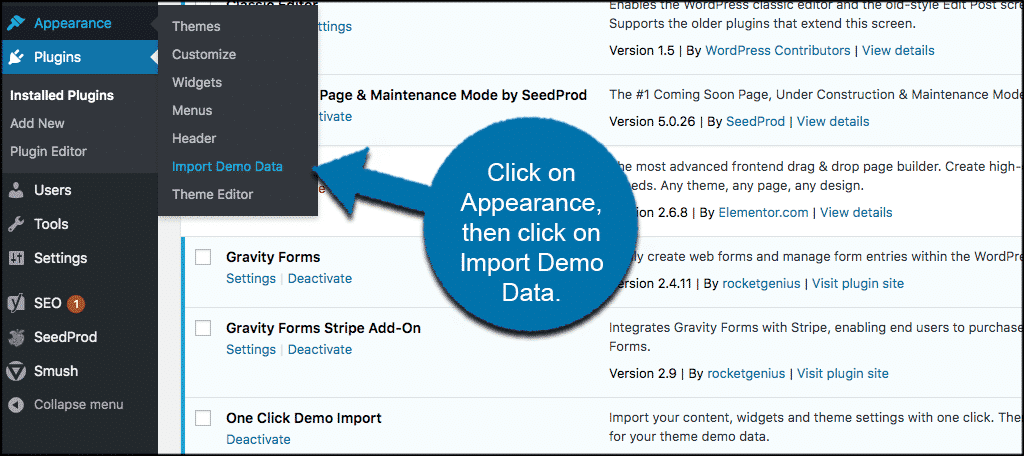
Credit: www.greengeeks.com
Frequently Asked Questions
How Do I Import Themes Into WordPress?
To import themes, navigate to ‘Appearance’ in the dashboard. Click ‘Themes’, then ‘Add New’. Upload your theme file, usually in. zip format. Activate it once uploaded. Ensure compatibility with your WordPress version to avoid issues. Check theme settings to customize further after activation.
Can I Import Free Themes To WordPress?
Yes, you can import free themes. Go to ‘Appearance’ then ‘Themes’. Click ‘Add New’ and browse free themes in the repository. Choose and install directly from there. These themes are safe and regularly updated. Always check reviews and ratings before installation.
Is It Safe To Import Themes From Third-party Sites?
Importing themes from third-party sites can be risky. Ensure the site is reputable and check user reviews. Use trusted marketplaces like ThemeForest or Elegant Themes. Scan for malware before installation. Always backup your site before making changes to avoid data loss.
How Do I Update Imported Themes?
To update imported themes, go to ‘Dashboard’ and click ‘Updates’. Themes with updates will appear here. Click ‘Update’ for each theme. Regular updates ensure security and compatibility. Always backup your site before updating themes to prevent data loss.
Conclusion
Importing themes into WordPress is simple and straightforward. Follow the steps carefully. Choose the theme that fits your site’s style. Upload it through your WordPress dashboard. Activate the theme to see changes instantly. Always check theme compatibility with your plugins.
This ensures smooth performance. Don’t forget to customize the theme settings. Make it look unique. A well-chosen theme enhances user experience. It also boosts your site’s appeal. Enjoy exploring different themes. Experiment with various styles. This helps in finding the perfect fit.
Happy theming!


