
Are you looking to give your WordPress website a fresh, new look without spending countless hours on design? Importing themes in WordPress can be your quick and effective solution.
Imagine transforming your site’s appearance with just a few clicks, making it more appealing to visitors and enhancing user experience. Whether you’re a blogger, business owner, or hobbyist, choosing the right theme can significantly impact how your audience perceives your site.
In this guide, you’ll discover the simple steps to import themes in WordPress, unlocking a world of design possibilities. Stick with us, and you’ll be a theme-importing pro in no time, ready to impress your visitors with a stunning, professional-looking site.

Credit: m.youtube.com
Choosing The Right Theme
Choose a theme that matches your website’s purpose. Color and style are important. Ease of use is crucial. Make sure the theme is mobile-friendly. Check if it loads fast. Compatibility with plugins is necessary. Look at reviews and ratings. Don’t forget support options.
Many places offer themes. WordPress.org has free themes. Look at ThemeForest for paid options. Elegant Themes is well-known. StudioPress offers quality themes. Check Mojo Marketplace for deals. TemplateMonster is another choice. Each source has good and bad themes.
Preparing For Theme Installation
Always keep a backup of your website. It is very important. A backup saves your site from mistakes. Use plugins like UpdraftPlus or BackupBuddy. These tools make it easy to save your data. Store the backup in a safe place. Cloud storage is a good choice. Google Drive or Dropbox work well. Don’t forget to update your backup regularly. This keeps your data fresh and secure.
Not all themes fit every site. Check your WordPress version. Themes need to match this. Look at theme reviews. Reviews tell you about problems. Check theme updates too. Updated themes work better. They have fewer bugs. Choose themes from trusted sources. WordPress.org is a safe place. It offers many themes that are reliable.
Accessing The WordPress Dashboard
First, open your web browser. Type the website URL. Add /wp-admin at the end. Press enter. The login page appears. Enter your username. Enter your password. Click the login button. The dashboard opens.
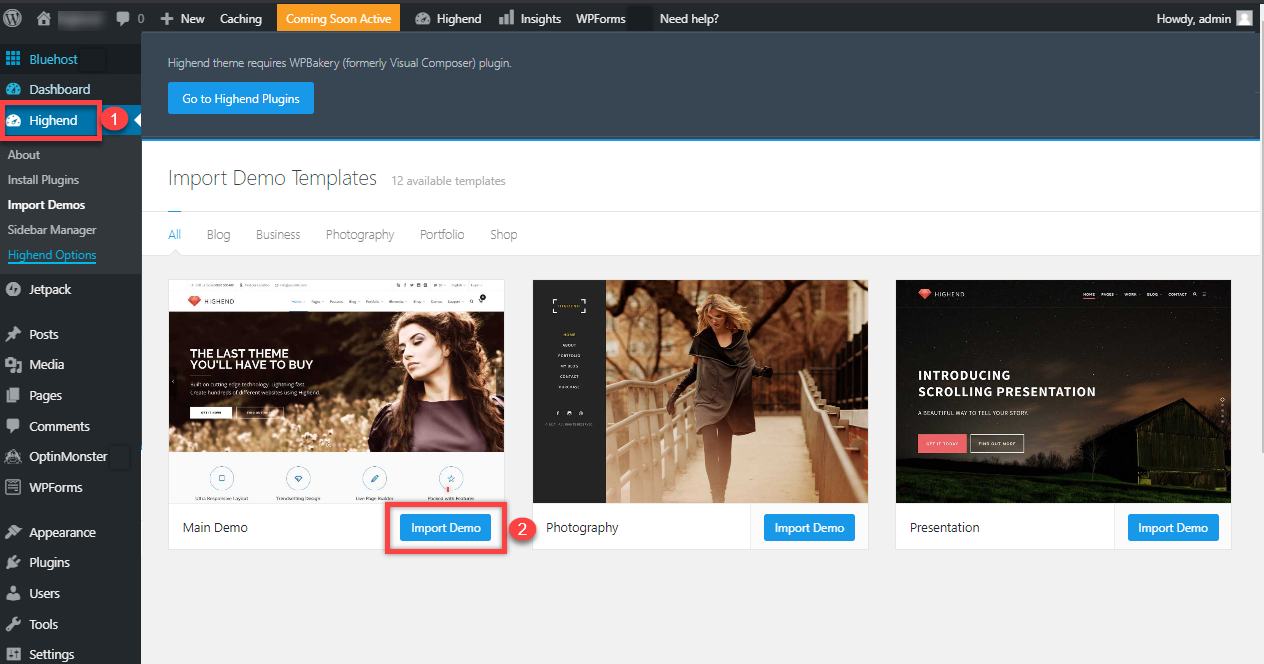
In the dashboard, look at the left side. Find the Appearance tab. Click it. A menu drops down. Click on Themes. The Themes page opens. Here, you see all installed themes. You can add new themes. You can change the current theme. Explore and select as needed.
Credit: www.bluehost.com
Installing A Theme From The WordPress Repository
Open your WordPress dashboard. Click on Appearance and then Themes. Next, click the Add New button. A search bar will appear. Type in the theme name you want. You can also browse through popular themes. Use filters for features like color and layout. Choose themes that match your site’s style.
Found a theme you like? Click Install. Wait for it to download. After installation, a new button appears. It says Activate. Click it to use the theme on your site. The theme is now active. Visit your site to see the changes. Make sure the theme looks good and works well.
Uploading A Theme From An External Source
First, find your desired theme. Visit a trusted theme site. Click the download button. Save the theme file to your computer. The file is usually in a zip format. Make sure to remember the location. You’ll need this file soon.
Open your WordPress dashboard. Go to Appearance. Choose Themes. Click on Add New. Select Upload Theme. Click Choose File. Find and select your theme zip file. Press Install Now. Wait a few seconds. Your theme will upload. Once done, click Activate. Your new theme is now live.

Credit: wordpress.org
Customizing Your New Theme
The WordPress Customizer is a simple tool. It helps you change your theme. You can see changes live. This makes it easy to decide. Just click the Customize button on your dashboard. Then, explore the options. You can change colors. You can also change fonts. Make your site look unique.
Widgets add extra features to your site. You can place them in your sidebar. Or, add them to the footer. They are easy to manage. Go to the Appearance menu. Then, click on Widgets. Drag and drop them where you want. Menus help visitors find pages. You can change menu items. Add a new page. Or remove a page. This is done in the Menus section. Remember, a clear menu helps users.
Troubleshooting Common Issues
Importing themes in WordPress can sometimes present challenges. Errors may occur due to incorrect file formats or server restrictions. Ensuring compatibility and adjusting settings can help resolve these issues effectively.
Handling Installation Errors
Installation errors can be annoying. Ensure the theme file is not corrupted. Download the theme again if needed. Check your WordPress version. It must support the theme. Update WordPress to fix many errors. Look at file permissions. They should be correct. Incorrect permissions cause problems.
Resolving Compatibility Problems
Compatibility is key to smooth running. Themes may not work with certain plugins. Disable plugins one by one. Find the conflicting plugin. Update or change it. Check for PHP version compatibility. Old PHP versions cause issues. Update the PHP if needed. Look at theme requirements. Ensure your server meets them. Match theme requirements to avoid issues.
Maintaining Your WordPress Theme
Importing themes in WordPress enhances website design effortlessly. Start by accessing your WordPress dashboard, then navigate to “Appearance” and select “Themes. ” Click on “Add New” to explore thousands of themes or upload your own. Customize to match your brand’s style.
Regular Updates
Updating your theme keeps it safe from bugs. It also adds new features. Check for updates often. Themes get updates from their creators. You can find them on WordPress or the theme website. Always backup your site before updating. This saves your work if something goes wrong. Update plugins too. Plugins and themes work together.
Monitoring Performance
Check how fast your site loads. Slow sites make visitors leave. Use tools like Google PageSpeed Insights. They help you see site speed. Fix problems the tool shows. Images are often too big. Make them smaller. This speeds up the site. Look at your site’s uptime. You want your site always online. Use uptime tools to watch it. Fix problems fast to keep visitors happy.
Frequently Asked Questions
How Do I Upload A Theme To WordPress?
To upload a theme in WordPress, navigate to your dashboard. Select “Appearance,” then “Themes,” and click “Add New. ” Choose “Upload Theme,” browse for your theme file, and click “Install Now. ” Finally, activate your theme to apply it to your site.
Can I Import Themes Via Ftp?
Yes, you can import themes via FTP. Connect to your server using an FTP client. Navigate to the wp-content/themes directory. Upload your unzipped theme folder here. Once uploaded, go to your WordPress dashboard, select “Appearance,” then “Themes” to activate it.
What Are The Steps To Install A WordPress Theme?
To install a WordPress theme, go to your dashboard. Click “Appearance,” then “Themes,” and “Add New. ” You can search for free themes or upload a premium one. Click “Install” and activate it to apply the theme.
Are Premium WordPress Themes Easy To Import?
Yes, premium WordPress themes are easy to import. Download the theme file from the vendor. Go to “Appearance” > “Themes” > “Add New” in your WordPress dashboard. Upload the theme file, click “Install Now,” and activate it.
Conclusion
Importing themes in WordPress is simple with the right steps. Start by selecting a theme that fits your needs. Download it to your computer. Next, access your WordPress dashboard. Navigate to the “Appearance” tab, then “Themes. ” Click “Add New” and upload your theme file.
Activate the theme to see changes on your site. Always check for compatibility and updates. A good theme improves your site’s look and feel. Now, you’re ready to customize and enhance your WordPress site. Enjoy creating a beautiful and functional website effortlessly.


