
Are you ready to transform your WordPress website into a visually stunning masterpiece? Importing theme pages in WordPress is the key to unlocking a world of design possibilities without the need for coding skills.
Imagine the excitement of seeing your site come to life with professionally designed layouts and features. Whether you’re looking to enhance your blog, business site, or personal portfolio, understanding how to import theme pages can be your game-changer. Dive into this guide to discover the step-by-step process that will empower you to elevate your online presence effortlessly.
Let’s get started on this exciting journey to enhance your website’s appeal and functionality!
Choosing The Right Theme
Your website needs are important. Think about what you want. Do you need a blog or a store? Each need might require a different theme. Themes can be simple or complex. Simple themes are easy to use. Complex themes have more features. Choose what suits your needs best.
Popular themes have many users. They are tested and trusted. Check user reviews and ratings. Look at the theme’s design and flexibility. Does it fit your website’s style? Popular themes often have good support. Easy to find help when needed.
Download theme files safely. Use official websites or trusted sources. Avoid unknown sites. Ensure files are compatible with your WordPress version. Save files in an easy-to-find location. Prepare for easy installation. Follow instructions carefully.
Installing A WordPress Theme
Go to your WordPress dashboard. Click on Appearance, then choose Themes. Click on Add New button. Search for the theme you want. Click Install and then Activate it. Your new theme is now ready.
Download the theme from the source. Unzip the file on your computer. Open your FTP client and connect to your website. Go to wp-content/themes directory. Upload the theme folder there. After uploading, go to the dashboard. Activate the theme from there.
Go to your WordPress dashboard. Click on Appearance, then Themes. Find the theme you installed. Click on Activate button. Your theme is now live on your site. Check how it looks. Make adjustments if needed.
Importing Theme Demo Content
Plugins make themes work well. Some themes need special plugins. These help your site look nice. First, find the plugins list. Next, install them from the WordPress dashboard. Click “Plugins,” then “Add New.” Search for each plugin. Finally, click “Install Now” and “Activate.” Your theme needs these plugins to show demo content. Without them, it may not look right.
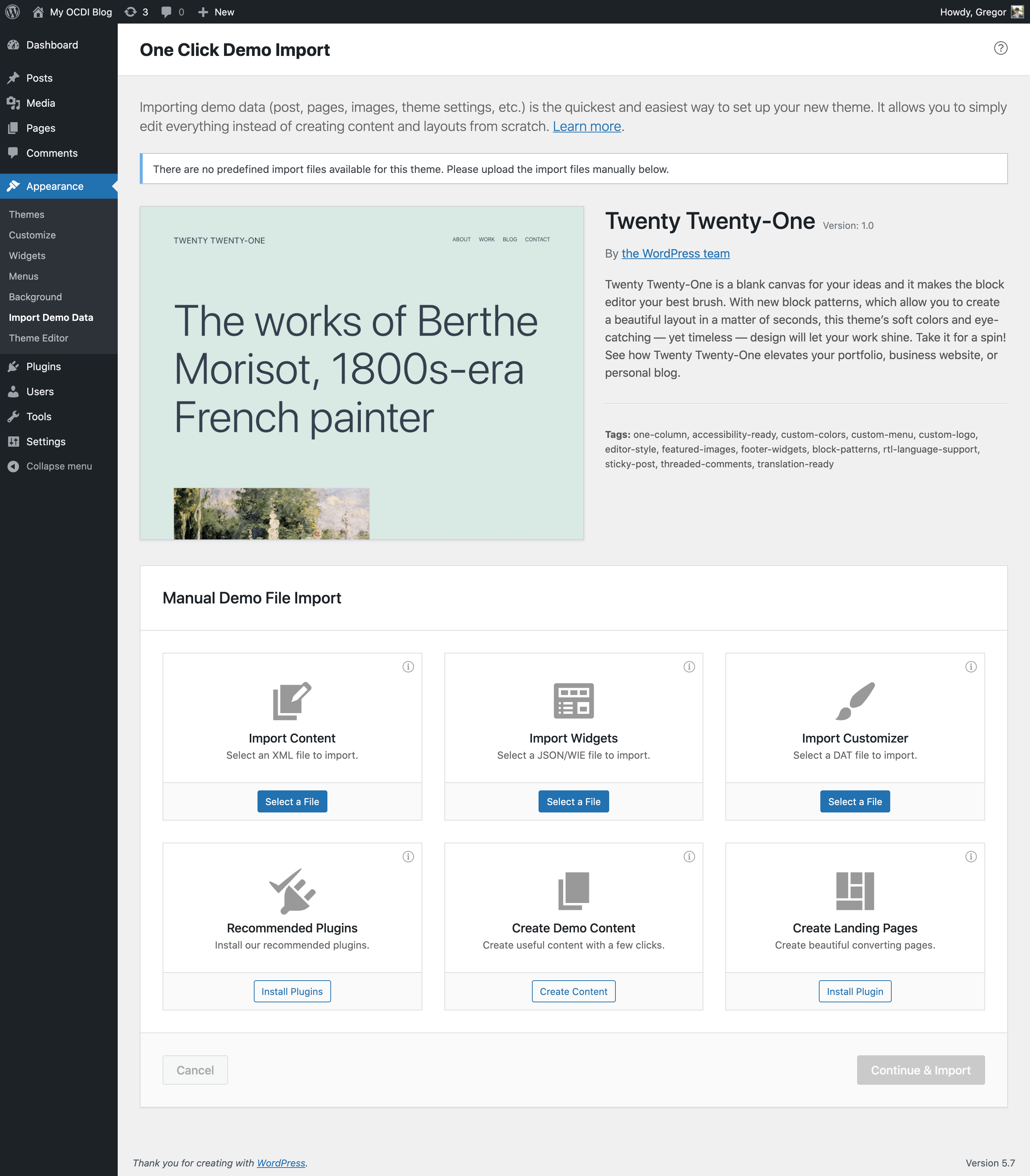
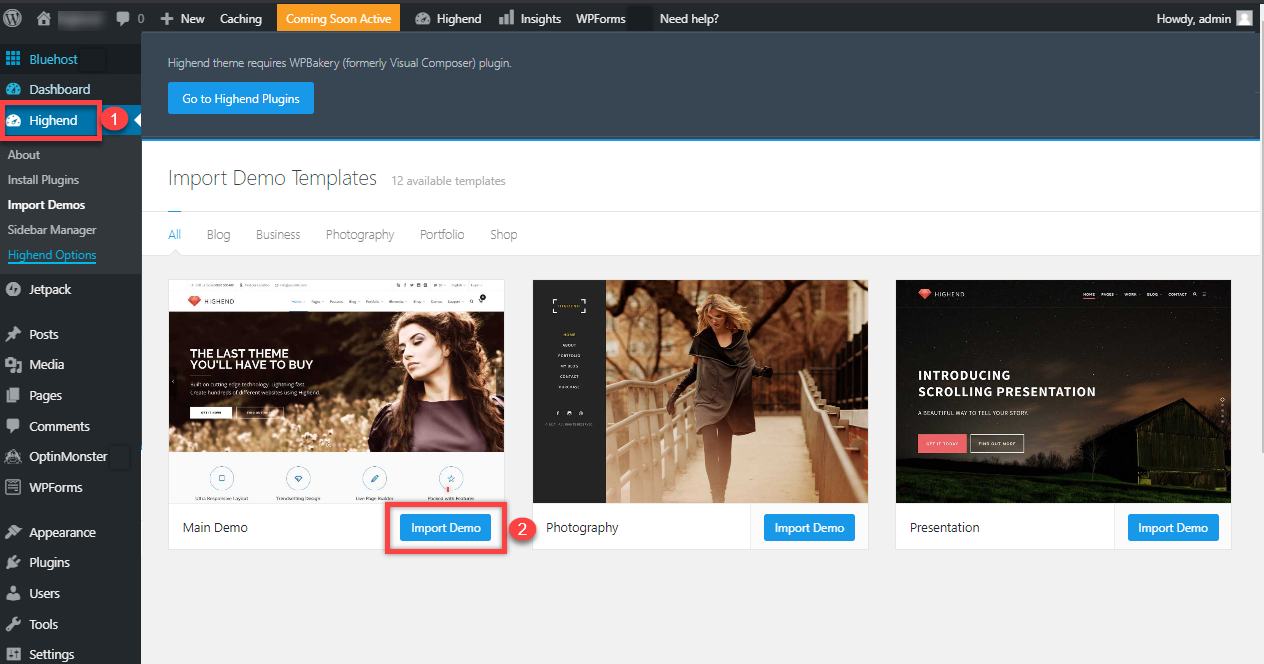
Many themes offer a one-click importer. This tool saves time. Find it in theme settings. It’s simple to use. Click on “Import Demo Content.” Wait a few minutes. Your site gets all demo content. Pages, posts, and menus appear. This method is quick and easy. Perfect for beginners. No need to worry about complex steps.
Some prefer manual import. This method requires patience. First, download demo files from the theme site. Next, go to “Tools” in WordPress. Choose “Import” and select your file type. Upload each file one by one. Finally, click “Import” to finish. Manual import gives control over what you add. It may be slow but ensures accuracy.
Credit: support.undsgn.com
Customizing Theme Pages
The WordPress Customizer is a helpful tool. It allows easy changes to your theme pages. You can adjust colors, fonts, and more. Preview changes live before saving. This helps to make sure everything looks good. The Customizer is user-friendly. Even beginners can use it without trouble. Changes are instant and visible. Save work often to avoid losing changes.
Page Builders offer drag-and-drop features. They make designing pages simple. No coding skills are needed. Choose from different elements like text boxes and images. Add them to your page easily. Many themes support Page Builders. They help to create unique layouts. Users can build beautiful pages quickly. Check compatibility with your theme first.
Layout and design changes are important. They help to make pages look clean. Use simple layouts for easy navigation. Align text and images neatly. Avoid cluttered pages. A good design improves user experience. Keep fonts and colors consistent. This helps in making the site look professional. Test different layouts to find what works best.
Troubleshooting Common Issues
Import errors can be very frustrating. Check your file format. Make sure it is correct. Sometimes, files are too big. Try splitting the file into smaller parts. If errors continue, update your plugins. Outdated plugins cause problems. Always have a backup before making changes.
Missing images are common after import. First, check your image paths. They must be correct. Images may not load if paths are wrong. Upload images again if needed. Sometimes, the server blocks images. Adjust server settings to allow them.
Plugins can cause conflicts. Deactivate all plugins first. Then, reactivate them one by one. This helps find the problem. Sometimes, a plugin update is needed. Check for updates regularly. If a plugin is faulty, consider using another one.
Credit: wordpress.org
Maintaining Theme Updates
Importing theme pages in WordPress ensures consistency across your website. Start by accessing the WordPress dashboard, then navigate to ‘Appearance’ and select ‘Themes’. Follow the prompts to import theme pages, maintaining alignment with your website’s design.
Updating Safely
Keeping your WordPress theme updated is very important. Updates fix bugs and add new features. Always check for updates on your theme’s settings page. Use the automatic update option if available. This makes things easier. Never skip an update to avoid issues.
Backing Up Before Changes
Before updating, always back up your site. Backups save your data in case of problems. Use plugins like UpdraftPlus or Duplicator. They are easy to use. Follow the plugin steps for a backup. Keep the backup file in a safe place.
Monitoring Theme Performance
After updates, check your site’s performance. Ensure it loads fast and works well. Use tools like GTmetrix or Pingdom. These tools show your site’s speed and issues. If something is wrong, contact your theme’s support team.
Credit: www.bluehost.com
Frequently Asked Questions
How Do I Import Theme Pages In WordPress?
To import theme pages, go to the WordPress dashboard. Navigate to ‘Appearance’ and select ‘Themes’. Click ‘Add New’ and upload your theme file. After activation, use the theme’s import functionality, usually found in theme settings or documentation, to import pre-made pages and layouts.
Can I Import Pages Without Losing Data?
Yes, you can import pages without losing data. Before importing, ensure you back up your site. Use import options provided by the theme to safely add new pages. This process typically doesn’t affect existing content, but always check compatibility and settings to prevent data loss.
What Are The Steps To Import Theme Pages?
To import theme pages, first install and activate your theme. Locate the theme import tool, often in theme settings. Follow on-screen instructions to import demo content, including pages. Ensure you have a backup before proceeding. Check imported pages for layout and content alignment.
Is It Necessary To Use A Theme’s Demo Importer?
Using a theme’s demo importer isn’t necessary, but it simplifies setup. Demo importers pre-load pages and layouts, offering a quick start. If customization is preferred, manual setup is possible. However, demo importers save time and ensure proper theme functionality.
Conclusion
Importing theme pages in WordPress can be easy. Follow the steps carefully. Always backup your site before making changes. Choose themes that suit your website’s style. Importing can improve your site’s look and feel. Make sure the theme is responsive.
Test the theme on different devices. Check for compatibility with plugins. Learn from tutorials if needed. Practice makes perfect. Enjoy your new theme pages. Your site will look professional. Keep exploring WordPress features. Happy blogging!


