
Are you ready to give your WordPress site a stunning makeover? Importing a theme can transform your website from basic to beautiful in just a few clicks.
Whether you’re a seasoned blogger or a business owner looking to enhance your online presence, knowing how to import a theme is a crucial skill. Imagine having a website that not only looks professional but also captures your unique style and brand.
You’re about to learn the secret behind those eye-catching websites that make you stop and stare. Stick with us, and you’ll discover how easy it is to bring your vision to life with the right WordPress theme. Curious about how to get started? Let’s dive in and unlock the potential of your website today!

Credit: www.elegantthemes.com
Choose A Theme Source
Free themes are good for beginners. They offer basic features. Many sites offer free themes. You can find them in WordPress’s theme directory. Always check user reviews. This helps you know the theme’s quality. Free themes have limited support. They might not have updates. Choose free themes carefully.
Premium themes cost money. They offer more features. You get better support. Premium themes often have updates. Many sites sell premium themes. You can buy them from theme shops. Premium themes look more professional. They help your site stand out. Check if the theme fits your needs.
Custom themes are made just for you. They fit your needs exactly. Custom themes need a developer. They are often expensive. You get unique designs. Custom themes make your site special. They offer full control. You decide how your site looks and works.
Credit: www.greengeeks.com
Download The Theme
Find the theme website or marketplace. Search for the theme you like. Click on the theme’s page. Look for the download button. It’s usually near the top. Click to start the download.
Once downloaded, the file is in a ZIP format. Save it to your computer. Choose a folder you can find easily. This is important for later steps. Do not unzip the file. WordPress needs the ZIP file format.
Access WordPress Dashboard
Start by visiting your website’s login page. Enter your username and password. These details are important. Once logged in, you will see the WordPress Dashboard. This is the control center of your site. Remember, keep your login info safe.
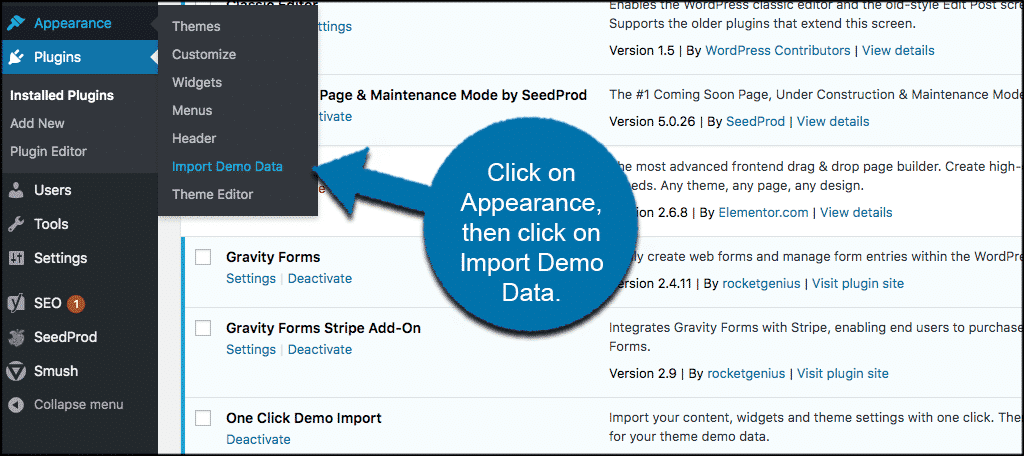
Find the Appearance menu on the left. Click on it. Then, select Themes. This opens the themes section. You can see all installed themes here. To add a new theme, click Add New. This will show you available themes. Choose one you like and click Install.
Upload The Theme
Start by going to the WordPress dashboard. Find the Appearance menu and click on Themes. Look for the Upload Theme button at the top. Click this button. You will see an option to choose a file from your computer.
Make sure you have the theme zip file ready. Select the theme zip file. Click Install Now. The system will upload the file. Wait for the upload to complete. Once done, click Activate. Your new theme is now ready.
Preparing the theme zip file is important. Ensure the file is in the right format. It should be a zip file. Do not unzip it. Keep it safe on your computer. This file is what you need to install the theme.
The zip file contains all theme parts. These parts make the theme work well. Always check the file before uploading. Ensure it’s complete and not broken. A complete file gives better results.
Activate The Theme
Importing a theme into WordPress enhances your site’s design effortlessly. Navigate to the dashboard, select ‘Themes’, and click ‘Add New’. Upload the theme file from your computer, then activate it to apply. This process customizes your site instantly, offering a fresh and appealing look.
Previewing The Theme
Previewing a new theme is fun. It shows how your site looks. Go to Appearance and then Themes in your WordPress dashboard. Find the theme you want. Click on Live Preview. This opens a new window. You can see your site with the new theme. Make sure everything looks right. Check the menus and widgets. They should be in the right place. If something looks wrong, fix it before activating.
Setting The Theme As Active
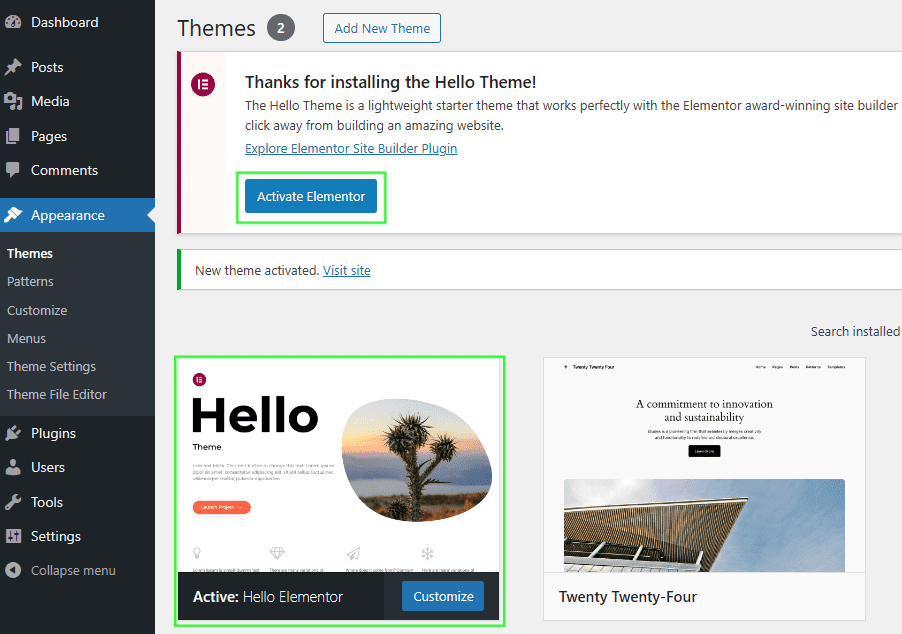
Setting a theme as active is simple. First, go to Appearance. Next, click on Themes. Find your theme from the list. Click the Activate button. Now, the theme is live on your website. Check your site again. Ensure everything displays correctly. The menus and links should work. Your new theme is now ready for visitors to see.
Customize Theme Settings
Choose a layout that fits your style. Some themes offer multiple layout options. You can pick from a grid, list, or single-column layout. Experimenting with these layouts is fun. It helps you understand what looks best. You can always change it later.
Colors make your site unique. Most themes allow color changes. You can adjust the background, text, and link colors. Play with different shades. Find ones that reflect your brand. Always ensure the text is easy to read. A good color scheme enhances user experience.
Widgets add functionality to your site. Place them in sidebars or footers. Common widgets include search bars and recent posts. Menus help visitors navigate. Add pages like Home, About, and Contact. Organize menus for easy access. Keep the site tidy and user-friendly.
Troubleshoot Common Issues
Upload errors can be frustrating. Check your file size first. WordPress limits the size of files you can upload. Adjust your server settings if needed. Check your internet connection too. A weak connection can cause upload problems. Ensure your theme file is complete and not corrupted. Try uploading again after checking these points.
Themes might not work with all plugins. Some plugins can cause issues. Deactivate any plugins before you try your theme. Update WordPress to the latest version. Older versions may not support new themes. Check the theme’s documentation. It might have specific steps. Follow those to fix compatibility problems.
Seek Support
Discover simple steps to import a theme into WordPress. First, navigate to your dashboard. Then, select ‘Appearance’ and choose ‘Themes’. Upload your desired theme and activate it with ease. Seek support if needed to make your site look unique and professional.
Consulting Theme Documentation
Theme documentation is often very helpful. It explains how to use the theme. Always check it before asking for help. Many themes have step-by-step guides. These guides show how to import and set up the theme. Reading the manual can save time and effort. You’ll find answers to common problems. Look for FAQs and troubleshooting sections. These sections often have solutions to common issues. Understanding the theme’s features is important. It helps in making the best use of the theme. Knowing where to find help is crucial. This way, you can solve problems quickly.
Reaching Out To Theme Developers
Theme developers know their products well. They can provide specific help. Contact them through email or support forums. Many developers offer direct support channels. Some have live chat options. Be clear when asking questions. Explain your issue in simple words. Developers can offer detailed solutions. They often have updates and fixes. They help keep themes working smoothly. Reach out to them for complex issues. Developers are usually eager to assist. They want users to enjoy their themes. So, don’t hesitate to ask for their help.
Credit: help.elements.envato.com
Frequently Asked Questions
How Do I Import A Theme Into WordPress?
To import a theme into WordPress, go to your dashboard. Click on “Appearance” and then “Themes. ” Select “Add New,” upload your theme file, and activate it. Make sure the file is in. zip format for a smooth upload process.
What File Format Should The Theme Be In?
The theme file should be in. zip format for uploading. WordPress requires themes to be compressed in this format. This ensures a smooth and error-free installation process. If your theme is not in. zip format, compress it using a file compression tool.
Can I Import Themes From Third-party Sites?
Yes, you can import themes from third-party sites. Download the theme’s. zip file to your computer. Ensure the theme is compatible with your WordPress version. Always check for reviews and ratings before downloading from third-party sources to ensure theme safety and compatibility.
Why Is My Theme Not Uploading?
Your theme might not be uploading due to file size limits. Check your server’s maximum upload size. If the theme file exceeds this limit, try increasing the limit via your hosting control panel. Also, ensure the theme is in. zip format and compatible with your WordPress version.
Conclusion
Importing a theme into WordPress is simple and rewarding. Start by choosing the right theme for your needs. Next, follow the steps to upload and activate it. You’ll see your website transform instantly. Always check for compatibility with your plugins.
Remember, themes enhance both design and functionality. With practice, you’ll get better at customizing. This process boosts your site’s appeal. Now, you’re ready to create a stunning website. Enjoy exploring the endless possibilities with WordPress themes!


