
Unlock the full potential of your WordPress website by mastering the art of importing style.css into a child theme. You might be wondering why this matters.
Imagine having the flexibility to customize your site without worrying about updates overwriting your changes. That’s the power of a child theme. By the end of this guide, you’ll have the confidence to make your site uniquely yours, all while keeping it future-proof.
Ready to dive in and elevate your WordPress game? Let’s get started!
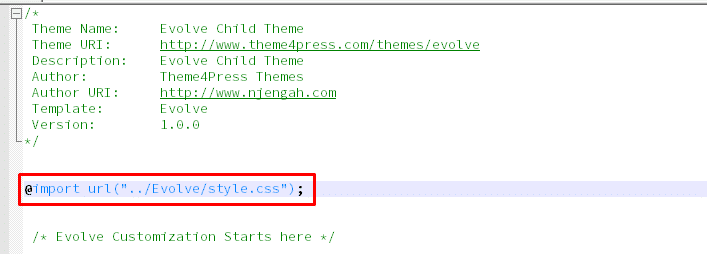
Credit: theme4press.com
Understanding Child Themes
Child themes help keep the original themesafe and will last. It makes it easy to try new designs. You can test without breaking the site. Child themes are like a copy of the main theme. They act as a backup. They are great for learning and experimenting.
Child themes protect custom changes. They keep these changes even when themes update. This saves time and effort. Creating child themes is simple. It helps keep the site fresh. They make it easy to add new features. They help avoid errors and mistakes. Using child themes is smart for updates. They keep the site steady and safe. They help maintain the site’s look. They allow for easy tweaks and changes. Child themes are great for beginners. They offer a safe place to learn.

Credit: jetpack.com
Setting Up A Child Theme
First, make a new folder in your themes section. This folder will be your child theme directory. Name it anything you like. It should be easy to remember. Inside this folder, add two files: style.css and functions.php. These files are important. They help your child theme work well with the parent theme.
Open the style.css file you just created. At the top, add a comment section. This section should include the theme name, template, and other details. After that, you can add your custom styles. These styles will change how your site looks. Always save your changes to the file. Your child theme is now ready to use. It’s easy to update and manage.
Methods To Import Style.css
Integrating style. css into a WordPress child theme involves a few simple steps. Use the functions. php file to enqueue the child theme’s stylesheet, ensuring it loads after the parent theme’s CSS. This method maintains a seamless design and allows easy customization.
Using @import In Style.css
Use the @import rule in your child’s style.css file. This method is simple. It loads the parent theme’s style first. Just add this line at the top: @import url("../parent-theme/style.css");. Replace parent-theme with your actual theme folder name. This method is easy but has a downside. It can slow your site’s loading time. Always check if this method suits your site.
Enqueuing Styles Via Functions.php
Enqueue styles using the functions.php file. This method is more efficient. Open your child’s functions.php file. Add a function to load the parent style. Use wp_enqueue_style to do it. Here is a sample function:
    function my_child_theme_styles() {
        wp_enqueue_style('parent-style', get_template_directory_uri() . '/style.css');
    }
Then, hook it to wp_enqueue_scripts. This method keeps your site fast.
Best Practices For Style.css Import
Using @import in WordPress themes can slow down your site. Instead, use WordPress functions. This makes your site faster. Try to avoid old methods like @import. They are not efficient.
Use the enqueue method for adding styles. This is a better way. It loads styles faster. Use wp_enqueue_style() to add CSS. This method is safe. It keeps your site running well.
Troubleshooting Common Issues
Importing style. css into a child theme on WordPress often resolves design inconsistencies. Locate the child theme’s functions. php file and add the correct enqueue code. This ensures seamless integration, improving your site’s appearance and functionality.
Handling Style Conflicts
Style conflicts can make your site look messy. Always check your style.css file. Ensure it does not clash with other styles. If changes do not appear, inspect the code. Look for duplicate styles and conflicts. Use browser tools to see what styles load. Disable conflicting styles temporarily. This helps identify problem areas. Adjust or remove conflicting styles. This can fix many issues.
Debugging Loading Errors
Loading errors can stop styles from showing. First, check if your style.css file is in the right place. Ensure the path is correct in your child theme. Use inspect element in your browser. It helps find missing files. Ensure your code calls the style.css file correctly. Check for typos in paths. Typos can stop files from loading. Clear your cache often. This helps update changes. Refresh the page to see if styles load.
Credit: www.elmastudio.de
Enhancing Child Theme Performance
Load CSS files in the best way. This makes your site faster. First, make sure the CSS is important. This means your site uses it a lot. Next, try using a plugin to help. This can save you time. Finally, check if the CSS is blocking. Blocking means it stops other things from loading. Fix this for a better site.
Make CSS files small. This helps them load quickly. Use a tool to minify CSS. Minifying removes spaces and comments. Combine CSS files into one. This reduces the number of files. Fewer files mean faster loading. Remember, smaller and fewer files make your site better.
Frequently Asked Questions
How To Locate The Child Theme Directory?
Navigate to your WordPress installation via FTP or File Manager. Locate the `wp-content` folder, then open the `themes` directory. Here, find your child theme folder, which typically mirrors the name of the parent theme with ‘-child’ suffix. This is where you can add or modify your `style.
css` file.
Why Import Style.css Into A Child Theme?
Importing `style. css` ensures your child theme inherits styling from the parent theme. It allows you to make customizations without altering the original theme files. This way, updates to the parent theme won’t overwrite your changes, preserving your custom design and functionality.
Can I Use @import For Style.css In WordPress?
Using `@import` in WordPress is not recommended due to performance issues. Instead, enqueue styles in your child theme’s `functions. php` file. This method is more efficient and adheres to WordPress best practices, ensuring faster load times and better overall site performance.
What Is The Function To Enqueue Styles?
Use `wp_enqueue_style()` to enqueue styles in WordPress. In your child theme’s `functions. php`, add a function utilizing `wp_enqueue_style()`. This function loads the parent theme’s stylesheet first, then your child theme’s `style. css`. This approach maintains theme hierarchy and ensures all styles are applied correctly.
Conclusion
Importing style. css into your WordPress child theme is simple. This process enhances your site’s look. Follow the steps to ensure seamless integration. Remember to check your theme’s compatibility. This avoids any potential issues. Always back up your files before changes.
It ensures safety and peace of mind. A customized child theme offers flexibility and control. Perfect for personalizing your website’s design. Practice makes perfect. Experiment with styles to find what suits you best. Happy styling!


