
Imagine you’ve just discovered a stunning new WordPress theme that perfectly aligns with your vision. You’ve made the switch, but now you’re facing the daunting task of importing your existing pages into this new theme.
The thought of losing your hard work and carefully crafted content might be giving you pause. But don’t worry, you’re not alone. In this guide, you’ll learn how to seamlessly import pages into your new WordPress theme without losing any vital information.
Whether you’re a seasoned WordPress user or just starting out, you’ll find this process straightforward and empowering. By the end of this article, you’ll have all the tools you need to ensure a smooth transition, making your website look incredible with minimal effort. Let’s dive in and discover how you can effortlessly bring your pages to life in your new theme. Your website’s transformation is just a few steps away!

Credit: crocoblock.com
Choosing A Compatible Theme
Picking the right theme is key. Ensure it matches your needs. Some themes might not fit. Check the theme’s features first. Look at the theme’s compatibility with plugins. This ensures smooth operation. A theme should support customization. This helps with personalizing pages. Review user ratings and feedback. This shows others’ experiences. A good theme will have frequent updates. This keeps it secure. Make sure the theme is responsive. It should work on all devices. A responsive theme is more user-friendly. It offers a better viewing experience.
Backing Up Your Website
Backup plugins are tools that help save your website files. They are easy to use. Most plugins let you schedule backups. This means they save your site automatically. Some plugins store backups in the cloud. Others keep them on your computer. Popular plugins include UpdraftPlus and BackupBuddy. These tools offer free and paid versions. Choosing the right plugin is important. It ensures your website is safe. Backup plugins make restoring your site simple. You don’t need technical skills to use them. Just install and set up the plugin. Your website is then protected from data loss.
Manual backup methods need more work. First method is downloading files. Use FTP to get files from your server. Second method is exporting your database. Use phpMyAdmin for this task. Both methods require careful steps. Manual backups are important. They give control over your files. Always keep a copy in a safe place. A USB drive or external hard drive works well. Manual methods take more time than plugins. But they ensure you have a full backup. Understanding these methods helps keep your site safe. Protecting your data is key.
Exporting Pages From Old Theme
First, go to your WordPress dashboard. Find the Tools menu and click on Export. Choose the pages you want. Download the export file to your computer. This file is in XML format. Remember this file for later use. It’s easy to overlook.
If you used a page builder, exporting is different. Some builders have their own tools. Check the builder’s settings. Look for an export option. If available, use it. Save the file to your computer. Keep this file safe. You might need it soon.
Installing The New Theme
First, go to your WordPress dashboard. Click on Appearance, then Themes. Choose your new theme. Click Activate. Your site now uses the new theme. It is important to check your site. Make sure everything looks good. Sometimes, things might not display correctly. Adjust settings if needed. Explore the theme options. Customize your site. Make it unique and beautiful.
Before using a new theme, check its requirements. Some themes need special settings. Others need plugins to work well. Look at the theme’s details. Make sure your server meets all needs. Check the PHP version. Also, check WordPress version. Both should be up-to-date. This ensures smooth running. A theme needs the right setup to work well. Follow these steps for a trouble-free experience. Enjoy your new look!
Importing Pages To The New Theme
The WordPress Import Tool helps you move pages easily. First, go to the dashboard. Find the Tools menu and click on Import. Choose the WordPress option. Install the plugin if asked. Activate it. Now, upload your old export file. This file has your pages. Click Upload and wait.
Media files are important. They include pictures and videos. You must import them too. Make sure they are in the export file. During import, check the box for media. This will import images and videos. If they don’t import, add them manually. Go to the Media Library. Upload them there. Now your new theme will have old media files.
Customizing And Adjusting Layout
Importing pages into a new WordPress theme involves careful layout customization. Ensure seamless design by adjusting elements to match the new theme. Optimize user experience with thoughtful placement of text and images.
Using Theme Customizer
The Theme Customizer is a helpful tool. It lets you change your site’s look. You can choose colors, fonts, and more. This makes your site feel special.
Changing the layout is easy too. You can move things around. Put them where you like. This helps make your site look neat.
Adjusting Page Elements
Adjusting page elements is important. You can make text bigger or smaller. You can change images too. This helps your site look good.
Use the drag-and-drop feature. It makes moving things easy. Just click, drag, and drop. Your page will look great.
Testing And Debugging
Checking for Broken Links is vital. Broken links can confuse visitors. Use tools to find them. Fix each broken link quickly. A page with broken links looks unprofessional. It also affects SEO. Keep all links updated. This ensures a smooth user experience.
Ensuring Responsive Design is important. Websites must work on all devices. Check pages on phones and tablets. Look at how elements fit the screen. Make adjustments as needed. A responsive design attracts more visitors. It also improves site ranking. Test every page thoroughly. Responsive design increases engagement.
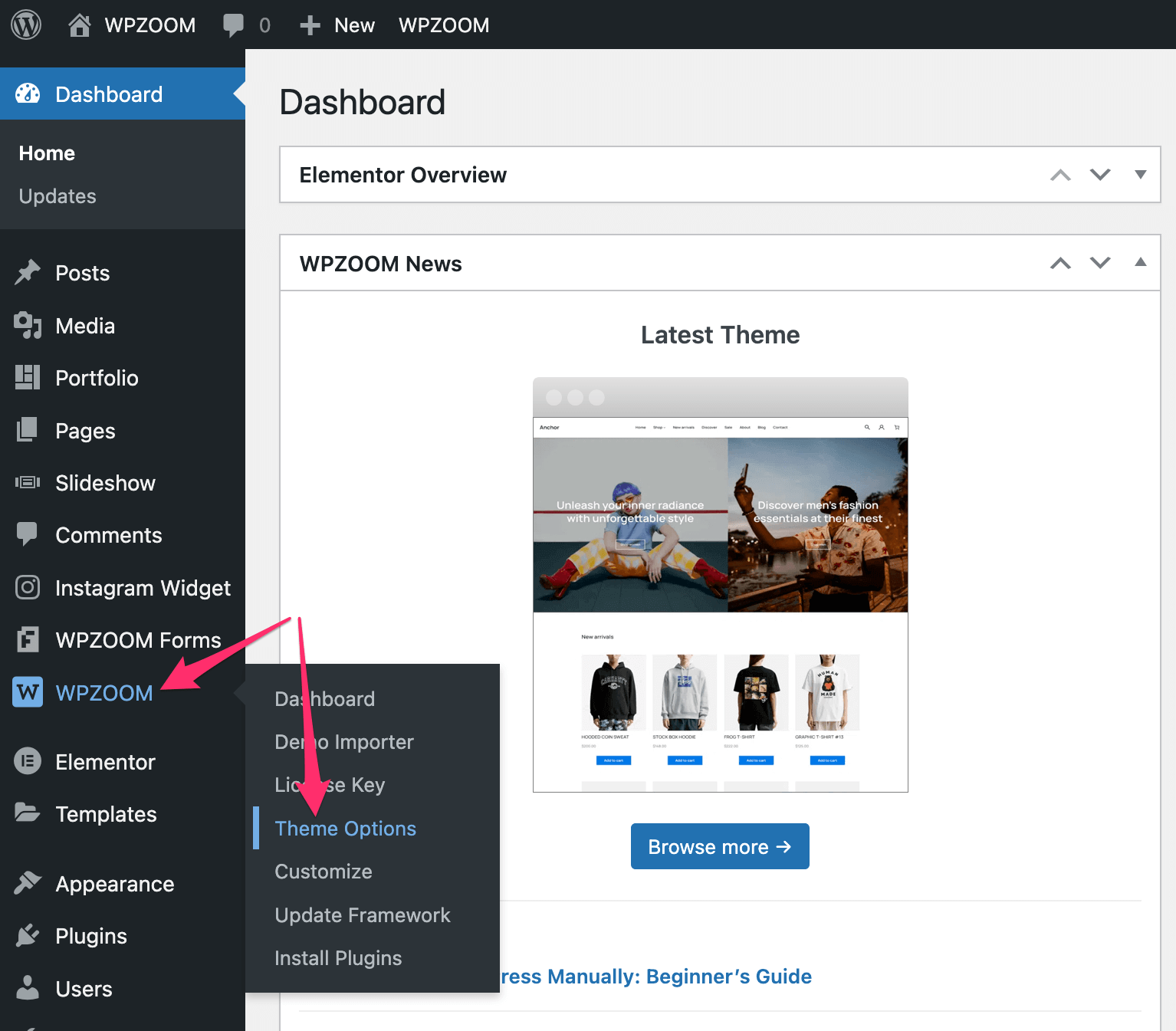
Credit: www.wpzoom.com
Final Touches
Seamlessly importing pages into a new WordPress theme enhances website transition. Begin by backing up existing pages to prevent loss. Utilize theme options or plugins to ensure the design remains intact and consistent.
Optimizing Page Speed
Fast websites keep visitors happy. Speed up your WordPress pages. Compress images to reduce size. Use tools like TinyPNG or JPEG Optimizer. Enable browser caching to store files locally. This reduces loading times. Minimize CSS and JavaScript files. Tools like WP Rocket can help. Choose a reliable hosting provider. They offer faster servers. Use a Content Delivery Network (CDN). It helps distribute content worldwide. Test your site’s speed regularly. GTmetrix and PageSpeed Insights are useful. Aim for a load time under 3 seconds. This improves user experience. Keeps them engaged longer. A fast site boosts SEO rankings. It’s crucial for online success.
Seo Considerations
SEO improves your site’s visibility. Use keywords wisely in your content. They should match user searches. Write clear and concise meta descriptions. They attract more clicks. Use alt text for images. Search engines can’t see images. But they can read descriptions. Make sure your URLs are simple. They should include keywords if possible. Use header tags like H1, H2, and H3. They organize content and boost SEO. Internal links guide visitors to more pages. They also improve site navigation. Focus on quality content. It’s key for better SEO. Regular updates keep content fresh. Fresh content ranks better.
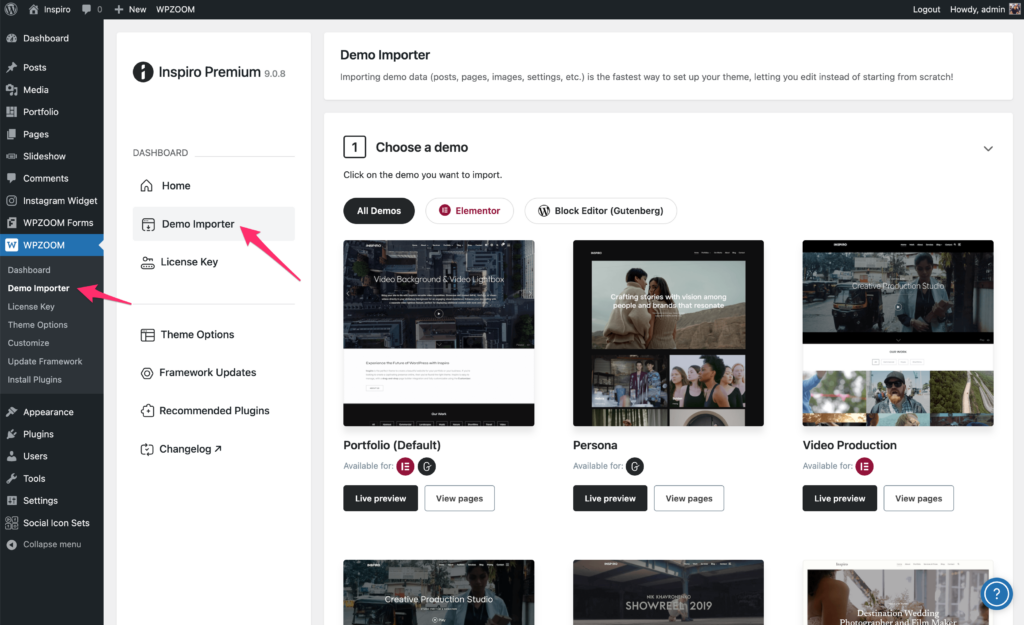
Credit: www.wpzoom.com
Frequently Asked Questions
How Do I Import Pages Into WordPress?
To import pages into WordPress, use the WordPress Importer plugin. First, export your pages from the old theme. Then, navigate to Tools > Import in your WordPress dashboard. Choose the WordPress option, install the plugin if necessary, and upload your exported file.
Follow prompts to complete the import process.
Can I Transfer Pages Between Themes Easily?
Yes, transferring pages between themes is straightforward. First, export your pages from the old theme. Then, import them into the new theme using the WordPress Importer plugin. Ensure all plugins and settings are compatible with your new theme to maintain functionality.
What Plugins Help With Importing Pages?
The WordPress Importer plugin is essential for importing pages. It allows you to upload XML files containing your content. Additionally, consider using plugins like All-in-One WP Migration for comprehensive site transfers. Always ensure plugins are compatible with your WordPress version and theme.
Do I Need Coding Skills To Import Pages?
No, you don’t need coding skills to import pages into WordPress. The WordPress Importer plugin simplifies the process. Follow the step-by-step instructions to export and import your pages. Ensure your new theme supports all features used in your content for a seamless transition.
Conclusion
Importing pages into a new WordPress theme can be simple. Follow the steps carefully. Use tools like plugins for easy importing. Remember to back up data before starting. Test your site after importing to ensure everything works. Small changes might be needed for perfection.
With practice, you’ll find the process easier. Your new theme will look great with the imported pages. Keep learning about WordPress for more success. Enjoy the fresh look of your site!


