
Imagine this: You’ve just found the perfect WordPress theme that matches your vision for your website. It’s sleek, modern, and has all the features you need.
But now you’re stuck trying to figure out how to import those gorgeous pre-designed pages into your WordPress site. The frustration is real, and you’re not alone in feeling overwhelmed by the technicalities. But what if I told you that importing pages from a theme doesn’t have to be a daunting task?
In this guide, you’ll discover simple steps to effortlessly bring those stunning pages to life on your WordPress site. No more guessing games or endless troubleshooting. You’ll gain the confidence to customize your website exactly how you want it, without the headache. Stick around, and let’s turn this challenge into an opportunity to enhance your web presence effortlessly.
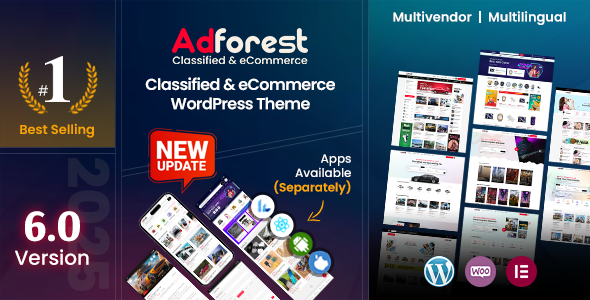
Credit: themeforest.net
Choosing The Right Theme
Themes offer different featurescustomizable headersresponsive design
Check if the theme works with your WordPress version. Some themes need the latest version. Others work with older versions. Always read the theme details. This avoids problems later. Use themes that are regularly updated.
Installing A WordPress Theme
Open your WordPress dashboard. Find the menu on the left. Click on Appearance. Then, choose Themes. You will see an Add New button. Click it to find new themes. Use the search bar to find themes you like. Click on the Install button. Wait for the theme to install. After installation, click Activate. Your new theme is now live. Easy and quick!
Download the theme file to your computer. The file should be in .zip format. Go to your WordPress dashboard. Click on Appearance then Themes. Click the Add New button. Choose the Upload Theme option. Click on Choose File. Select the .zip file from your computer. Click Install Now. After installation, click Activate. Your theme is ready to use.
Importing Demo Content
First, find the theme settings in your WordPress dashboard. These settings are usually under the Appearance tab. Look for something called Demo Import or Import Options. Many themes have this feature. It helps you add demo content fast. If you can’t find it, check the theme’s documentation. Some themes provide detailed guides.
Open the Demo Importer Tool from your theme settings. Choose the demo content you want. Make sure to select the right one for your website. Click the Import button to start. It might take a few minutes. Be patient and don’t close the browser. Once done, check your site. It should look like the demo preview. Simple and easy!

Credit: colorlib.com
Customizing Imported Pages
Importing pages from a theme in WordPress allows you to personalize your site’s design. Easily integrate unique layouts and styles by accessing theme settings. Customize imported pages to match your brand and enhance user experience.
Editing Page Content
Imported pages can have text that needs changes. Open the page editor in WordPress. Look for the text box. Click to edit the words inside. Write new text or fix old text. Add images if needed. Use simple tools in the editor for changes. Make sure the page looks good. Save all changes before leaving.
Adjusting Page Layouts
Imported pages might need layout changes. Drag and drop elements in the editor. Move sections up or down. Change the size of text boxes. Align images to the center or sides. Use the layout options to fit your style. Make sure the page looks neat. Preview before saving changes.
Troubleshooting Common Issues
Importing pages from a theme in WordPress often leads to issues like broken layouts or missing content. Ensure the theme is compatible with your WordPress version. Use the Import/Export feature in the WordPress dashboard to transfer pages smoothly.
Resolving Import Errors
Import errors can be frustrating. Most times, they happen due to incorrect file formats. Always check your file format before import. Use the right theme file. This often solves the issue. Permissions can also cause problems. Ensure your site has the correct permissions. Sometimes, server timeout can interrupt imports. Try again during less busy hours. Check your internet connection too. It must be stable for a successful import.
Fixing Broken Layouts
Broken layoutsCSS conflicts are common culprits. Inspect your site using browser tools. Look for CSS errors. Disable unnecessary plugins. They often clash with your theme. Ensure your theme is updated. Old themes may not support new WordPress versions. This can break layouts. Regular updates prevent many issues.
Enhancing Page Designs
Adding Custom CSS can make your pages look unique. Use it to change colors, fonts, or layouts. This helps your site match your brand. Always back up your site before adding CSS. Mistakes can break your pages. CSS lets you adjust details without touching the core theme. This gives you creative freedom. Try to test changes on a small scale first. This avoids big errors.
Utilizing Page Builders offers a simple way to design pages. Drag and drop elements where you want. No coding skills are needed. Page builders like Elementor are user-friendly. They provide many templates to choose from. Change the look of your site easily. Save time with pre-made layouts. These tools make designing fun and easy. Always preview your changes before publishing. This ensures everything looks right.
Optimizing Page Performance
Importing pages from a theme into WordPress boosts site performance. Select the desired theme, then use the import tool. This method enhances your site’s look and speeds up setup.
Improving Load Times
Pages should load fast. Slow pages can be frustrating. They make users leave. Use lightweight images to help. Choose the right file types. Compress images for faster loading. Avoid heavy animations. They slow down the page. Use a caching plugin for better speed. It stores data for quick access. Minimize HTTP requests to load resources faster. A fast website keeps visitors happy.
Ensuring Mobile Responsiveness
Most users browse on phones. Pages must fit all screen sizes. Use a responsive design. It adjusts to any device. Text and images should scale properly. Avoid too much text. It can be hard to read on small screens. Buttons should be easy to tap. Make sure links work well. Test your site on different phones. A mobile-friendly page is key. It keeps visitors engaged.

Credit: crocoblock.com
Frequently Asked Questions
How Do I Import Theme Pages In WordPress?
To import theme pages, use the WordPress dashboard. Navigate to Appearance > Themes, then select ‘Import Demo Data’. Follow the prompts to import pages from your chosen theme. This process helps you set up your site quickly with pre-designed layouts.
Can I Import Pages Without Plugins?
Yes, you can import pages without plugins by using the built-in WordPress importer. Go to Tools > Import in the dashboard. Select the option for importing pages and follow the instructions. This method is straightforward and avoids additional plugin installations.
Why Are Imported Pages Not Showing?
If pages aren’t showing, check your theme’s settings. Ensure the pages are published and assigned correctly. Sometimes, permalink settings may need refreshing. Navigate to Settings > Permalinks and click ‘Save Changes’ to resolve visibility issues.
Do Imported Pages Affect Website Speed?
Imported pages can affect speed if they’re heavy with media or scripts. Optimize images and reduce external scripts to improve loading times. Regularly check your site’s performance using tools like Google PageSpeed Insights for best results.
Conclusion
You’ve now learned to import pages from your theme to WordPress. This process boosts your website’s appeal. It’s simple. Just follow the steps outlined. Customize the pages to fit your needs. Your website will look professional and inviting. Keep experimenting with different themes.
It enhances user experience and site navigation. Remember, practice makes perfect. The more you try, the better you get. With time, you’ll manage pages effortlessly. Happy creating and good luck with your WordPress journey!


