
Are you feeling stuck with your current WordPress theme? Imagine transforming your website’s look with just a few clicks.
Importing a new theme into WordPress can breathe fresh life into your site, making it more engaging and attractive for your visitors. Whether you want a sleek, modern design or something more vibrant and playful, a new theme can set the perfect tone.
In this guide, you’ll discover how simple it is to import a new theme into WordPress, giving your site the makeover it deserves. Get ready to captivate your audience with a stunning new look that reflects your unique style and enhances your brand’s appeal. Let’s dive into the steps that will make this transformation effortless and exciting for you!
Credit: easywpguide.com
Choosing The Right Theme
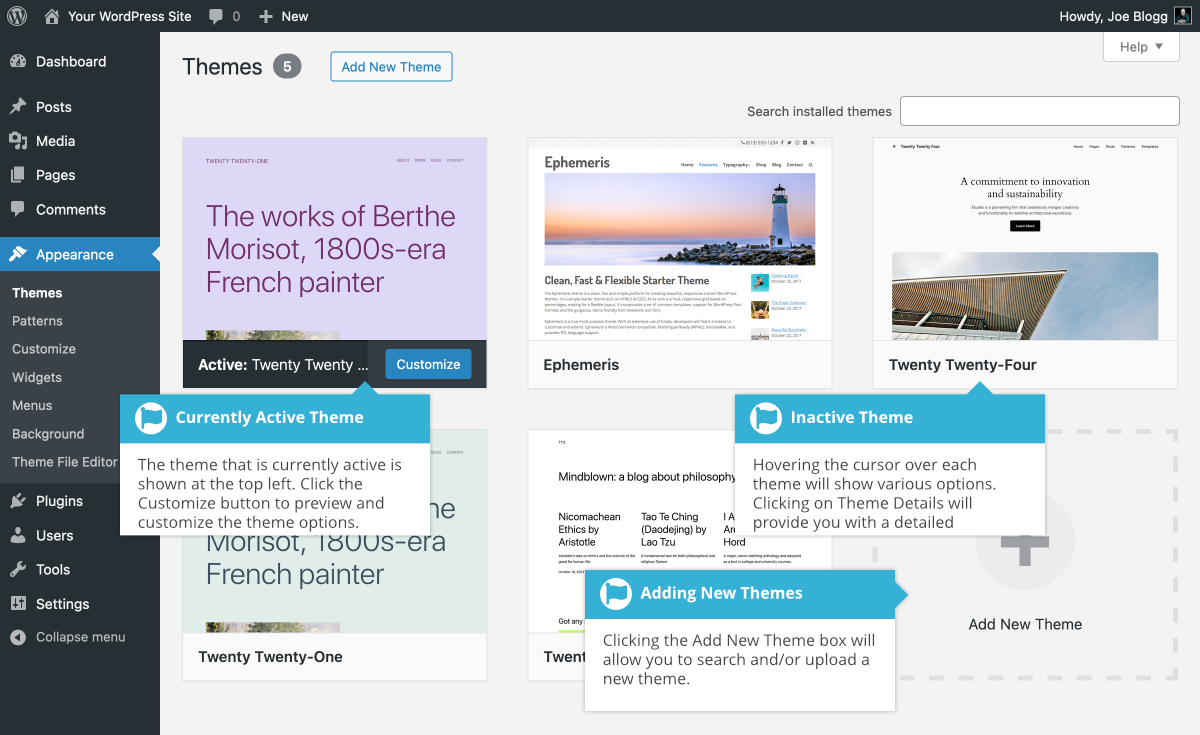
Importing a new theme into WordPress enhances your site’s appearance. Navigate to the dashboard, select “Themes,” then “Add New. ” Upload your theme file and activate it to refresh your website’s look effortlessly.
Identify Your Needs
Think about what features you want. Do you need a blog or a shop? Consider the style and colors. Your theme should match your brand. Make a list of must-have features. Keep it simple and clear.
Research Theme Options
Look at different themes. Read reviews from users. Pay attention to ratings and comments. A theme with good support is important. Free themes are great for starters. Premium themes offer more features. Compare them and choose wisely.
Check Theme Compatibility
Make sure the theme works with your plugins. Check if it updates regularly. Themes should be mobile-friendly. Test the theme demo on different devices. Compatibility is key for smooth operation. Avoid themes that might cause problems.
Credit: www.greengeeks.com
Preparing For Import
Backing up your site is very important. It keeps your data safe. Use a reliable plugin for backups. Save copies on your computer. Store backups in the cloud too. This helps if something goes wrong later.
A child theme protects your changes. It keeps the main theme safe. Changes won’t get lost during updates. You need to create a new folder. Use a style.css file. Link it to your main theme. This keeps your site looking the same.
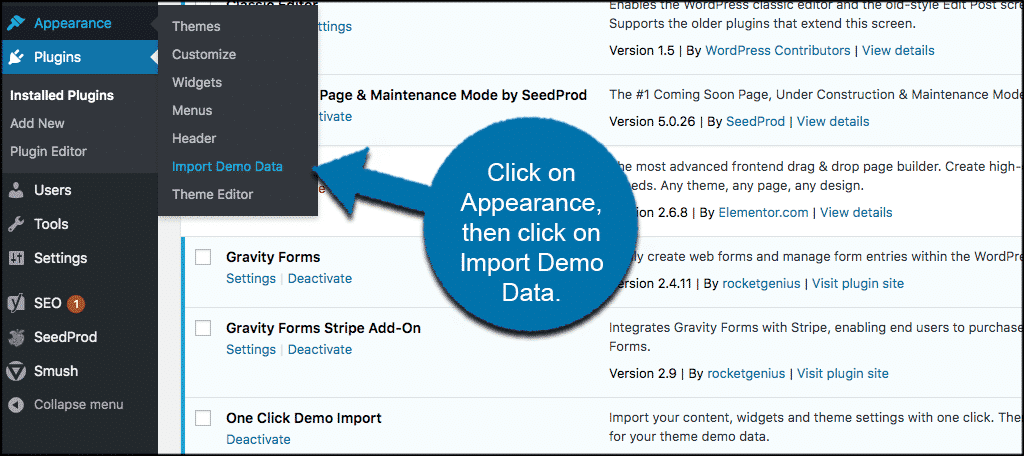
Plugins add extra features to your site. Some plugins are needed for themes. Check the theme requirements. Download and install these plugins. Make sure they are up to date. This ensures everything works well together.
Importing A Theme From The WordPress Repository
Open your WordPress dashboard. Find the Appearance menu on the left side. Click on Themes. You will see a button that says Add New. Click it to access the theme directory. This is where you find new themes.
Browse through the themes available. You can use filters to sort them by popularity or features. Hover over a theme you like. Click Preview to see how it looks. This helps you choose the right theme for your site.
Find a theme you like. Click the Install button. Wait a few seconds. Once installed, click Activate. This sets your theme live on your site. You can now customize it further.
Uploading A Theme Manually
First, get the theme files from a trusted source. Download the theme file to your computer. It usually comes as a .zip file. Make sure to save it in a place you can easily find.
Open your WordPress dashboard. Find the Appearance menu on the left side. Click on Themes. You will see an option Add New. Click it. Then, click on Upload Theme. Choose the .zip file from your computer. Click Install Now to start the upload.
Use an FTP client like FileZilla. Connect to your WordPress site. Navigate to wp-content/themes. Extract the theme file on your computer. Upload the theme folder to the themes directory. Go back to your WordPress dashboard. Activate the theme from the Appearance section.
Configuring The New Theme
Start by opening the Appearance tab. This is where you change how your site looks. Choose a color scheme that you like. Make sure it matches your brand. Adjust the background image if you want. You can also change the font style. Try different options. Find one that is easy to read.
Widgets add features to your site. They are like small boxes. You can add them to the sidebar or footer. Add a search bar widget. This helps visitors find content. Menus help people navigate your site. Go to the Menus tab. Create a new menu. Add important pages like Home and Contact.
Visit the Theme Options section. This area lets you tweak extra settings. You might change the layout of your site. Or, you can add a logo. Some themes offer different header styles. Pick one that fits best. Look for any unique theme features. Make sure to save your changes.
Testing The New Theme
Discover how to import a new theme into WordPress effortlessly. Start by navigating to your WordPress dashboard. Select “Appearance” and click “Themes. ” Choose “Add New” to upload your desired theme file. Activate the theme and enjoy a fresh look for your site.
Checking For Errors
Errors can make your site look bad. Open each page to find mistakes. Broken links and missing images are common. Check them all. Use a tool to find hidden errors. Fixing errors helps your site run better.
Ensuring Mobile Responsiveness
Many people use phones to visit sites. Open your site on a phone. Make sure everything looks good. Buttons should be easy to tap. Text must be easy to read. If things look wrong, adjust the settings. Mobile-friendly sites make visitors happy.
Validating Browser Compatibility
Different browsers show sites differently. Test your site on Chrome, Firefox, and Safari. Make sure everything looks the same. Old browsers might have issues. Check them too. Fix problems so your site works for everyone. Happy visitors keep coming back.
Troubleshooting Common Issues
Struggling to import a new theme into WordPress? Ensure your theme file is zipped. Navigate to ‘Appearance’ and select ‘Themes’ in your dashboard. Click ‘Add New,’ then ‘Upload Theme,’ and choose your file. Finish by hitting ‘Install Now’ and ‘Activate’.
Resolving Installation Errors
Themes sometimes do not install correctly. This can happen due to server issues. Or, the theme file might be corrupted. Check your internet connection first. Then, try re-downloading the theme file. Ensure the file size matches the original. Also, make sure the file format is compatible with WordPress. Usually, it should be a .zip file. Contact your hosting provider if problems persist.
Fixing Broken Layouts
A theme may display wrongly. This often results in broken layouts. Adjusting settings in the Customizer can help. Check the theme’s documentation for guidance. Sometimes, clearing the browser cache solves display issues. Ensure all theme files are uploaded properly. Missing files often cause layout problems. Consider reinstalling the theme if issues remain.
Addressing Plugin Conflicts
Plugins can conflict with themes. This might lead to errors or unexpected behavior. Deactivate plugins one by one. This helps identify the problematic plugin. Update all plugins regularly. Outdated plugins cause compatibility issues. Check the theme’s support forum for known conflicts. Developers often provide solutions or updates.

Credit: www.youtube.com
Frequently Asked Questions
How Do I Upload A Theme To WordPress?
To upload a theme to WordPress, go to your dashboard. Navigate to Appearance > Themes > Add New. Click ‘Upload Theme,’ select your theme file, and hit ‘Install Now. ‘ Once installed, activate your theme to start using it.
Can I Import A Theme From A Zip File?
Yes, you can import a theme from a ZIP file. In your WordPress dashboard, go to Appearance > Themes > Add New. Click ‘Upload Theme,’ choose your ZIP file, and click ‘Install Now. ‘ After installation, activate your theme.
What Happens If Theme Installation Fails?
If theme installation fails, check file size and format. Ensure the ZIP file isn’t corrupted. Verify server settings and permissions. Retry the upload. If problems persist, contact your hosting provider for assistance.
How To Switch Back To A Previous Theme?
To switch back, go to your WordPress dashboard. Navigate to Appearance > Themes. Find your previous theme and click ‘Activate. ‘ Your site will revert to the selected theme instantly.
Conclusion
Importing a new theme into WordPress is simple and rewarding. First, choose a theme that suits your site. Then, download it to your computer. Next, log into your WordPress dashboard. Navigate to ‘Appearance’ and click ‘Themes’. Select ‘Add New’ and upload your theme file.
Activate it to see your site’s new look. Test your site to ensure everything works. Customize your theme to match your brand. This process can enhance your website’s appeal. Now, your WordPress site is ready with a fresh, new theme.
Enjoy the improved look and functionality.


