
Are you struggling to make your Illdy WordPress theme look just like the stunning demo you fell in love with? You’re not alone.
Many users find themselves puzzled when trying to replicate the theme’s demo content on their site. The good news? It’s easier than you think! You’ll discover a step-by-step guide to importing demo content for the Illdy theme seamlessly. Imagine transforming your website into a visual masterpiece in just a few clicks! By following these simple instructions, you can bring your site to life, showcasing the full potential of the Illdy theme.
Ready to captivate your audience with a professional-looking website? Let’s dive in!
Credit: wordpress.org
Getting Started With Illdy Theme
Start by going to your WordPress dashboard. Click on Appearance and then Themes. Select the Add New button. Type Illdy in the search box. You will see the Illdy theme. Click on Install to start the installation process. Wait a few moments until it completes.
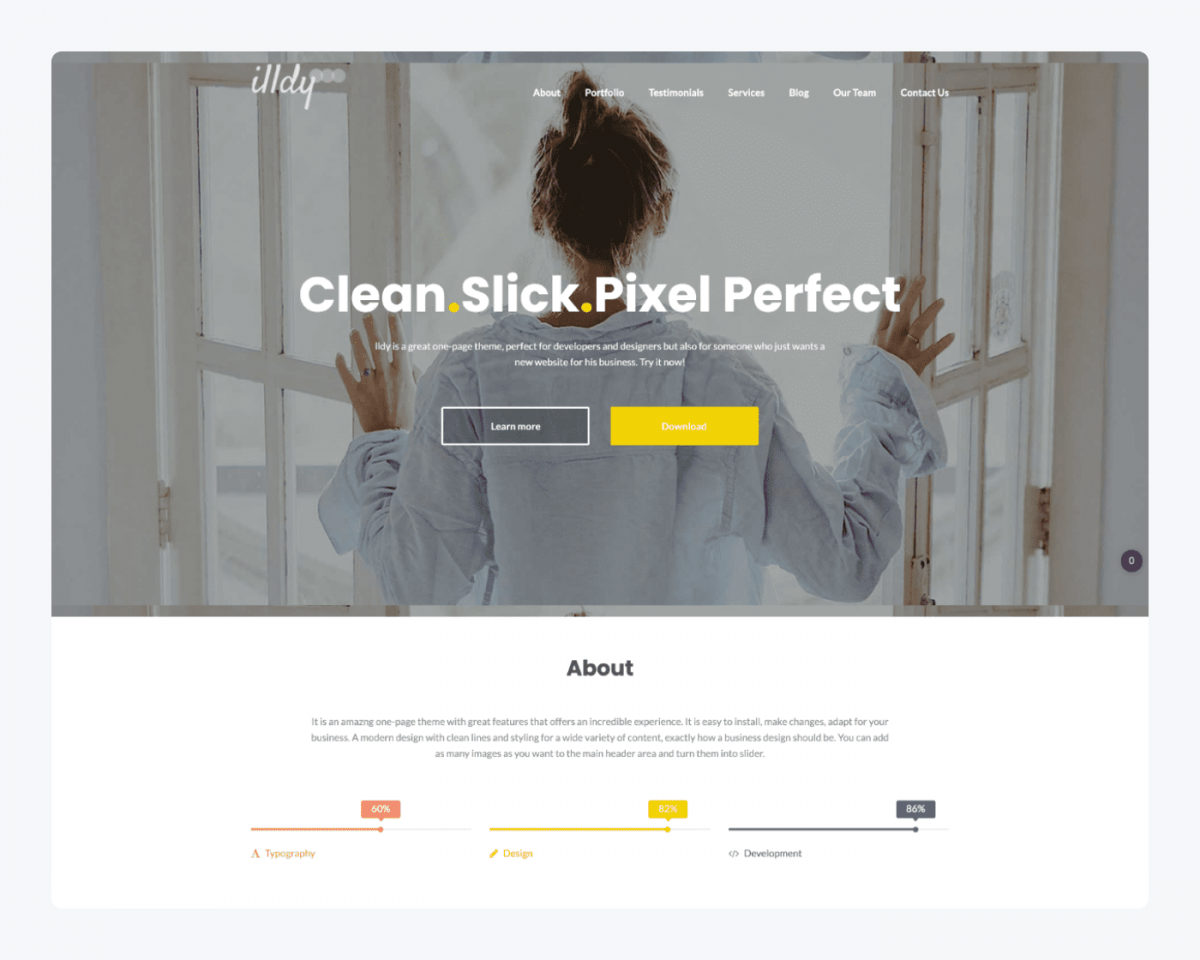
Once installed, locate the Illdy theme in your theme list. Click on the Activate button. Your website will now use Illdy. You can start customizing your site. Explore the theme settings to make changes. Discover new features and design options. Enjoy creating a beautiful site with Illdy.
Credit: www.tidio.com
Preparing For Demo Import
Before importing demo content, always backup your current content. This keeps your data safe. Use a reliable backup plugin. Save your backup file on your computer. Never skip this step. If something goes wrong, you can restore your site. A backup gives you peace of mind.
Some plugins are needed for the Illdy theme. Install the recommended plugins before importing demo content. Navigate to the Plugins section in your WordPress dashboard. Click on Add New. Search for the plugins you need. Click Install and then Activate. Make sure all plugins are active. This ensures the demo content works well.
Importing Demo Content
Open your WordPress dashboard. Find and click on Appearance. Select Illdy Options. Locate the Demo Importer tab. Click on it. The demo importer tool will open. This tool helps import demo content easily.
Choose the demo content you want. Review the options carefully. Click on Import to start. Wait for the import to finish. Your site will now have the demo content. Make sure to save changes to keep the content. Check your site for any updates.
Credit: colorlibsupport.com
Customizing Imported Content
Editing pages is important. You must look at each page. Check for errors. Make sure the content fits your needs. Change any text that is wrong. Add new images if needed. Make each page unique.
Posts need care too. Look at every post. Fix grammar mistakes. Update old information. Add fresh ideas. You can make posts better with new images. Keep them interesting and clear.
Theme settings help your site look good. Visit the settings page. Choose colors that match your style. Adjust fonts for easy reading. Check the layout options. Make sure everything looks nice.
Widgets add fun features. You can change them anytime. Add social media links. Include contact forms. Make sure your site is user-friendly. Keep settings simple and neat.
Troubleshooting Common Issues
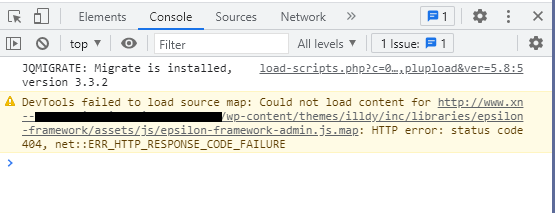
Import errors can happen for many reasons. Some errors come from slow internet. Other errors are from server issues. Check the internet connection first. Then, look at the server settings. Make sure the server meets theme requirements. Clear the cache to fix small errors. Try importing again. Use the WordPress Importer plugin for better results. Update the plugin if needed. A fresh install can also help.
Layout problems are common after importing. Things might look out of place. Check the page settings first. Go to the theme options. Adjust settings if needed. Look at the widget areas. Make sure they are correct. Sometimes, a simple refresh can fix the layout. If not, try rearranging the widgets. Update the theme to the latest version. This can solve many problems.
Enhancing Your Illdy Theme
Custom CSS makes your site unique. It helps you change the look. You can add colors, sizes, and fonts. Open the WordPress dashboard. Find the “Appearance” tab. Then, click on “Customize”. You will see an option for “Additional CSS”. Click it. Now, you can write your own CSS code. Save your changes. Refresh your page to see the new look. Always backup your site first. This keeps your work safe.
Plugins add new features to your site. They make tasks easier. Go to your WordPress dashboard. Find the “Plugins” tab. Click on “Add New”. Search for the plugin you need. Click “Install Now”. After installing, click “Activate”. Your plugin is now ready to use. Always check plugin reviews. This ensures you pick a good one. Update plugins regularly. This keeps them working well.
Frequently Asked Questions
How Do I Import Demo Content In Illdy?
To import demo content in Illdy, use the WordPress Importer plugin. Navigate to Appearance > Import Demo Data, select Illdy, and click import. Ensure that you have a stable internet connection and sufficient server resources for a smooth import process.
This will set up your theme like the demo.
What Is The Benefit Of Demo Content?
Demo content provides a ready-made layout that mimics the theme’s showcase. It helps users understand the theme’s potential, saving design time and effort. It’s especially useful for beginners who want a professional-looking site without designing from scratch.
Can I Customize After Importing Demo Content?
Yes, you can customize your site after importing demo content. Use the WordPress Customizer to adjust colors, fonts, and layouts. You can also edit pages and posts to suit your needs. This flexibility allows you to create a unique site that aligns with your brand.
Is Importing Demo Content Safe For My Site?
Importing demo content is generally safe, but always back up your site first. It can overwrite existing content, so ensure you have a backup in case you need to revert. It’s a straightforward process with minimal risk when performed correctly.
Conclusion
Importing demo content for the Illdy theme is straightforward. Follow the steps carefully. Ensure your WordPress is updated. This enhances compatibility. Check your server settings. They should meet WordPress requirements. Use the recommended plugins. They help with smooth importing. Backup your site beforehand.
It’s always a wise move. Explore the new design. Customize it to fit your style. Engage with your audience. A fresh look attracts visitors. Enjoy your updated WordPress site. It’s ready to shine.


