
Are you ready to give your WordPress site a fresh new look? Importing a new theme can be the perfect way to breathe life into your website and captivate your visitors.
Imagine the excitement of transforming your site’s appearance with just a few clicks. But, if you’re feeling a bit overwhelmed about where to start, you’re not alone. Many people find themselves unsure about the steps involved in importing a theme.
Don’t worry, though—you’re about to discover how simple it can be. By the end of this guide, you’ll have the confidence to install your dream theme effortlessly. So, why wait? Dive in and see just how easy it is to elevate your website’s design today!
Choosing The Right Theme
Think about what your website needs. Does it need a blog, shop, or gallery? Knowing this helps you find a theme that fits. A theme must match your website’s purpose. This makes it easy for visitors to use.
Explore themes that are popular. Look for ones with good reviews. Many people choose themes that are easy to use. Popular themes often have good support. They are updated often for safety.
Check what features a theme offers. Some themes have sliders, menus, or special layouts. A theme with many features gives more options. Make sure it has the features you need. This saves time and effort later.
Credit: www.wpallimport.com
Preparing For Theme Installation
Always make a copy of your website. This keeps your data safe. Use a reliable plugin for this. Backups help if something goes wrong. Save backups in a secure place.
Ensure the theme works with your WordPress version. Check if it fits your plugins too. Compatibility avoids many problems. Always read theme details before installing.
Know your website’s requirements. Get theme files ready. Find your website login details. All this information helps in smooth installation. Keep everything handy before starting.
Installing Via WordPress Dashboard
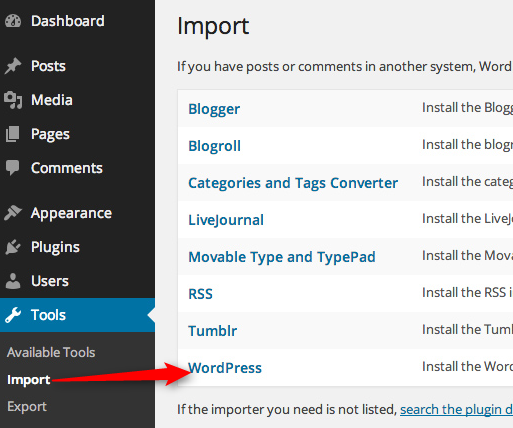
First, log into your WordPress dashboard. Look for the Appearance tab on the left. Click on it, then select Themes.
Access Theme Options
You will see a button labeled Add New. Click it to see new themes. Browse through the options available. Find the one you like. You can also use the search bar to find specific themes.
Upload Theme Files
Sometimes themes are not in the list. You might have a theme on your computer. Look for the Upload Theme button at the top. Click it and then Choose File to upload your theme file. Make sure it’s in a .zip format. Once selected, click Install Now.
Activate New Theme
After installation, you will see an Activate button. Click it to make the theme active on your site. Now your new theme is live. Check your site to see the changes.
Credit: motopress.com
Installing Via Ftp
First, use an FTP client. FileZilla is a good choice. Enter your server’s host, username, and password. Click connect. You should now see your server files. You are ready to upload the theme.
Find the wp-content folder. Open the themes folder inside it. Drag and drop your theme files here. Wait for the upload to finish. Once done, the theme will be on the server.
Go to your WordPress dashboard. Click on Appearance. Choose Themes. Find your new theme. Click Activate. Your new theme is now live.
Customizing The New Theme
Adjust Design Elements to make your site look great. Colors should match your brand. Fonts need to be easy to read. Change the layout as needed. Use the theme options to tweak it.
Configure Settings to ensure everything works well. Set up the header and footer. Check the responsiveness of your site. Make sure your pages load fast. Adjust the navigation menu for easy access. Don’t forget the widgets.
Add Custom Features for a unique touch. Consider adding social media buttons. Use plugins for extra functionality. Custom sidebars can help with layout. Add a contact form for user interaction. Make sure to test each feature.
Testing The New Theme
Check Functionality of your new theme. Ensure all features work smoothly. Test menus, widgets, and plugins. Verify links and buttons. Make sure pages load correctly. Fix any errors found.
Ensure Responsiveness on different devices. Check your theme on phones, tablets, and computers. Content should adjust to screen size. Images must look good everywhere. Test navigation on all devices. Make sure it’s user-friendly.
Optimize Performance for speed. A fast site keeps visitors happy. Compress images to load faster. Use caching plugins to boost speed. Test site speed with online tools. Improve where necessary.
Troubleshooting Common Issues
Resolve Compatibility Problems with your new WordPress theme. Check if the theme works with your plugins. Sometimes, plugins conflict with themes. Update plugins to fix issues. Disable plugins one by one to find the problem. Use a staging site for tests. This avoids live site errors.
Fix Broken Elements like menus and widgets. Broken parts can confuse visitors. Check theme settings and options. Ensure all theme files are uploaded correctly. Look for missing or damaged files. Use FTP to upload files again. Make backups to prevent data loss.
Seek Support when problems persist. Theme developers often help. Visit the theme’s support forum. Ask questions or report issues. Join WordPress communities for advice. Experienced users share tips and solutions. Document your problem for clear communication.
Credit: woostify.com
Frequently Asked Questions
How Do I Install A WordPress Theme?
To install a WordPress theme, go to the dashboard. Navigate to Appearance > Themes > Add New. Search for your desired theme, click “Install,” then “Activate. “
Can I Upload A Theme From A Zip File?
Yes, you can upload a theme via a zip file. Go to Appearance > Themes > Add New > Upload Theme. Choose your file, click “Install Now,” and then “Activate. “
Why Can’t I Activate My WordPress Theme?
If you can’t activate your theme, check for compatibility issues. Ensure your WordPress version supports the theme. Also, verify that the theme files are complete and not corrupted.
How Do I Customize My New WordPress Theme?
To customize your theme, go to Appearance > Customize. Use the WordPress Customizer to change settings like colors, fonts, and layout. Save changes when done.
Conclusion
Importing a new WordPress theme is simple with the right steps. Begin by selecting a theme that suits your needs. Download and save the theme file to your computer. Next, go to your WordPress dashboard. Navigate to “Appearance” and then “Themes.
” Click “Add New” and upload your theme file. Once uploaded, activate your new theme. Always check your website after activation. Ensure everything looks and works as expected. Regularly update your theme for the best performance. With these steps, your website will have a fresh look in no time.
Happy blogging!


