
Are you ready to give your WordPress site a fresh new look? Implementing a theme is one of the most effective ways to transform your website’s appearance and functionality.
Whether you’re launching a personal blog or a business site, the right theme can captivate your audience and keep them coming back for more. Picture this: a website that not only looks stunning but also feels tailor-made for your content and goals.
That’s the power of a well-implemented WordPress theme. In this guide, we’ll walk you through the step-by-step process to ensure your theme change goes smoothly, without any hiccups. You’ll learn how to choose the perfect theme, install it seamlessly, and customize it to reflect your unique style. Let’s get started and turn your vision into reality, enhancing your online presence like never before.
Credit: www.wpzoom.com
Choosing The Right Theme
Think about what your website should do. Should it show pictures or videos? Simple themes are good for blogs. Complex themes help with online stores. Write down your needs. This helps in choosing the best theme.
Free themes cost nothing. They are good for beginners. Premium themes have more features. They often look better. You need to pay for premium themes. Decide your budget first. Choose a theme based on your needs and budget.
Check if the theme works with your plugins. Some themes might not work well. Compatibility is important. Read theme reviews. Look for user feedback. This helps to pick a theme that works well.
Credit: blog.templatetoaster.com
Installing A Theme
Search for themes in the WordPress Directory. Use the search bar to find themes. Click on the theme you like. Review the details and ratings. Click the “Install” button. Wait for the installation to finish. Themes are now ready to use.
Download a theme file to your computer. Go to your WordPress dashboard. Navigate to Appearance, then Themes. Click “Add New”. Choose the “Upload Theme” option. Click “Choose File” and select the theme file. Click “Install Now”. Wait until the upload completes.
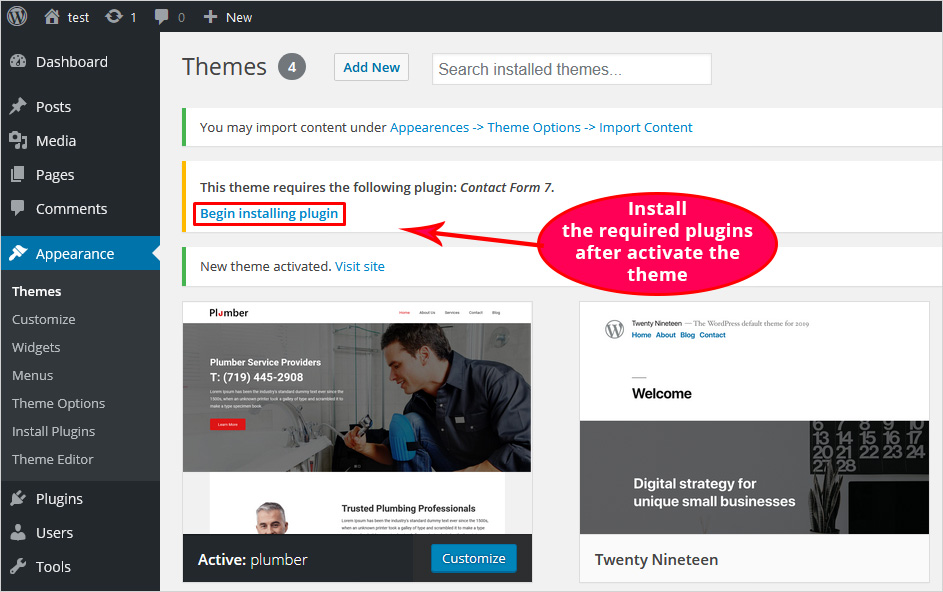
After installation, find the theme in your dashboard. Click on “Activate”. The theme is now live on your site. You can customize it further in the Customizer. Enjoy your new website look!
Customizing Your Theme
Personalize your WordPress site by implementing a theme that reflects your style. Start by selecting a theme from WordPress’s vast library. Customize colors, fonts, and layouts to fit your vision, enhancing user experience and visual appeal effortlessly.
Using The WordPress Customizer
The WordPress Customizer is your tool for theme changes. Access it from your dashboard. It lets you adjust colors, fonts, and more. You can see changes in real-time. Preview before saving. This ensures your site looks great. Play with settings to find the best look. Your site should match your vision. Experiment with different options. This will make your site unique.
Editing Theme Settings
Theme settings are in the Appearance section. Here, you can tweak header and footer. Set menus and widgets as needed. Each theme has special features. Explore these options. Adjust settings to fit your brand. Keep your site easy to navigate. Ensure pages load quickly. Good settings improve user experience.
Adding Custom Css
Custom CSS lets you change styles. Add CSS in the customizer. This code adjusts layout and design. Use it to make unique elements. CSS is powerful but needs care. Write clean and simple code. Changes are visible at once. This helps you style your site well. It adds personal touches to your theme.
Ensuring Theme Responsiveness
Make sure your theme looks good on all devices. Check it on phones, tablets, and computers. This helps users have a better experience. You can use tools to see how it looks. Tools like Google’s Mobile-Friendly Test are very helpful. Ask friends to check it too. Feedback from others can be valuable. They might notice things you miss. Always aim for a smooth and easy view.
Mobile users need a fast and clear site. Make sure images are not too big. This helps the site load faster. Use responsive design methods. They make the theme fit any screen size. Keep buttons and links easy to tap. Small buttons can be hard to click. Test the mobile site often. Little changes can make a big difference. Prioritize easy navigation. Happy users will return to your site.
Managing Theme Updates
Automatic updates help keep your theme secure and up-to-date. They save time and effort. Themes often improve with new features. Automatic updates make sure you get those features. Turn them on in the settings. It’s easy and quick. Check if your theme supports automatic updates. Not all themes do. Some may need manual updates instead.
Manual updates give more control. You choose when to update. First, check for theme updates in your dashboard. Review the changes the update will bring. Download the latest version. Install it through your dashboard. It’s important to read update notes. They tell you what’s new. You decide if you want those changes. Manual updates require more time.
Backing up is very important. Always do it before updates. It saves your data if something goes wrong. Use plugins for easy backups. Store backups somewhere safe. A computer or cloud is good. Backups protect your site. Updates can sometimes break things. A backup lets you fix problems fast. You can restore your site to the last safe version.
Troubleshooting Common Issues
Theme conflicts can occur. Plugins and themes may not get along. Disable each plugin one by one. Check your site after each. This helps find the troublemaker plugin. Update all plugins and themes to their latest versions. Updates often fix problems.
Layout issues are common. Clear the browser cache first. This can solve many problems. Use the WordPress Customizer to adjust settings. Sometimes, settings need a tweak. Check the theme documentation. It gives clues on fixing layout issues.
Sometimes themes break. Backup your site regularly. Restore from backup when needed. Use plugins like UpdraftPlus. They help with backups. If your theme has version control, use it. It makes restoring easy.
Credit: www.wpzoom.com
Frequently Asked Questions
How Do I Install A WordPress Theme?
To install a WordPress theme, go to your dashboard. Navigate to Appearance > Themes. Click on ‘Add New,’ search or upload your desired theme, and hit ‘Install. ‘ Finally, activate the theme to apply it to your site.
Can I Customize My WordPress Theme?
Yes, you can customize your WordPress theme. Use the WordPress Customizer tool found under Appearance > Customize. Here, you can modify colors, fonts, layouts, and more to suit your needs without coding knowledge.
Are Free WordPress Themes Good?
Free WordPress themes can be good for many users. They often provide essential features and are updated regularly. However, they may lack advanced functionalities found in premium themes. Always check reviews and support options before choosing one.
How Do I Update My WordPress Theme?
To update a WordPress theme, visit your dashboard and navigate to Appearance > Themes. If an update is available, you’ll see a notification. Click on ‘Update Now’ to apply the latest version without losing your settings.
Conclusion
Implementing a theme on WordPress can seem daunting at first. But with practice, it becomes easier. Follow each step carefully. Choose a theme that fits your site’s needs. Customize it to match your vision. Always preview changes before making them live.
Backup your site regularly. This ensures your data stays safe. Keep learning and exploring new features. WordPress offers many tools to enhance your site. With time, you’ll grow more confident. Your website will reflect your creativity. Happy theming!


