
Are you ready to make your website more engaging and visually appealing? Imagine capturing your audience’s attention with just a click.
Videos are powerful tools that can transform the way visitors interact with your site. If you’re using the Free Virtue WordPress Theme, you’re in luck. Integrating videos into your pages can be a game-changer, and we’re here to guide you through it, step by step.
You don’t need to be a tech wizard to enhance your site’s experience. With our easy-to-follow instructions, you’ll be embedding videos in no time. Let’s dive in and unlock the potential of your WordPress site.
Credit: www.kadencewp.com
Preparing Your Video
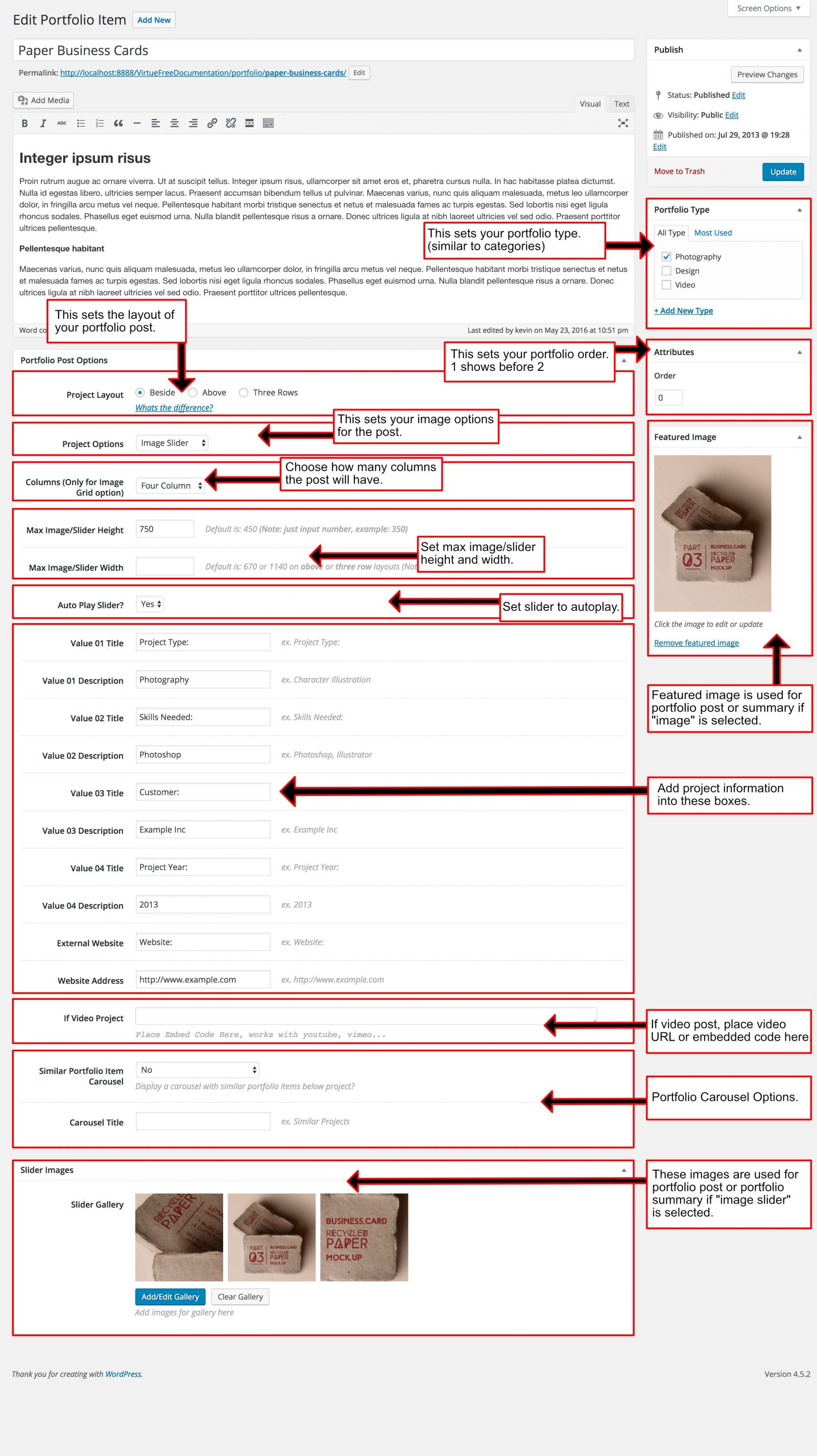
Easily embed videos in the Free Virtue WordPress theme by using the theme’s built-in video options. Simply copy your video URL, paste it into the designated field, and watch it appear seamlessly on your site. This method ensures that your content is visually engaging and easily accessible.
Choose The Right Video Format
Select a video format that works with most browsers. MP4 is a good choice. It offers a balance of quality and file size. Other formats like WebM are also fine. Make sure the video is not too long. Shorter videos load faster and hold attention.
Upload Video To Hosting Platform
First, pick a reliable hosting platform like YouTube or Vimeo. These platforms are easy to use. Sign up if you don’t have an account. Then, click the upload button. Select your video file from your computer. Follow the instructions to complete the upload. Once done, you will get a link to your video. Keep this link safe for later use.
Accessing Virtue Theme Settings
First, open your WordPress dashboard. Click on Appearance. Choose Themes from the list. Find the Virtue Theme. Click on Customize to enter the settings.
Inside the settings, look for the Theme Options. Explore until you find Video Embed settings. This is where you can add your video. Copy the video link from YouTube or another site. Paste it into the provided box. Save your changes and check your site. The video should now be visible.
Embedding Video Using Gutenberg Editor
Use the Gutenberg Editor to add videos. Start by clicking the “Add Block” button. Select the “Video Block”. You can upload a video or link from a URL. Click “Insert” to place the video. Ensure your video is in MP4 format. This makes it more compatible.
After embedding, customize your video display. Adjust the video size as needed. Use the “Settings” panel on the right. Change the width and height. You can add a caption below the video. This helps explain the video content. Use simple words for captions.
Embedding Video With Shortcodes
Shortcodes are small codes that do big tasks. They make adding videos easy. In WordPress, shortcodes look like this: [shortcode]. To add a video, you use a video shortcode. Most themes, like Virtue, support these codes. They help you add content without coding skills. Shortcodes save time and effort. They make your site look good.
To add a video, first copy the video URL. Go to your WordPress editor. Paste the URL inside the shortcode. It looks like this: your-video-url. Now, your video will show on the page. You can add this to posts or pages. It’s that simple. Always check if the video appears correctly. Preview your page to be sure. This way, your content will engage visitors.
Troubleshooting Common Issues
Embedding a video in the Free Virtue WordPress theme can be tricky. Ensure the video URL is correct and placed in the post editor. If issues persist, check for plugin conflicts or update the theme.
Resolving Video Playback Errors
Videos sometimes don’t play as expected. This can be frustrating. First, check the video file type. Make sure it’s a common format like MP4. Next, look at the video URL. A broken link can cause problems. Also, check your internet connection. A weak connection might stop the video from playing. If the video still won’t play, try another browser. Sometimes this fixes the issue.
Ensuring Responsive Design
It’s important for videos to fit all screens. Big screens and small screens both matter. Use responsive design to make this happen. Add width and height settings in the video code. Set them to 100%. This makes the video adjust to screen size. Also, test on different devices. This ensures your video looks good everywhere. If the video doesn’t fit, check your theme settings. Sometimes you need to adjust them.
Credit: www.etsy.com
Enhancing Video Engagement
Boosting video visibility is key. Use keywords in your video title. Describe the video with simple words. Include these words in the description. Keep the description short. Make it clear. This helps search engines find your video. Add a thumbnail to make your video stand out. Thumbnails attract more views.
Captions make videos easier to watch. They help people who cannot hear well. Also, captions are good for understanding the video. Write captions in clear sentences. Add a brief description below the video. Descriptions tell viewers what to expect. Include important details. This keeps the viewers interested. Both captions and descriptions are important. They improve the video experience.

Credit: www.bypeople.com
Frequently Asked Questions
How Do I Add A Video In WordPress?
To add a video in WordPress, use the Gutenberg editor. Select the ‘Video’ block, then upload your file or insert a URL. For a responsive design, ensure the video is optimized for different screen sizes. This simple method enhances user engagement on your site.
Can I Embed Youtube Videos In Virtue Theme?
Yes, you can embed YouTube videos in the Virtue Theme. Copy the video URL from YouTube, then paste it directly into the WordPress editor. The platform automatically converts it into an embedded video. This method is efficient and enhances your content’s appeal.
Is Video Embedding Free In Virtue Theme?
Yes, video embedding is free in the Virtue Theme. WordPress offers built-in support for video embedding without additional costs. Use the Gutenberg editor to easily add videos to your posts or pages. This feature enhances your website’s multimedia capabilities without extra expenses.
Why Isn’t My Video Displaying Correctly?
If your video isn’t displaying correctly, check the URL or upload format. Ensure the video is compatible with WordPress. Also, verify your internet connection and theme settings. Sometimes, plugin conflicts may affect video display. Fix these issues to ensure proper video integration.
Conclusion
Embedding videos in the Free Virtue WordPress theme is simple. Follow the steps outlined to enhance your website’s appeal. Videos can make your content more engaging. They offer a dynamic way to share information. With practice, you’ll embed videos effortlessly.
Keep experimenting with different video types. Your audience will appreciate the added value. Remember, practice makes perfect. Continue exploring WordPress features to improve your site. Stay curious and keep learning. Your website will grow alongside your skills. Happy embedding!


