
Are you ready to take your WordPress site to the next level without the fear of losing your customizations every time your theme updates? Hosting a WordPress child theme might be the game-changer you’re looking for.
Picture this: you can tweak your site’s appearance and functionalities while keeping the original theme intact. No more headaches or starting from scratch! In this guide, we’ll dive into the step-by-step process of hosting a WordPress child theme. We’ll help you unlock the freedom to customize and secure your website’s unique touch.
Curious about how this works and why it’s the smart choice for your site? Keep reading, because this could be the key to enhancing your online presence effortlessly.
Understanding Child Themes
Child themes let you change a website’s look. They keep the main theme safe. You can add new colors, fonts, and layouts. Changes do not affect the main theme. Updates to the main theme are easy. The child theme will not break. This makes child themes useful.
Child themes are great for customization. They allow you to try new designs. Mistakes do not affect the main theme. You can learn without worry. They help keep original code safe. You can make changes and keep your site looking fresh. Updates are simple and do not cause trouble.
Setting Up Your Environment
Starting with the right tools is crucial. First, you need a text editor. Some popular choices are Visual Studio Code or Sublime Text. These editors help you write code easily. Next, install WordPress on your computer. Use XAMPP or WAMP for this. These are software that create a local server on your PC. Finally, download the WordPress theme you want to customize. Make sure you have a browser like Chrome or Firefox. They will help you test your site.
Picking the best hosting provider is important. Look for a provider with good support. They should have 24/7 customer service. Also, check if they offer automatic backups. These backups keep your data safe. Speed is key too. A fast server means a quick website. Lastly, consider the cost. Compare different providers. Choose one that fits your budget and needs.
Creating A Child Theme
Start by creating a new folder for the child theme. This folder needs a special name. It should be related to the parent theme. Inside, make two files. One is style.css and the other is functions.php. These files are important. They help the child theme work with the parent theme.
The style.css file is very important. It tells WordPress about the child theme. Add a special text at the top. It includes the theme name and the parent theme’s name. This helps WordPress connect the child and parent themes. The stylesheet lets you change the theme’s look.
The functions.php file is for extra features. It allows you to add new functions. This file works with the parent theme. It can add new options or change existing ones. Remember, this file should only have new or changed functions. It shouldn’t repeat the parent theme’s functions.
Credit: www.cloudways.com
Customizing Your Child Theme
Change your theme’s look using a child theme. It helps you keep the main theme safe. Copy the parent theme’s stylesheet into your child theme folder. Edit the styles in this new file. This overrides the old styles. You can change colors, fonts, and sizes easily. These changes won’t get lost in updates.
Use custom templates to create unique pages. Copy the parent theme’s template file. Place it in the child theme. Rename it to make a new template. Edit this file for a custom look. This helps in creating special layouts for different pages. Simple changes can make your site stand out.
Plugins add extra features to your site. Make sure they work well with your child theme. Some plugins need special tweaks in your theme files. Check the plugin’s documentation. Make the required changes in your child theme. This ensures smooth functioning and enhanced site capabilities.
Testing Your Child Theme
Testing your WordPress child theme ensures it works seamlessly. Upload the theme to your hosting server. Activate it and check for any errors or issues.
Cross-browser Compatibility
Make sure the child theme looks good in all browsers. Test in Chrome, Firefox, Safari, and Edge. Each browser can show things differently. Use tools like BrowserStack for help. Check if all images load correctly. Ensure buttons work. Look for layout changes or errors.
Mobile Responsiveness
Check if the theme works on phones and tablets. View it on different devices. Use tools like Responsinator to see how it looks. Make sure text is easy to read. Ensure menus and links are easy to click. Avoid small fonts. Ensure images adjust to screen size.
Debugging Common Issues
Find errors using debugging tools. Use the browser console for help. Look for red error messages. Check for missing files. Ensure all code is correct. Fix broken links. Update plugins and themes to prevent errors. Keep your WordPress updated.
Credit: www.cloudways.com
Deploying Your Child Theme
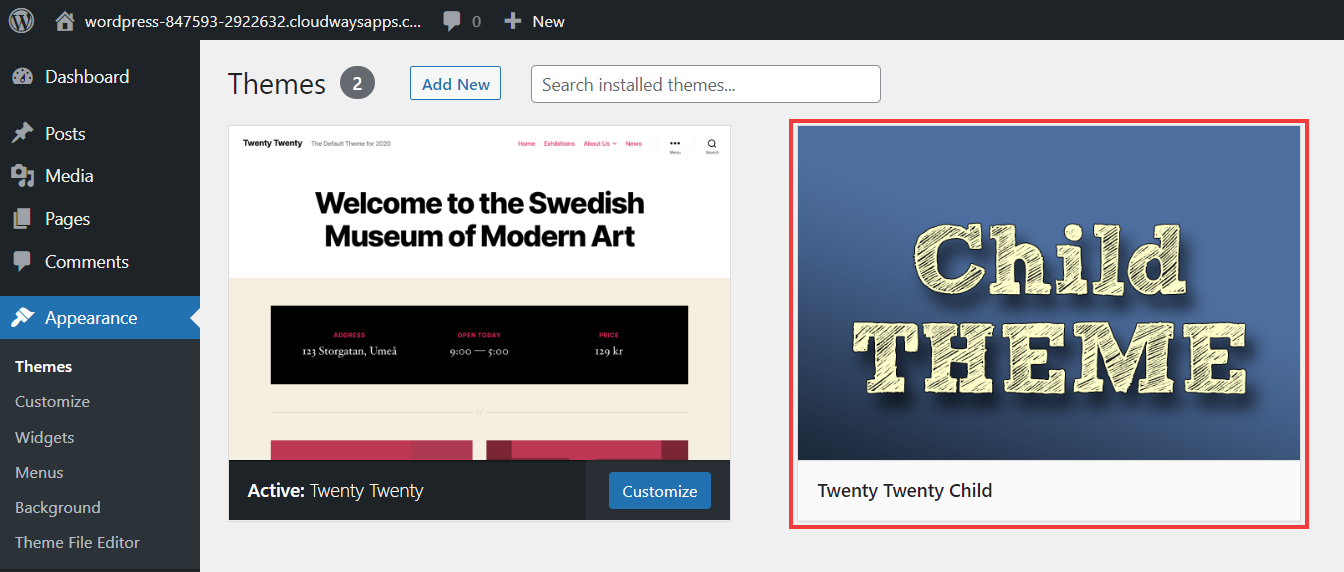
First, open your WordPress dashboard. Then, click on Appearance and go to Themes. Click on Add New and then on Upload Theme. Choose the child theme zip file from your computer. Click Install Now to upload. Wait for the upload to finish. The child theme is now in WordPress.
In the WordPress dashboard, go back to Appearance and click on Themes. You will see the newly uploaded child theme. Click on Activate to make it live. Your site will now use the child theme. Check if everything looks right. If not, you may need to adjust settings.
After activation, check your website. Ensure all features work smoothly. Visit different pages to test. Look for any broken links or missing images. Fix any issues you find. This ensures the child theme works perfectly with your site. Regularly update your themes for best performance.
Maintaining Your Child Theme
Hosting a WordPress child theme keeps your site personalized and secure. Regular updates ensure compatibility with the parent theme. Back up files to prevent data loss during changes.
Updating Parent Theme Safely
Ensure the child theme remains intact during updates. Always backup your files before updating. Use a staging site to test updates. This keeps your live site safe. After updating, check if everything works. Fix any errors immediately.
Handling Future Customizations
Plan your customizations carefully. Document changes in a log file. This helps track modifications. Use hooks and filters for easier updates. Avoid direct changes to the parent theme files. This keeps your child theme adaptable to updates.
Backup Strategies
Regular backups protect your work. Use plugins for automatic backups. Store backups on the cloud or an external drive. Check backup integrity often. Restore backups promptly if needed. Keeping backups ensures safety.
Credit: www.inmotionhosting.com
Frequently Asked Questions
What Is A WordPress Child Theme?
A WordPress child theme inherits its functionality from another theme, called the parent theme. It allows you to modify and customize the parent theme without affecting the original files. This approach ensures that your changes are preserved even after the parent theme is updated.
Why Use A Child Theme For WordPress?
Using a child theme allows for customization while preserving the original theme’s updates. This ensures your customizations are safe when the parent theme updates. It keeps your site secure and functional. It’s a best practice for developers and site owners looking for long-term maintenance.
How Do I Create A Child Theme?
Creating a child theme involves creating a new directory in the themes folder. Include a style. css file with the necessary header information. Additionally, create a functions. php file to enqueue the parent theme’s styles. Activate your child theme through the WordPress dashboard to start customizing.
Can I Customize Any Theme With A Child Theme?
Yes, you can customize any WordPress theme using a child theme. This is applicable to both free and premium themes. Child themes allow for flexibility without modifying the original theme files. Ensure the parent theme supports child themes for seamless integration and updates.
Conclusion
Creating a WordPress child theme is simpler than it seems. Start by setting up a separate directory. Customize styles and functions without altering the main theme. This approach preserves your original theme during updates. Always test your changes on a local server.
It ensures everything works smoothly before going live. Remember, backups are crucial. They safeguard your progress. With patience and practice, you’ll manage WordPress themes confidently. Enjoy the journey of customizing your site. It reflects your unique style and needs. Happy theming!


