
Unlock the potential of your Windows programs by hosting them on Amazon Web Services (AWS). Imagine having the flexibility to access your applications anytime, anywhere, while ensuring robust security and optimal performance.
Whether you’re a tech enthusiast or a business owner, understanding how to leverage AWS for your Windows applications can revolutionize the way you operate. In this guide, you’ll discover step-by-step instructions, practical tips, and expert insights to effortlessly host your Windows program on AWS.
Get ready to streamline your processes, enhance scalability, and elevate your user experience. Read on, and learn how to turn this powerful cloud platform into your program’s new home.
Choosing The Right Aws Service
Amazon EC2 is perfect for hosting Windows applications. It lets you create virtual machines with Windows. You can choose the size and power of these machines. Easy setup makes it friendly for beginners. Cost-effective options are available. You pay for what you use. Security features keep your data safe. Flexible configurations match your needs. Backup options ensure data is always safe. Scalable resources grow with your app. Monitoring tools track performance. 24/7 support is available for help. Try EC2 for your Windows programs. It’s a smart choice.
Amazon RDS manages databases for you. It works well with Windows apps. You get easy database setup. Automatic updates keep it current. Backup services protect your data. Scale databases as your needs grow. Secure connections keep data private. Simple pricing lets you plan costs. Performance tracking helps improve speed. Multi-region support offers global reach. Support team is ready to assist. RDS is great for database needs.

Credit: docs.aws.amazon.com
Setting Up Your Aws Account
Start by visiting the AWS website. Find the signup link. Click it to begin. Enter your email and choose a secure password. Fill in your billing information. Complete the process by verifying your identity. This step is important. Your account is now ready.
Log in to your AWS Management Console. Find the IAM service. IAM stands for Identity and Access Management. This tool helps manage access. Create a new user with admin permissions. Assign a strong password. Grant permissions carefully. Ensure only trusted users have access. Keep your account safe.
Launching A Windows Ec2 Instance
Selecting the Right Instance Type is very important. Different tasks need different power. Some tasks need more memory. Others need more CPU. Choose wisely. Think about the needs of your program. EC2 has many options. Look for the one that fits best. This will save you money and time.
Configuring Security Groups is also very crucial. Security groups act like a firewall. They protect your instance. You decide who can enter. Allow only trusted IP addresses. Block others. This keeps your program safe. Always check your security settings. Be sure they are correct.

Credit: aws.amazon.com
Installing And Configuring Windows Programs
Access your EC2 instance with Remote Desktop Protocol. This tool helps control your server. First, open the Remote Desktop Connection app on your computer. Enter your EC2 instance’s public IP address. Click connect. Use your username and password to log in. Now you can see your server’s desktop. This allows you to work as if you are there.
Install software on your EC2 instance like on any PC. First, download the program file. Save it on your server desktop. Double-click the file to start the installation. Follow the steps in the setup wizard. Make sure to choose the right options for your needs. Finally, click finish. Your software is now ready to use.
Managing Storage Solutions
Elastic Block Store (EBS) is useful for storing data that stays. It helps keep your Windows program data safe. EBS is like a hard drive in the cloud. It gives you fast access to files and data. You can choose different types based on your needs. Some are faster, some cost less. Use EBS for databases and apps. It is reliable and easy to manage. Back up your data easily with EBS.
S3 is great for storing files like photos and videos. It keeps your files safe and easy to find. You can store a lot of data in S3. It is very cost-effective for large data. It is like a big online folder for your Windows program. S3 works well with other AWS services. It helps you share files with others easily. Use S3 to save and access your files anytime.
Monitoring And Scaling
CloudWatch helps watch programs on Amazon Web Services. It gives data about usage and errors. This helps in finding problems quickly. You can set alarms for important events. These alarms tell if something goes wrong. You can see charts and reports. This helps understand how the program works. CloudWatch is easy to use and set up. It helps keep everything running smoothly.
Auto Scaling makes sure programs run fast. It adds more power when needed. This helps when many people use the program. It removes extra power when not needed. This saves money and resources. Auto Scaling is smart. It learns how much power is needed. It adjusts automatically. Programs stay fast and reliable. Auto Scaling is a great tool for managing performance.
Ensuring Security And Compliance
Implementing security best practices is key to protecting your data. Keep software updated. Run regular security checks. Use strong passwords. Enable two-factor authentication. Monitor user access. Review logs often. Encrypt sensitive data. Set up firewalls. Use private networks.
Compliance with standards ensures safety. Follow industry regulations. Know your region’s rules. Use AWS compliance resources. Document processes. Train staff on standards. Regularly audit practices. Fix issues quickly. Stay informed on changes.
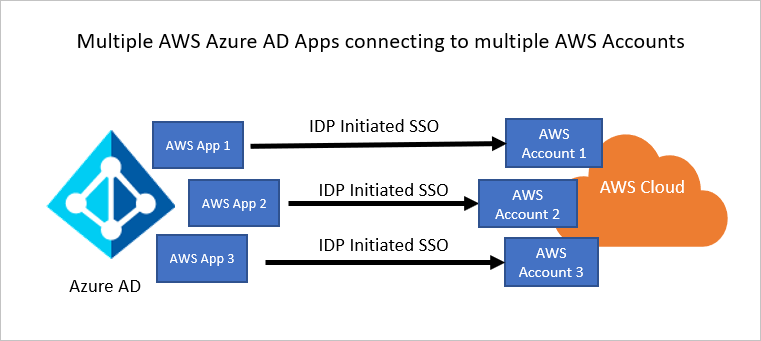
Credit: learn.microsoft.com
Cost Management Strategies
AWS has different pricing models for hosting Windows programs. Some plans charge by the hour. Others charge by the month. Choose a plan that fits your needs. Know how much you will spend. Keep an eye on your budget.
Use only the resources you need. Do not use too much. Save money by being smart. Turn off unused resources. Check your usage regularly. Adjust if needed. This helps control costs.
Frequently Asked Questions
Can I Host My Application On Aws?
Yes, you can host applications on AWS. AWS provides scalable cloud services ideal for various applications. It offers tools and resources to ensure efficient deployment. AWS supports diverse programming languages and frameworks. Utilize AWS’s global infrastructure for reliability and performance.
Can I Run A Windows Server On Aws?
Yes, you can run Windows Server on AWS. AWS provides pre-configured Windows Server instances. Choose your preferred version and launch easily. AWS ensures compatibility and seamless integration with Windows applications. Benefit from scalable resources and secure infrastructure for efficient server management.
Can I Run Windows Desktop On Aws?
Yes, you can run Windows desktop on AWS by using Amazon WorkSpaces. It offers a cloud-based, secure, and scalable desktop experience. Customize your environment with different configurations and software applications to suit your needs. Access your Windows desktop from any device with internet connectivity.
How To Deploy Windows 10 In Aws?
Deploy Windows 10 on AWS by launching an EC2 instance with a Windows AMI. Configure instance settings, storage, and security. Use AWS management console or CLI for deployment. Connect using Remote Desktop Protocol (RDP) for access. Ensure you follow licensing requirements for Windows on AWS.
Conclusion
Hosting Windows programs on AWS is straightforward with clear steps. Start by choosing the right instance type. Ensure your program meets AWS requirements. Set up your environment carefully. Use AWS tools to monitor and scale your program. Regular checks help maintain performance.
Explore AWS resources for continuous improvement. Don’t hesitate to seek help if needed. Remember, practice makes perfect. Hosting on AWS can boost your program’s efficiency. Enjoy the benefits of cloud hosting. Your journey starts now. Dive in with confidence.


