
Are you ready to take control of your online presence? Hosting your website on an Apache web server in Linux gives you the power to manage your site with flexibility and efficiency.
Whether you’re a tech enthusiast or a small business owner, understanding how to host your website can save you money and offer more customization. You’ll discover a straightforward guide to setting up your web server, ensuring your site runs smoothly and securely.
Dive in and unlock the potential of Apache in Linux to elevate your website to new heights!
Preparing Your Linux Environment
Linux offers many choices. Some are Ubuntu, CentOS, and Debian. Each has its features. Ubuntu is user-friendly. CentOS is stable and reliable. Debian is secure and free. Choose what fits your needs best. Ubuntu is great for beginners. CentOS suits businesses. Debian is good for developers. Pick wisely.
First, get a reliable server. Ensure it has enough storage and RAM. Next, install your chosen Linux distribution. Follow the setup steps carefully. Update the system to the latest version. This keeps it secure and fast. Use commands to install Apache. Finally, test the server. Make sure it’s working well.

Credit: www.veeble.com
Installing Apache Web Server
Apache is a popular web server for Linux. To install it, use package managers like apt or yum. Open your terminal. Type sudo apt update and press enter. Then, type sudo apt install apache2. Wait as it installs. With yum, use sudo yum install httpd. Both methods are easy. Follow steps carefully. Apache will be ready soon.
Check if Apache runs. Type systemctl status apache2 or systemctl status httpd. This shows Apache’s status. Look for the word active. This means Apache is running. If not, start it with systemctl start apache2 or systemctl start httpd. Now, Apache should work. Open a browser. Type http://localhost. You should see the Apache test page. This confirms it’s installed correctly.
Configuring Apache Settings
Apache is a popular web server for Linux. It uses configuration files to set up its behavior. Editing the Apache Configuration File is important. It helps in customizing server settings. The main file is often named httpd.conf or apache2.conf.
Access this file using a text editor. Type sudo nano /etc/apache2/apache2.conf in the terminal. This opens the file for changes. Make changes carefully. Mistakes can cause errors. Save changes after editing. Use Ctrl + O to save in nano. Exit using Ctrl + X.
Setting Up Virtual Hosts
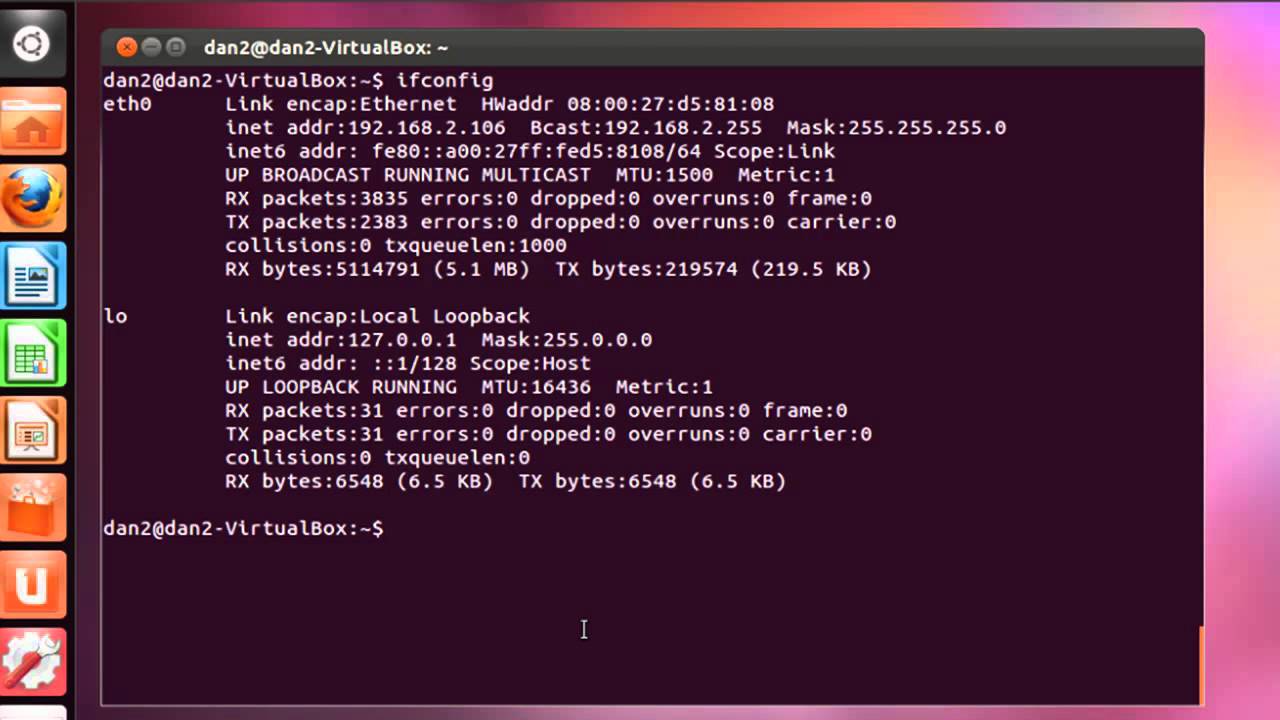
Virtual Hosts allow multiple websites on one server. Each site has its own settings. Create a file for each site in /etc/apache2/sites-available/. Use sudo nano /etc/apache2/sites-available/example.com.conf to open a new file. Define server name and document root. Example: ServerName example.com and DocumentRoot /var/www/example.com. Enable the site with sudo a2ensite example.com.conf. Restart Apache with sudo systemctl restart apache2. This makes changes active.
Credit: www.youtube.com
Deploying Your Website Files
Start by creating a main folder for your site. This is where all your files will go. Keep your HTML, CSS, and images in their own folders. This makes it easier to find files. Use simple names like “html”, “css”, and “images”. Group similar files together. This helps in managing your site. A well-organized structure saves time.
Use FTP to move files from your computer to the server. FTP stands for File Transfer Protocol. You need an FTP client like FileZilla. Enter your server details to connect. Then, drag and drop files into the server’s folders. This is how you make your site live. Always double-check the files on the server. Ensure they are in the right folders. This is important for your site to work well.
Managing Permissions And Security
Files need the right permissions to work well. Each file has three types of permissions: read, write, and execute. To change these, use the chmod command. Make sure the owner can read and write. Others should only read. This keeps files safe. Use numbers like 755 for folders and 644 for files. These numbers set the permissions easily.
Keep your server secure. Always update your Apache software. Use a firewall to block bad traffic. Check logs for any strange activity. Disable directory listing to hide files. Use SSL for safe data transfer. Set strong passwords for users. These steps help protect your website.

Credit: www.veeble.com
Testing Your Website
Accessing Your Website Locally is simple. Open your browser. Type localhost in the address bar. Press Enter. Your website should appear. If it doesn’t, check your server settings. Sometimes, you need to restart the Apache server. Use the command sudo service apache2 restart. Wait a moment. Then try again. Make sure your files are in the right folder. Usually, it’s /var/www/html. Double-check file permissions. They should allow reading. If still not visible, ensure Apache is running. Use sudo service apache2 status to check.
Resolving Common Issues can be tricky. Sometimes, the website won’t load. Check the configuration files. Look for errors in apache2.conf. Correct any mistakes. Test your changes. Some errors come from missing modules. Ensure required modules are enabled. Use a2enmod command. Restart Apache after changes. Clear browser cache. Then, reload the website. If issues persist, consult online forums. Many users share solutions there.
Enabling Additional Features
Activating SSL for secure connections is very important. First, install the SSL module. Use the command: sudo a2enmod ssl. Then restart the Apache server. This helps to secure your data. Make sure you have a valid SSL certificate. This ensures safe communication.
Enabling URL Rewriting helps to make URLs clean. First, activate the rewrite module. Use the command: sudo a2enmod rewrite. Restart Apache to apply changes. Make sure to edit the .htaccess file. This file helps with URL rules. Clean URLs are easy to read. They also look better.
Maintaining Your Apache Server
Easily host your website on an Apache web server in Linux. Begin by installing Apache using terminal commands. Configure the server files and upload your website content. Finally, test your setup to ensure everything runs smoothly.
Monitoring Performance
Regular checks keep your Apache server running smoothly. Use tools like Apachetop and mod_status to monitor server activity. They show real-time data about requests and connections. Look at error logs for unusual activity. These logs help find problems quickly. Keep an eye on server load. High load can slow things down. Check memory usage too. Low memory causes crashes. Set alerts for critical thresholds. Alerts warn you before things go wrong. Regularly update your monitoring tools. Updated tools give accurate information. They help you respond quickly to issues.
Updating And Troubleshooting
Always install the latest Apache updates. Updates fix bugs and improve security. Check the Apache website for new versions. Follow instructions for installing updates. Back up your server before updates. Backups prevent data loss if things go wrong. Troubleshooting requires patience. Look at error messages closely. They give clues about problems. Use forums and support sites for help. Many experts share solutions online. Start by restarting the server. Sometimes this solves simple problems. If not, check configuration files for errors. Correct settings improve server performance.
Frequently Asked Questions
How To Host A Website On A Linux Server?
Install a Linux server, set up Apache, and configure MySQL. Secure your server, upload website files, and test. Keep software updated for security. Use SSH for remote management and monitor server performance regularly.
How To Setup A Website With Apache?
Install Apache on your server. Configure the Apache configuration file. Place website files in the document root directory. Restart Apache to apply changes. Access your website via the server’s IP address or domain name.
How To Deploy An Html Page In An Apache Http Server?
Upload the HTML file to the Apache server’s document root directory. Restart Apache to apply changes. Ensure correct file permissions for accessibility.
How To Create A Virtual Host In Apache Linux?
Edit the Apache configuration file located in /etc/httpd/conf/httpd. conf. Add a new VirtualHost block with ServerName and DocumentRoot directives. Save the file and restart Apache using the command `sudo systemctl restart httpd`. Ensure your DNS points to the server’s IP address.
Conclusion
Hosting a website on Apache in Linux is straightforward. Start by installing Apache. Configure the necessary files next. Set up permissions carefully. Ensure your firewall allows traffic. Test your setup thoroughly. Regularly update your server for security. Follow these steps to keep your site running smoothly.
Apache offers flexibility and reliability. Perfect for most hosting needs. Troubleshooting is easier with Apache’s extensive documentation. Linux provides a stable platform for hosting. With practice, you’ll grow confident managing your server. A successful website starts with a well-hosted server.
Apache on Linux is a wise choice.


