
Imagine having your own website without spending a dime on hosting. Sounds fantastic, right?
You’re about to discover how Google Drive can be your secret weapon for hosting a website effortlessly. You may have heard of Google Drive as a tool for storing files, but did you know it can also serve as a platform to host your web pages?
Whether you’re a small business owner, a freelancer, or just someone eager to showcase your creativity online, this guide will show you exactly how to turn Google Drive into your free hosting service. Plus, it’s as simple as a few clicks. Dive in, and unlock the potential of Google Drive to host your website today!

Credit: www.oflox.com
Understanding Google Drive Hosting
Google Drive offers a simple way to host websites. It allows users to store web files like HTML, CSS, and JavaScript. These files can be shared and accessed via a unique URL. The process begins by uploading your site files to a Google Drive folder. Make sure this folder is shared publicly. Once shared, you can obtain the URL to your index.html file. This URL becomes your website link.
Google Drive hosting is free. It is useful for small projects and demos. There are some limitations though. It does not support server-side scripts like PHP. Only static websites can be hosted here. For larger or dynamic sites, consider other hosting options. Always ensure your files are secure and backed up.
Preparing Your Website Files
Gather all your website files in one folder. This includes your HTML, CSS, and JavaScript files. Make sure to check that all links and paths are correct. These files need to work together. Group similar files into subfolders. This helps keep things neat.
Name your files clearly. It helps you find them easily later. A neat folder means less confusion. Always double-check your file names for typos.
Compress your website folder into a ZIP file. This makes it easier to upload. Right-click on the folder, then select “Compress”. It takes a few seconds. A ZIP file saves space and time. It’s smaller and faster to upload. Ensure you don’t miss any files inside.
Setting Up Google Drive
To start, create a Google Account if you don’t have one. Go to the Google homepage. Click on “Sign In” at the top right corner. Find and click on “Create account.” Follow the steps to fill in your details. It’s easy and free. After creating, you can use many Google services.
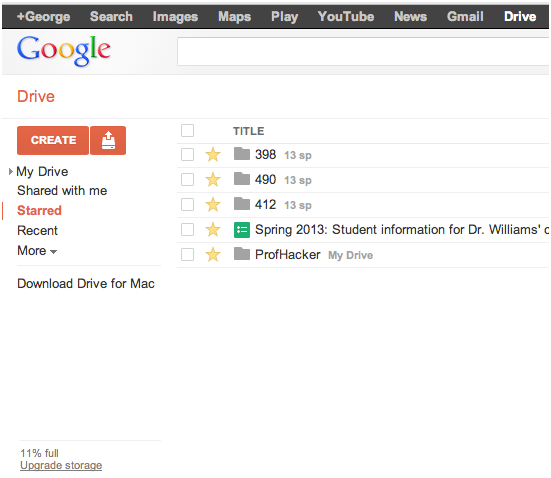
Open Google Drive by logging into your Google Account. You’ll see a simple interface. On the left, find the “My Drive” section. This is where you store files. Click on “New” to upload files or create folders. The search bar at the top helps you find files quickly. Explore and get familiar with these features. Use them to organize your files well.
Uploading Website Files
Hosting a website on Google Drive involves uploading your files and creating public links. Organize your HTML, CSS, and JavaScript files in a folder. Set sharing permissions to public, allowing users to access your site seamlessly.
Creating A New Folder
First, open Google Drive in your browser. Look for the “New” button on the left side. Click it. A menu will pop up. Choose “Folder” from the list. Give your folder a name. This will hold your website files. Click “Create” to make the folder. Now, you have a place for your site.
Uploading Files To Google Drive
With your new folder ready, click to open it. Find the “New” button again. This time, select “File upload”. Choose your website files from your computer. Wait for them to upload. You can watch the progress bar. Once done, your files are now on Google Drive. Your website files are ready to use.
Configuring File Sharing Settings
Adjusting privacy settings is key. First, open Google Drive. Select the website folder. Click the share button. A window pops up. Choose “Anyone with the link” option. This makes the folder public. Anyone can access it. Make sure to avoid sensitive data in the folder.
Find the folder again. Right-click on it. Choose “Get link” option. Copy the link. This link is your website address. Share it with friends. They can visit your site. Google Drive hosts the files. Easy and free hosting solution. Perfect for beginners.
Publishing The Website
First, upload your website files to Google Drive. Next, share them with the public. Make sure to change the file permissions. Everyone should be able to view. Find the Google Drive file ID. You will need this ID to create the website link. Use this format:
https://drive.google.com/uc?export=view&id=FILE_ID. Replace FILE_ID with your actual file ID. Your website is now live for everyone.
Open a browser. Enter your website link in the address bar. Press enter. Your website should load. Check all pages. Ensure everything displays as expected. Verify images and links. Make sure they work correctly.
Test your website’s features. Click on buttons and links. Do they work? Check forms if you have any. Can you submit them? Look at images. Do they load? Ensure everything functions well. This step is important. It helps to find problems early.
Advantages And Limitations
Google Drive is a free tool. It offers easy file storage. Files are safe and accessible. Google Drive has a simple interface. Anyone can use it without trouble. It provides ample storage space for many files. Sharing files is easy. Just a few clicks are needed. Google Drive supports many file types. Images, documents, and more are welcome.
Google Drive is not for hosting large websites. It has limited bandwidth. Too many visitors can cause problems. There are no custom domain options. Only Google Drive links are available. File loading speed may be slow. Google Drive is not for dynamic content. Only static pages are supported. Some features, like forms, won’t work. Users may face technical restrictions. Understanding limits is crucial.

Credit: www.youtube.com
Troubleshooting Common Issues
Hosting a website on Google Drive can sometimes face challenges. Often, issues arise with file permissions and sharing settings. Ensuring public accessibility and correct file paths can resolve most problems.
Fixing Broken Links
Broken links can be frustrating. Always check the file paths. Make sure they match exactly. Double-check for any extra spaces or errors. Use the correct URL format. Google Drive links must be public. Check the sharing settings. If a link is broken, re-upload the file. Update the link with the new URL. Always test links before sharing. This helps avoid problems later.
Resolving File Permission Errors
Permission errors stop access to files. Make sure the file is public. Change the sharing settings to “Anyone with the link.” This allows others to view it. Check if you are the file owner. Only the owner can change permissions. Invite others to edit or view, if needed. Use the “Share” button for this. If problems persist, re-upload the file. Set permissions again for the new file.
Exploring Alternative Hosting Options
Many people want to host a website for free. Google Drive is one option, but there are others too. It’s important to know which is best for you.
Comparing Other Free Hosting Services
| Hosting Service | Features |
|---|---|
| GitHub Pages | Great for developers. Supports HTML, CSS, and JavaScript. |
| Netlify | Easy setup. Free plan offers generous resources. |
| 000webhost | Basic hosting. Good for beginners. |
| InfinityFree | Unlimited storage. No ads. |
When To Upgrade To Professional Hosting
Free hosting is good for small sites. But it has limits. Upgrade to professional hosting for more resources. It offers better security and support. A paid plan can handle more visitors. It also helps when your site grows big.
Credit: hayageek.com
Frequently Asked Questions
Can I Host A Website In Google Drive?
No, Google Drive does not support web hosting directly. Consider using Google Sites or other hosting services instead.
Does Google Host Websites For Free?
Google does not host websites for free. Google Cloud offers hosting services at a cost. Additionally, Google Sites lets you create basic websites for free, but with limited functionality. For more advanced hosting, you need to purchase a domain and hosting plan through Google Cloud or other providers.
How Do I Host My Website On Google?
Host your website on Google by using Google Cloud Platform. Create a project, configure settings, and deploy your site. Use Google App Engine for scalable hosting. Manage resources and billing through the Google Cloud Console. Follow Google’s documentation for detailed guidance.
Can I Use My Google Drive As A Server?
Google Drive can store files, but it’s not designed to act as a traditional server. Use it for file sharing and collaboration. Specialized server hosting services offer better features for running applications or websites. Consider solutions like cloud servers for server functionality.
Conclusion
Hosting a website on Google Drive is a simple process. It offers a free and accessible solution for small projects. Follow the steps carefully to avoid errors. Ensure your files are correctly named and formatted. Remember, Google Drive is not for heavy traffic sites.
It’s best for personal or small business use. Always keep your data backed up. Explore this method if you’re on a budget. It can serve your needs effectively. Enjoy the flexibility and ease of use. Happy hosting!


