
Are you looking to host a web service using IIS 8? You’re in the right place!
Whether you’re a developer aiming to showcase your latest application or a business owner wanting to enhance your online presence, mastering IIS 8 can make a significant difference. Imagine having complete control over your web service performance and security. With IIS 8, you have the power to manage your web services with ease and efficiency.
But why should you care? Hosting your web service in IIS 8 opens doors to a world of possibilities. You can improve your website’s speed, ensure better security, and customize settings to suit your exact needs. Plus, the process is simpler than you might think. You’ll discover step-by-step instructions on how to set up your web service in IIS 8, along with expert tips to optimize your configuration. Ready to take your web service to the next level? Let’s dive in and uncover how you can effortlessly host your web service in IIS 8, transforming your online experience and delivering exceptional service to your users.
Credit: learn.microsoft.com
Setting Up Iis 8
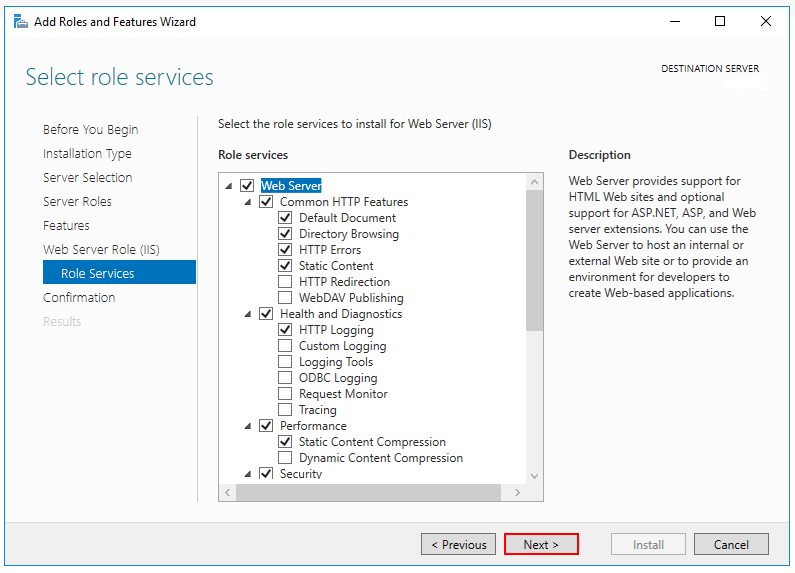
First, open the Control Panel. Click on Programs. Then, select Turn Windows features on or off. Find Internet Information Services (IIS) in the list. Check the box next to it. Click OK to start the installation. Wait for the process to finish. Restart your computer if prompted. IIS 8 is now installed.
Open IIS Manager from the Start menu. Look for the Sites folder. Right-click on it. Choose Add Website. Enter the site name and path. Set the binding information. You can use HTTP or HTTPS. Click OK to save. Your web service is ready. Test it by opening a browser. Type the URL to see your site.
Credit: knowledge.digicert.com
Preparing Your Web Service
Setting up a web service needs some tools. First, make sure you have IIS 8 installed. You also need .NET Framework for your application. A static IP address is needed too. This helps your service to be reachable. Make sure your network firewall allows traffic. This is important for smooth connection. Keep your server updated. This helps in keeping it secure.
Local testing is important. First, run your web service on your computer. Use a tool like Postman to check responses. Make sure all features work. Check for any errors. Debugging can help fix issues. This ensures your service is ready. Test multiple times. It makes your service reliable.
Deploying Web Service To Iis 8
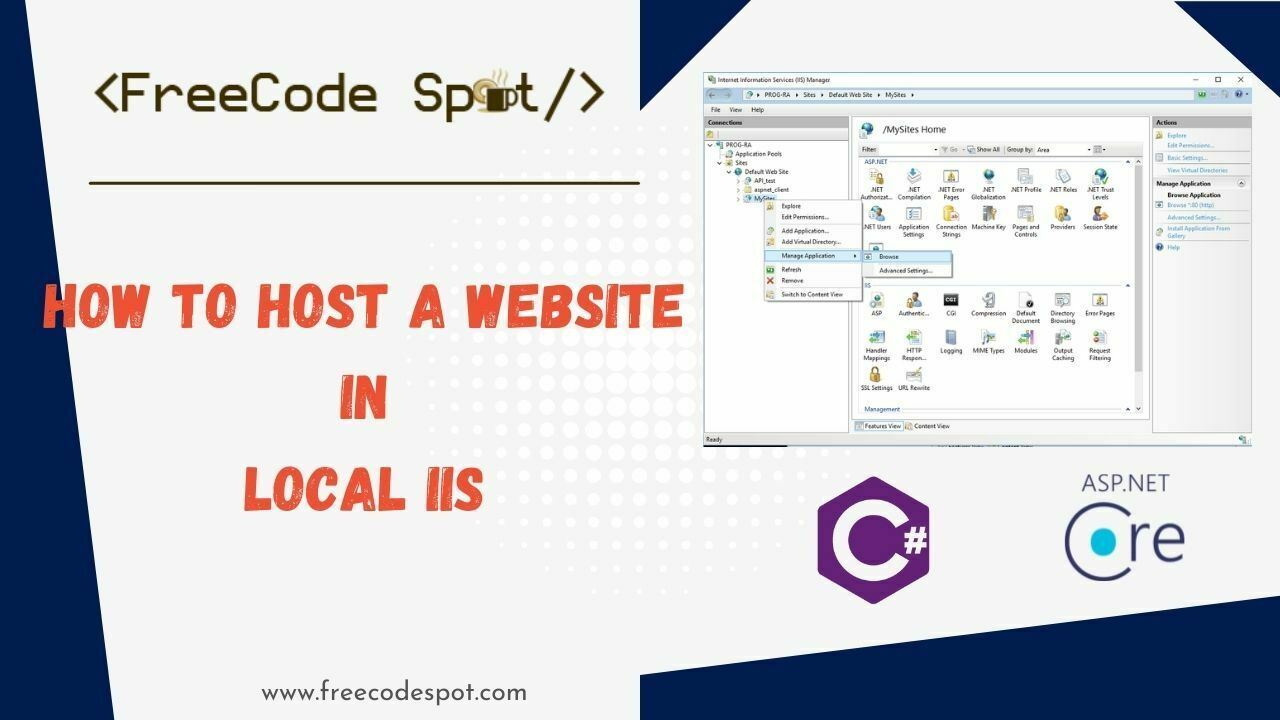
First, open IIS Manager. Find the Sites node in the left panel. Right-click on it. Choose Add Website. Fill in the Site Name. Select the physical path for the site files. Set the IP address and port number. Click OK to create the site. Your new website is now ready in IIS.
Go to the Application Pools node. Right-click and select Add Application Pool. Enter a name for your pool. Choose the .NET Framework version. Set the Managed Pipeline Mode to Integrated. Click OK. Your application pool is now set up. Assign it to your new site.
Copy your web service files to the site folder. Use File Explorer to do this. Ensure all files are in the right place. Check that the web.config file is present. This file is important. It tells the service how to run. Make sure everything is ready. Your web service files are now uploaded.
Credit: www.freecodespot.com
Configuring Web Service Settings
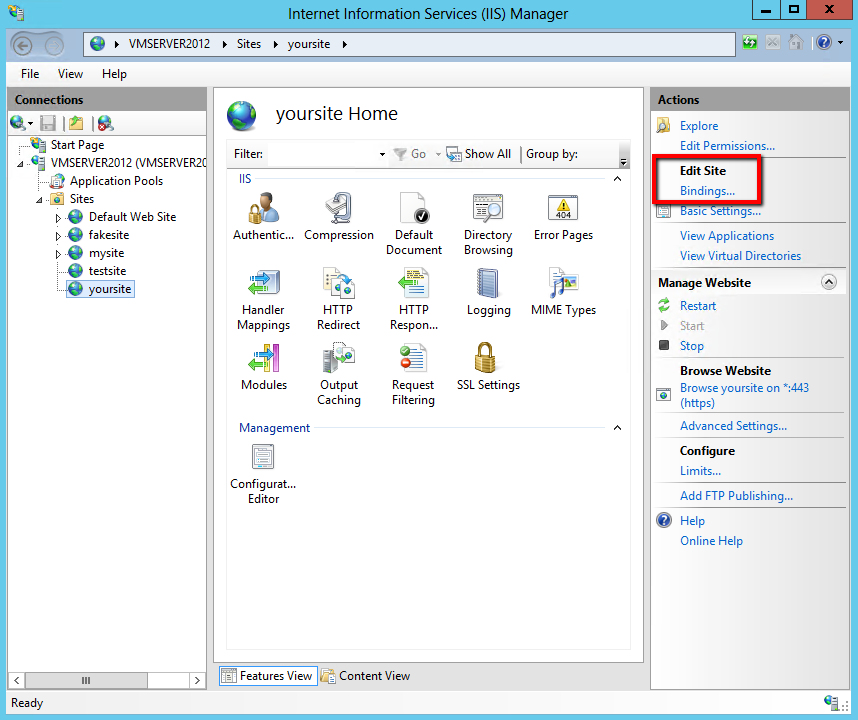
Bindings connect your service to the internet. Choose a port number for the service. Use HTTP for regular connections. Use HTTPS for secure connections. Secure connections need SSL certificates.
SSL certificates protect data. They encrypt the information. Install certificates in the server. Use the IIS manager tool. It helps to add or remove certificates. Always check certificate validity.
Authentication keeps data safe. Choose a method that fits your needs. Use Basic Authentication for simple security. Use Windows Authentication for advanced security. Ensure settings match your security plan.
Troubleshooting Common Issues
Setting up a web service in IIS 8 often involves solving common issues. Permissions must be correctly configured to ensure access. Verify that application pools are properly set to avoid service interruptions.
Resolving Deployment Errors
Deploying a web service in IIS 8 can have errors. Check the configuration settings first. Ensure all files are in the right place. Sometimes, a missing file causes a deployment error. Verify that your application pool is configured correctly. Select the correct .NET version for your application. Double-check your permissions. Sometimes, permissions are set wrong. Check if your database connections are correct. An incorrect connection can stop deployment. Review the event logs for error details. Logs show specific issues.
Handling Connectivity Problems
Connectivity issues may arise with web services. Ensure the network is stable. Check if the server is reachable. Verify your firewall settings. Firewalls can block necessary ports. Confirm that DNS settings are correct. Incorrect DNS can lead to connectivity problems. Check if IP addresses are configured correctly. Wrong IP settings can hinder access. Review SSL certificates for expired ones. Expired certificates can block communication.
Debugging Web Service Failures
Web service failures need careful debugging. Start with basic checks. Verify the service status in IIS. Check if the application pool is running. Review the error logs for clues. Logs often show failure reasons. Look at the code for mistakes. A coding error might cause failures. Check dependencies for missing files. Missing files can lead to service failures. Use debugging tools for deeper analysis. Tools provide detailed error reports.
Optimizing Web Service Performance
Faster load times make users happy. Use compression to make files smaller. This helps them load quicker. Make sure images are the right size. Big pictures slow things down. Check that your code is clean. Messy code can slow your site. Use tools to test speed. Fix anything that makes it slow.
Caching keeps data ready to use. It makes pages load fast. Use server caching to store data on the server. This reduces the load on the server. Browser caching helps store data on users’ computers. This means they don’t download it again. Pick the right caching method for your web service.
Keep an eye on resources. High usage can slow your web service. Use tools to monitor CPU and memory. Check these often. Make sure there is enough space. Too many requests can cause issues. Balance the load to keep things smooth. Alerts can help you spot problems early.
Securing Your Web Service
Learn how to host your web service in IIS 8 securely. Configure your settings properly to protect sensitive data. Ensure your application runs smoothly and securely on Windows Server.
Implementing Firewall Rules
Firewalls act as a barrier between your web service and outside threats. Set up firewall rules to control data flow in and out. Only allow essential traffic. Block suspicious requests to protect your service. Regularly review these rules for effectiveness. Update them as threats change. Always keep your firewall active.
Regular Security Audits
Security audits check for weak spots in your web service. Hire experts to perform audits routinely. They will find and fix vulnerabilities. Audit reports help you understand risks. Use these reports to improve security. Never skip audits. They are key to keeping your service safe.
Updating Security Protocols
Security protocols are rules for handling data. Update these protocols often. New threats emerge all the time. Use latest protocols to defend against them. Make sure all team members understand these updates. This will keep your data secure. Regular updates are vital for safety.
Frequently Asked Questions
How To Host A Web Service On Iis?
To host a web service on IIS, install IIS via Control Panel, add a new site, configure bindings, and select the application folder. Set required permissions and start the site. Ensure ASP. NET is installed if using. NET applications for smooth operations.
How To Host The Web Api In Iis?
To host a web API in IIS, publish your API project, create a new site in IIS, and point it to the published folder. Configure the application pool, ensure. NET version compatibility, and set necessary permissions. Verify binding settings, then start the site to make the API live.
How To Host Windows Service In Iis?
To host a Windows service in IIS, convert the service to a web application using a wrapper like TopShelf. Configure your application in IIS by creating a new website or application pool, ensuring proper permissions and bindings. Test to confirm functionality and monitor performance regularly.
How To Deploy Asp.net Core 8 Web Api In Iis?
Install. NET Core Hosting Bundle on your server. Publish your ASP. NET Core 8 project. Create a website in IIS. Point it to your published folder. Set correct permissions for the app pool identity. Restart IIS.
Conclusion
Learning to host a web service in IIS 8 is straightforward. You now know the steps to set up and configure your service. Remember to check server settings regularly. This ensures smooth operation and security. Troubleshooting tips can help solve common issues quickly.
Practice and patience are key. With consistent effort, managing web services becomes easier. Stay updated with new features and tools. This helps improve your hosting skills. Keep exploring and growing your knowledge. Hosting can be challenging at first. But with time, it becomes second nature.


