
Are you looking to host your web service in IIS 6 but feeling overwhelmed by the technicalities? You’re not alone.
Navigating the world of web hosting can be daunting, especially when dealing with an older version like IIS 6. But here’s the good news: you don’t need to be a tech wizard to get your service up and running smoothly.
With the right guidance, hosting your web service can be as straightforward as following a simple recipe. Imagine having full control over your web service, ensuring it runs efficiently and securely, without the headaches of complicated setups. This article will walk you through the process step by step, breaking down complex concepts into easy-to-follow instructions. Whether you’re a seasoned developer or a beginner, you’ll find practical tips and insights that will empower you to host your web service confidently. So, let’s dive in and transform your web hosting experience.
Setting Up Iis 6
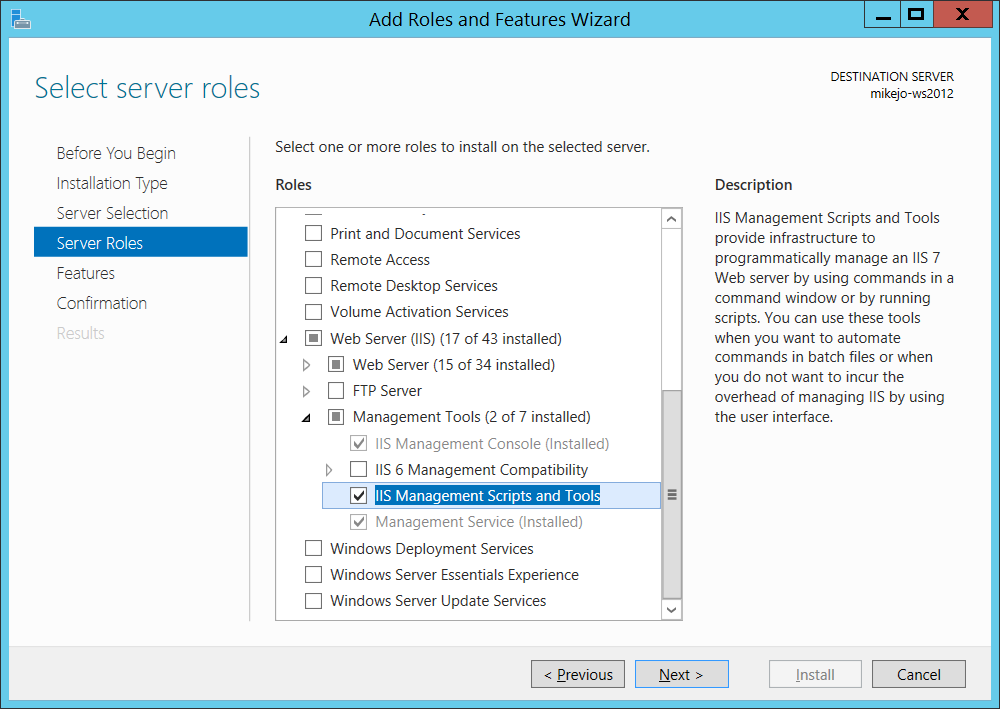
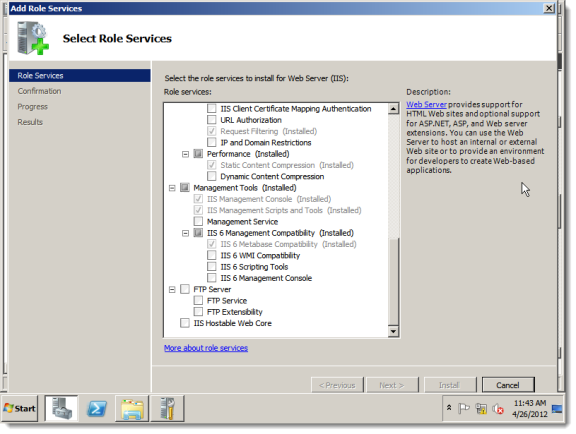
Start by opening the Control Panel on your computer. Find the Add/Remove Programs option. Click it. Choose Add/Remove Windows Components. Look for Internet Information Services (IIS). Check the box next to it. Click Next to begin installation. Follow the instructions. Let the server finish installing. Once done, close the setup window. This installs IIS on Windows Server.
Open the IIS Manager. Locate your server in the list. Right-click it. Select Properties from the menu. Adjust settings like IP address and port number. Ensure the Web Service Extensions are allowed. Choose your default document. Set it to index.html or index.aspx. Save changes before closing. Settings should be simple and clear. Your web service is ready to go.
Preparing The Web Service
Start a new project in your favorite IDE. Choose a project type that fits your needs. Add the necessary files and references. Use simple code to keep it easy. Save the project to a safe location. This helps in finding it later.
Copy the project files to the server. Use a tool like FTP for this task. Make sure all files are included. Check the file paths carefully. Open IIS 6 on the server. Create a new virtual directory. Point it to your files. Test the service by browsing to its URL. Make sure it works smoothly.
Configuring Application Pool
Open the IIS Manager first. Find the Application Pools section. Right-click to create a New Application Pool. Name it something simple. Keep the name easy to remember. Choose the correct .NET Framework version. You will see options in the menu. Select one that fits your project. Click OK to save the settings. Your new pool is ready.
Open the IIS Manager again. Find your Web Service folder. Right-click and select Properties. Go to the Home Directory tab. You will see an option for Application Pool. Choose the pool you just made. Click Apply to save changes. Your service is now linked to the pool. This helps in better management. It also improves performance.
Credit: learn.microsoft.com
Setting Permissions
It’s key to control who can access your web service. Go to IIS Manager. Right-click on your site and select Properties. Choose the Directory Security tab. Click on Edit under Anonymous Access and Authentication Control. Allow or deny access here. Choose carefully. Permissions matter.
Your web files need protection. Find the folder with your files. Right-click it and select Properties. Go to the Security tab. Click Edit to change permissions. Allow only trusted users. This keeps your files safe. Always remember to save changes. Security is important.
Configuring Website Settings
Host headers help you host multiple sites on one server. Open IIS Manager. Choose your website from the list. Click on Properties. Find the Web Site tab. Click Advanced. Add a new host header. Enter the desired domain name. Click OK to save. Host headers help you manage sites.
Ports and IP addresses are key settings. Open IIS Manager. Select your website. Go to Properties. Locate the Web Site tab. Check the Port number field. Default is 80. Change it if needed. Enter the IP address you want. Click OK to apply. Your site settings are now complete.
Testing The Web Service
Begin by opening your web browser. Type the URL of the web service. This checks if the service is running. A page should load. If it doesn’t, check your IIS settings. Make sure the web service is properly deployed. You should see a list of web methods. Each method can be tested separately. Click on a method to test. Enter any required parameters. Click the invoke button. This should execute the web method. Results will display on the screen. Make sure the results are correct. Repeat for each method. Ensure all methods work as expected.
Errors can happen. Check the logs for error messages. Logs can provide clues. Sometimes permissions cause issues. Make sure the user has proper rights. Check the firewall settings. The firewall might block connections. Confirm the service URL is correct. Typos can lead to errors. Verify the web service is running. Restart the service if needed. Double-check your code for mistakes. Look for missing files. Ensure all files are uploaded. If problems persist, seek help online. Many forums offer advice. Describe your issue clearly. This helps others assist you better.
Securing The Web Service
SSL certificates help keep data safe. They encrypt the data. This stops bad people from seeing it. Websites with SSL are more trusted. Look for a padlock symbol. This shows the site is secure. Always use SSL for sensitive data. It protects passwords and credit cards. Without SSL, data can be stolen. SSL is not hard to set up. It is worth the effort.
Firewalls protect your web service. They stop harmful traffic. Only allow trusted connections. Set rules to block unwanted access. Keep your firewall updated. This helps stop new threats. Use simple rules at first. Test them to make sure they work. Adjust rules as needed. A good firewall keeps your service safe.

Credit: learn.microsoft.com
Monitoring And Maintenance
IIS logs help track web service activity. These logs show requests and responses. They can help find errors. Regularly check these logs. Look for unusual patterns. Patterns can show problems.
Save logs in a safe place. Logs can help solve problems later. Logs can be big files. Clean old logs often. This keeps storage clear.
Updates keep your service secure. Check for updates often. Install updates as soon as possible. Updates fix bugs. They improve performance.
Backups protect your data. Make backups every day. Store backups on different devices. This keeps data safe from loss.
Credit: webfiles-sc1.blackbaud.com
Frequently Asked Questions
How To Host A Web Service On An Iis Server?
Install IIS via Windows Features. Open IIS Manager. Create a new site. Set the physical path. Configure bindings. Deploy your web service files to the site’s directory. Ensure necessary permissions. Start the site. Test your web service to ensure it runs smoothly.
How To Host .net Core 6 Web Api In Iis?
Install. NET Core Hosting Bundle on IIS. Publish Web API project using Visual Studio. Configure application pool and site in IIS. Set. NET CLR version to No Managed Code. Bind site to desired port. Grant permissions to the app folder.
Test API via browser or Postman.
How To Host A Web Service?
Select a reliable hosting provider. Choose your server type: shared, VPS, or dedicated. Install necessary software like Apache or Nginx. Upload your web service files via FTP. Configure domain settings and DNS. Ensure security measures like SSL certificates. Test the service to confirm it’s live and functioning properly.
How Do I Enable Iis Web Services?
Open Control Panel. Go to “Programs and Features”. Click “Turn Windows features on or off”. Check “Internet Information Services”. Click “OK” to enable IIS.
Conclusion
Hosting a web service in IIS 6 can seem complex at first. But with the right steps, it becomes manageable. Start by installing IIS 6 on your server. Configure your settings carefully. Ensure your web service files are correctly placed.
Test your service regularly to ensure it runs smoothly. Troubleshoot any issues promptly. Remember, practice makes perfect. With time, you’ll become more comfortable with IIS 6. Keep learning and stay updated with new practices. This will help you maintain a successful web service.
Your effort will lead to a reliable online presence.


