
Are you ready to unlock the power of AWS and take your web service hosting to the next level? Imagine having the tools and resources to effortlessly manage and scale your web applications, all while ensuring top-notch security and reliability.
AWS offers a world of possibilities for web service hosting, but knowing how to navigate this ecosystem is crucial to maximizing its benefits. Whether you’re a seasoned developer or just getting started, this guide will walk you through the essentials of hosting your web service on AWS.
You’ll discover simple, actionable steps to set up, deploy, and optimize your service with ease. We’ll break down complex concepts into bite-sized pieces, making sure you understand each part of the process. Get ready to empower your project and unleash its full potential with AWS. Dive into the article to learn how you can transform your web service hosting experience.
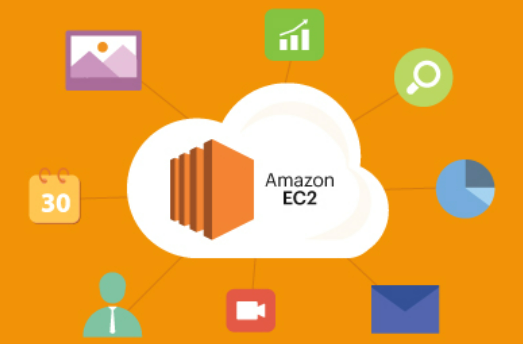
Credit: dataengineeracademy.com
Choosing The Right Aws Service
EC2 is like a computer in the cloud. It gives you full control. You choose the operating system and software. You manage everything. It’s best for big projects. Lambda is different. It runs code only when needed. This saves money. It’s perfect for small tasks. No need to manage servers. Choose wisely. Think about your project’s size and needs.
RDS is a service for databases. It helps store data safely. You don’t have to worry about updates. AWS does it for you. It’s easy to use. Great for apps needing a database. Choose from many database types. Like MySQL or PostgreSQL. Keeps data safe and fast.
S3 is a storage service. It stores files online. Very safe and reliable. You can store any file type. Like photos, videos, or documents. Pay only for what you use. Great for backups. Or sharing files with others. Very easy to scale as you grow.
Setting Up Your Aws Account
Start by visiting the AWS website. Click on the “Create an Account” button. Fill out the form with your details. Choose a strong password. Verify your email and phone number. Once done, log in to your account. You can now explore AWS services.
AWS offers a Free Tier for beginners. It provides access to many services at no cost. This is great to learn without spending money. Check the list of free services. Understand the limits of each service. Use the Free Tier to practice and learn.
The AWS Management Console is your control panel. It shows all AWS services. Explore the dashboard to find different options. Use the search bar for easy navigation. Click on services to open them. Manage your account from here.
Configuring Security Settings
IAM roles help in managing access permissions. They are crucial for security. Assign roles based on tasks. Use policies to define permissions. Only allow actions needed for tasks. This helps in protecting your web service.
Security groups act like firewalls. They control traffic to resources. Create rules for inbound and outbound traffic. Only allow trusted IP addresses. This keeps unwanted users out. Review rules regularly to ensure safety.
AWS WAF stands for Web Application Firewall. It helps protect your web service. Use it to block malicious requests. Configure rules to monitor traffic. It helps in keeping data safe. Always update rules to improve security.
Deploying Your Web Service
EC2 instances are like virtual computers. They run your web services. First, choose an Amazon Machine Image (AMI). It’s like the computer’s brain. Then, pick an instance type. This is the computer’s size and power. Small is cheap but slow. Big is fast but costly. Next, set your security group. This is like a door lock. It keeps your service safe. Finally, launch your instance. Now, your web service can start!
Elastic Beanstalk makes deployment easy. First, upload your code. It can be a ZIP file. Then, choose a platform. Options include Node.js or Python. Next, configure the environment. Set rules for your service. Finally, deploy your application. Elastic Beanstalk handles everything. It’s easy and fast. Great for beginners!
Docker packs your app into a container. It includes all parts needed. No more missing files or errors. First, create a Docker image. It’s like a snapshot of your app. Then, push this image to Amazon ECR. ECR is a container storage service. Next, run your image on an EC2 instance. Your app is now live. Docker helps keep things simple.
Managing Dns With Route 53
Hosted zones help manage your domain’s DNS settings. Each zone acts like a container. It holds DNS records for a specific domain. AWS Route 53 lets you create these zones easily. Click “Create Hosted Zone” in the console. Enter your domain name. Choose a type. Private or public. Use public for websites. Private for internal services.
Domain names identify your website. They must be unique. AWS Route 53 links your domain to your web service. You need to buy a domain first. Many registrars sell domains. Once you have a domain, configure it in Route 53. Select the hosted zone. Add DNS records. Point them to your web service. Simple and direct.
DNS failover ensures website uptime. It switches traffic during failures. Route 53 provides this feature. Set up health checks. They monitor your service. If a check fails, traffic reroutes. It goes to a backup server. Or another region. Keeps your website online. Reliable and efficient.
Monitoring And Scaling
Monitoring and scaling are crucial for hosting web services on AWS. They ensure your service runs smoothly and adapts to traffic demands. AWS tools help track performance and automatically adjust resources, providing reliable and efficient service management.
Using Cloudwatch For Monitoring
CloudWatch helps keep an eye on your services. It shows you important details. You can see CPU usage, memory, and disk space. Alerts can be set up. They notify you if something goes wrong. This makes sure your service runs smoothly. Graphs make it easy to understand data. You can spot problems fast. CloudWatch is like a health check for your service.
Auto Scaling Groups
Auto Scaling helps your service handle more traffic. It adds more servers when needed. This makes sure your service stays fast. You can set rules for scaling. For example, add a server if CPU is too high. This process saves money. You only pay for what you use. Your service stays stable and reliable.
Elastic Load Balancing
Elastic Load Balancing spreads traffic across servers. This keeps your service fast. It helps if one server gets too busy. New requests go to less busy servers. This prevents slowdowns and crashes. If a server fails, others take over. Your users get a smooth experience. Load balancing is like a traffic cop for your service.
Cost Management Strategies
AWS pricing can be tricky. Each service has its own cost. Compute and storage are key factors. Prices depend on usage and location. Check the AWS Pricing Calculator. It helps plan your costs. Keep your budget in mind.
Cost Explorer is a handy tool. It shows spending patterns over time. Use it to find cost spikes. It helps in identifying expensive services. You can view costs by service or region. This helps in better planning. Save on unwanted expenses.
Set up budgets to control costs. AWS Budgets can help you here. Choose a monthly limit for spending. Set alerts to notify when close to limits. This helps in managing surprises. Get emails when costs are high. Stay within your budget.

Credit: www.signitysolutions.com
Credit: wdevon99.medium.com
Frequently Asked Questions
How To Deploy A Web Service In Aws?
Deploy a web service in AWS by creating an EC2 instance. Install necessary software and upload your application files. Set up security groups for access. Configure the web server and deploy the application. Test the service to ensure it’s working correctly.
Use AWS Elastic Beanstalk for simplified deployment.
Which Aws Service Will Be Used To Host Web Application?
AWS Elastic Beanstalk is ideal for hosting web applications. It simplifies deployment and management. Alternatively, Amazon EC2 provides flexible computing capacity. AWS Lightsail offers cost-effective solutions for small projects. Choose based on your application’s needs.
How To Host A Website In Aws S3?
To host a website on AWS S3, create an S3 bucket, upload your files, enable static website hosting, and configure permissions. Set your bucket policy for public access, and link your domain through Route 53 or another DNS provider.
Is Aws Used To Host Websites?
Yes, AWS hosts websites. It offers scalable, reliable, and cost-effective solutions like Amazon S3, EC2, and Lightsail. AWS supports dynamic and static websites. It provides security, flexibility, and global reach. Users can easily manage and deploy resources. AWS’s infrastructure ensures high performance and availability for all web hosting needs.
Conclusion
Hosting web services on AWS is straightforward. You’ve learned the basic steps. Choose the right AWS service for your needs. Set up your environment with care. Security should always be a priority. Monitor your services to ensure smooth operation. AWS offers powerful tools to help you succeed.
Practice and patience will improve your skills. AWS can support your web service goals effectively. Keep exploring and learning. You’ll grow more confident in managing your services. Start small, then expand as you gain knowledge. Your journey with AWS is just beginning.


