
Are you tired of relying on third-party hosting services for your website? Imagine having full control, unlimited customization, and the ability to manage your web server right from the comfort of your home.
Hosting your own web server can seem daunting, but it doesn’t have to be. Whether you’re a tech enthusiast looking to expand your skills or simply someone who wants more control over their online presence, you’re in the right place.
In this guide, you’ll discover how to turn your home into a powerful web hosting hub. Unlock the secrets to setting up a reliable, efficient, and secure web server that meets all your needs. Keep reading to find out how easy and rewarding hosting a web server at home can be, and take the first step towards digital independence.
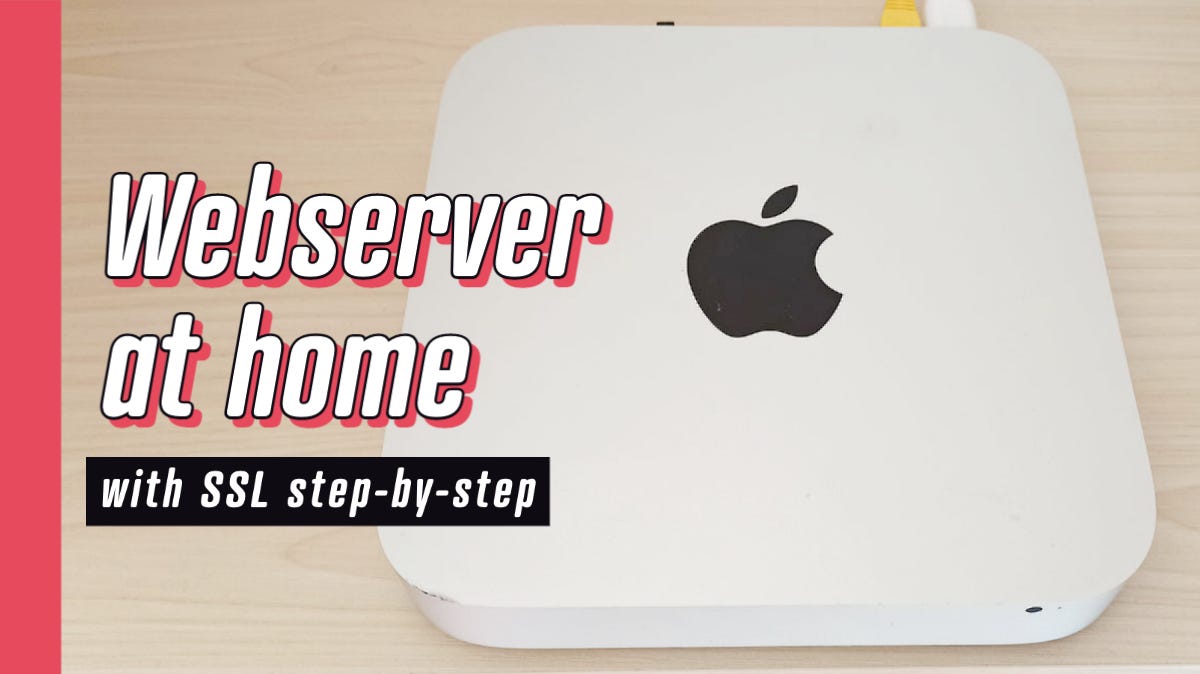
Credit: medium.com
Choosing The Right Hardware
Think about what you need. Small projects need less power. Big websites need more. Storage and RAM are very important. A simple blog needs less. A video site needs more.
Internet speed matters too. Slow speed means slow sites. Make a list of needs. This helps in choosing right hardware.
Find a computer that fits your needs. An old desktop can work for small sites. Check for enough RAM and disk space.
A powerful computer is needed for big sites. Look for a fast processor. More RAM helps with speed. Check if it runs 24/7.
Setting Up The Operating System
Choosing the right operating system is important for a web server. Linux is popular for its stability and security. Windows is user-friendly and familiar to many. Both have their own strengths.
Install Linux by downloading a distribution like Ubuntu. Use a USB stick to boot. Follow the on-screen instructions. For Windows, insert the installation CD. Restart your computer. Follow the setup guide. Always ensure internet connection during installation.
Installing Web Server Software
Choosing between Apache and Nginx is important. Both are popular web server software. Apache is easy to set up. It works well with many systems. Nginx is fast and uses less memory. It handles many users at once. Decide based on your needs.
Basic configuration is crucial. Ensure your software is updated. Configure your server to use the right port. Usually, port 80 for HTTP and port 443 for HTTPS. Make sure to set proper permissions for files. This helps keep your server safe. Test your configuration. Verify it works properly. This ensures your web server runs smoothly.

Credit: www.youtube.com
Configuring Network Settings
Port forwarding helps your web server talk to the internet. Routers block most connections from outside. You must tell them which ports to open. The default port for web servers is port 80. Access your router settings through a web browser. Find the port forwarding section. Enter your server’s local IP address. Set the port number to 80. Save the changes. This tells the router to let in web traffic.
A static IP address keeps your server’s IP the same. Dynamic IPs change often. This can confuse your router. You need a static IP for smooth access. Find your current IP using a command prompt. Write it down. Go to your router settings. Look for network settings. Enter the IP you noted. Set it as static. Save the changes. Now your server’s IP stays the same.
Securing Your Web Server
Setting up a web server at home involves ensuring its security to protect data. Use firewalls, strong passwords, and regular updates to safeguard your server. This keeps your information safe from potential threats.
Firewall Configuration
A firewall is like a shield. It keeps bad things out. Set up rules to allow safe traffic. Block the dangerous stuff. Make sure to update your firewall regularly. Updates keep your server safe. Always check which ports are open. Close the ones you don’t need. This stops hackers from sneaking in.
Ssl Certificates
SSL makes your server secure. It locks your data. No one can see it. Get an SSL certificate from a trusted place. Install it on your server. This makes sure your information is private. People will trust your website more. Look for the padlock symbol in the address bar. It shows your site is safe.
Testing Your Web Server
Setting up a web server at home requires testing to ensure smooth operation. Check your internet connection and firewall settings. Use online tools to verify server accessibility and troubleshoot any issues.
Local Testing
First, ensure your web server is running smoothly. Open your web browser. Type localhost in the address bar. You should see your web server’s homepage. This confirms your server is working locally. Check links and images. Make sure everything loads correctly. Local testing is simple. It helps find basic errors.
Remote Access Verification
Next, test if others can access your server. Share your IP address with a friend. Ask them to type it in their browser. Your homepage should appear. If not, check your firewall settings. Ensure your server is visible to outside users. This step is crucial. It ensures your server is accessible to the world.
Maintaining Your Server
Keep your server safe. Install updates when they come out. Updates fix bugs. Updates improve security. They make your server work better. Check for updates often. Use automatic updates if you can. This makes the process easy. You won’t miss any new updates. This keeps your server running smoothly.
Watch your server’s health. Track CPU usage. Keep an eye on memory. Know your network speed. Use tools to help monitor. These tools show you stats. They alert you to issues. Fix problems early. This keeps your server fast. It helps users access your site quickly.

Credit: webhostinggeeks.com
Troubleshooting Common Issues
Internet connection can be tricky. Check your router settings often. Make sure the cables are plugged in well. Reset the router if needed. Still no luck? Call your Internet Service Provider. They might help sort it out.
Software conflicts happen sometimes. Two programs may not like each other. Close one and check if the issue stops. Update software regularly. It fixes many bugs. Use a tool to check for malware. Malware can cause many problems.
Frequently Asked Questions
Can I Host My Website By Myself?
Yes, you can host your website yourself. You’ll need a server, internet connection, and technical skills. Consider security, maintenance, and cost before proceeding. Many opt for third-party hosting services for convenience and reliability.
How Much Does It Cost To Run A Web Server?
Running a web server can cost $5 to $500 monthly. Costs vary based on server type, hosting provider, and bandwidth needs. Shared hosting is cheaper, while dedicated or VPS hosting is pricier. Additional expenses may include software licenses, domain registration, and security measures.
How Do I Make My Pc A Web Server?
Install server software like Apache or Nginx on your PC. Configure network settings for internet access. Ensure your firewall allows web traffic. Upload website files to the server directory. Test your setup by accessing your IP address in a browser.
Regularly update software for security.
Is Google Web Hosting Free?
Google offers free hosting through Firebase for small projects. Larger projects may incur costs.
Conclusion
Setting up a web server at home is an exciting task. You gain control over your online presence. It offers learning opportunities too. The process may seem complex at first. But with patience, it becomes manageable. Start small and expand as you grow.
Ensure you follow security best practices. Protect your data and server. Regular updates and backups are crucial. Enjoy the freedom and flexibility of hosting at home. Explore new possibilities for your projects. With dedication, your home server can be a valuable tool.
Happy hosting!


