
Imagine having a simple, accessible way to share your ideas or showcase your work online. You don’t need a complicated setup or technical skills to host a web page.
You’ve got Google Docs, and it’s more powerful than you might think. With just a few clicks, you can turn a regular document into a web page that’s easy for anyone to access. Think about it: no hosting fees, no coding headaches, just you, your content, and the world.
This guide will show you how to use Google Docs to host a web page. You’ll discover the effortless steps to make your document live, ensuring it’s just a link away for your audience. Dive in, and see how Google Docs can transform your online presence with minimal effort. Keep reading to unlock the potential of this handy tool and make your ideas shine online!
Credit: www.youtube.com
Setting Up Google Account
First, open a web browser. Go to the Google homepage. Look for the sign-in button. Click on it. If you have an account, enter your details. If not, create one. Follow the steps on the screen. Use a valid email. Make a strong password. Remember your password. You need it to access your account.
After signing in, find Google Drive. It’s a cloud storage service. You can store files here. It’s easy to use. Click on the Google Apps icon. It’s in the top right corner. Select Drive from the list. Now you’re ready to host a web page. Google Drive is essential for this process.

Credit: hooshmand.net
Creating A New Google Doc
Open Google Drive. Click on “New” to start. Select “Google Docs” from the dropdown. A new document opens.
Name your document. Click on the title at the top. Type your chosen name. Press enter to save it.
Begin typing your content. Use the toolbar for text styles. Add images, links, and lists. All changes save automatically.
Share your document. Click on the “Share” button. Enter emails or get a shareable link. Adjust permissions for viewers.
Designing Your Web Page
Start with a simple layout. It helps your page look clean. Use headings to organize your content. Choose easy-to-read fonts. Stick to two or three colors. This keeps the page tidy. Make sure text is clear and large enough. Space the lines well for easy reading.
Add images to make your page interesting. They help explain ideas. Use images that match your topic. Always insert links for more details. Links connect to other pages. Make sure the links work. Check them often. They should open in a new tab. This keeps your page open.
Publishing The Google Doc
Open your Google Doc. Click on the Share button at the top right. A box will open. You can see who can view the document. Choose Anyone with the link option. This lets anyone see your page. Make sure to save changes.
After setting sharing options, get the link. Find the section with the link. Click on Copy Link. Now, you have the web link. Share this link with friends. They can see your page. Remember to keep the link safe.
Embedding Google Doc On A Website
Embedding a Google Doc on your site is simple. First, open your Google Doc. Click on File and select Publish to the web. Choose Embed option. Copy the HTML code displayed.
Paste this code into your site’s HTML. It shows your document. Make sure to check if the permissions are set correctly. This way, others can see your document.
You can change how the document looks. Adjust the width and height in the HTML code. This helps fit the document well on your page. You can also change settings in Google Doc. Make it appear as read-only or allow editing.
Optimizing For Search Engines
Keywords help search engines find your page. Choose words people search. Think about your topic. Use those words in your text. Place them in titles. Add them to headings too. Do not use too many. It should feel natural. Readers will enjoy it more.
Good content is easy to read. Use short sentences. Clear words are best. Readers like simple text. Add pictures if you can. They make pages fun. Links are also helpful. They guide readers to more info. Keep content fresh and updated. This makes people come back.
Troubleshooting Common Issues
Hosting a web page in Google Docs can sometimes be tricky. Users often face issues with sharing settings and document visibility. Troubleshoot by checking permissions, ensuring the document is public, and verifying the correct link is shared.
Fixing Access Problems
Sometimes, people can’t see your page. Check the sharing settings first. Make sure everyone can view it. Use the “Anyone with the link” option. This helps others get access easily. If someone still can’t see, ask them to log in. Google accounts make sharing smoother. Double-check the link you shared. A wrong link can stop access. Try sharing it again. Always test your link before sending. This avoids access issues.
Resolving Formatting Errors
Formatting can get messy. Different devices show text differently. Check your document on different screens. Fix alignment issues by adjusting margins. Bold and italic text may not appear right. Use Google Doc tools to fix them. Sometimes, images don’t show properly. Resize them using the image options. Tables can look strange too. Adjust columns and rows for better view. Preview your page to spot errors. Fix them quickly for a clean look.
Best Practices For Google Doc Hosting
Keep your Google Docs safe. Set sharing options carefully. Only allow access to trusted people. Use strong passwords for your accounts. Update them often. Enable two-factor authentication if possible. This adds another layer of security. Regularly check who can view or edit your document. Remove any unwanted access.
Make sure users can easily see your content. Use clear fonts and colors. Avoid complex language. Organize information with headings and bullet points. This helps users find information quickly. Check document links to ensure they work. Broken links confuse visitors. Test on different devices to see how it looks. Keep your document simple and neat.
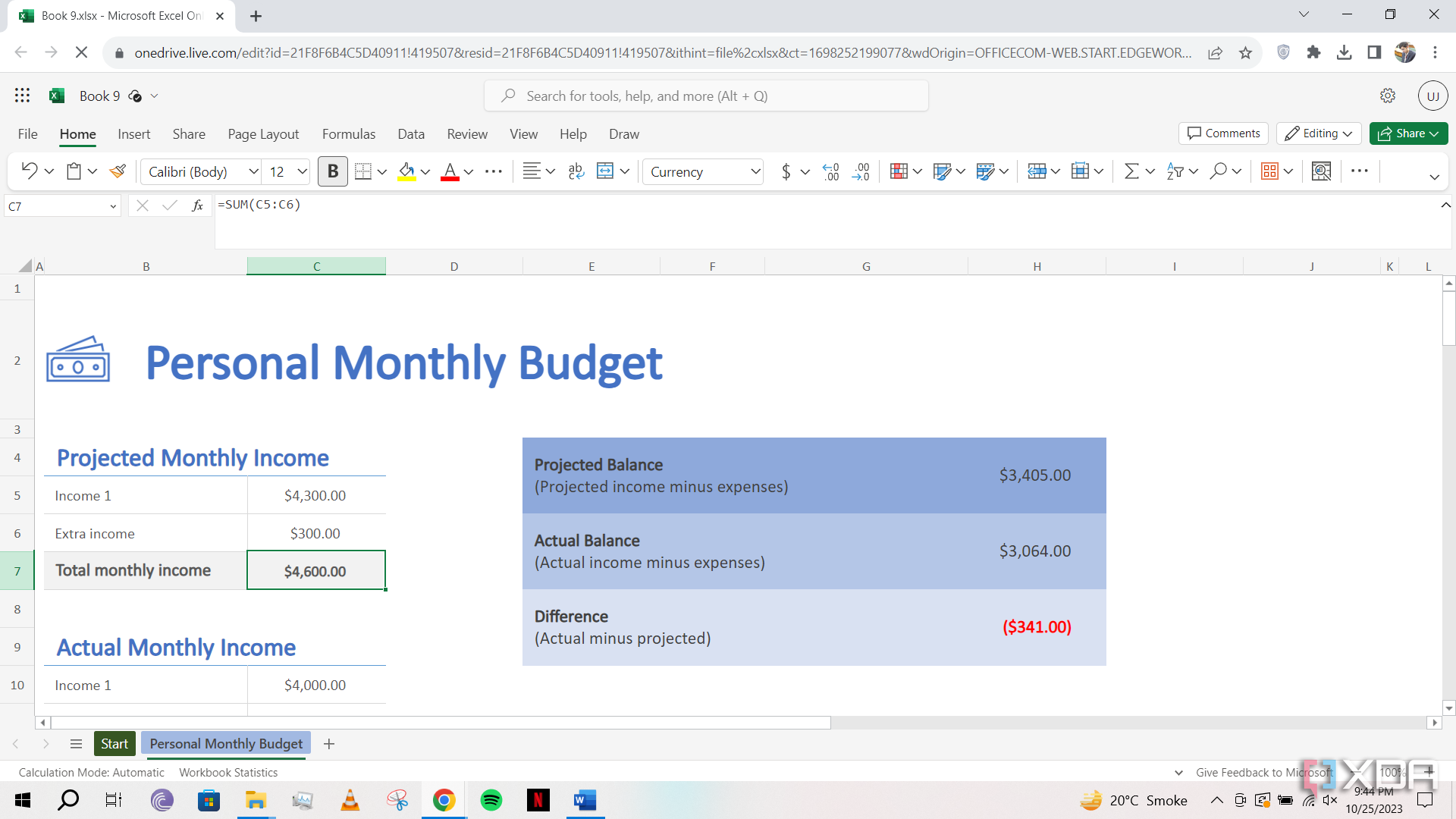
Credit: www.xda-developers.com
Frequently Asked Questions
How To Create A Webpage In Google Docs?
Open Google Docs, create your document, then go to “File” and select “Publish to the web. ” Copy the link provided to share your webpage.
Can I Host A Webpage On Google Drive?
Google Drive no longer supports webpage hosting. You can use other hosting services for your website. Consider platforms like GitHub Pages or Netlify for free hosting options. They provide easy-to-use solutions for hosting static websites online.
How Do I Anchor A Page In Google Docs?
To anchor a page in Google Docs, use bookmarks. Highlight text, click “Insert,” then “Bookmark. ” Copy the link icon to share or navigate directly. This helps users quickly find specific sections within the document.
How Do I Source A Website In Google Docs?
To source a website in Google Docs, click “Insert,” select “Footnote,” and paste the website URL. Then, provide relevant details like author, title, and publication date for proper citation. Ensure accuracy and format consistency to maintain credibility.
Conclusion
Creating a web page in Google Docs is simple and effective. It allows easy editing and collaboration. You can share your web page with anyone. Plus, it’s free and user-friendly. No complicated coding required. Perfect for beginners. Just follow the steps.
Your content will reach your audience quickly. Google Docs offers flexibility. You can update your page anytime. This method suits small projects. Ideal for basic web presence. It’s a straightforward solution. Your creativity and ideas can shine. Start today and explore its potential.
Keep your audience engaged with fresh content.


