
Are you ready to unlock the power of hosting your web application with Node.js on AWS Lightsail? Imagine having the ability to scale your application effortlessly while enjoying the reliability and speed of Amazon’s cloud infrastructure.
This isn’t just a technical guide; it’s your gateway to elevating your web app’s performance and security. By the end of this article, you’ll gain practical insights and step-by-step instructions to get your Node. js app up and running on AWS Lightsail.
Whether you’re a developer looking to expand your skills or a business owner seeking to optimize your app’s deployment, this guide is designed with you in mind. So, let’s dive in and transform your web hosting experience!
Aws Lightsail Overview
AWS Lightsail is a simple cloud service. It helps to launch and manage virtual servers. These servers are called instances. Lightsail is perfect for small projects. It is easy to use and cost-effective. Users can start with just a few clicks. Lightsail offers different plans to fit budgets. Each plan comes with a fixed price. This helps in planning costs.
Lightsail includes features like storage and networking. It also provides a static IP. A static IP helps to keep your web app stable. Lightsail supports many operating systems. This includes Windows and Linux. It also offers pre-configured applications. These apps can help start projects faster.
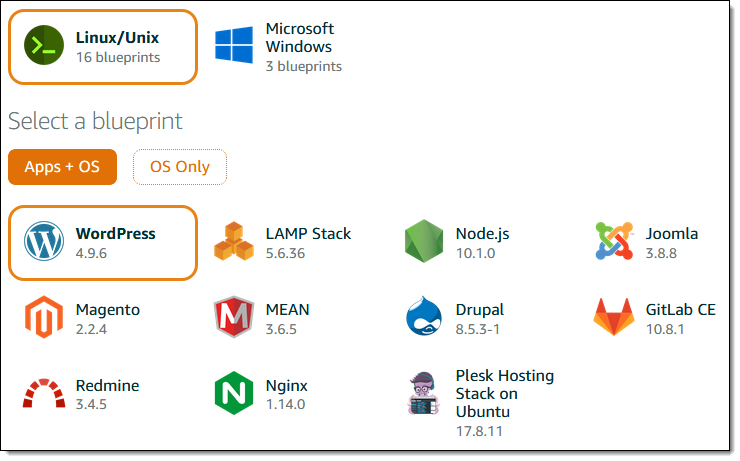
Credit: aws.amazon.com
Benefits Of Using Aws Lightsail
AWS Lightsail is easy for beginners. It offers a simple interface. Creating and managing servers is straightforward. You get a fixed price each month. This helps in budgeting. Lightsail provides pre-configured setups. This saves time for developers. Scaling your app is easy too. You can upgrade your server with a few clicks. The platform offers free data transfer. This can save you money.
Security is strong with AWS Lightsail. It uses firewalls to protect your data. Backups are automatic. This ensures your data is safe. The platform is reliable. It is built on AWS’s global network. This means less downtime for your app. Lightsail includes a content delivery network. This helps your app load faster. Users from all over the world will benefit.
Preparing Your Node.js Application
Ensure all dependencies are listed in your package.json file. Use npm install to add them. This ensures your app runs smoothly. Check the version of Node.js. It should match your app’s requirements. Update if needed. This keeps your app stable and fast.
Set up your environment variables. These are important for your app’s settings. Use a file named .env to store them. Never share this file publicly. It contains sensitive information. Use process.env to access these variables in your code. This makes your app flexible and secure.
Credit: levelup.gitconnected.com
Setting Up Aws Lightsail Account
First, go to the AWS website. Click on the Sign Up button. Fill out the form with your details. Make sure to enter your email address correctly. AWS will send a verification code. Enter the code to verify your email. Next, provide your payment information. AWS requires this for billing. Don’t worry, there’s a free tier available. Finally, confirm your account details and click Create Account.
Log in to your AWS account. Find the Lightsail option in the services menu. Click on it to open the Lightsail dashboard. The dashboard is simple and easy to use. You’ll see options like Instances, Networking, and Snapshots. Explore these options to understand Lightsail better.
Creating A Lightsail Instance
Pick a plan with enough resources. Consider CPU, RAM, and storage. These are important. Each plan has different costs. Check your budget before choosing. Smaller plans are cheaper. Larger plans offer more power. Choose wisely.
Set the instance name. Make it unique. Choose a location for the server. This affects speed. Configure the network settings. Ensure security measures are in place. Add SSH keys for secure access. Check all settings carefully. Double-check before creating the instance. This ensures everything works smoothly.

Credit: www.youtube.com
Configuring The Instance
Setting up the instance involves selecting the right OS and configuring security settings. Ensure your Node. js environment is installed. Adjust firewall rules to allow web traffic access.
Accessing The Ssh Terminal
Log into your AWS Lightsail account. Find your instance. Click on the instance’s name. Look for the “Connect” button on the page. Use it to open the SSH terminal. The terminal is a black window. You can type commands there. It’s like talking to your computer. Make sure you are connected to the internet. Stay inside the terminal for the next steps.
Installing Node.js And Npm
First, type commands to update your system. Use this command: sudo apt-get update. Next, install Node.js. Type sudo apt-get install nodejs. Wait for it to finish. Then, install npm by typing sudo apt-get install npm. npm helps you to manage packages. Now, you are ready to build apps. Check the versions by typing node -v and npm -v. Make sure they show numbers.
Deploying Node.js App
First, you need to gather your app files. Compress them into a single ZIP file. This makes uploading easier. Log into your AWS Lightsail account. Head to the storage section. You will find an option to upload files. Choose your ZIP file. Wait for the upload to finish. Once uploaded, unzip the file. You should see all your app files now.
Navigate to your app folder. Find the file named server.js or app.js. Open the terminal in your browser. Type the command: node server.js. Hit enter. Your Node.js server should start running. Check your server by entering the IP address in the browser. You should see your app live!
Managing Dns Settings
First, log into your AWS Lightsail account. Go to the Instances tab. You will see your instance list. Select the instance you want to use. Click on the Networking tab. Here, you will find the Static IP option. Click on it. Assign a static IP to your instance. This IP stays the same, even if you restart the server. It is important for connecting your domain.
Now, go to your domain registrar. Find the DNS settings page. Here, you can add a new A record. Use your domain name as the host. Enter the static IP you got from AWS. Save the changes. It may take time to update. Once done, your domain will point to your web app.
Securing Your Application
HTTPS keeps your web app safe. It encrypts data between users and your app. Start by getting an SSL certificate. It makes your website secure. You can use services like Let’s Encrypt. They provide free SSL certificates. Use a simple tool to set it up. Now, your web app is more trustworthy. Users feel secure when browsing.
Firewalls protect your app from bad traffic. They block harmful requests. First, log in to your AWS Lightsail account. Find the Networking tab. Here, you manage firewall settings. Add rules to allow or block traffic. Only allow traffic on necessary ports. Common ports are 80 for HTTP and 443 for HTTPS. This keeps your app safer from threats.
Monitoring And Scaling
Lightsail Metrics help you see how your app is doing. They show important data like CPU usage, network traffic, and disk space. By looking at these numbers, you can make sure your app runs smoothly. If CPU usage is high, it might be time to add more resources. Keeping an eye on metrics helps catch problems early.
Scaling Instances means adding more servers if your app grows. If many people use your app, one server might not be enough. AWS Lightsail makes it easy to add more servers. This is called scaling up. You can also scale down if fewer people use your app. This flexibility helps save money and keeps your app fast. Plan ahead and know when to scale up or down.
Troubleshooting Common Issues
Deploying a Node.js app can have errors. Sometimes, your code has syntax mistakes. Check your code twice. Also, make sure all dependencies are installed. Use the correct Node.js version. Check if your app has permission to run. Always keep your packages updated.
Network problems can stop your app. First, check if your server is running. Make sure the firewall settings allow traffic. Ensure the port is open. Use the correct IP address. Confirm the DNS settings are right. Test with a different browser or device. Keep your server software updated to avoid bugs.
Frequently Asked Questions
How To Deploy Node.js Application On Aws Lightsail?
To deploy a Node. js application on AWS Lightsail, first create an instance. SSH into the instance, install Node. js and necessary dependencies. Upload your application files using SCP or Git. Configure your app and start it with a process manager like PM2.
Set up a firewall to allow traffic.
How To Host Nodejs App On Aws?
Host your Node. js app on AWS by creating an EC2 instance. Install Node. js, transfer your app files, and configure security groups. Use PM2 for process management and set up a reverse proxy with Nginx. Ensure your instance has an Elastic IP for a stable connection.
How Do I Host My Nodejs App?
Choose a reliable hosting provider for Node. js apps like Heroku or AWS. Deploy using Git or CLI tools. Configure environment variables and ensure your app listens on the correct port. Optimize app performance and security. Regularly update dependencies and monitor your app’s performance.
How To Host A Website Using Node Js?
To host a website using Node. js, install Node. js and Express. Create a server using Express and define routes. Save your code in a JavaScript file. Use the command line to run your server with `node filename. js`. Access your website via `http://localhost:port`.
Conclusion
Hosting your web app on AWS Lightsail with Node. js is simple. Follow these steps to ensure smooth deployment. Start by setting up your server. Install Node. js and necessary dependencies. Deploy your app and manage it efficiently. AWS Lightsail offers reliable, cost-effective hosting.
Perfect for beginners and small projects. Troubleshooting is easy with Lightsail’s user-friendly dashboard. A good choice for those new to cloud hosting. Keep your app secure and updated for best performance. With practice, you’ll become more confident. Your web app will run smoothly on AWS Lightsail.
Enjoy the benefits of cloud hosting today.


