
Are you looking to simplify the way your applications communicate over the internet? Hosting a WCF (Windows Communication Foundation) web service in IIS (Internet Information Services) might just be the solution you need.
Imagine a seamless integration that boosts your application’s performance while making your life easier. Sounds appealing, right? In this guide, we’ll walk you through the straightforward steps to get your WCF service up and running in IIS. You’ll discover how this setup can enhance your system’s reliability and scalability.
Whether you’re a seasoned developer or just starting out, this resource will equip you with the knowledge and confidence to host your web service efficiently. So, let’s dive in and unlock the potential of your applications!
Credit: learn.microsoft.com
Setting Up Iis Environment
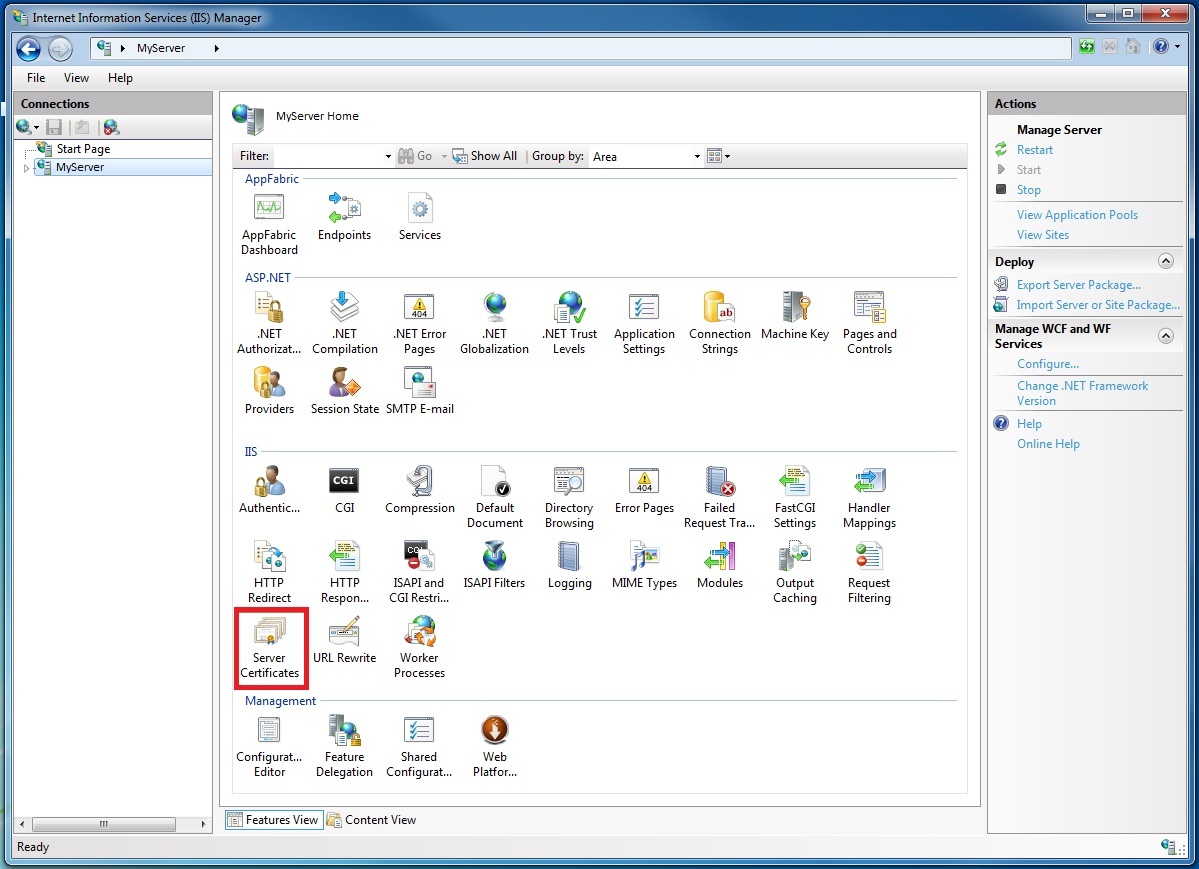
First, open the Control Panel on your computer. Go to Programs and then Programs and Features. Click on Turn Windows features on or off. A new window will open. Look for Internet Information Services (IIS). Check the box next to it. Click OK to install. Wait for the installation to complete. Now IIS is ready.
Open IIS Manager from the start menu. Find the Application Pools option on the left. Click on it. Here, you can create a new pool. Right-click and select Add Application Pool. Name your pool. Choose the .NET version needed for your service. Click OK to finish. Your application pool is now set up.
Credit: www.youtube.com
Preparing Wcf Service
Start by opening Visual Studio. Select the option to create a new project. Choose WCF Service Library from the list. This will set the foundation for your service. Name your project and choose a location. Click on Create to proceed. Visual Studio will generate a basic structure for you. This includes a service file and a configuration file. Review these files to understand their roles. Each plays a part in your WCF project.
Service contracts are important. They tell others what your service can do. Use the [ServiceContract] attribute to define them. This is like a promise of what your service offers. Inside, use [OperationContract] for each method. These methods define specific actions. Write simple methods first. This helps in testing and understanding. Always ensure your contracts are clear and easy to read. They guide how others use your service.
Deploying Wcf Service
Hosting a WCF web service in IIS involves a few clear steps. First, create a website in IIS. Then, deploy the WCF service files into the site directory. Finally, configure the service bindings to allow proper communication.
Publishing To Iis
First, open Visual Studio on your computer. Locate your WCF service project. Click on ‘Build’ to compile the service. This creates a deployable package. Next, copy this package to your server. Open the IIS Manager. In IIS Manager, right-click on your site. Choose ‘Add Application’. Enter the alias name and select the physical path. Point this path to your copied package. Confirm your settings. Now, your WCF service is published.
Setting Up Virtual Directories
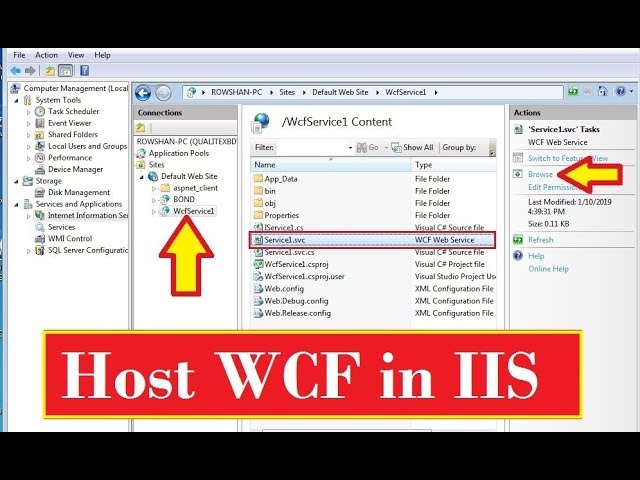
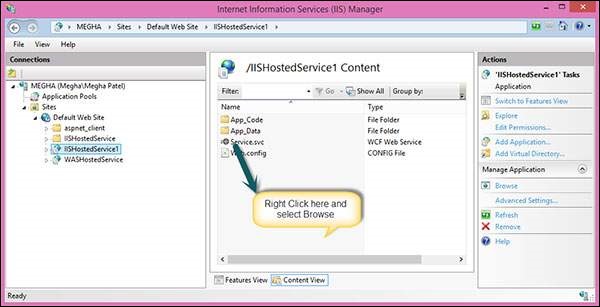
Navigate to IIS Manager. Locate your site on the left pane. Right-click the site name. Select ‘Add Virtual Directory’. Enter an alias for the directory. Choose a physical path where files reside. Click ‘OK’ to create the directory. Virtual directories help organize your files. They make access easier. Test your service by browsing the URL. Ensure it opens correctly. This means your setup is successful.
Configuring Iis For Wcf
Hosting a WCF web service in IIS requires careful configuration. Start by creating a new application pool in IIS. Then, deploy the WCF service files and configure the service endpoints in the web. config file.
Adjusting Web Configurations
First, open the web.config file of your project. Find the system.serviceModel section. Add the necessary bindings and behaviors. Ensure the endpoint address is correct. Use the right binding for your service needs. Double-check the contract name. It must match the service interface.
Enabling Protocols
Open the IIS Manager. Go to the Features View. Select the site where the service will run. Click on Handler Mappings. Enable the protocols needed for your service. Common protocols include HTTP and TCP. Ensure they are checked. Save changes before closing. Restart the IIS to apply configurations.
Testing And Troubleshooting
Deploying a WCF Web Service in IIS involves configuring the application, setting up endpoints, and handling security. This process ensures seamless communication between client and server, enhancing application performance and reliability. Effective troubleshooting is crucial for resolving any deployment issues quickly.
Testing Service Endpoints
Testing service endpoints is crucial for ensuring functionality. Use a web browser or Postman to check the service. Enter the URL in the address bar. Make sure the response is correct. Look for status codes like 200. These codes mean success. A 404 error means the endpoint is not found. Ensure the application pool is running. Check if the service is properly deployed.
Common Error Solutions
Errors can occur during hosting. Check the web.config file for mistakes. A typo can cause issues. Make sure bindings are correct. Use IIS logs to find errors. Enable debug mode for more information. Check the firewall settings. It might block access. Ensure the service references are updated. Update permissions if needed. Always restart IIS after changes.
Credit: www.tutorialspoint.com
Security Considerations
Ensuring security is crucial when hosting a WCF web service in IIS. Protect data with SSL certificates and set up authentication protocols. Regularly update server settings to guard against potential vulnerabilities.
Implementing Authentication
Authentication helps keep your web service safe. Use strong passwords for users. Enable multi-factor authentication for more security. Always verify user identities. Protect sensitive areas of your service. Regularly update security settings.
Securing Data Transmission
Data must travel safely. Use encryption to protect information. SSL certificates can help encrypt data. Ensure HTTPS is enabled for secure connections. Avoid plain text transmission. Check your service for vulnerabilities. Fix any security holes quickly.
Performance Optimization
Caching improves speed. It stores data for later. This reduces data fetching. The system loads faster. Use memory caching for quick access. Disk caching helps with large data. Choose the right cache method. It depends on data size and access needs. Make sure to update caches regularly.
Proper resource management is crucial. Limit connections to avoid overload. Set timeouts to free resources. Monitor system usage daily. Optimize resource allocation. This ensures smooth operation. Allocate enough memory for tasks. Prevent memory leaks by checking code. Use garbage collection for unused resources. This keeps the system tidy.
Frequently Asked Questions
How To Host A Wcf Service In Iis?
To host a WCF service in IIS, first create a service application. Configure the web. config file. Deploy the application to the IIS server. Ensure the. svc file is correctly mapped. Lastly, set the correct application pool and permissions in IIS.
How To Host A Web Service In Iis?
To host a web service in IIS, open IIS Manager. Add a new site, configure bindings, and select the service’s directory. Ensure the application pool is correctly set. Test the service by accessing it through a browser. Adjust firewall settings if necessary for external access.
How Do I Run Wcf Service Locally?
Install Visual Studio, create a new WCF Service Application, then build and run it using the local debugger. Configure the service settings in the web. config file. Access it via localhost using a web browser or client application.
Does Wcf Require Iis?
WCF does not require IIS for hosting. It can run in different environments like Windows services, console apps, or self-hosting. However, using IIS provides features like process recycling and security.
Conclusion
Hosting a WCF web service in IIS is straightforward. Follow the steps carefully for best results. First, ensure your environment is ready. Install necessary components and configure settings. Then, deploy your service to the server. Test it thoroughly to ensure functionality.
Keep the service updated for security. Regular maintenance prevents issues. A well-hosted service enhances user experience. It also boosts performance. Remember, simplicity is key. Focus on clarity and ease of access. Your WCF service will thrive in IIS with proper setup.


