
Have you ever wondered how you can transform your Raspberry Pi into a web server? Imagine the possibilities: hosting your own website, running web applications, or even managing smart home devices from anywhere in the world.
It might sound complex, but with the right guidance, it’s entirely achievable, even for beginners. By the end of this article, you’ll have the knowledge and confidence to host your Raspberry Pi on the web, empowering you to explore endless digital opportunities.
Whether you’re a hobbyist eager to expand your tech skills or a developer looking for a cost-effective solution, this guide will give you practical insights and step-by-step instructions. Get ready to unlock the full potential of your Raspberry Pi and take control of your online presence. Dive in, and let’s get started!
Choosing The Right Raspberry Pi Model
The Raspberry Pi family has many models. Each has its own features. The Raspberry Pi 4 is powerful. It has faster CPU and more RAM. The Raspberry Pi Zero is very small. It costs less and uses less power.
Assessing Your Project Needs
Think about what your project needs. Consider the power and size. Do you need lots of speed? Then choose Raspberry Pi 4. Small projects may use Raspberry Pi Zero. Check the ports each model has. Some models have more USB ports.

Credit: www.youtube.com
Setting Up The Raspberry Pi
Get the Raspbian OS from the official site. Download it to your computer. Use a tool to write the OS to a microSD card. Insert the card into the Raspberry Pi. Connect the Pi to a power source. Wait for the OS to load. You will see a welcome screen. This means the OS is ready.
Start with setting the language and time zone. Find these in the settings menu. Choose your language. Select your local time zone. Next, change the password for security. Use a strong and memorable one. Update the software with the update command. This keeps your Pi safe and fast. Now, connect to the internet. Use Wi-Fi or a cable. Your Raspberry Pi is now ready for more projects.
Connecting To The Internet
Raspberry Pi can use a wired or wireless connection. Wired connections are often more stable. They use an Ethernet cable. This makes them fast. Wireless connections use Wi-Fi. They are more flexible. You can move your Raspberry Pi around. Wi-Fi is convenient. But it can be less stable. Choose the option that suits your needs best.
If your Raspberry Pi won’t connect, check a few things. First, make sure your cables are plugged in. Next, check your Wi-Fi password. Is it correct? Restart your router if needed. Still no luck? Try restarting your Raspberry Pi. Sometimes, updates fix problems. So, ensure your Raspberry Pi is up-to-date. Follow these steps to solve most issues.
Installing A Web Server
Selecting a Web Server Software is the first step. Raspberry Pi can use Apache or Nginx. These are popular and easy. Both have different features. Apache is more common. Nginx is fast and light. Choose the one you like.
Follow the Step-by-Step Installation Guide below. Open the terminal on Raspberry Pi. Type the commands carefully. For Apache, use: sudo apt-get install apache2. For Nginx, use: sudo apt-get install nginx. Wait for it to finish installing. Check if the server works. Open a browser. Type http://localhost. A page should appear. This means the server is running.
Configuring The Web Server
Apache and Nginx are popular web servers. They help host websites on Raspberry Pi. To install, use simple commands. Apache: `sudo apt-get install apache2`. Nginx: `sudo apt-get install nginx`. After installation, check if they run. Use the command: `sudo systemctl status apache2` or `nginx`. If it runs, you will see an active status. You can also stop, start, or restart the server with commands. This helps manage the web server easily. Make sure to keep the server up-to-date. This ensures security and performance. These steps are simple but important.
Configuration files decide how the server works. Apache uses `apache2.conf`. Nginx uses `nginx.conf`. Find these files in `/etc/apache2/` or `/etc/nginx/`. Open them with a text editor. You can use nano or vim. Change settings to fit your needs. For example, adjust ports or server names. Save changes and restart the server. This applies new settings. Always backup the original files first. This prevents mistakes. Customizing files makes your server unique. It can improve website performance. Keep changes simple for easy troubleshooting.
Credit: fireship.io
Securing Your Raspberry Pi
A firewall keeps your Raspberry Pi safe. It blocks unwanted traffic. Use UFW (Uncomplicated Firewall) for easy setup. Install UFW using the command: sudo apt install ufw. After installation, enable it with sudo ufw enable. Open only necessary ports. For a web server, open port 80 and 443. This allows web traffic through. Always keep other ports closed. It prevents unwanted access.
SSH keys make remote access safer. They replace passwords. Generate a key pair on your computer. Use ssh-keygen command. Two files will be created. A public and a private key. Copy the public key to Raspberry Pi. Use ssh-copy-id command. Now, log in using the private key. Disable password login for extra security. Edit the sshd_config file. Set PasswordAuthentication no. This ensures only key access.
Deploying Your Website
FTP helps you upload files to your Raspberry Pi. You need an FTP client like FileZilla. Open the FTP client and connect to your Raspberry Pi. Use the IP address, username, and password. Drag and drop your website files into the correct folder. Make sure your files are in the right format. Check file names for errors.
Open your web browser. Type the Raspberry Pi’s IP address. Visit your website on the browser. Check if all links work. Look for images and text. Fix problems you see. Refresh the page often. Ask a friend to test it too. Testing ensures your site is ready. Make sure everything is visible and correct.
Credit: medium.com
Managing And Monitoring
Monitoring tools help you keep an eye on your Raspberry Pi. They show CPU usage and memory usage. You can also see network activity. This helps you know if your Pi is working well. Tools like Nagios and Zabbix are popular. They are easy to use.
Regular maintenance keeps your Raspberry Pi healthy. Update software often. Clean dust from the Pi. Check cables for damage. Watch for overheating. Use a fan if needed. Backup your data regularly. This saves your work if something goes wrong.
Exploring Advanced Features
Discover how to host Raspberry Pi on the web. Learn about setting up servers and managing connections. Explore security measures to keep your device safe online.
Hosting Multiple Sites
Raspberry Pi can host more than one site. Each site needs its own folder. Separate folders keep files organized. Use Apache or Nginx servers. They can manage multiple sites well. Virtual hosts help in site separation. This means each site has its own address. Each site feels like it’s on its own server. Raspberry Pi handles this easily. It’s a small device with big power.
Utilizing Dynamic Dns
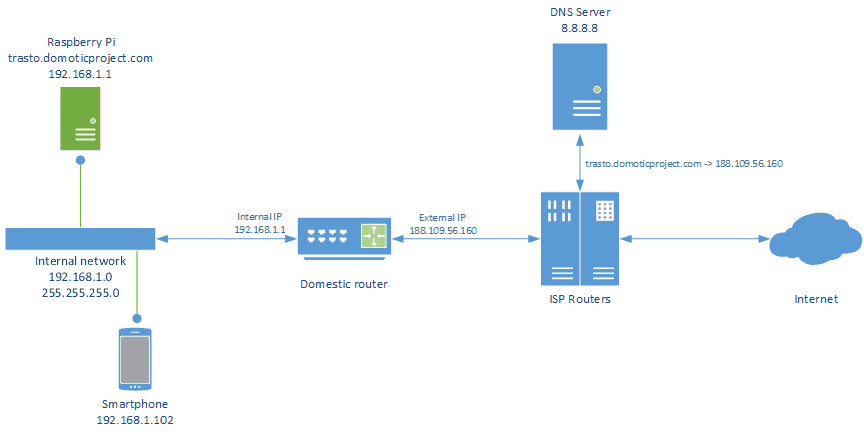
Dynamic DNS lets you access Raspberry Pi from anywhere. It updates your IP address automatically. This helps when your IP changes. No need to update settings manually. Services like No-IP or DynDNS are useful. They keep your address current. Easy to use tools make setup simple. Raspberry Pi can then be accessed from different places. This is helpful for remote projects. Dynamic DNS ensures Raspberry Pi is always reachable.
Frequently Asked Questions
How Do I Make My Raspberry Pi Accessible From The Internet?
Set up port forwarding on your router to expose the Raspberry Pi. Use a dynamic DNS service to maintain a consistent IP address. Install a firewall and security software for protection. Ensure SSH is configured for remote access. Regularly update software to protect against vulnerabilities.
Can I Run A Web Browser On Raspberry Pi?
Yes, you can run a web browser on Raspberry Pi. Popular options include Chromium, Firefox, and Midori. These browsers offer decent performance for basic browsing tasks. Ensure your Raspberry Pi has an internet connection and enough resources for smooth operation.
What Is The Best Web Server For Raspberry Pi 5?
Apache or Nginx are popular web servers for Raspberry Pi 5 due to their lightweight and efficient performance. Both options support PHP and MySQL integration, making them ideal for hosting websites or web applications. Choose based on your specific requirements and familiarity with the software.
How To Host A Website On A Raspberry Pi 5?
Set up Raspberry Pi OS, install Apache or Nginx, and transfer website files. Configure server settings, and ensure internet access.
Conclusion
Setting up a Raspberry Pi as a web host is straightforward. Follow the steps carefully. You’ll enjoy a low-cost and efficient server. Tinker with various projects and explore new possibilities. Raspberry Pi offers flexibility for learning and experimentation. Remember to secure your server against threats.
Keep software updated for optimal performance. With practice, you’ll gain confidence in managing web hosting. Share your experiences with the Raspberry Pi community. Engage with others for more tips and tricks. Enjoy your journey into web hosting with Raspberry Pi!


