
Are you ready to showcase your creativity online with a personal website? Hosting it on a Linux web server might just be the perfect solution for you.
Imagine having full control over your website, deciding how it looks, how it functions, and ensuring it runs smoothly, all while saving money. Sounds appealing, doesn’t it? By hosting your site on a Linux server, you can tap into a world of customization and flexibility that commercial hosting services can’t always provide.
Plus, if you’re someone who loves learning new things, this process can be incredibly rewarding. But where do you start? Don’t worry, this guide will walk you through each step, making the process simple and straightforward. Let’s dive in and see how you can get your personal website up and running on a Linux web server today!
Choosing The Right Linux Distribution
Linux has many distributions. Each one offers unique features. Ubuntu is user-friendly. It has strong community support. CentOS is stable and great for servers. It’s known for its security. Debian is also reliable. It is good for both beginners and experts. Fedora focuses on innovation. It’s perfect for those who like new tech.
Ease of use matters a lot for beginners. Security is crucial for protecting your site. Support ensures you get help when needed. Updates keep your system current and safe. Consider compatibility with your software and hardware. Community support helps solve problems faster. Cost is another factor. Some distributions are free.
Credit: www.godaddy.com
Setting Up Your Web Server
Apache is a powerful web server. First, open the terminal. Type sudo apt update. Next, install Apache with sudo apt install apache2. Wait for installation to finish. Check status with systemctl status apache2. Apache should be active and running. If not, start it with sudo systemctl start apache2. Now, Apache is ready.
Nginx is another popular web server. It is fast and light. To install, update your package list. Use sudo apt update. Then, install Nginx with sudo apt install nginx. Verify installation with systemctl status nginx. If Nginx is not active, start it. Use sudo systemctl start nginx. Your server is now ready for use.
Security is very important. Start by updating all packages. Use sudo apt update and sudo apt upgrade. Install a firewall. Use sudo apt install ufw. Enable firewall with sudo ufw enable. Allow web traffic with sudo ufw allow 'Apache Full' or sudo ufw allow 'Nginx Full'. Check firewall status with sudo ufw status. Your server is now secure.
Domain Name Registration
Picking a domain name is crucial. It should be easy to remember. Keep it short and simple. Avoid numbers and special characters. Choose a name that reflects your website’s purpose. Check if the name is available. Use online tools to help with this.
Once you select a name, register it. Find a trusted registrar online. Prices can vary, so compare them. Make sure to fill out all forms correctly. Pay attention to renewal terms. You don’t want your domain to expire. Protect your personal information. Consider domain privacy options.
Uploading Website Files
Use FTP to move files from your computer. FTP stands for File Transfer Protocol. It helps send files to your web server. First, open an FTP client like FileZilla. Then, connect to your server using your login details. Once connected, find your website folder on your computer. Drag and drop files into the server folder. This process is easy and quick.
Command line tools offer another way to upload files. Tools like scp or rsync help here. Open your terminal on your computer. Use commands like scp to send files. Type your server details to connect. Then, send files over. This method is good for those who like typing commands. Both FTP and command line have their own uses.
Configuring Dns Settings
DNS records are like address books for websites. They tell where your website lives. Each record has a different job. The most common ones are A, CNAME, MX, and TXT. The A record points to your server’s IP. The CNAME is used for aliases. MX records handle email routing. TXT records store data like verification codes.
To update DNS, log into your domain provider’s site. Find the DNS settings area. Add or edit records there. Make sure you use correct server information. Changes take time to update. Sometimes up to 48 hours. Check your site after updating. Make sure it works properly.

Credit: en.wikipedia.org
Setting Up Ssl Certificates
SSL certificates secure your personal website on a Linux web server. They encrypt data between the server and users. Installing SSL boosts trust and enhances security for online visitors.
Importance Of Ssl
SSL certificates keep your website safe. They protect data sent between users and your server. Visitors trust websites with SSL certificates more. A secure site has a padlock icon in the address bar. It shows that the site is secure and trustworthy. Without SSL, data is at risk. Hackers can steal information like passwords. Google prefers sites with SSL. It helps with search ranking.
Installing Let’s Encrypt
Let’s Encrypt offers free SSL certificates. It is easy to use. Begin by updating your server packages. Use the command line for this. Next, install the Certbot tool. It helps manage your SSL certificates. Run Certbot with a simple command. It will guide you through the process. Your website will have SSL in minutes. Remember to renew your SSL every few months. Certbot can automate this task.
Testing Your Website
Checking functionality is crucial for your website. Open the site in different browsers. Ensure all links are working. Check images and videos display correctly. Test forms to make sure they submit data. Use tools to check for broken links. Confirm that buttons perform the right actions.
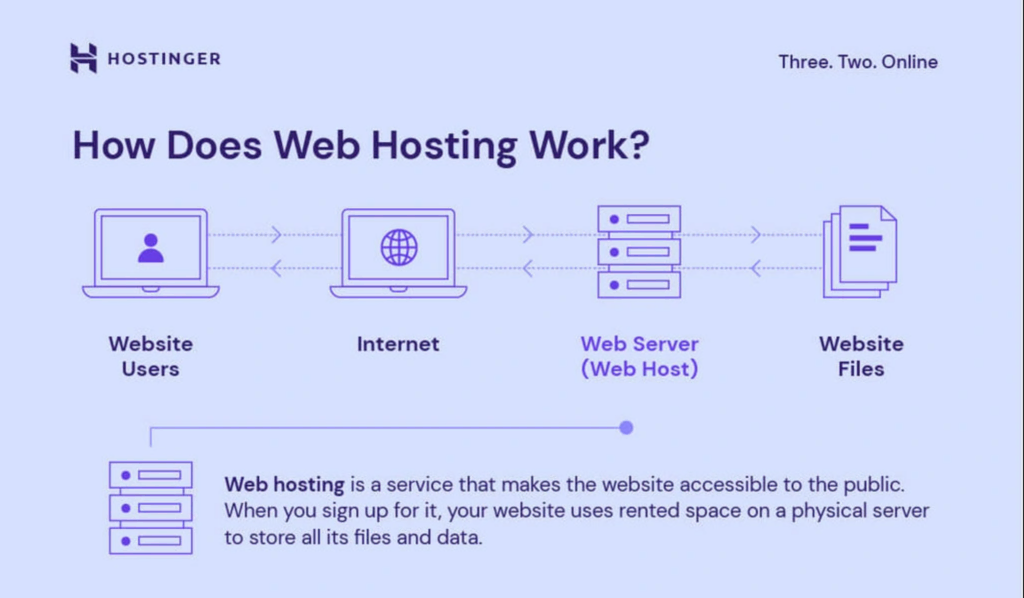
Ensuring security is vital for user safety. Install a firewall to block threats. Use strong passwords for all accounts. Regularly update software to patch vulnerabilities. Enable HTTPS for secure communication. Monitor the server for unusual activity. Use anti-virus software to scan for malware.
Credit: www.hostinger.com
Maintaining Your Web Server
Regular backups are very important. They keep your data safe. Back up your files every week. Use simple tools like rsync or tar. Store backups in a safe place. Cloud storage is a good choice. It keeps your data away from server issues. Also, check backups often. Make sure they work well.
Keep an eye on your server’s health. Check its speed and uptime. Use tools like Nagios or Zabbix. They help in monitoring performance. Set up alerts for server issues. This helps to fix problems fast. Regular checks keep your website running well.
Troubleshooting Common Issues
Setting up a personal website on a Linux web server can face challenges. Common issues include file permission errors and server configuration problems. Solutions often involve checking server settings and ensuring correct file access rights.
Resolving Server Errors
Server errors are common. Always check your server logs first. Logs provide clues about what went wrong. Look for error messages in the log file. They tell you the problem. Check if your server software is up to date. Old software might cause issues. Restart the server after updates. Sometimes, errors need a simple server restart.
Addressing Connectivity Problems
Connectivity problems are frustrating. Ensure your network cables are connected. Check the Wi-Fi connection too. Make sure your IP settings are correct. Wrong settings can block access. Restart your router if needed. Sometimes, a restart fixes connectivity. Use the ping command to check connection. It tells if the server is reachable. Ensure your firewall is not blocking access. Firewalls can block unwanted traffic.
Frequently Asked Questions
How Do I Host My Own Website On A Server?
Choose a reliable hosting provider. Install necessary software like Apache, MySQL. Upload your website files via FTP. Configure DNS settings to point to your server. Test your website to ensure it’s live and functioning properly.
Can You Use Linux To Make A Website?
Yes, you can use Linux to make a website. Linux offers robust tools like Apache, MySQL, and PHP. It’s popular for web development due to its stability and security features. Many web servers run on Linux, making it a reliable choice for hosting websites.
How To Create A Webserver In Linux?
To create a webserver in Linux, install Apache or Nginx using the package manager. Configure the server by editing the configuration files. Start the server using systemctl or service commands. Ensure necessary ports are open in the firewall. Test your webserver using a web browser.
How To Host A Website On An Apache Web Server In Linux?
Install Apache using the package manager. Configure virtual hosts and update the DNS settings. Upload website files to the designated directory. Ensure permissions are correct. Restart Apache to apply changes.
Conclusion
Hosting your personal website on a Linux web server is straightforward. Follow each step carefully to ensure success. Start by choosing reliable hosting and installing necessary software. Customize and upload your website files. Test everything to make sure it works smoothly.
Maintaining your server is essential. Regular updates keep things secure and functional. Troubleshooting helps solve issues quickly. With these basics, you’re ready to host your site effectively. The process empowers you to manage your online presence with confidence. Enjoy the journey of creating and sharing your personal space on the web.


