
Are you looking to share PDFs efficiently without worrying about storage limits or slow downloads? Hosting your PDFs on Amazon Web Services (AWS) might be the perfect solution for you.
Imagine your files being accessible globally, with lightning-fast speeds and robust security measures. AWS provides all of this and more, ensuring your content reaches your audience seamlessly. You’ll discover step-by-step instructions to host your PDFs on AWS like a pro.
Whether you’re a business owner, a content creator, or someone with a passion for sharing valuable information, AWS can be your reliable partner in distributing content. By the end of this guide, you’ll not only know how to host your PDFs but also understand why AWS is a game changer for your digital needs. Stick around to unlock the potential of your content with AWS!
Setting Up Aws Account
Amazon Web Services offers cloud services to host files. Begin by visiting the AWS website. Click on the “Create an AWS Account” button. Enter your email address and set a strong password. Use a mix of letters and numbers. Choose a unique AWS account name. Remember to write this name somewhere safe. Check your email for a confirmation link. Click the link to verify your email. Now your account is ready to use.
AWS needs a payment method for services. Click on “Billing Information” in your account settings. Enter your credit card details. Ensure the card is valid. AWS uses this card for payments. You can set a budget to control spending. This helps avoid unexpected charges. Review your billing settings regularly. It’s important to keep your payment information updated.
Understanding Aws S3
Amazon Web Services S3, or AWS S3, is a storage service. It helps you store and get files. These files can be anything like photos, videos, or PDFs. Think of it as a big box. You can keep your files safe in it. AWS S3 is like a cloud. It is not on your computer. It is on the internet. This way, your files are safe even if your computer breaks. Many people use AWS S3 because it is reliable and easy.
AWS S3 offers many features. One feature is scalability. It can grow as you need more space. Another feature is security. Your files are kept safe with strong locks. AWS S3 also has high availability. This means your files are always there when you need them. You can also access your files from anywhere in the world. This makes AWS S3 a great choice for storing important files. It makes file management simple and easy.
Uploading Pdf To S3
Make sure your PDF is ready. Check if it is the correct version. Keep the file size small. This helps in faster upload. Use clear file names. Avoid spaces and special characters. Use underscores or dashes instead.
Log in to the AWS Management Console. Go to the S3 service. Click on “Create Bucket” for a new bucket. Or, select an existing bucket. Click on “Upload” to upload your PDF. Drag and drop or select the file. Click “Next” and follow the steps. Finally, click “Upload” to finish.
Install the AWS CLI tool. Open the terminal or command prompt. Use the command aws configure to set up. Enter your access key and secret key. Use the command aws s3 cp to upload. Example: aws s3 cp myfile.pdf s3://mybucket/. Replace “myfile.pdf” and “mybucket” with your file and bucket names.

Credit: en.wikipedia.org
Setting Permissions
Public access means anyone can see your PDF. It’s open for all. Private access is different. Only certain people can see it. Protects your data better. Choose based on your needs. Safety is important.
Bucket policies help in managing access. You can allow or deny actions. Simple rules guide these policies. They keep your data safe. Always update policies regularly. Review them often. Changes in needs may arise.
Object-level permissions are precise. They decide who can view or edit. Each PDF can have its own settings. This allows better control. You can adjust permissions as required. Be careful with each setting. Mistakes can lead to data leaks.
Generating Public Url
Creating a Shareable Link is easy with Amazon Web Service. First, you upload your PDF to the S3 bucket. Make sure your bucket has public access. Then, navigate to the file and select it. Click on the “Make public” option. This creates a URL you can share with others.
Understanding Pre-Signed URLs helps keep your files safe. These URLs have a time limit. They expire after a set time. This means not everyone can access the file forever. You can create these URLs using AWS SDKs. They are useful for temporary access. This way, you control who sees your PDF and for how long. Pre-Signed URLs are secure and reliable.
Monitoring And Security
Amazon Web Service helps keep your files safe. You can track who sees your PDF files. This is important to know if someone is not allowed to see them. Tracking file access means knowing when someone opens your file. AWS can help you find out who, when, and how many times.
Implementing security best practices is a must. Use strong passwords for your accounts. Always update your security settings. AWS offers tools to help with security. Use them to keep your files safe. Make sure only the right people see your files.
Troubleshooting Common Issues
Hosting PDFs on Amazon Web Services can present challenges. Common issues include incorrect permissions and misconfigured buckets. Ensuring proper setup can prevent access problems and enhance user experience.
Access Denied Errors
Access Denied errors can be frustrating. Check your permissions settings first. Make sure the right permissions are set for your PDF files. Use the IAM console to verify these settings. Ensure that your AWS account has the needed access. Sometimes, the issue is with a policy error. Review your bucket policies for mistakes. If unsure, ask for help from AWS support.
Link Expiration Problems
Links may stop working too soon. Check the link expiration settings. AWS uses signed URLs for links. These URLs have a time limit. Set the time to match your needs. Too short a time can cause problems. Verify the URL settings in your AWS console. Adjust as necessary to avoid early expiration.
Network Connectivity Issues
Network issues can block access. Ensure a stable internet connection. Slow networks cause problems with AWS. Check your router or modem settings. Sometimes restarting helps. Also, verify your device settings. Use a different network if needed. Always test connections after changes.
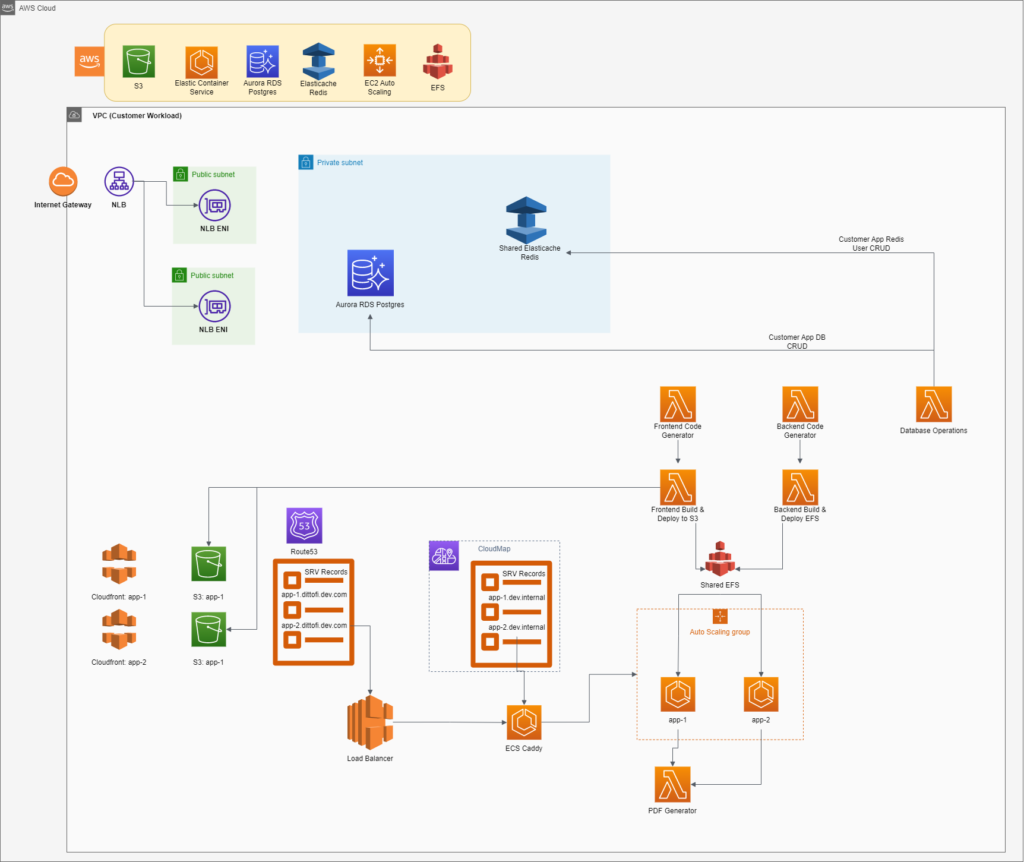
Credit: www.dittofi.com
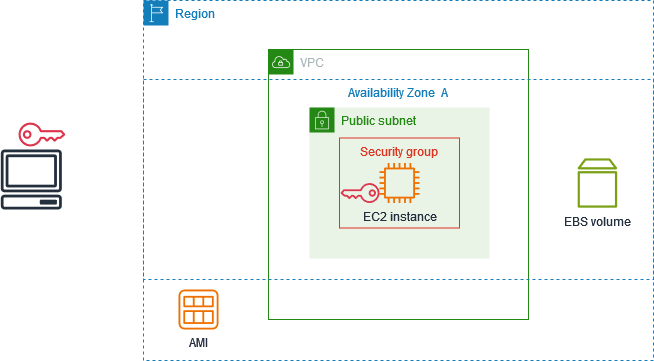
Credit: docs.aws.amazon.com
Frequently Asked Questions
How To Upload A Pdf In Aws?
Upload a PDF to AWS by using the S3 console. Log into AWS, go to S3, create a bucket, and upload your PDF file. Ensure proper permissions for access. Use AWS CLI for command-line uploading. Secure your files with encryption and access control.
Can I Publish A Pdf On Amazon?
Yes, you can publish a PDF on Amazon using Kindle Direct Publishing (KDP). Convert your PDF to a Kindle-friendly format for better readability. KDP supports various formats like DOC, DOCX, HTML, MOBI, and EPUB. Ensure your PDF meets Amazon’s content guidelines before publishing.
How To Send A Pdf File Through A Web Service?
Use a web service API to upload your PDF file. Choose a service like Dropbox or Google Drive. Authenticate your account. Use the provided API endpoint to send the PDF. Follow the API documentation for specific instructions. Ensure the file path is correct.
Check for successful upload confirmation.
Can I Sell A Pdf File On Amazon?
You cannot sell PDF files directly on Amazon. Instead, you can publish eBooks using Kindle Direct Publishing. Convert your PDF to Kindle format for better compatibility and reach. This allows your digital content to be available on Amazon’s platform for purchase and download by readers worldwide.
Conclusion
Hosting PDFs on Amazon Web Service is simple and efficient. Follow the steps, and you’ll have your PDFs online in no time. AWS offers reliable and secure storage options. Your documents will be safe and accessible. This platform is perfect for businesses and individuals alike.
Manage your files with ease and confidence. Enjoy the benefits of cloud storage. It’s a great way to share and access documents quickly. The process may seem complex at first, but with practice, it becomes straightforward. Dive in, and start hosting your PDFs on AWS today!


