
Looking to host your JDA Discord bot on shared web hosting but not sure where to start? You’re in the right place!
Hosting a Discord bot can be a game-changer for your community, providing endless possibilities for engagement and automation. But let’s face it, the process can seem overwhelming if you’re not familiar with the technical details. Don’t worry, though! This guide is designed just for you, breaking down each step into simple, manageable tasks.
Imagine the satisfaction of seeing your bot up and running smoothly without breaking the bank on expensive servers. Ready to dive in and make your Discord server more dynamic and interactive? Keep reading, and you’ll learn how to effortlessly transform your shared web hosting into the perfect home for your JDA Discord bot.
Prerequisites
The Java Development Kit (JDK) is important. It helps your bot run. Make sure to download the latest version. It must match your computer’s system. You can find it on the official Java website. Install it by following the steps provided. Confirm the installation through the command prompt. Type java -version to check. Ensure you see the correct version number.
Maven is a tool that helps manage your project. Download Maven from its official website. Extract the files to a folder. Then, set up the environment path. This allows your system to find Maven. Open your command prompt. Type mvn -version. Check if Maven is installed properly. It should show the version number. This confirms your setup is correct.
Setting Up The Discord Bot
Start by creating a Discord application. Go to the Discord Developer Portal. Click on New Application. Give your application a name. Head to the Bot section. Click on Add Bot. Confirm the action. Now, you have a bot user. Locate the Token section. Click on Copy. Store this token safely. It is your bot’s password. Never share your token. Keep it private.
Visit the OAuth2 section. Scroll down to OAuth2 URL Generator. Select the bot scope. Choose your permissions. Common permissions include Send Messages and Read Messages. Copy the generated URL. Paste it in your browser. Select a server to add your bot. Click Authorize. Complete any security steps. Now, your bot has the right permissions.
Shared Web Hosting Considerations
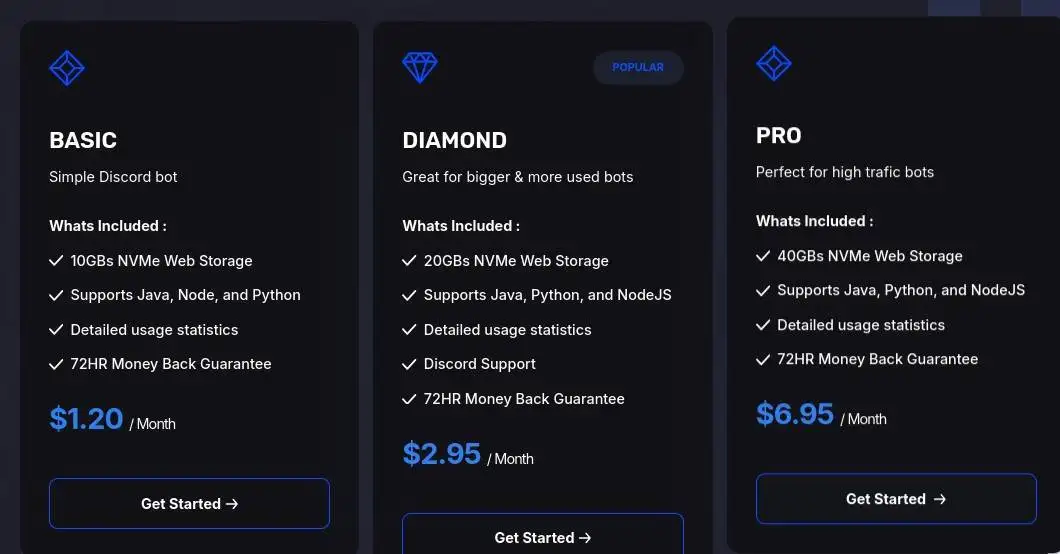
Shared web hosting is budget-friendly. It helps save money. You share resources with others. This makes it cheaper. But, it has limits too. The server can get slow. Many people use it at once. Sometimes, resources are not enough. You may face downtime. Choose wisely for your needs.
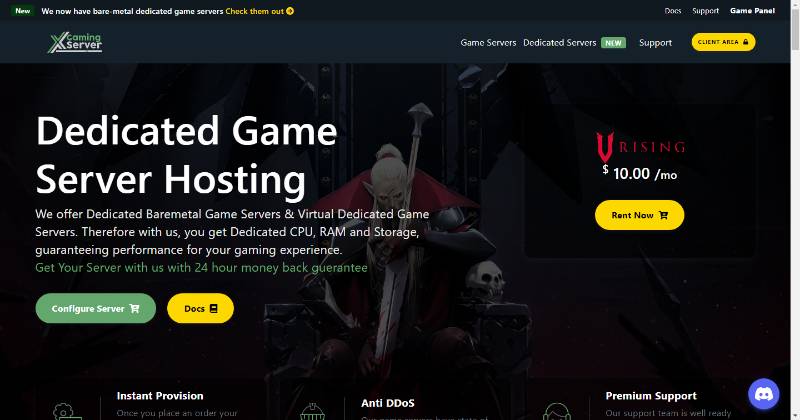
Not all hosts support Discord bots. Check the host’s features. Ensure they support Java. Jda bots use Java language. Look for reliable customer support. This helps solve issues fast. Read user reviews. They show real experiences. Choose a host with a good reputation. This ensures a smooth experience.
Credit: codeless.co
Preparing The Server Environment
Java is crucial for running your bot. First, access your shared hosting control panel. Find the terminal or SSH access option. Enter the command to install Java. Use the command: `sudo apt-get install default-jdk`. Wait for the installation to finish. Check the Java version installed. Type `java -version` in your terminal. A message will show the Java version. Ensure you have Java 8 or newer. Java is now set up.
Maven helps manage your bot’s files. Install Maven in your hosting environment. Use `sudo apt-get install maven` command. Wait for the installation to complete. Verify Maven by typing `mvn -version`. This command shows the installed version. Maven setup is complete. It helps in building your bot’s project files. Your server is ready for the bot.
Deploying Jda Bot On Hosting
First, gather all the necessary files for your bot. Make sure they are in one folder. Open your hosting control panel. Find the file manager section. Click to open it. Now, locate the upload option. Select your bot folder. Upload all files into your server. Wait for the upload to finish. Check if all files are uploaded properly. You are done with uploading!
Environment variables help your bot store important settings. Go to your hosting panel. Look for the section named environment variables. Click it to open. Add a new variable. Name it as your bot needs. Enter the value for this variable. Save your changes. Repeat for each variable needed. Check if all variables are set. Your bot is ready to use them!
Running The Bot
First, upload your bot’s files to the hosting server. Use an FTP client to do this. Next, navigate to the directory with your bot script. Open the terminal or command line. You need to enter the right command. This will start the bot. Make sure your bot script is ready to run.
Keeping your bot always online is important. Shared hosting often closes idle processes. Use a process manager like PM2. This tool helps restart the bot if it stops. Install PM2 on your server. Then, add your bot script to PM2. Now, your bot will stay online even if the server restarts.
Troubleshooting Common Issues
Hosting a Jda Discord bot on shared web hosting often involves troubleshooting connectivity issues. Ensure Java and dependencies are correctly configured. Check firewall settings to allow bot communication.
Connection Problems
Bots often face connection issues on shared hosting. The hosting server might have limited bandwidth. This can slow down the bot’s operations. Check the server settings. Ensure that the bot is allowed to connect. Sometimes firewalls block the connection. Disable any unnecessary firewalls. Ensure the bot’s tokens are correct. Wrong tokens can cause connection failures. Verify the bot’s permissions. These should match the server’s requirements. Restart the hosting server. This can solve many minor issues. If problems persist, contact support. They can check the server logs for errors.
Permission Errors
Permission errors are common on shared hosting. Bots need specific rights to function. Check the bot’s role on Discord. Ensure it has the right permissions. The bot should have access to channels. Without access, tasks will fail. Verify file permissions on the server. Bots need to read and write files. Incorrect file permissions can stop the bot. Update the bot’s role as necessary. This may require admin access. If errors continue, review the bot’s setup. Make sure all settings are correct. Consult the bot’s documentation for guidance.
Optimizing Performance
Shared hosting offers limited resources. Managing resources is crucial. Bots need memory and CPU. Keep an eye on resource usage. Use monitoring tools. Check CPU and memory consumption. Adjust bot settings. Try to reduce resource load. Efficient coding helps. Avoid heavy tasks. Optimize code. Use lightweight libraries.
Response time is important. Fast bots make users happy. Optimize code for speed. Minimize code operations. Use efficient algorithms. Reduce network calls. Cache data. Avoid repeated data fetching. Use asynchronous methods. They improve speed. Test bot speed regularly. Monitor response times. Make adjustments as needed.
Security Practices
Keep your bot token safe. It is like a password. Never share it. Store it in a secure place. Use a .env file to hide it. This file is not shared with others. It keeps your token secret. Only you can see it. Always check your code for leaks. Look for places where the token might show. Fix these places. This keeps your bot safe.
Unauthorized access can harm your bot. Keep your bot’s access limited. Only allow what is needed. Use permissions wisely. They control what the bot can do. Regularly update your software. New updates fix security holes. Always monitor your bot’s activity. Look for strange actions. These might be signs of trouble. Take action quickly to stop problems.
Credit: linuxbuz.com

Credit: www.youtube.com
Frequently Asked Questions
Can You Host A Discord Bot On A Website?
Yes, you can host a Discord bot on a website using cloud services like AWS, Heroku, or Glitch. These platforms provide the necessary infrastructure to run your bot continuously. Ensure your bot script is compatible with the hosting environment and follows Discord’s API guidelines.
How Much Ram Do You Need To Host A Discord Bot?
Hosting a Discord bot generally requires 512MB to 1GB RAM for smooth performance. Bots with complex operations may need more. Ensure your server environment meets these requirements to avoid lag or crashes. Monitoring usage can help optimize resources effectively.
How Do I Host A Bot In Vps?
Install a VPS provider and choose your plan. Set up the server environment, usually Linux. Upload bot files via SSH. Install dependencies using package manager. Run the bot using command line. Ensure continuous operation by employing a process manager like PM2.
Regularly monitor and update for security and performance.
Can I Host A Discord Bot On Azure?
Yes, you can host a Discord bot on Azure. Azure provides cloud services that support Node. js, Python, and other languages. Utilize Azure Functions or Azure App Service for deployment. Ensure your bot complies with Discord’s guidelines and configure the necessary permissions for operation.
Conclusion
Hosting your Jda Discord Bot on shared web hosting is doable. It requires patience and following the right steps. Ensure your web hosting supports Java. Install necessary software and configure settings carefully. Test your bot for errors. Fix issues to ensure smooth operation.
Regular maintenance keeps your bot running well. With practice, hosting becomes easier. Your bot can engage users effectively. Keep learning and adapting to changes. This way, your bot stays relevant and functional. Enjoy the process and the benefits of your hosted bot.


