
Are you looking to expand your web service capabilities and wondering how to host a Java web service on IIS? Whether you’re a developer aiming to streamline your application deployment or a tech enthusiast eager to explore new possibilities, mastering this skill can open doors to improved performance and integration.
Imagine seamlessly running your Java applications on a Windows server, tapping into the robust features of IIS. This guide will walk you through the process step-by-step, making it easier than ever to bring your Java web services to life. By the end of this article, you’ll be equipped with the knowledge to enhance your web service setup and boost your application’s reach and efficiency.
Ready to get started? Let’s dive in and unlock the potential of Java and IIS together!
Prerequisites For Hosting
A good computer is needed. It should have at least 4GB RAM. A modern CPU is important. Ensure enough disk space for files. Windows Server is necessary. A stable internet connection helps. This avoids problems later on.
Java Development Kit (JDK) is essential. Install the latest version. Internet Information Services (IIS) must be on. Check if it’s installed. Install Apache Tomcat as well. It helps run Java applications. Configure all software correctly. This ensures smooth operations.
Configuring Iis For Java
Open the Server Manager. Click on “Manage” and select “Add Roles and Features.” Choose the Application Server role. Click Next several times. Enable Web Server (IIS) support. Confirm your selections and install. This step prepares the server for Java applications. It ensures compatibility and smooth operation.
ISAPI extensions allow Java to work with IIS. Go back to the Server Manager. Click on “Manage,” then “Add Roles and Features.” Scroll down to Web Server (IIS) section. Check the ISAPI Extensions box. Click “Next” and proceed with installation. These extensions help in running Java web services. They bridge the gap between Java and IIS.
Setting Up Java Environment
The Java Development Kit is very important. It helps in building Java programs. Download the latest version from the Oracle website. Install it on your computer. Follow the simple steps given in the installer. After installation, set the JAVA_HOME environment variable. This helps the system find Java files easily. Also, update the system path to include the JDK bin directory. This makes it easier to run Java commands.
A Java Application Server is needed for hosting. Apache Tomcat is a popular choice. Download it from the official site. Install it by extracting the files. Place them in a folder on your computer. Configure the server by editing the server.xml file. This file is found in the conf directory. Start the server using the startup script. This script is in the bin folder. Check if the server is running. Open a web browser and enter http://localhost:8080.

Credit: www.interviewbit.com
Deploying Java Web Service
First, you need a Java web service ready. Package it into a .war file. This file is like a zip file for Java apps. Use tools like Apache Ant or Maven to create the package. Make sure all dependencies are included. This step is crucial for smooth deployment.
Convert the .war file to a .zip file. IIS uses zip files for deployment. Use a tool like 7-Zip or WinRAR for conversion. Open the IIS Manager on your server. Navigate to your web app folder. Upload the zip file there. Extract it to the desired location. Your Java web service is now on the server. Ensure the Java runtime is installed on the server. Without it, the web service won’t run.
Configuring Isapi Redirect
Modifying ISAPI Properties involves changing certain settings. Open the IIS Manager tool. Find the site where you want to add the web service. Click on the site name. Look for the ISAPI Filters option. Click on it to open the settings. You will see a list of filters. Check the existing ones. Add a new filter if needed. Use the correct name and path. Make sure your settings match the requirements. Save your changes. This ensures the redirect works.
Testing Redirect Functionality is the next step. Open a browser. Enter the URL of your site. Check if the web service loads correctly. Make sure the URL points to the right resource. Look for any errors. Fix them if they appear. Try accessing different parts of the service. Ensure everything works well. A successful redirect means the settings are correct.
Managing Security Settings
SSL helps keep data safe. It uses encryption to protect information. To set up SSL, first, get a certificate. This certificate proves your site is secure. Install the certificate on your server. This makes your connection private. Users feel safe when they see the lock icon. It shows SSL is active.
Authentication checks if users are who they say. Use strong passwords for better safety. Set up a username and password system. This stops strangers from accessing your site. Always update passwords often. This keeps things secure. Add two-factor authentication if possible. It uses a code from a phone. Makes it harder to break in.
Monitoring And Troubleshooting
Hosting a Java Web Service on IIS involves setting up the server environment carefully. Ensure compatibility by installing necessary modules and configurations. Regular monitoring helps identify issues early, while troubleshooting guides assist in resolving common errors promptly.
Using Iis Logs
IIS logs help track web service activities. They record every request and response. Use logs to find issues. Check for error codes. Review request details. Look at response times. These details highlight problems in the service. Logs show patterns. Patterns help spot recurring issues. Identify slow requests. Slow requests need fixing. Faster services improve user experience. Examine log entries regularly. Regular checks catch problems early. Early fixes prevent bigger troubles.
Common Issues And Fixes
Web services face common issues. Configuration errors are frequent. Ensure settings are correct. Check for missing files. Missing files cause errors. Ensure all files are present. Permission issues can block access. Verify user permissions. Make sure users have access rights. Network problems disrupt services. Check network connections. Fix broken links. Update SSL certificates if expired. Expired certificates lead to failures. Keep them updated for smooth operations.
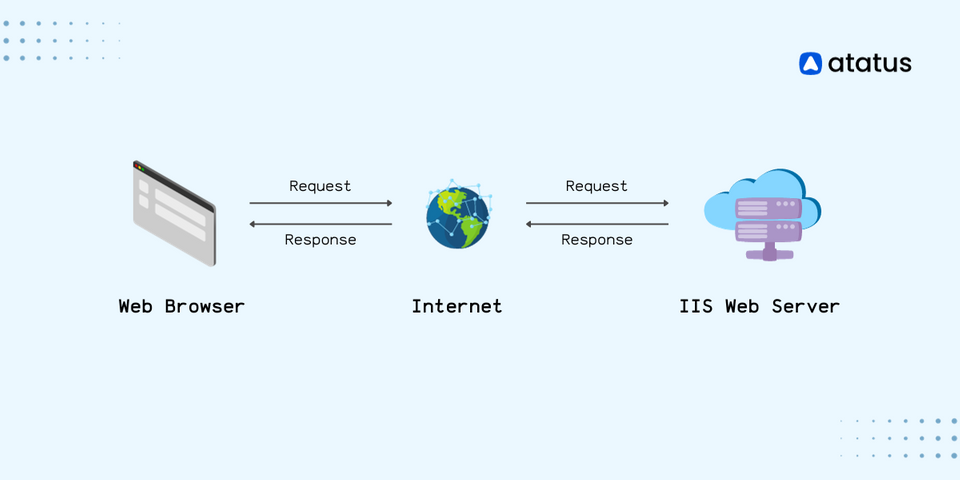
Credit: www.atatus.com

Credit: sspinnovations.com
Frequently Asked Questions
How To Host A Java Web Application In An Iis Server?
Install Java Runtime and configure IIS using the URL Rewrite Module. Deploy your Java application via Tomcat. Integrate Tomcat with IIS using the IIS Tomcat Connector. Ensure proper configuration for seamless operation and test the setup thoroughly.
Does Iis Support Java?
IIS does not natively support Java applications. Use third-party solutions like Apache Tomcat or JBoss for Java integration with IIS. They help facilitate communication between IIS and Java applications. Consider configuring IIS as a reverse proxy to serve Java applications efficiently.
How To Host A Web Service In Iis?
Open IIS Manager, select “Sites” and click “Add Website”. Enter site name, physical path, and binding details. Click “OK” to host your web service. Ensure the server has required permissions and configurations.
How To Run A Java Program On A Web Server?
Install a servlet container like Apache Tomcat on the web server. Deploy your Java web application by placing the WAR file in the webapps directory. Start the server to run the Java program. Ensure Java Development Kit (JDK) and required libraries are installed on the server.
Conclusion
Hosting a Java Web Service on IIS is achievable. Follow the steps carefully. Use the correct tools and configurations. Ensure your setup is secure and efficient. Troubleshoot common issues promptly. With practice, the process becomes easier. Your web service will run smoothly on IIS.
Stay updated with new features and improvements. Explore more about web services to enhance your skills. Embrace learning to refine your methods. The more you practice, the better you become. Happy hosting!


