
Are you ready to make your website live but not sure how to connect your GoDaddy domain with WordPress? You’re in the right place.
Hosting your GoDaddy domain on WordPress might sound tricky, but it’s easier than you think. Imagine having your own professional website up and running quickly, attracting visitors, and growing your online presence—all without technical headaches. You’ll get clear, step-by-step instructions to link your GoDaddy domain to WordPress smoothly.
Keep reading, and you’ll see how simple it is to bring your website to life!
Credit: www.godaddy.com
Preparing Your Godaddy Domain
Preparing your GoDaddy domain is an important step before hosting it on WordPress. This process makes sure your domain is ready for connection. It involves checking domain settings, unlocking your domain, and getting an authorization code. Each step helps you manage your domain smoothly.
Accessing Domain Settings
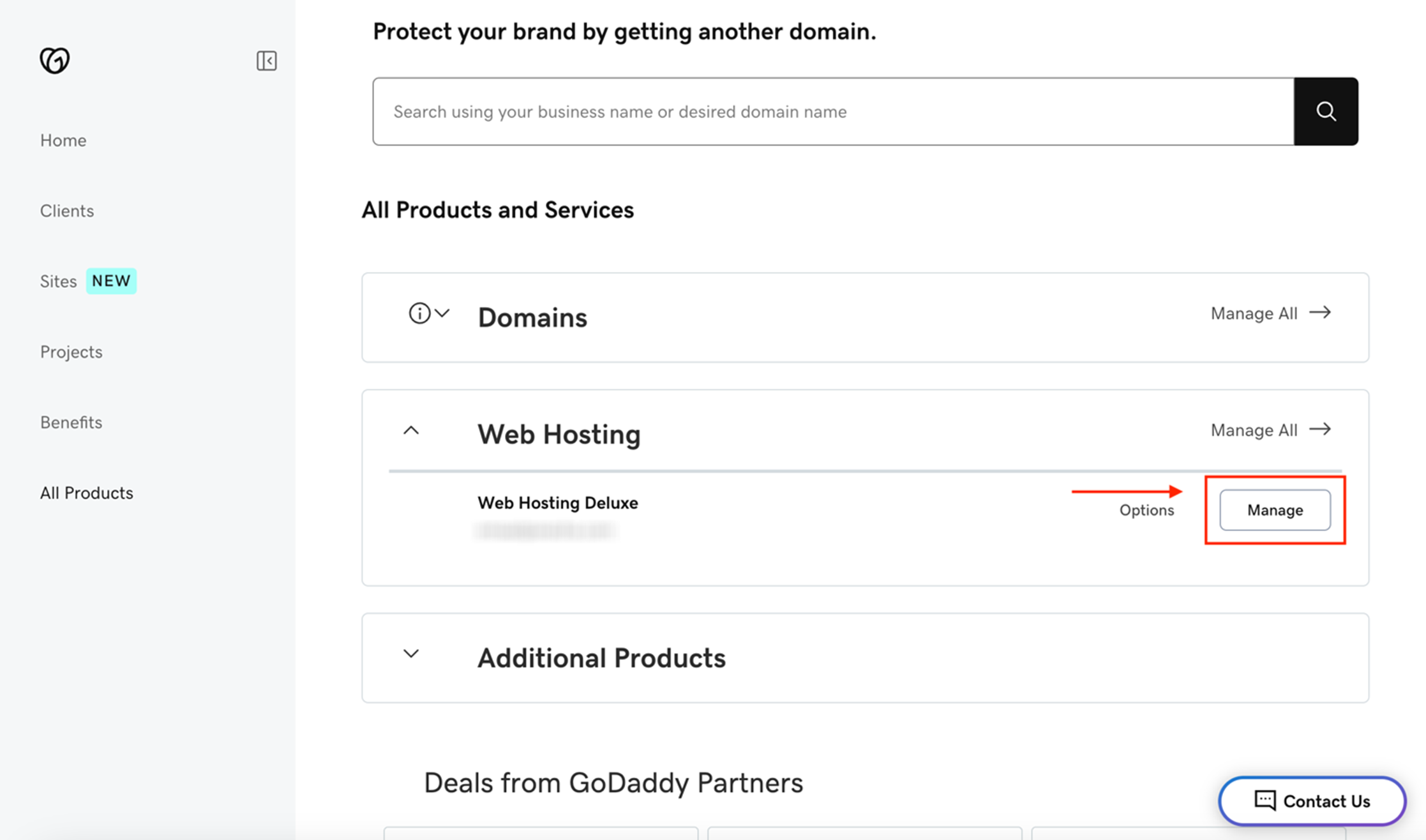
Start by logging into your GoDaddy account. Find the “My Products” section. Click on “Domains” to see your list of domains. Select the domain you want to use. This opens the domain settings page. Here, you can control all important features of your domain.
Unlocking Your Domain
Your domain is usually locked for security. Unlocking it allows you to transfer or connect it to WordPress. On the domain settings page, find the “Domain Lock” option. Switch it off to unlock the domain. This step is necessary before you make any changes outside GoDaddy.
Obtaining Authorization Code
The authorization code is a key for transferring your domain. It acts like a password. On the domain settings page, look for “Get Authorization Code” or “Transfer Key.” Click the button, and GoDaddy will send the code to your email. Keep this code safe for the next steps.
Setting Up WordPress Hosting
Setting up WordPress hosting is the first step to getting your website live. It involves choosing the right host, installing WordPress, and adjusting basic settings. This process makes your site ready for visitors. Follow these simple steps to start your WordPress journey smoothly.
Choosing A WordPress Host
Select a host that offers good speed and uptime. Look for WordPress-specific hosting for easier setup. Check if the host provides automatic updates and backups. Affordable plans with 24/7 support help beginners. Make sure the host supports the latest WordPress version.
Installing WordPress
Many hosts offer one-click WordPress installation. Find this option in your hosting control panel. Enter your site name, username, and password. The system sets up WordPress files automatically. After installation, you receive a login link for your dashboard.
Configuring Basic Settings
Log in to your WordPress dashboard to start configuration. Set your site title and tagline in the settings menu. Choose a simple theme to match your website’s purpose. Adjust the permalink structure for better SEO. Install essential plugins like security and SEO tools.
Connecting Domain To WordPress
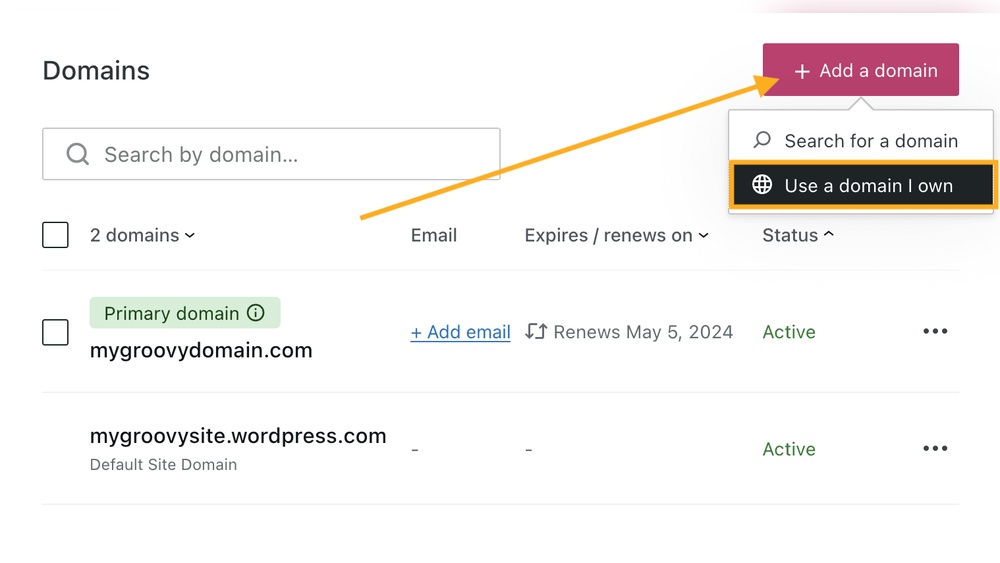
Connecting your GoDaddy domain to WordPress is a key step to make your website live. This process links your domain name with your WordPress site. It ensures visitors reach your content by typing your domain.
The connection involves updating DNS settings or changing nameservers. Each method points your domain to WordPress servers. You also need to verify the connection to confirm everything works well.
Updating Dns Records
Start by logging into your GoDaddy account. Find the domain you want to connect. Go to the DNS management page for that domain.
Look for the “A record” and “CNAME record” settings. Change the “A record” to the IP address provided by WordPress. Update the “CNAME record” to point to your WordPress site URL.
Save the changes. DNS updates can take a few minutes to 48 hours to apply. This method lets you keep your GoDaddy nameservers active.
Changing Nameservers To WordPress
Another way is to change your nameservers to WordPress. Go to your GoDaddy domain settings. Find the option to manage nameservers.
Replace the current nameservers with the ones WordPress gives you. These usually look like ns1.wordpress.com and ns2.wordpress.com. Save your changes.
This method directs all domain traffic to WordPress hosting. Nameserver changes also take some time to update across the internet.
Verifying Domain Connection
After updating DNS or changing nameservers, verify the connection. Log in to your WordPress dashboard. Go to the domain setup or site settings area.
Use the verification tool or check the status message. It should show your domain is connected successfully. If not, check your DNS or nameserver settings again.
Verification ensures your site loads correctly using your GoDaddy domain. It confirms that visitors reach your WordPress website without issues.
Configuring WordPress For Your Domain
Configuring WordPress for your domain is a key step after connecting your GoDaddy domain. This setup ensures your website works smoothly and looks professional. It also helps search engines find your site easily.
Follow these steps to set up WordPress correctly. This will improve your site’s performance and security.
Setting Site Url
The Site URL tells WordPress where your site lives on the internet. Login to your WordPress dashboard. Go to Settings, then General. Update the “WordPress Address (URL)” and “Site Address (URL)” fields to your GoDaddy domain name. Use “https://” if your site has SSL. Save changes. This links your domain to your WordPress site properly.
Enabling Ssl Certificate
SSL keeps your site safe by encrypting data. Most GoDaddy domains include free SSL. Activate SSL in your hosting control panel. Then, in WordPress, install the “Really Simple SSL” plugin. Activate it and follow the setup. This forces your site to use HTTPS. Visitors see a secure lock icon, which builds trust.
Customizing Permalinks
Permalinks control how your page URLs look. Clear, simple URLs help visitors and search engines. In your WordPress dashboard, go to Settings, then Permalinks. Choose “Post name” for clean, easy-to-read URLs. Save changes. This makes your website links user-friendly and SEO-friendly.
Troubleshooting Common Issues
Troubleshooting common issues is key to hosting your GoDaddy domain on WordPress smoothly. Problems may arise during setup or after changes. Knowing how to fix these helps keep your site live and accessible.
Many issues relate to domain settings and server connections. Fixing them often takes just a few steps. Understanding the causes makes the process faster and less frustrating.
Dns Propagation Delays
DNS propagation is the time needed for domain changes to update worldwide. It can take up to 48 hours. During this time, your site may not load correctly.
Clear your browser cache and try accessing from different devices. Use online DNS checkers to see if changes have spread. Patience is important. Avoid making repeated changes during this period.
Ssl Certificate Errors
SSL certificates secure your website with HTTPS. Errors can show if the certificate is missing or not installed correctly. WordPress may also need to be set to use HTTPS.
Verify SSL is active on your hosting account. Use plugins like Really Simple SSL to fix mixed content issues. Renew your certificate before it expires to avoid warnings.
Domain Not Resolving
Your domain may not resolve if DNS records are wrong or missing. Check that the nameservers point to WordPress hosting. Confirm A and CNAME records are correct.
Double-check GoDaddy’s domain settings. Resetting DNS records often solves this issue. Contact support if problems continue after updates.

Credit: wordpress.com
Tips For Managing Your Domain And Site
Managing your domain and WordPress site well keeps your online presence strong. Small actions help avoid big problems later. Focus on renewing your services, backing up your data, and speeding up your site. These tips make your website safer and faster.
Renewing Domain And Hosting
Always check your domain and hosting expiration dates. Set reminders to renew them early. Expired domains cause your site to go offline. Early renewal helps keep your website live and accessible. Consider automatic renewal to avoid missing renewal dates.
Backing Up Your WordPress Site
Regular backups protect your website data. Use plugins or hosting tools to create backups. Store backups in a separate location, like cloud storage. Backups help restore your site after errors or hacks. Schedule backups weekly or after major updates.
Improving Site Performance
Fast websites keep visitors happy and improve SEO. Optimize images before uploading to reduce load time. Use caching plugins to speed up page loading. Choose a reliable hosting plan with good server speed. Regularly update WordPress, themes, and plugins for better performance.

Credit: wordpress.com
Frequently Asked Questions
How Do I Connect Godaddy Domain To WordPress?
To connect your GoDaddy domain to WordPress, update your domain’s DNS settings. Point the A record to WordPress hosting IP. This links your domain to your WordPress site, making it accessible via your custom URL.
Can I Use Godaddy Domain With WordPress Hosting?
Yes, you can use a GoDaddy domain with WordPress hosting. Simply update your DNS records to point to your WordPress host. This process ensures your domain directs visitors to your WordPress website.
How Long Does Dns Propagation Take For Godaddy Domains?
DNS propagation usually takes 24 to 48 hours for GoDaddy domains. During this time, your website might be intermittently accessible. Be patient, as global DNS updates are necessary for the domain to fully connect.
Is It Free To Host A Godaddy Domain On WordPress?
Using a GoDaddy domain with WordPress hosting is not free. You must pay for the domain registration and your WordPress hosting plan. However, connecting them involves no extra fees beyond these services.
Conclusion
Hosting your GoDaddy domain on WordPress is simple and quick. Just follow the steps carefully to connect your domain and website. This setup helps your site look professional and easy to find. Regularly check your domain settings to avoid issues.
Now, you can focus on creating great content for your visitors. Hosting your domain on WordPress opens many opportunities for growth. Keep your site updated and enjoy the benefits of your online presence.


