
Are you looking to expand the capabilities of your FileMaker database by hosting it on the web? You’re not alone.
Many users want to unlock the full potential of their data by making it accessible online. Imagine the ease of having your FileMaker database available at your fingertips, no matter where you are. You could streamline your operations, boost productivity, and enjoy seamless collaboration across your team.
This guide will walk you through the essential steps to host FileMaker on the web, helping you transform your database into a powerful, web-accessible tool. Whether you’re tech-savvy or a beginner, you’ll find clear, actionable instructions that can make this transition smooth and successful. Keep reading, and take the first step toward revolutionizing how you manage your data.
Credit: www.soliantconsulting.com
Setting Up Your Environment
Select a reliable platform for hosting FileMaker. It should support FileMaker Server. Check if it provides good customer support. Your hosting platform must be easy to use. It should fit your budget too. Some hosting providers offer specific FileMaker hosting. This can make setup easier. Always read reviews before choosing.
Ensure your server meets FileMaker’s system requirements. Verify the operating system compatibility. Check the processor speed. Make sure you have enough RAM. Storage space is important too. FileMaker Server needs specific software. Ensure your server has these. Keep your software updated. This helps avoid issues.
Filemaker Server Installation
First, go to the FileMaker website. Find the download section. Click on the FileMaker Server link. Choose the right version for your operating system. Start the download process. Save the file to your computer. Check if the download is complete. This might take a few minutes.
Find the downloaded file on your computer. Double-click to open it. Follow the installation wizard steps. Agree to the terms and conditions. Choose the installation folder. Click on the “Install” button. Wait for the installation to finish. A success message will appear. This means the installation is done.
Open the FileMaker Server application. Enter the admin credentials. Set up a strong password. Configure the network settings. Choose the file sharing options. Save the settings. Restart the server to apply changes. This ensures everything works well. Now, your server is ready.
Configuring Webdirect
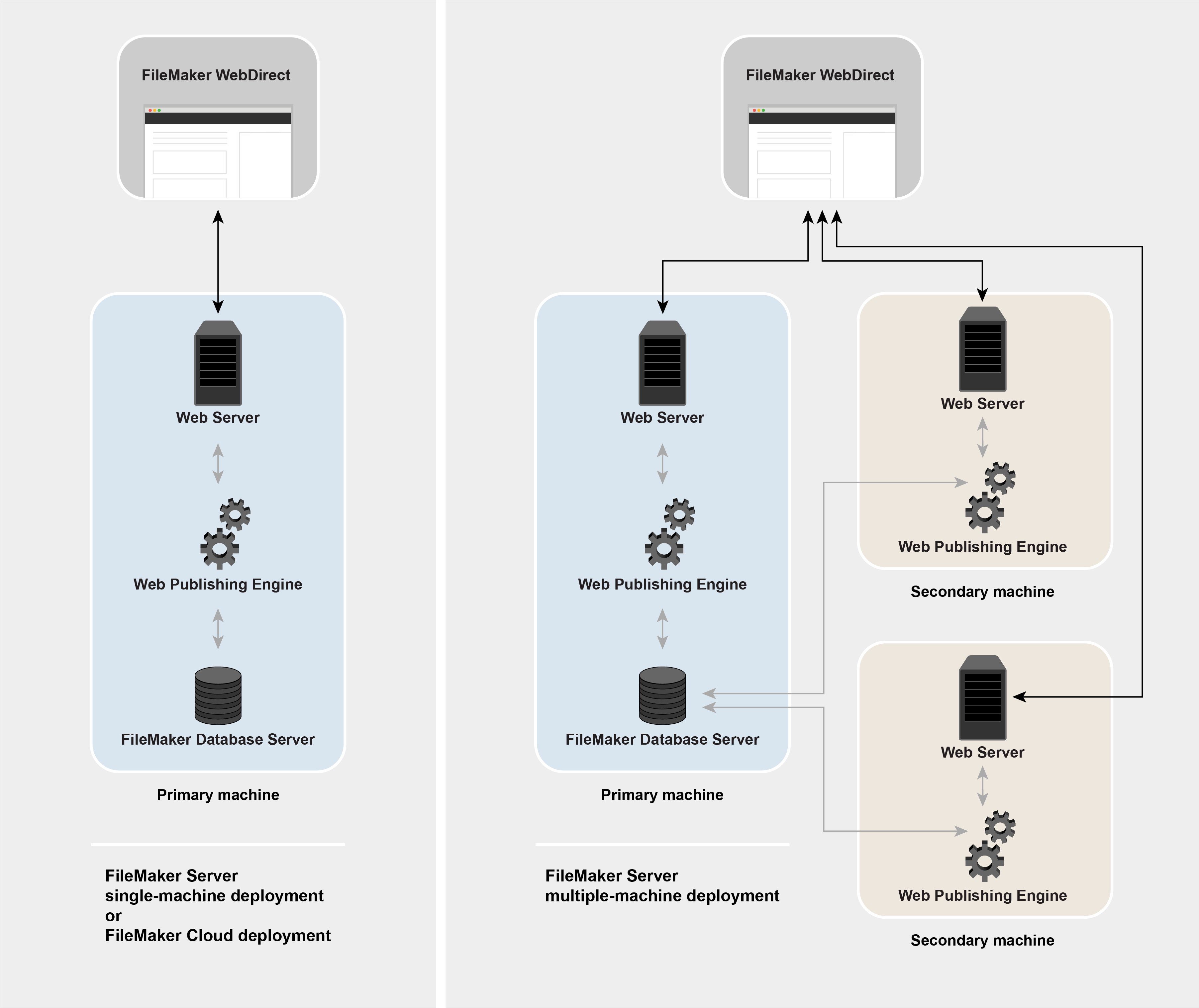
WebDirect allows users to access Filemaker databases online. First, open the Filemaker Server Admin Console. Click on the WebDirect tab. Check the box to enable WebDirect. Save your settings. This opens access to your database through a web browser. Make sure your server is secure. Use strong passwords for protection.
Customization helps improve user experience. Go to the WebDirect settings in the Admin Console. Adjust themes and layouts to fit your style. Choose which databases are accessible online. Set up permissions for each user. Limit access to sensitive data. Ensure everything looks good before saving changes.
Credit: help.claris.com
Security Considerations
SSL certificates make your site safe. They help protect data. To set up, you need to buy a certificate. Many companies sell them. Look for a trusted provider. Follow their steps to install it. This keeps your data private. No one can see it without permission.
User authentication keeps your site secure. Choose strong passwords. Use numbers and symbols. Never share your password. Change it often. Enable two-factor authentication. This adds a second step to log in. It makes accounts safer.
Data encryption turns information into a secret code. Only certain people can read it. Use encryption tools to keep data safe. Encrypt all important files. Regularly update your software. This prevents hackers from stealing data. Always keep your system secure.
Performance Optimization
Hosting Filemaker on the web enhances performance by ensuring quick access and efficient data management. Optimize server settings for fast loading times and seamless user experience. Utilize reliable hosting services to maintain consistent uptime and security.
Improving Server Performance
To enhance server performance, ensure hardware meets system needs. Fast processors and ample RAM help. Use SSD drives for quicker data access. Regularly update software. This keeps bugs away and improves speed. Limit simultaneous tasks on the server. Too many tasks slow it down. Set priority for important tasks. This makes sure they run smoothly. Use load balancing if possible. It distributes tasks evenly across servers. This avoids overload on one server.
Efficient Database Design
Designing a efficient database is crucial. Keep tables simple and organized. Avoid redundant data. This saves space and speeds up queries. Use indexes for faster searches. They help locate data quickly. Arrange data logically. This aids in faster retrieval. Limit the number of fields per table. Too many fields slow processing. Use relationships wisely. They connect tables without duplicating data.
Monitoring And Maintenance Tips
Regular monitoring keeps your system healthy. Check server logs often. They show errors and performance issues. Use monitoring tools for real-time data. They alert you to problems quickly. Schedule regular maintenance tasks. Clean up unused data. This frees up space and improves speed. Update software regularly. This keeps your system secure and fast. Set alerts for unusual activity. Quick response prevents bigger issues.
Troubleshooting Common Issues
Is your Filemaker connection slow? Check your internet cable. Make sure it is plugged in well. A weak Wi-Fi signal can also cause issues. Move closer to your router. Restart your modem if necessary. These steps often help improve connectivity.
Seeing error codes? Read the message carefully. Errors often tell you the problem. Check for typos in your server address. Wrong settings can cause errors too. Make sure you enter the right login details. Double-check everything to fix errors quickly.
Need more help? Visit Filemaker’s support page. They have guides and FAQs. You can also join user forums. People there share tips. Contact Filemaker support directly for tough problems. They help solve issues fast.
Backup And Recovery
Hosting FileMaker on the web requires robust backup and recovery solutions. Protect your data with regular backups. Ensure quick recovery to minimize downtime and keep operations smooth.
Automating Backups
Backups are very important. They keep your data safe. Automating backups makes this process easy. You can schedule them daily or weekly. No need to remember each time. Backups can be saved in the cloud. You can access them anytime. Secure storage is crucial. It protects against loss. Automatic alerts help monitor backup status. They notify if something goes wrong. Always check backup settings. Ensure they are correct. This avoids errors in saving data.
Restoring Data Safely
Data can be lost or damaged. Restoring data brings it back. It is a simple process. Follow steps carefully. Use correct settings to restore. This ensures accuracy. Check backup files before restoring. Make sure they are complete. Keep records of backups. This helps track changes. Test restored data for errors. Confirm it works well. Safety is key. Always restore data with caution. It protects from mistakes.
Credit: 360works.com
Advanced Customization
Integrating with Other Systems is key for flexibility. Filemaker can work with many tools. Connect it with your favorite apps. Use Data APIs to share information. This helps keep everything updated. You can also link with cloud services. Syncing data is easy with these connections.
Custom Scripts and APIs make Filemaker more powerful. Scripts automate tasks. They save time and reduce mistakes. APIs allow Filemaker to talk with other systems. This means smoother workflows. Users can do more with less effort. It’s about making Filemaker fit your needs.
Frequently Asked Questions
How Do I Publish Filemaker To The Web?
Publish FileMaker to the web by using FileMaker Server with WebDirect. Ensure your database is web-compatible. Configure the server settings for web publishing. Share the URL with users to access the database online.
How Do I Access Filemaker Remotely?
Access FileMaker remotely by using FileMaker Cloud or FileMaker Server. Ensure remote access settings are enabled. Connect via a web browser or FileMaker Go app. Ensure your network settings allow external access for seamless connectivity.
Is Filemaker Web Based?
FileMaker is not entirely web-based but supports web publishing. Users can access databases via browsers using WebDirect. This feature provides a web-like interface for remote access. For full functionality, FileMaker Pro or FileMaker Server is needed. WebDirect offers limited features compared to the desktop application.
How Do I Host A Filemaker Pro Database?
Host a FileMaker Pro database using FileMaker Server for reliable performance and user access. Install FileMaker Server on a dedicated machine. Configure network settings, ensuring proper security measures are in place. Regularly back up your database to prevent data loss.
Optimize server settings for efficient database management and seamless user experience.
Conclusion
Hosting FileMaker on the web opens many possibilities. It lets you access data anytime, anywhere. Set up is simple with the right tools. Start by choosing a reliable hosting service. Next, focus on security to protect your data. Keep performance in mind for smooth operation.
Regular updates help maintain functionality. Troubleshooting common issues ensures stability. Follow these steps to make your web-hosted FileMaker successful. Enjoy the flexibility and accessibility it offers. Your digital workspace awaits, ready to enhance productivity.


