
Have you ever wondered how to host your very own website on Amazon Web Services (AWS)? This might sound like a daunting task, but it’s easier than you think.
Imagine having the power to scale your website effortlessly, ensuring it’s always fast and reliable for your visitors. AWS, a leader in cloud hosting, offers you just that. By choosing AWS, you’re not only opting for robust infrastructure but also for the peace of mind that comes with knowing your website is in capable hands.
In this guide, you’ll discover step-by-step how to get your website up and running on AWS, even if you’re a complete beginner. So, if you’re ready to unlock the potential of your online presence, read on to learn how AWS can transform your website hosting experience.

Credit: www.signitysolutions.com
Setting Up An Aws Account
Start by going to the AWS website. Click on the Create an AWS Account button. Fill in your email and choose a strong password. After this, enter your billing information. AWS offers a free tier for new users. This means you can try some services for free. Be sure to check the details of the free tier. Agree to the terms and conditions. Finally, click on Create Account and you’re all set.
AWS provides different plans for different needs. The Free Tier plan is great for beginners. It lets you use AWS services without cost for a year. If your website grows, consider the Pay-As-You-Go plan. You only pay for what you use. For larger websites, the Enterprise plan might be suitable. It offers more resources and support. Always review each plan before deciding. Choose the plan that fits your needs.
Credit: medium.com
Preparing Your Website
Choosing a domain name is very important. It should be easy to remember. Short names work best. Avoid numbers and symbols. Check if the name is available. Use tools to search for availability. A unique name helps in branding. Register your domain with a trusted registrar. This is the first step in getting online.
A good design makes your site attractive. Use simple layouts. This helps users to navigate easily. Bright colors can catch attention. But do not use too many. Content should be clear and concise. High-quality images make your site look professional. Ensure the site works on mobile devices. This is important for all users. A well-designed site keeps visitors engaged.
Amazon S3 For Hosting
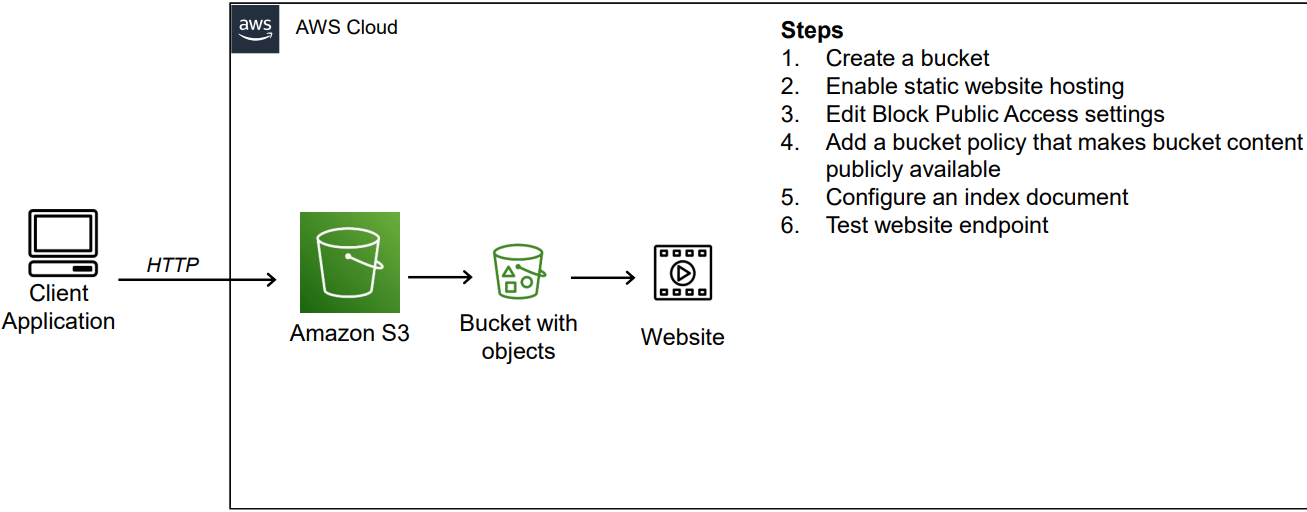
Amazon S3 is a tool for hosting. It stores your website files. First, create an S3 bucket. Name it like your website. Make it public. This lets others see your site. Choose a region close to your users. It helps with speed.
Upload your files to the bucket. Click “Upload” and choose files. Include HTML, CSS, and images. These files make your site work. After uploading, set permissions. This makes sure files are visible. Set the bucket policy. It allows access to everyone. Your website is now online.
Configuring Cloudfront
Configuring CloudFront is a key step in hosting a website on Amazon Web Services. It speeds up content delivery by caching files closer to users. This enhances website performance and reduces latency, ensuring a smoother experience for visitors.
Setting Up A Cloudfront Distribution
Setting up CloudFront can make websites faster. First, go to the AWS console. Click on CloudFront. Choose “Create Distribution” to start. Select the origin domain for your content. This tells CloudFront where to find your files.
Choose a delivery method. Pick “Web” for websites. Set the cache settings. Caching helps load pages quickly. More caching means faster websites. Set up SSL for secure connections. SSL keeps data safe. Use default settings if unsure. Review all your choices.
Click “Create Distribution” to finish. Your website will be faster now. Remember, changes may take time. Watch the distribution status. Make sure everything works well.
Enhancing Website Performance
CloudFront can boost performance. It uses edge locations around the world. This means faster load times. Users get content from the nearest location. Less waiting. Check your cache settings regularly. Adjust them to improve speed. Fast websites make users happy.
Monitor your CloudFront logs. Look for errors or slowdowns. Fix any issues quickly. Keep your website performing well. Happy users mean more visits. More visits mean success.
Using Route 53 For Domain Management
First, visit the AWS Management Console. Look for Route 53 in the services list. Click on it to start. Now, choose the option to register a new domain. Type your desired domain name. Make sure it is available. If it is, you can proceed to purchase it. The process is quick and easy. You will need to provide some information. This includes your contact details. Once done, your domain will be ready.
Access the Hosted Zones in Route 53. This is where DNS settings are managed. Add a new hosted zone for your domain. Now, create DNS records to point your domain to your server. The most common records are A, CNAME, and MX records. Ensure the IP address matches your server’s IP. Save your changes. These settings help direct web traffic to your site. Double-check each entry for accuracy.
Security And Monitoring
Secure your website with Amazon Web Services. AWS offers monitoring tools for constant vigilance and threat detection. Protect data and maintain uptime with easy-to-use security features.
Implementing Security Measures
Security is very important for websites. Use strong passwords for all accounts. Update software often to fix security holes. AWS offers tools to protect your data. Use these tools to keep your site safe. Enable firewalls to block bad traffic. Only allow trusted IP addresses. Limit access to sensitive data. Regularly check for security risks. Educate your team about security best practices. Make sure everyone follows them.
Monitoring Website Traffic
Keep an eye on your website traffic. AWS provides tools for this. Use AWS CloudWatch to track data. It shows how much traffic your site gets. Check which pages people visit most. Look for any unusual activity. Unusual spikes could mean a problem. Make sure your site can handle the traffic. Regular monitoring helps keep your site running smoothly. It also helps in detecting issues early.
Scaling Your Website
Auto Scaling helps your website grow with more visitors. It adjusts resources automatically. Imagine more people visit your site. Auto Scaling adds more servers. This keeps your website fast. No need to worry about slow pages. Auto Scaling removes servers when visitors decrease. This saves money. You pay only for what you use. Easy and smart. Your website stays efficient. Always ready for more traffic.
Resource Allocation means using the right amount of power. Do not waste resources. Use only what you need. This helps save money. AWS helps with this. You can set rules. Rules decide how much power your site needs. Less visitors mean less power. More visitors need more power. Smart choices keep costs low. This is good for business. Your website stays strong. Always ready.
Credit: www.youtube.com
Frequently Asked Questions
Can You Host A Website With Aws?
Yes, you can host a website with AWS. Use services like Amazon EC2, S3, and CloudFront for efficient hosting. AWS offers scalability, reliability, and flexibility for your web hosting needs. Explore their pricing and tools to match your website requirements.
Enjoy global reach with AWS’s extensive infrastructure.
How To Create A Web Server In Aws?
To create a web server in AWS, launch an EC2 instance. Choose an Amazon Machine Image (AMI). Configure instance settings, including security groups. Connect via SSH, install web server software like Apache or Nginx. Upload your website files. Ensure the server is accessible by configuring DNS settings.
Is Aws A Good Web Host?
AWS is a reliable web host offering scalable solutions. It provides excellent uptime and robust security features. Businesses benefit from its flexible pricing and global reach. AWS supports various web hosting needs, making it a popular choice. Its comprehensive tools help optimize performance and manage resources efficiently.
How To Host A Dynamic Website In Aws?
Start by creating an EC2 instance in AWS. Install web server software like Apache or Nginx. Deploy your dynamic website files. Use RDS for database hosting. Configure security groups and set permissions. Use Route 53 for domain management. Ensure regular backups and monitor performance through CloudWatch.
Conclusion
Hosting a website on Amazon Web Services offers flexibility and power. AWS provides a robust platform for websites of all sizes. With practice, setup becomes straightforward. Remember to keep an eye on costs. AWS’s pay-as-you-go model suits many budgets. Explore tutorials and community forums for guidance.
Don’t forget security measures. They safeguard your site and data. Regular updates and backups are essential. They ensure reliability and peace of mind. AWS is a solid choice for website hosting. With patience, your site can thrive on AWS. Start small and expand as needed.
Your journey with AWS begins now.


