
Imagine having the power to host your website on a platform you already use daily. Dropbox isn’t just for storing photos and documents; it can be a secret weapon for your web hosting needs.
You might be wondering how that’s possible, and the answer is simpler than you think. With a few easy steps, you can transform Dropbox into your very own web hosting service. This guide will reveal how you can do it, eliminating the complexity and costs associated with traditional web hosting methods.
Curious to learn how you can leverage Dropbox to showcase your website to the world? Keep reading, and unlock the potential of Dropbox for your web hosting needs.
Credit: tiiny.host
Setting Up Dropbox
Start by visiting the Dropbox website. Click on Sign Up at the top. Enter your email and password. Remember, a strong password is important. Agree to the terms and conditions. Click Create Account. You will receive a confirmation email. Check your inbox and follow the link. Your Dropbox account is now ready.
Find the Download button on the Dropbox website. Click it to start downloading. Open the downloaded file. Follow the instructions to install Dropbox. Log in with your new account. Make sure to choose the correct folder for syncing. Once installed, Dropbox will run in the background. You can access your files from anywhere.
Preparing Your Website Files
Keep your website files in one folder. Name it clearly, like “MyWebsite.” This helps you find it easily. Inside, create folders for images, scripts, and styles. This keeps everything tidy. It’s like organizing school supplies. You know where your pens and pencils are. It saves time and confusion later.
Save your web pages as HTML files. These files are the most common. Use simple names like “index.html” for your main page. For images, choose JPEG or PNG formats. They work well online. Keep file names short and without spaces. This makes sharing easier.
Uploading Files To Dropbox
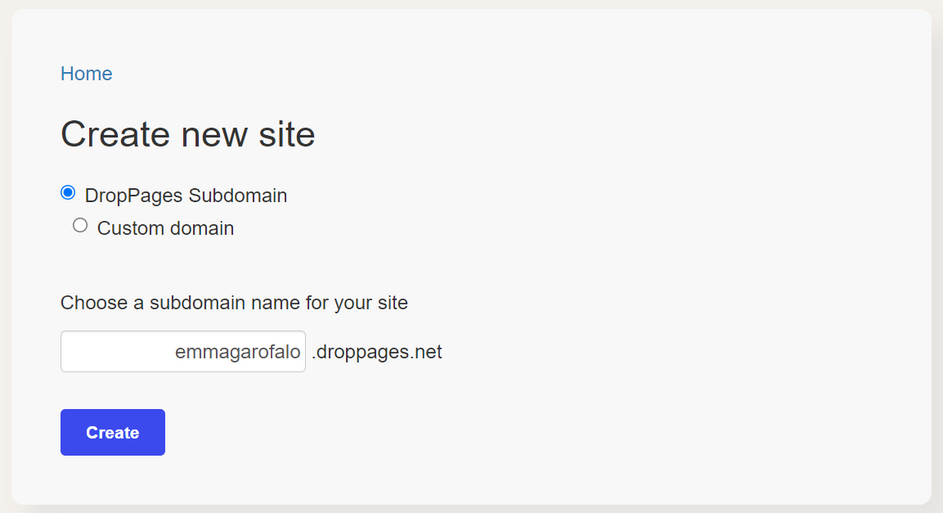
First, download and install the Dropbox app on your computer. After installing, open the app and log in. Find the Dropbox folder on your computer. It looks like a normal folder. Drag and drop files you want to share into this folder. The files will sync automatically. A green check means they are ready. Easy and quick.
Open your web browser and go to the Dropbox website. Log into your account. Click on the Upload button at the top. Choose files from your computer to upload. Watch the progress bar as files upload. Once done, they are ready to use. Simple and clear.
Credit: www.makeuseof.com
Creating Public Links
Dropbox lets you share files with others easily. Permissions help control who can view or edit your files. It’s important to set the right permissions. You can choose between view only or edit access. Always check permissions before sharing links. This keeps your files safe.
Dropbox makes it simple to create links. These links let others see your files. First, find the file you want to share. Next, click on the “Share” button. A link will appear. Copy this link to share with others. Remember, anyone with the link can access your file. Share only with people you trust.
Configuring Domain Settings
You can use a domain to point to your Dropbox. First, log in to your domain provider. Find the DNS settings. Look for the CNAME record section. Enter the Dropbox URL in the record. Save the changes. This will redirect your domain to Dropbox.
Custom domains make your site look professional. Go to the domain settings page. Add your custom domain. Use the A record to link it to Dropbox. Choose the IP address for Dropbox. Enter it in the record field. Verify the settings. Now, your site uses a custom domain.

Credit: www.youtube.com
Ensuring Website Security
Managing access is very important for website safety. Only trusted people should have access. Use strong passwords. Change them often. This keeps bad people out. A password manager can help you remember them. Limit who can see or change your files. Dropbox offers options for this. Set permissions wisely. Share only what is needed. Keep your website safe.
Regular updates are key to a secure website. New updates fix old problems. Always use the latest software versions. This includes Dropbox and website tools. Updates add new features too. They make your site run better. Check for updates often. Turn on automatic updates if possible. It saves time and keeps your website secure.
Troubleshooting Common Issues
Links may not work if the file path is wrong. Check the path of each file. Make sure it matches the link. Update any broken links. Use the correct path. Sometimes, links break if files move. Keep file locations the same. This helps links stay active.
Files need to be public for others to see. Set file permissions to public. This allows access for everyone. Sometimes files stay private. Check settings if this happens. Change them to public. This fixes visibility issues. Always double-check file settings. This ensures proper access.
Frequently Asked Questions
Can Dropbox Host A Website?
Dropbox cannot host a traditional website. It is designed for file storage and sharing. For web hosting, use dedicated services like Bluehost or GoDaddy. Dropbox can store website files, but they won’t be live on the internet. Use it for backup or collaboration purposes instead.
How Do I Add A Website To Dropbox?
You can’t directly add a website to Dropbox. Instead, save web pages as files and upload them to Dropbox. Use browser extensions or tools to save web pages in PDF format for easy uploading. Organize them in folders for quick access and sharing with others.
How Do I Host A Website On Drive?
To host a website on Google Drive, upload your HTML files, set sharing permissions to “Public,” and obtain the shareable link. Use a third-party service like gdriveweb or drive-to-web to convert Google Drive links into accessible URLs for your website.
Ensure files are in a single folder for seamless access.
Can I Use Dropbox As A Server?
Dropbox can function as a cloud storage solution but isn’t a full-fledged server. It allows file sharing and collaboration, but lacks server capabilities like hosting websites or running applications. Consider dedicated servers or cloud services for such needs.
Conclusion
Hosting a website on Dropbox is simple and efficient. You can save costs and enjoy seamless access. Just follow the steps outlined, and your site will be live quickly. Remember to keep your files organized. This ensures smooth operation. Dropbox offers reliable storage for your website needs.
It’s a great option for beginners. Manage your site effortlessly with this method. Explore Dropbox’s features and make the most of them. Your website can thrive with minimal hassle. Enjoy the process and watch your site grow. Happy hosting!


